


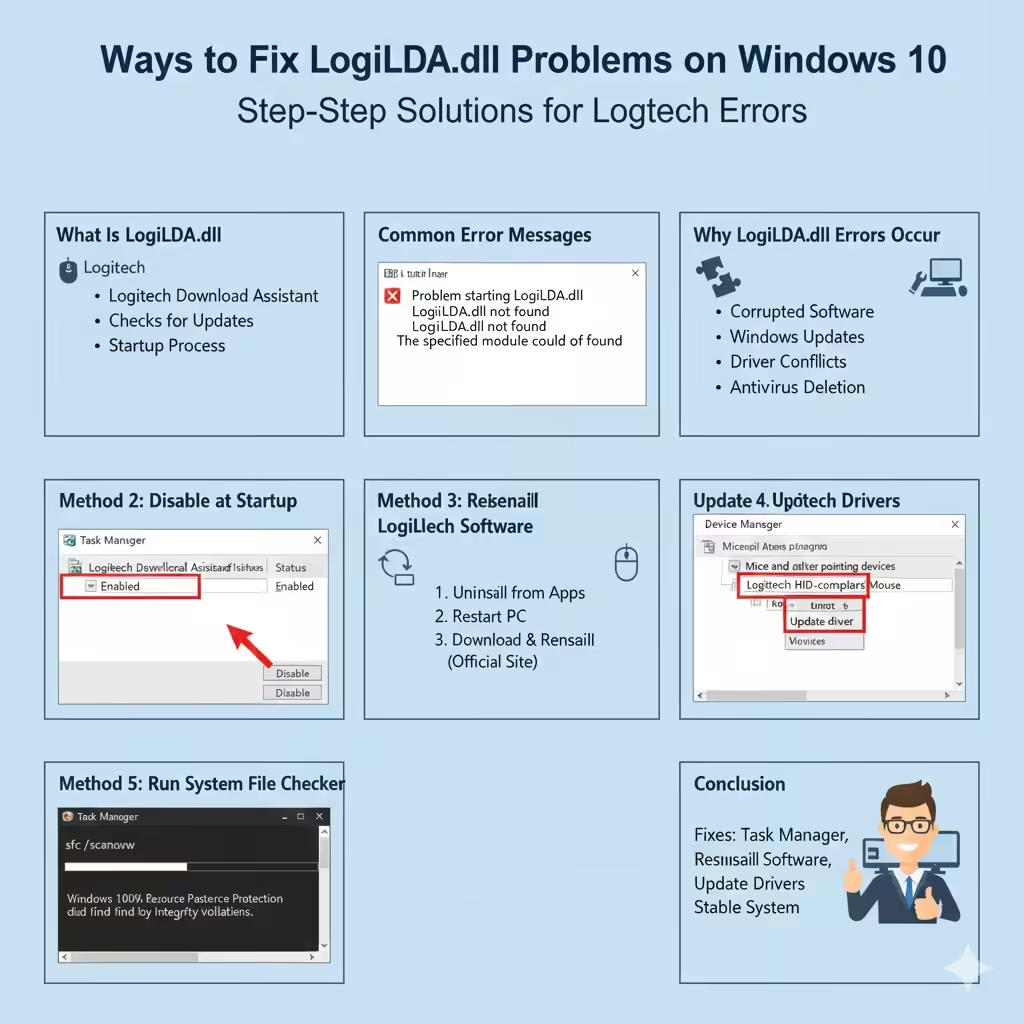
Ways to Fix LogiLDA.dll Problems on Windows 10
LogiLDA.dll errors are a common issue faced by Windows 10 users, especially those using Logitech devices such as mice, keyboards, webcams, or headsets. These errors often appear during system startup and may display messages indicating that LogiLDA.dll is missing, could not be found, or failed to load. While the error can be annoying, it is usually not serious and can be fixed using several reliable methods.
This guide explains what LogiLDA.dll is, why the error occurs, and provides step-by-step solutions to fix LogiLDA.dll errors in Windows 10.
What Is LogiLDA.dll
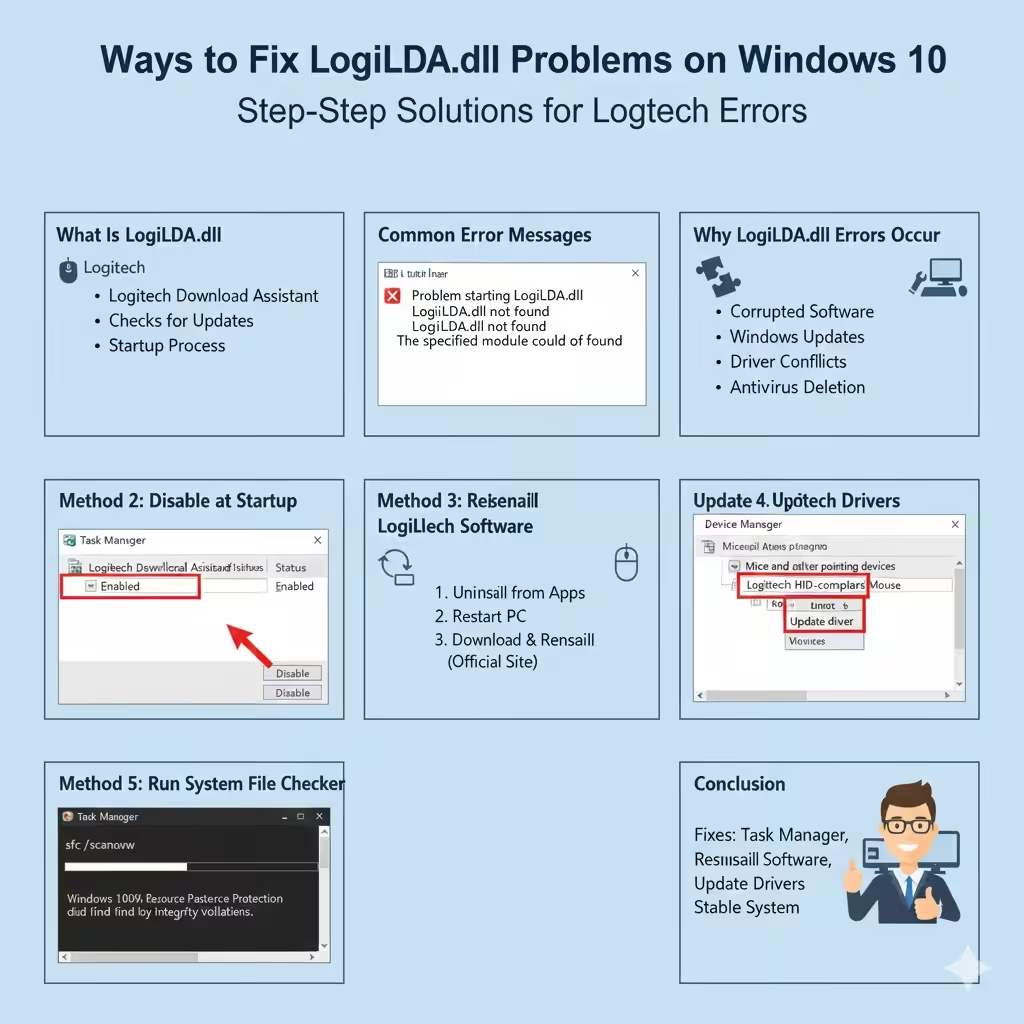
LogiLDA.dll is a Dynamic Link Library file associated with Logitech Download Assistant, a background component installed with Logitech software. Its main role is to:
-
Check for Logitech software updates
-
Support communication between Logitech devices and Windows
-
Run silently in the background during startup
Because it is tied to startup processes, any problem with this file often results in an error message when Windows boots.
Common LogiLDA.dll Error Messages
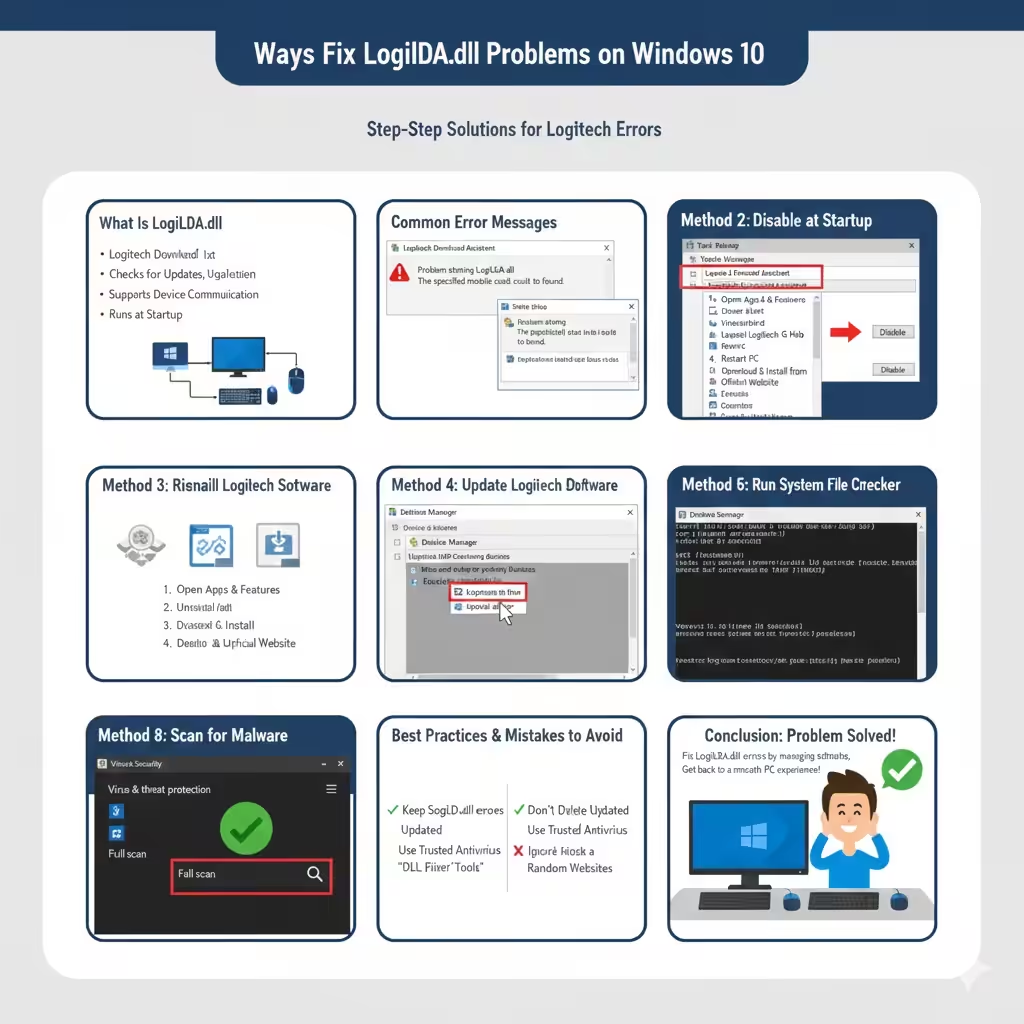
Users may see different variations of the error, including:
-
“There was a problem starting LogiLDA.dll”
-
“LogiLDA.dll is missing”
-
“LogiLDA.dll not found”
-
“The specified module could not be found”
Despite the alarming wording, these errors usually indicate a software conflict rather than system damage.
Why LogiLDA.dll Errors Occur
Several factors can cause LogiLDA.dll errors.
The most common causes include:
-
Corrupted Logitech software installation
-
Incomplete or failed Windows updates
-
Conflicts between old and new Logitech drivers
-
Missing startup references after software removal
-
Antivirus or system cleanup tools deleting the file
Understanding the cause helps determine the most effective fix.
Is LogiLDA.dll Safe
LogiLDA.dll is a legitimate file from Logitech. It is not a virus or malware when located in the proper Logitech directory. However, malicious software can sometimes disguise itself using similar names.
To stay safe:
-
Ensure the file location is related to Logitech
-
Use trusted antivirus software
-
Avoid downloading DLL files from unofficial websites
Method 1: Restart Your Computer
Before making changes, try a simple restart.
Why This Helps
Temporary file locks or incomplete updates can trigger the error. Restarting allows Windows to reload system components properly.
If the error persists after restarting, move on to the next methods.
Method 2: Disable Logitech Download Assistant at Startup
LogiLDA.dll is commonly triggered by Logitech Download Assistant.
Steps to Disable Startup Entry
-
Press Ctrl + Shift + Esc to open Task Manager
-
Go to the Startup tab
-
Locate Logitech Download Assistant
-
Right-click it and choose Disable
Restart your computer and check if the error is gone.
What This Does
Disabling this entry stops Windows from attempting to load LogiLDA.dll at startup, eliminating the error without affecting basic device functionality.
Method 3: Reinstall Logitech Software
A corrupted Logitech installation is one of the main reasons for this error.
How to Reinstall Logitech Software
-
Open Settings
-
Go to Apps
-
Uninstall Logitech-related software
-
Restart your PC
-
Download the latest version from Logitech’s official website
-
Install the software and restart again
This ensures all required files, including LogiLDA.dll, are restored correctly.
Method 4: Update Logitech Drivers
Outdated drivers can cause compatibility issues with Windows 10.
Steps to Update Drivers
-
Open Device Manager
-
Expand relevant device categories
-
Right-click your Logitech device
-
Choose Update driver
Using updated drivers often resolves startup errors.
Method 5: Run System File Checker
System file corruption can also cause DLL errors.
Run System File Checker
-
Open Command Prompt as administrator
-
Type
sfc /scannow -
Press Enter
Windows will scan and repair corrupted system files automatically.
Method 6: Use DISM to Repair Windows Image
If system file checker does not fix the issue, DISM can help.
Why DISM Works
DISM repairs the Windows image that system files rely on.
How to Use DISM
-
Open Command Prompt as administrator
-
Run the DISM repair command
-
Wait for completion
-
Restart your computer
This can fix deeper system issues affecting DLL loading.
Method 7: Check Windows Update
Windows updates often include bug fixes and compatibility improvements.
Why This Matters
An outdated system may conflict with newer Logitech software.
Install all available updates and restart your PC afterward.
Method 8: Scan for Malware
Although LogiLDA.dll itself is safe, malware can cause similar errors.
What to Do
-
Run a full system scan using Windows Security
-
Remove any detected threats
-
Restart your PC
This ensures the error is not caused by malicious software.
Method 9: Restore Windows to a Previous Point
If the error started recently, system restore may help.
When to Use System Restore
-
The error appeared after an update
-
Software installation caused the issue
-
Other methods did not work
System restore can return your system to a stable state.
Method 10: Perform a Clean Boot
Clean boot helps identify software conflicts.
How Clean Boot Helps
-
Loads Windows with minimal drivers
-
Identifies conflicting startup programs
-
Helps isolate the cause of the error
If the error disappears in clean boot mode, a third-party app is likely responsible.
Common Mistakes to Avoid
Avoid these actions:
-
Downloading LogiLDA.dll from random websites
-
Deleting system files blindly
-
Disabling essential Windows services
-
Ignoring driver updates
These mistakes can create more problems.
Preventing LogiLDA.dll Errors in the Future
To reduce the chance of recurrence:
-
Keep Logitech software updated
-
Avoid multiple Logitech utility installations
-
Use reputable cleanup tools
-
Maintain regular Windows updates
Proactive maintenance keeps your system stable.
Frequently Asked Questions
Can I Delete LogiLDA.dll
Deleting the file is not recommended. Disabling its startup entry is safer.
Will My Logitech Devices Stop Working
No. Most Logitech devices work fine without the Download Assistant.
Is LogiLDA.dll Required for Windows
No. It is not a core Windows file.
Conclusion
LogiLDA.dll errors in Windows 10 are usually caused by issues with Logitech Download Assistant or corrupted software installations. While the error message may appear alarming, it is rarely serious and can be fixed using simple and safe methods.