


How to Resolve the Chrome Auto Sign-Out Problem
Google Chrome is one of the most popular web browsers, known for its speed, simplicity, and seamless account synchronization. However, many users experience a frustrating problem where Chrome keeps signing them out of Google accounts and websites every time the browser is closed or restarted. This issue can disrupt browsing, break sync features, and force repeated logins.
This guide explains why Chrome keeps signing you out and provides detailed, practical solutions to fix the problem permanently on Windows computers.
Why Chrome Keeps Signing You Out
Before applying fixes, it is helpful to understand what causes this behavior.
Common reasons include:
-
Cookies being deleted automatically
-
Incorrect Chrome settings
-
Corrupted browser profile
-
Extensions interfering with sessions
-
Antivirus or system cleanup tools
-
Outdated Chrome version
-
Incorrect date and time settings
Chrome relies heavily on cookies and profile data to keep you signed in. When these are removed or blocked, sign-outs occur.
Check Cookie Settings in Chrome
Cookie restrictions are the most common cause of repeated sign-outs.
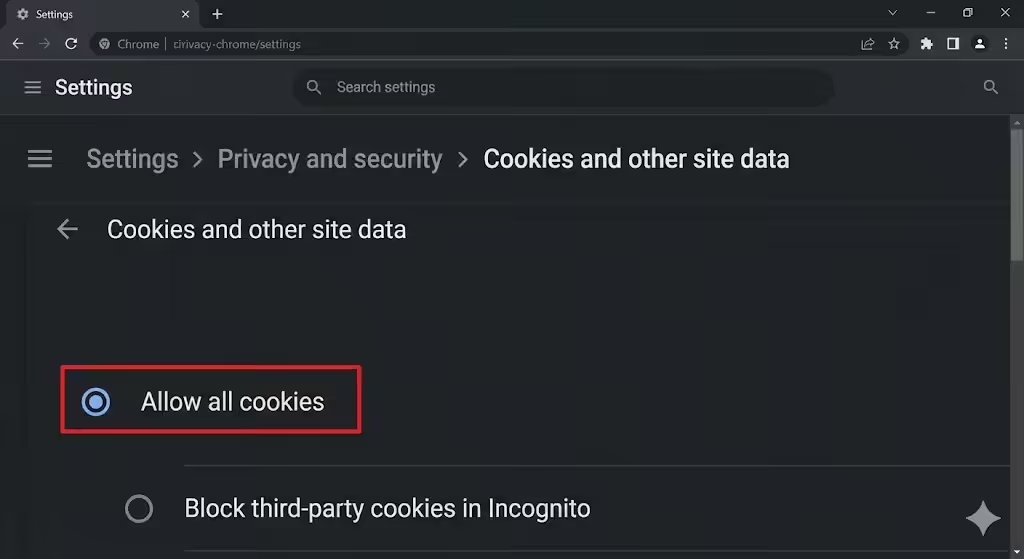
How to Allow Cookies
-
Open Chrome
-
Go to Settings
-
Select Privacy and security
-
Click Cookies and other site data
-
Choose Allow all cookies or Block third-party cookies in Incognito only
Why This Fix Works
If cookies are blocked or cleared, Chrome cannot remember login sessions, causing frequent sign-outs.
Disable “Clear Cookies on Exit” Setting
Chrome may be set to delete cookies when closed.
How to Check This Setting
-
Open Chrome Settings
-
Go to Privacy and security
-
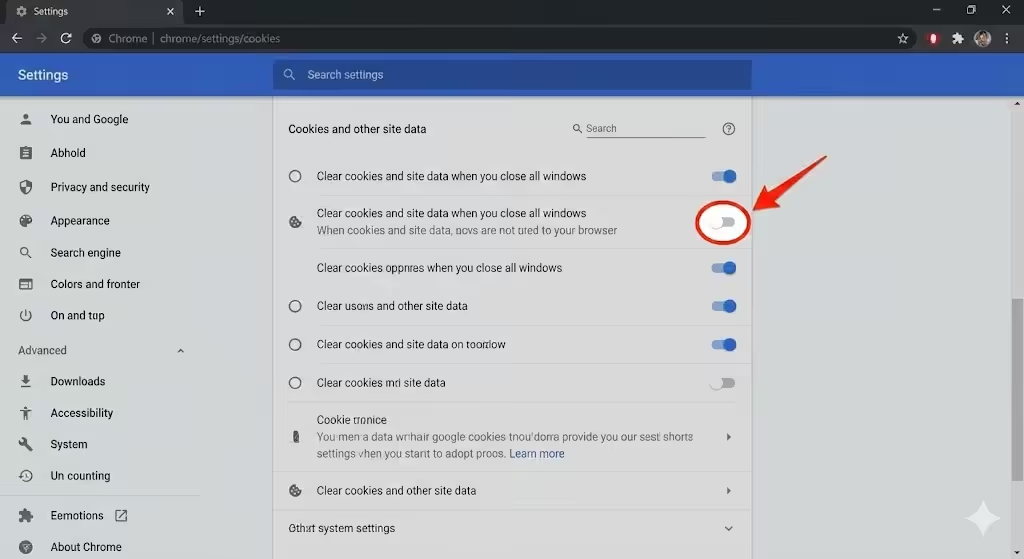
Click Cookies and other site data
-
Turn off Clear cookies and site data when you close all windows
This allows Chrome to retain login information.
Turn On Chrome Sync Properly
Chrome Sync keeps your account signed in across sessions.
Steps to Enable Sync
-
Open Chrome
-
Click your profile icon
-
Sign in to Chrome
-
Turn on Sync
Make sure sync is not paused.
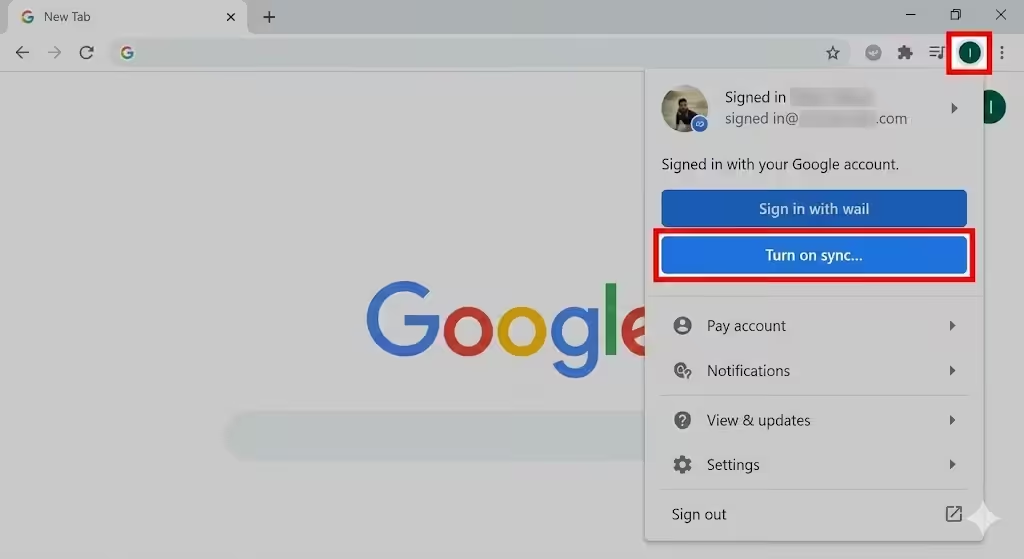
Why Sync Matters
Without sync, Chrome may not properly store account session data.
Check Chrome Sign-In Settings
Chrome has a specific option related to account sign-in behavior.
What to Look For
-
Enable Chrome sign-in
-
Keep profile signed in
This setting ensures your browser profile remains connected to your Google account.
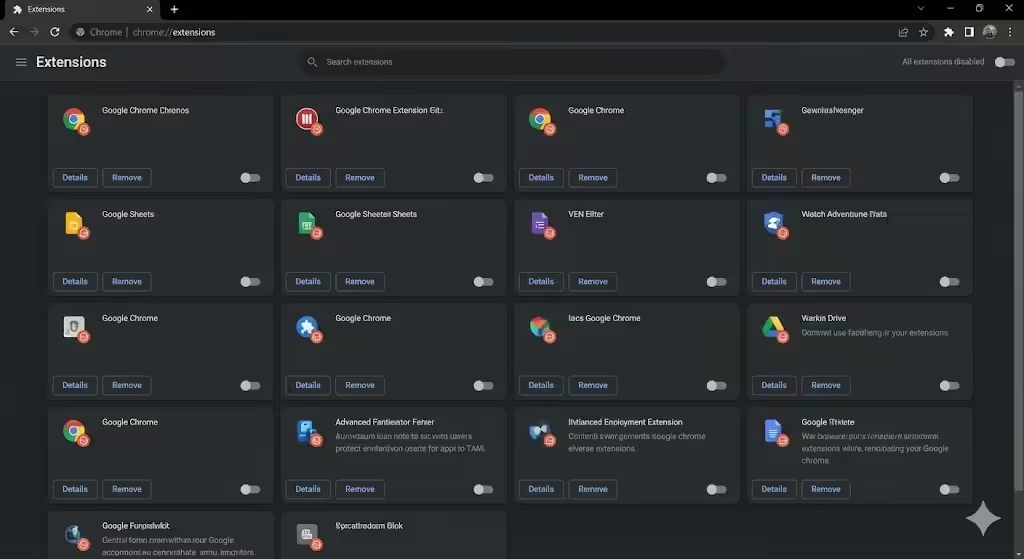
Disable Problematic Extensions
Extensions can interfere with cookies and sessions.
Common Problematic Extensions
-
Privacy blockers
-
Ad blockers
-
Cookie managers
-
Security extensions
How to Test Extensions
-
Open chrome://extensions
-
Disable all extensions
-
Restart Chrome
-
Test sign-in behavior
Re-enable extensions one by one to identify the culprit.
Clear Corrupted Browser Data
Corrupted cache or profile data can cause sign-in issues.
How Clearing Cache Helps
-
Removes corrupted files
-
Refreshes session data
-
Fixes login loops
Clear browsing data while keeping passwords intact.
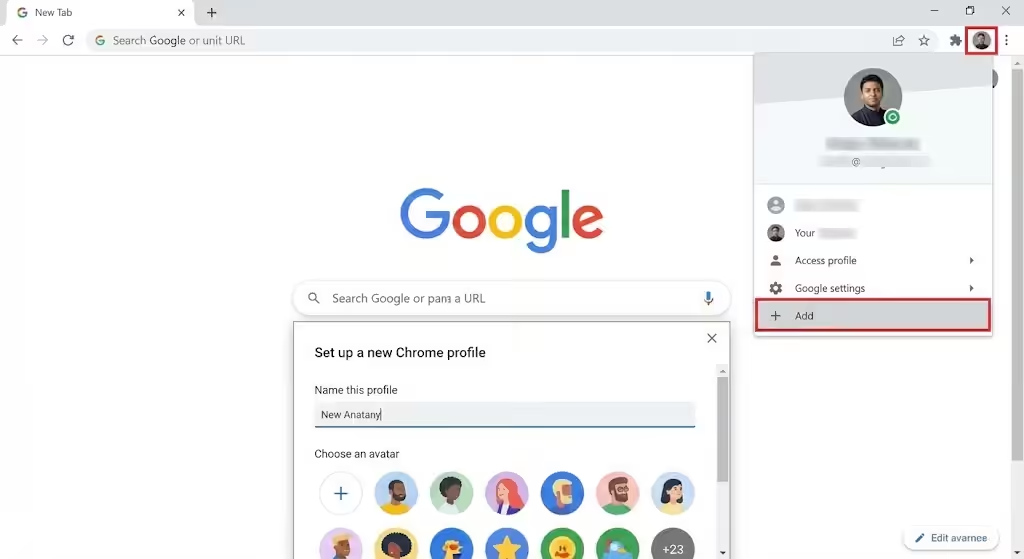
Create a New Chrome Profile
If your profile is damaged, creating a new one can fix the issue.
When to Use This Method
-
Sign-out issue persists
-
Sync fails repeatedly
-
Profile settings do not save
A new profile resets Chrome to a clean state.
Check Antivirus and System Cleanup Software
Some security tools delete cookies automatically.
Why This Causes Sign-Outs
Aggressive cleanup tools may remove:
-
Cookies
-
Session data
-
Temporary files
What to Do
Add Chrome to your antivirus exclusion list or disable automatic browser cleaning.
Verify System Date and Time
Incorrect system time can break authentication.
Why This Matters
Login tokens rely on accurate time settings. If your system clock is incorrect, Chrome may reject session cookies.
Enable automatic date and time synchronization.
Update Google Chrome
Using an outdated browser can cause bugs.
Why Updates Help
-
Fix login-related bugs
-
Improve security
-
Enhance cookie handling
Keep Chrome up to date for best performance.
Disable “Continue Running Background Apps”
Background processes can conflict with sign-in states.
How to Disable
-
Open Chrome Settings
-
Go to Advanced
-
Turn off Continue running background apps when Chrome is closed
Restart Chrome and test again.
Check Google Account Security Settings
Account security settings can also affect sign-ins.
What to Review
-
Recent security alerts
-
Suspicious activity
-
Multiple device sign-ins
Ensure there are no restrictions causing forced sign-outs.
Reset Chrome Settings
Resetting Chrome restores default settings.
When to Reset
-
Multiple fixes fail
-
Settings are misconfigured
-
Extensions cause persistent problems
Resetting does not delete bookmarks or saved passwords.
Prevent Chrome Sign-Out Issues in the Future
To avoid repeated sign-outs:
-
Allow cookies
-
Avoid aggressive cleanup tools
-
Keep Chrome updated
-
Use trusted extensions only
-
Maintain a single Chrome profile
Good habits help ensure a stable browsing experience.
Frequently Asked Questions
Does Chrome Sign-Out Delete My Data
No. Your data remains intact if sync is enabled.
Will Clearing Cookies Log Me Out
Yes, but only temporarily.
Is This Issue Limited to Windows
No. It can occur on other platforms as well.
Conclusion
The “Chrome keeps signing me out” issue is usually caused by cookie restrictions, profile corruption, or interference from extensions or security software. While the problem can be frustrating, it is rarely permanent and can be resolved with a few targeted adjustments.