


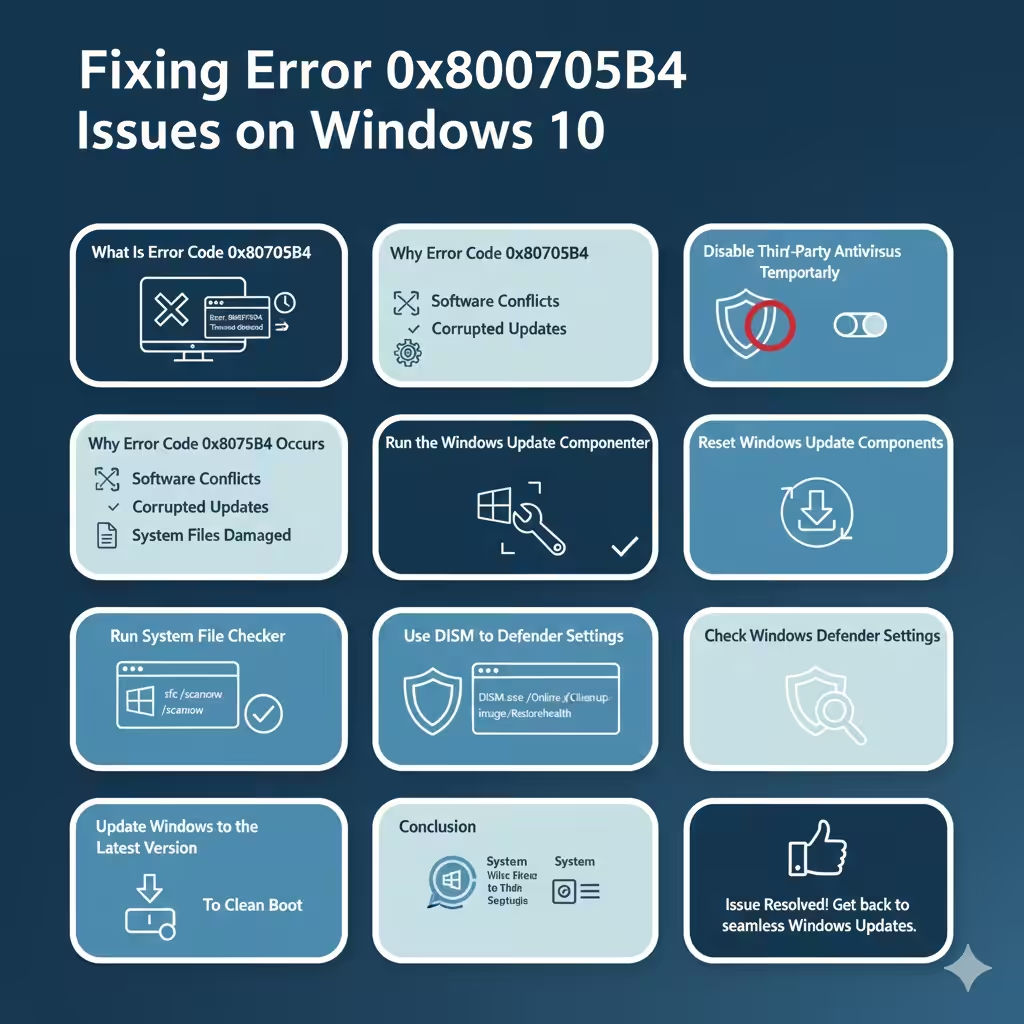
Fixing Error 0x800705B4 Issues on Windows 10
Windows 10 is designed to update automatically and keep your system secure and stable. However, some users encounter Error Code 0x800705b4, most commonly when running Windows Update or Windows Defender. This error usually indicates a timeout or interruption that prevents Windows from completing an important task.
Although the error can be frustrating, it is usually caused by software conflicts, incorrect settings, or temporary system issues rather than serious hardware damage. This guide explains what error code 0x800705b4 means, why it happens, and how to fix it using reliable, step-by-step methods.
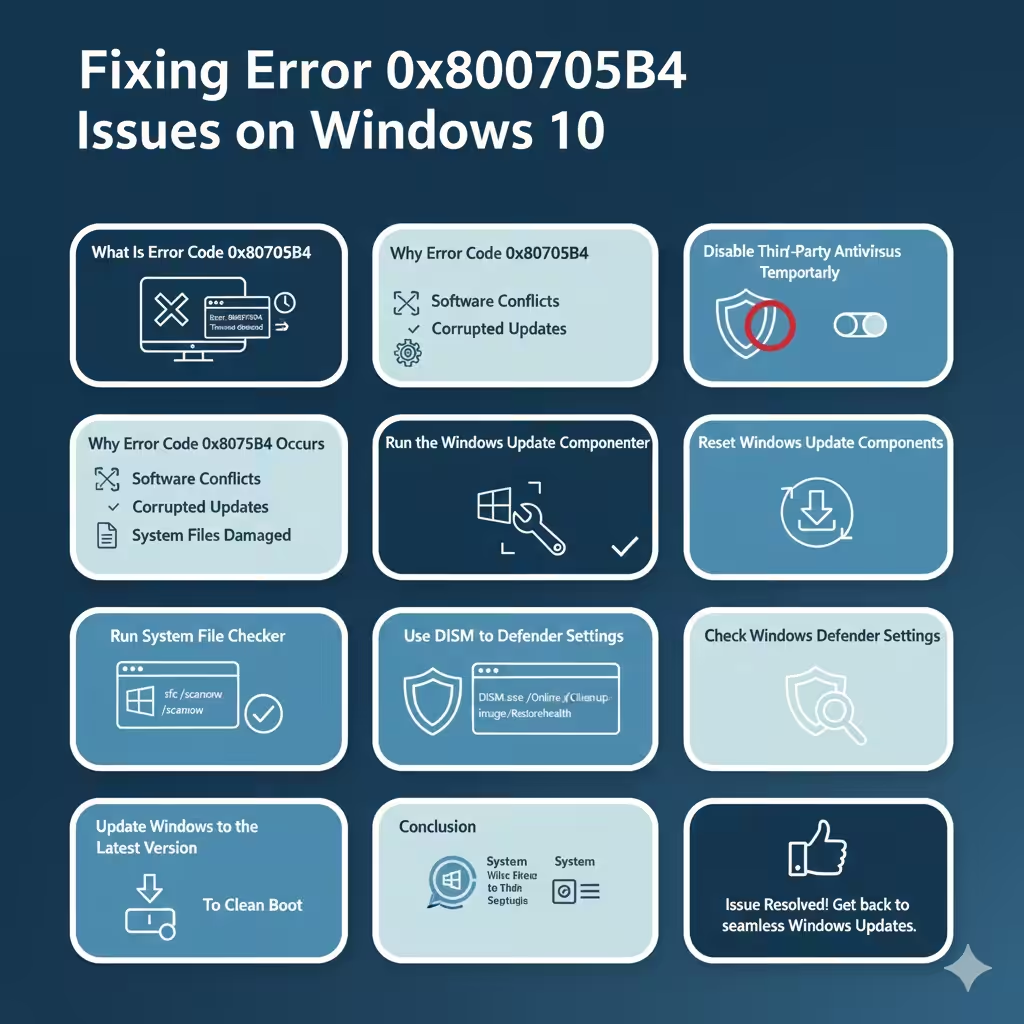
What Is Error Code 0x800705b4
Error code 0x800705b4 is a timeout-related Windows error. It often appears when:
-
Windows Update fails to download or install updates
-
Windows Defender cannot complete a scan
-
System security features stop responding
In most cases, Windows waits for a process to complete but does not receive a response within the allowed time.
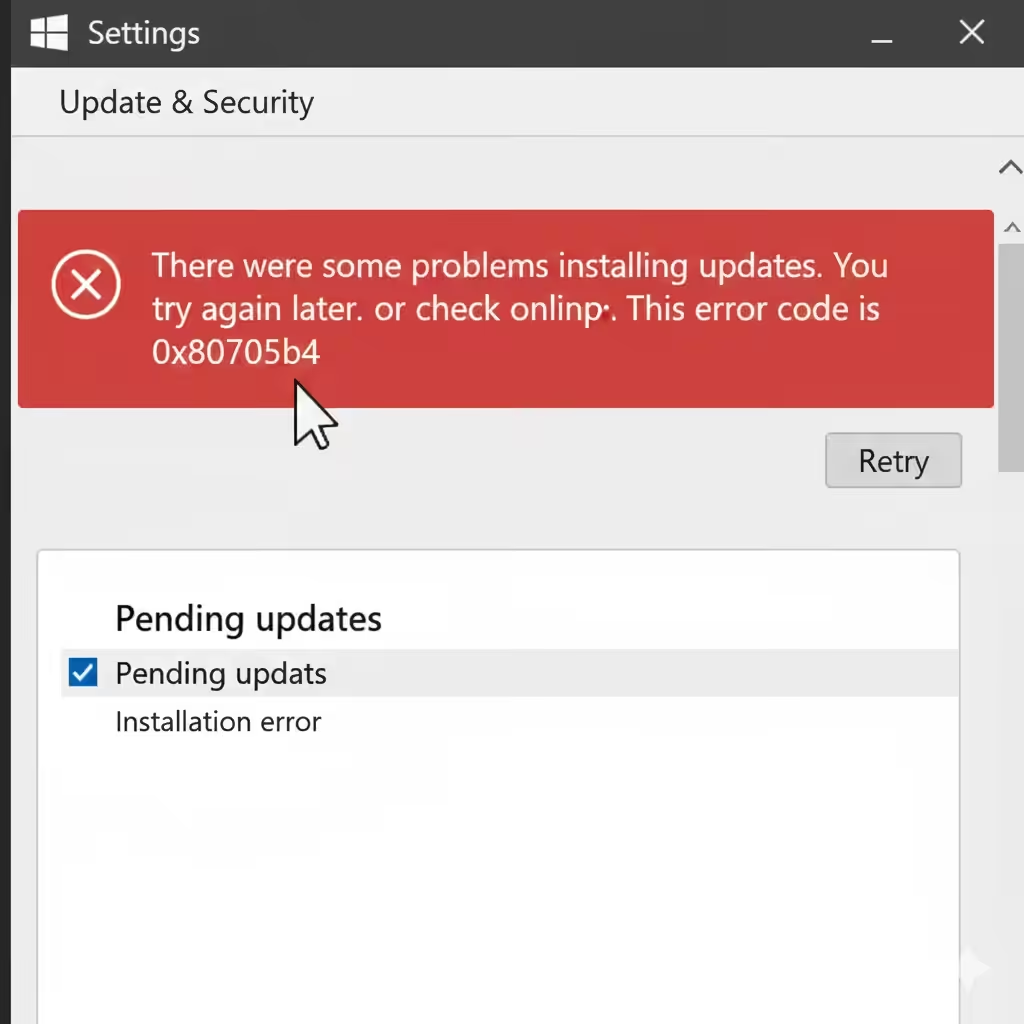
Common Symptoms of Error 0x800705b4
You may notice one or more of the following symptoms:
-
Windows Update stuck at a certain percentage
-
Windows Defender scans freezing or failing
-
Update error messages repeatedly appearing
-
System becoming slow during updates
-
Automatic updates failing silently
Recognizing these symptoms helps confirm that you are dealing with error 0x800705b4.
Why Error Code 0x800705b4 Occurs
Several underlying issues can cause this error.
The most common causes include:
-
Conflicts between Windows Defender and third-party antivirus software
-
Corrupted Windows Update components
-
System files damaged or missing
-
Background services not responding
-
Pending updates stuck in the queue
-
Outdated Windows version
Identifying the cause helps apply the most effective fix.
Restart Your Computer First
Before applying advanced fixes, try restarting your PC.
Why Restarting Helps
A restart clears temporary memory, restarts services, and resolves minor conflicts that may cause timeouts.
If the error persists after restarting, proceed to the next steps.
Check Your Internet Connection
Windows Update requires a stable internet connection.
What to Verify
-
Ensure your network is connected
-
Restart your router or modem
-
Try switching to a different network
A weak or unstable connection can cause update processes to time out.
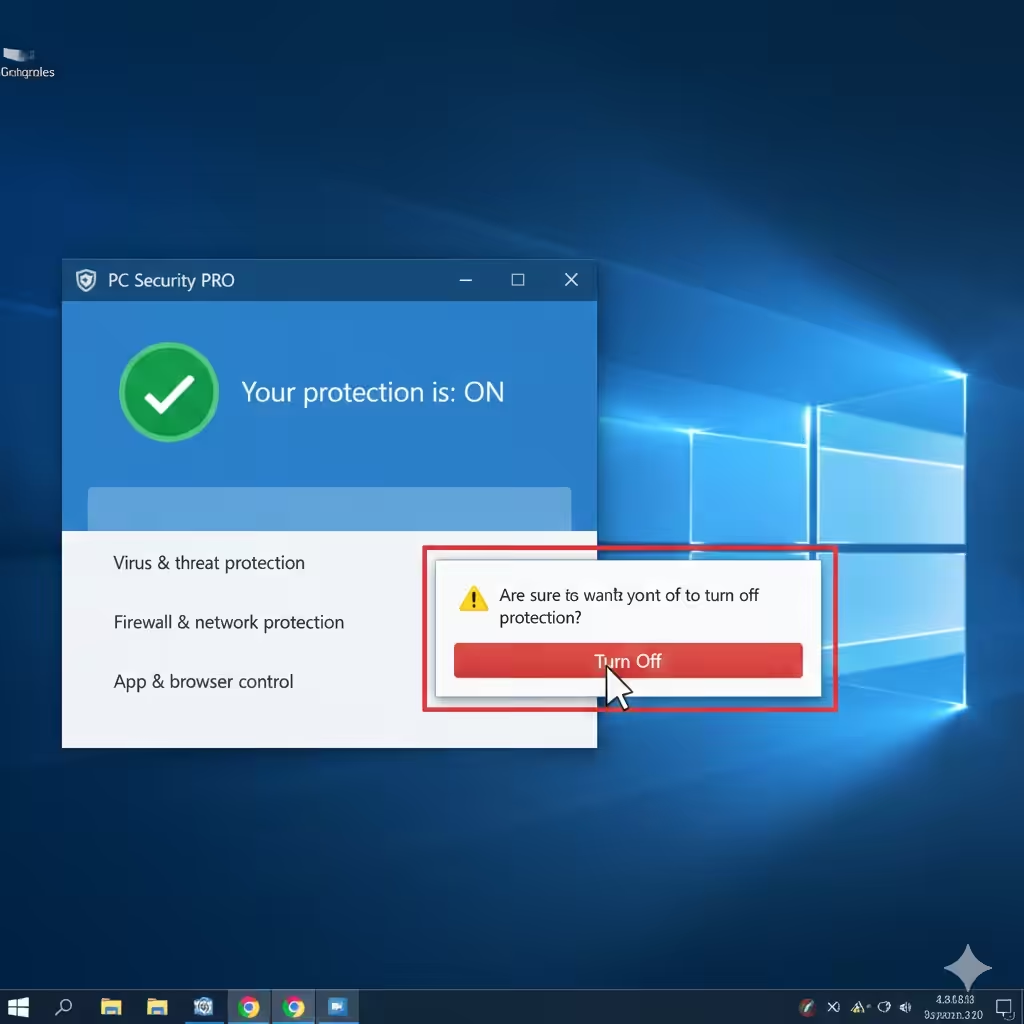
Disable Third-Party Antivirus Temporarily
One of the most common causes of error 0x800705b4 is a conflict between Windows Defender and third-party antivirus software.
Why This Works
Some antivirus programs interfere with Windows Update and Defender processes, causing them to stall.
What to Do
-
Temporarily disable third-party antivirus software
-
Run Windows Update or Windows Defender again
If this resolves the issue, consider adjusting your antivirus settings or switching to a compatible solution.
Run the Windows Update Troubleshooter
Windows 10 includes built-in troubleshooters that can automatically fix update issues.
How the Troubleshooter Helps
-
Detects broken update components
-
Fixes common configuration problems
-
Resets update services
This is one of the safest and easiest solutions to try.
Reset Windows Update Components
Corrupted update components are a major cause of this error.
Why Resetting Helps
Resetting Windows Update clears stuck downloads, refreshes services, and removes corrupted cache files.
This method restores the update mechanism to a clean state.
Run System File Checker
System file corruption can prevent Windows processes from completing.
What System File Checker Does
-
Scans protected system files
-
Repairs missing or corrupted files
-
Restores proper system behavior
Running this tool can fix hidden issues causing update timeouts.
Use DISM to Repair the Windows Image
If System File Checker does not resolve the issue, DISM can help.
Why DISM Is Important
DISM repairs the Windows image that system files depend on. If the image itself is damaged, updates may fail repeatedly.
After running DISM, restart your computer and try updating again.
Check Windows Defender Settings
Error 0x800705b4 often appears during Windows Defender scans.
What to Review
-
Real-time protection status
-
Scheduled scan settings
-
Background scan conflicts
Temporarily turning off real-time protection and running a manual scan can help identify conflicts.
Restart Windows Update and Defender Services
Sometimes essential services stop responding.
Why This Helps
Restarting services forces Windows to reload them with fresh settings.
Ensure that:
-
Windows Update service is running
-
Windows Defender services are active
Stopped or disabled services can trigger timeout errors.
Install Updates Manually
If automatic updates fail, manual installation is an effective workaround.
Why Manual Updates Work
Manually installing updates bypasses certain background processes that may be causing timeouts.
This method is especially useful when a specific update repeatedly fails.
Check for Pending or Stuck Updates
Pending updates can block new ones.
What to Do
-
Restart your PC multiple times
-
Allow Windows to complete any unfinished updates
Incomplete updates can prevent new installations from starting.
Perform a Clean Boot
A clean boot starts Windows with minimal drivers and startup programs.
Why Clean Boot Helps
-
Identifies software conflicts
-
Eliminates background interference
-
Helps isolate the cause of the error
If the error disappears in clean boot mode, a third-party program is likely responsible.
Update Windows to the Latest Version
Running an outdated version of Windows can increase the risk of errors.
Why Updates Matter
-
Fix known bugs
-
Improve system stability
-
Enhance compatibility with security services
Make sure your system is fully up to date.
Common Mistakes to Avoid
Avoid these common mistakes:
-
Disabling Windows Defender permanently
-
Downloading update files from untrusted sources
-
Ignoring system restarts
-
Running multiple antivirus programs simultaneously
These actions can worsen the problem.
How to Prevent Error 0x800705b4 in the Future
To reduce the chance of recurrence:
-
Use only one antivirus program
-
Keep Windows updated
-
Maintain a stable internet connection
-
Restart your PC regularly
-
Avoid interrupting updates
Preventive care keeps your system running smoothly.
Frequently Asked Questions
Does Error 0x800705b4 Mean My PC Is Infected
No. It usually indicates a timeout or software conflict.
Can This Error Affect Windows Security
Yes. It may prevent Defender scans or updates temporarily.
Is Reinstalling Windows Necessary
Rarely. Most cases can be fixed using the methods above.
Conclusion
Error code 0x800705b4 in Windows 10 is a common issue related to update timeouts, security conflicts, or corrupted system components. While it may interrupt Windows Update or Windows Defender, it is usually not a serious problem and can be resolved with systematic troubleshooting.