


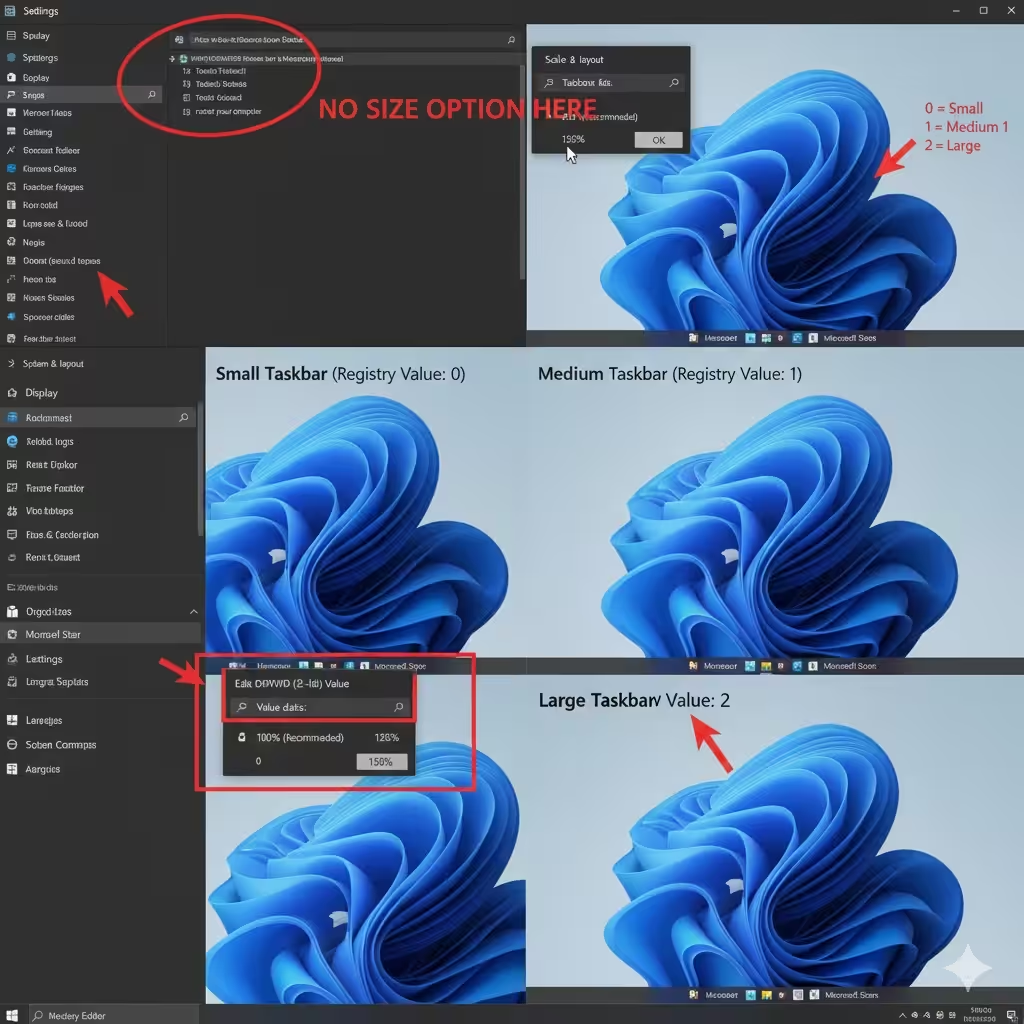
Ways to Modify Taskbar Size in Windows 11
Windows 11 introduced a redesigned taskbar with centered icons, rounded corners, and a cleaner visual style. While the new taskbar looks modern, many users quickly notice that Microsoft removed the built-in option to resize the taskbar. This can be inconvenient if you prefer a smaller taskbar to save screen space or a larger one for better visibility and touch support.
Although Windows 11 does not provide a direct setting to change taskbar size, there are still safe and effective ways to resize the taskbar using system settings, the Registry Editor, and accessibility options. This guide explains all available methods in detail so you can choose the approach that works best for you.
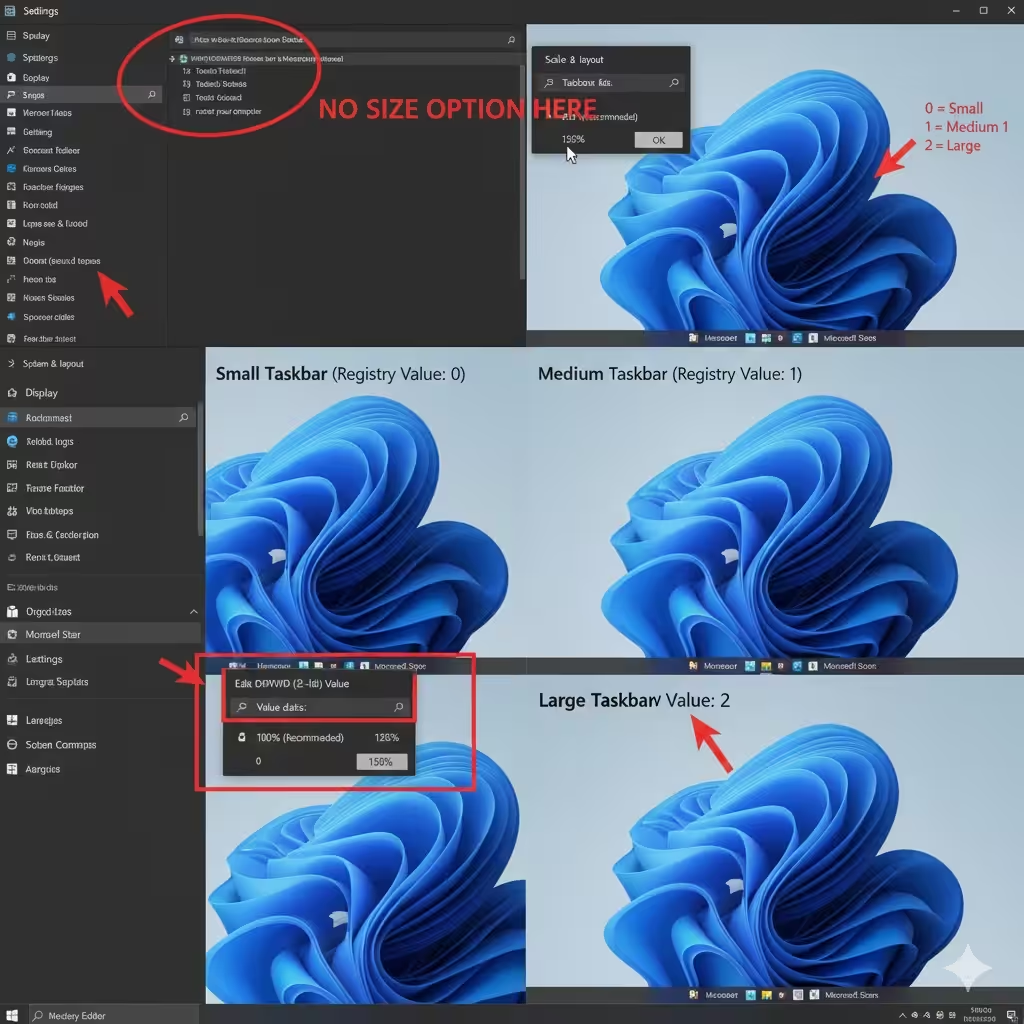
Why You Might Want to Change the Taskbar Size
Different users have different preferences and needs.
Common reasons to resize the taskbar include:
-
Saving vertical screen space on small displays
-
Improving visibility on high-resolution monitors
-
Making icons easier to tap on touchscreens
-
Matching the taskbar size to older Windows versions
-
Enhancing overall desktop comfort
Understanding your goal helps you choose the best method.
Can You Change Taskbar Size Using Windows Settings
In Windows 11, Microsoft removed the taskbar size slider that existed in older versions.
What This Means
-
There is no official taskbar size option in Settings
-
Taskbar height and icon size are fixed by default
-
Customization requires alternative methods
Despite this limitation, resizing is still possible.
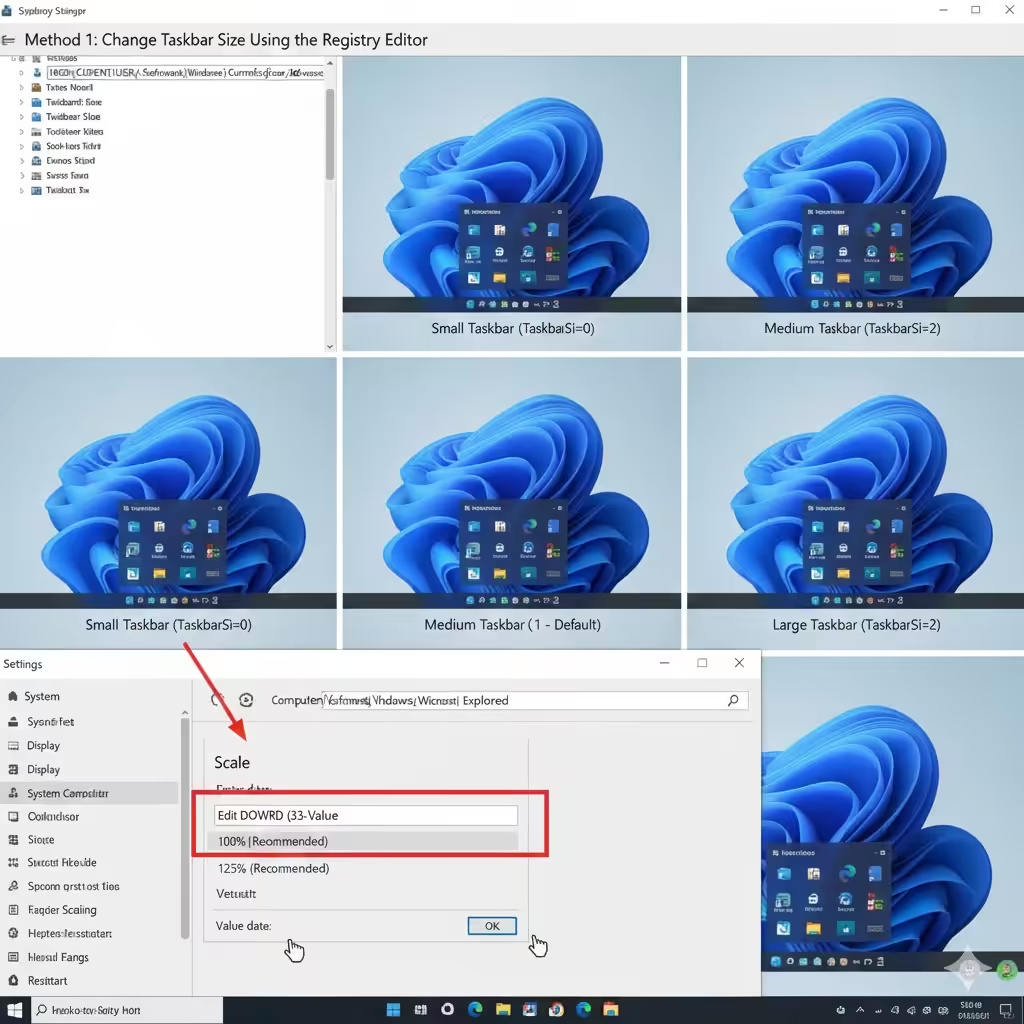
Method 1: Change Taskbar Size Using the Registry Editor
The Registry Editor is the most reliable way to change taskbar size in Windows 11.
Why the Registry Method Works
Windows stores taskbar size values internally, even though there is no visible setting. Editing these values allows you to switch between predefined sizes.
Available Taskbar Sizes
You can choose between:
-
Small taskbar
-
Medium (default) taskbar
-
Large taskbar
These sizes affect both taskbar height and icon spacing.
Important Safety Note
Editing the registry incorrectly can cause system issues. Always proceed carefully and consider backing up your registry before making changes.
Understanding Taskbar Size Values
Windows 11 uses a numeric value to control taskbar size:
-
Small size
-
Default size
-
Large size
Changing this value and restarting Windows applies the new taskbar size instantly.
What Changes When You Resize the Taskbar
Resizing the taskbar affects several visual elements:
-
Taskbar height
-
Icon size and spacing
-
System tray appearance
-
Alignment and padding
However, it does not affect:
-
Taskbar position (still bottom only)
-
Centered or left alignment settings
-
Taskbar transparency
Method 2: Use Display Scaling as an Alternative
If you are uncomfortable using the registry, display scaling offers a safer alternative.
How Display Scaling Affects the Taskbar
Increasing or decreasing display scaling changes the size of:
-
Taskbar icons
-
Text
-
Windows interface elements
While it does not resize the taskbar independently, it can achieve a similar effect.
When to Use This Method
-
You want a larger interface overall
-
You have a high-resolution screen
-
You prefer system-wide scaling
This method is ideal for users who want better readability.
Method 3: Adjust Accessibility and Text Size
Windows accessibility options can indirectly change taskbar appearance.
What Accessibility Settings Do
-
Increase text size
-
Improve icon visibility
-
Enhance contrast
Although this does not change taskbar height, it makes taskbar content easier to see and interact with.
Method 4: Use Third-Party Customization Tools
Some users prefer third-party tools for deeper customization.
Why Users Choose Third-Party Tools
-
Easier interface
-
More taskbar options
-
No manual registry editing
Important Considerations
-
Use reputable tools only
-
Avoid software that modifies system files aggressively
-
Keep backups in case you want to revert
Third-party tools can be helpful but should be used with caution.
How to Revert to the Default Taskbar Size
If you do not like the new size, reverting is easy.
Why Reverting Matters
-
Restores original Windows 11 appearance
-
Fixes layout issues
-
Ensures compatibility with future updates
Simply reset the value to default and restart your system.
Common Issues After Changing Taskbar Size
Some users may experience minor issues.
Possible issues include:
-
Icons appearing slightly misaligned
-
System tray spacing changes
-
Visual glitches after Windows updates
These issues are usually cosmetic and temporary.
Does Changing Taskbar Size Affect Performance
Taskbar resizing does not impact:
-
System speed
-
CPU usage
-
Memory consumption
It is purely a visual adjustment.
Will Windows Updates Reset Taskbar Size
Major Windows updates may reset registry-based customizations.
What You Can Do
-
Reapply the setting after updates
-
Keep notes of your preferred values
-
Avoid frequent major version changes if customization is critical
This is a known limitation of unsupported customization.
Tips for Choosing the Right Taskbar Size
Consider the following before choosing a size:
-
Screen resolution
-
Monitor size
-
Touch vs mouse usage
-
Visual comfort
Small taskbars work well on laptops, while large taskbars are ideal for touchscreens.
Common Mistakes to Avoid
Avoid these mistakes:
-
Editing the wrong registry key
-
Installing unknown customization tools
-
Expecting Windows Settings to include resizing options
-
Forgetting to restart after changes
Being cautious prevents unnecessary problems.
Frequently Asked Questions
Can I Move the Taskbar to the Side
No. Windows 11 currently locks the taskbar to the bottom.
Is Taskbar Resizing Officially Supported
No. Registry-based resizing is unofficial but widely used.
Does This Work on All Windows 11 Versions
Yes, but behavior may vary slightly after updates.
Conclusion
Although Windows 11 removed the built-in option to change taskbar size, users still have multiple ways to customize it. The Registry Editor method provides the most direct control, while display scaling and accessibility settings offer safer alternatives for those who prefer not to modify system values.