


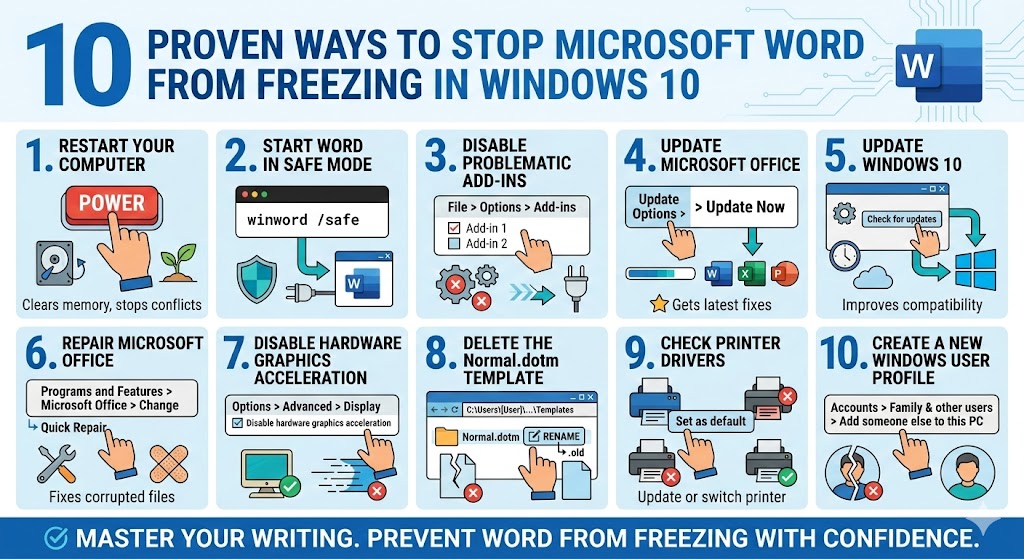
10 Proven Ways to Stop Microsoft Word from Freezing in Windows 10
Microsoft Word is one of the most widely used word processing applications in the world. Whether you are writing school assignments, business reports, or personal documents, Word plays a crucial role in daily productivity. However, when Microsoft Word keeps freezing in Windows 10, it can be incredibly frustrating and disruptive.
If Word becomes unresponsive, lags while typing, crashes when opening files, or freezes during saving or printing, you are not alone. This issue can be caused by software conflicts, outdated drivers, corrupted files, or system resource limitations.
This comprehensive guide explains why Microsoft Word freezes and provides 10 effective ways to fix the issue on Windows 10.
Why Does Microsoft Word Keep Freezing?
Before jumping into the solutions, it’s helpful to understand the possible causes. Word freezing problems typically occur due to:
-
Corrupted Office installation
-
Faulty add-ins
-
Outdated Windows or Office updates
-
Damaged Normal.dotm template
-
Printer driver conflicts
-
Large or corrupted documents
-
Insufficient system resources
-
Graphics acceleration issues
-
Antivirus interference
-
Corrupted user profile
Identifying the root cause makes troubleshooting easier and more efficient.
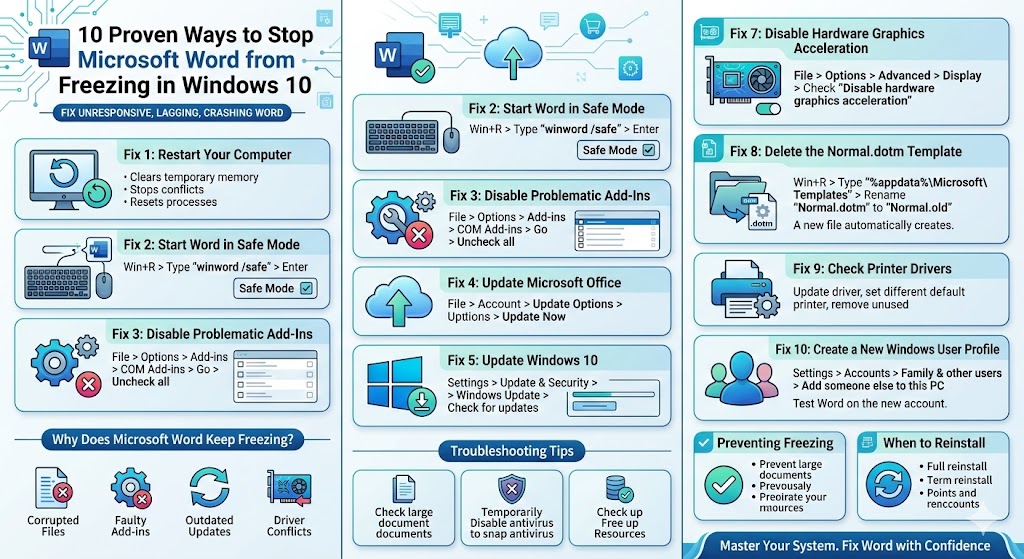
Fix 1: Restart Your Computer
Sometimes the simplest solution works best.
Restarting your computer:
-
Clears temporary memory
-
Stops background conflicts
-
Resets system processes
If Word froze due to a temporary glitch, a restart may resolve it immediately.
Fix 2: Start Word in Safe Mode
Safe Mode launches Word without add-ins or custom settings. If Word works fine in Safe Mode, the issue is likely caused by an add-in or extension.
How to Start Word in Safe Mode
-
Press Windows + R
-
Type:
winword /safe -
Press Enter
If Word runs smoothly in Safe Mode, proceed to disable add-ins.
Fix 3: Disable Problematic Add-Ins
Add-ins enhance functionality but can also cause performance problems.
Disable Add-Ins in Word
-
Open Word
-
Click File > Options
-
Select Add-ins
-
At the bottom, choose COM Add-ins and click Go
-
Uncheck all add-ins
-
Click OK
-
Restart Word normally
Re-enable add-ins one by one to identify the problematic one.
Fix 4: Update Microsoft Office
Outdated Office versions may contain bugs that cause freezing.
Update Office
-
Open Word
-
Click File > Account
-
Select Update Options
-
Click Update Now
Install any available updates and restart your PC.
Fix 5: Update Windows 10
Windows updates often include compatibility fixes for Microsoft Office.
Update Windows
-
Open Settings
-
Click Update & Security
-
Select Windows Update
-
Click Check for updates
After installing updates, restart your computer.
Fix 6: Repair Microsoft Office
A corrupted Office installation is one of the most common reasons Word freezes.
Perform a Quick Repair
-
Open Control Panel
-
Click Programs and Features
-
Select Microsoft Office
-
Click Change
-
Choose Quick Repair
-
Follow the instructions
If the problem continues, choose Online Repair for a deeper fix.
Fix 7: Disable Hardware Graphics Acceleration
Graphics acceleration can sometimes cause Word to freeze, especially on older systems.
Disable Graphics Acceleration
-
Open Word
-
Click File > Options
-
Go to Advanced
-
Scroll to the Display section
-
Check Disable hardware graphics acceleration
-
Click OK
Restart Word and test performance.
Fix 8: Delete the Normal.dotm Template
The Normal.dotm file stores default formatting and settings. If it becomes corrupted, Word may freeze.
Delete Normal.dotm
-
Press Windows + R
-
Type:
%appdata%\Microsoft\Templates -
Press Enter
-
Locate Normal.dotm
-
Rename it to Normal.old
Restart Word. A new Normal.dotm file will be created automatically.
Fix 9: Check Printer Drivers
Surprisingly, Word freezing can be related to printer driver issues because Word loads printer settings at startup.
What to Do
-
Update your printer driver
-
Set a different default printer temporarily
-
Remove unused printers
To change default printer:
-
Open Settings
-
Go to Devices > Printers & scanners
-
Select another printer
-
Click Set as default
Restart Word and check if freezing continues.
Fix 10: Create a New Windows User Profile
A corrupted user profile may cause persistent freezing issues.
Create a New User Account
-
Open Settings
-
Click Accounts
-
Select Family & other users
-
Click Add someone else to this PC
-
Follow the prompts
Log into the new account and test Microsoft Word.
If Word works properly, your original profile may be corrupted.
Additional Troubleshooting Tips
If Word still freezes after trying the main fixes, consider these additional steps:
Check for Large or Corrupted Documents
Very large files with many images, charts, or embedded objects can slow down Word.
Try:
-
Copying content into a new document
-
Removing unnecessary images
-
Compressing pictures
Disable Antivirus Temporarily
Some antivirus programs interfere with Office applications.
Temporarily disable your antivirus and test Word. If performance improves, add Word to your antivirus exceptions.
Free Up System Resources
If your PC has limited RAM or CPU power, Word may freeze during heavy tasks.
-
Close background applications
-
Disable startup programs
-
Increase virtual memory
-
Upgrade RAM if possible
Preventing Microsoft Word from Freezing
To reduce the risk of future freezing issues:
-
Keep Windows and Office updated
-
Avoid installing unnecessary add-ins
-
Save documents frequently
-
Use AutoSave when available
-
Keep printer drivers updated
-
Maintain sufficient disk space
Regular maintenance keeps Word running smoothly.
When to Reinstall Microsoft Office
If none of the solutions work, reinstalling Office may be necessary.
Reinstall Office
-
Uninstall Microsoft Office from Programs and Features
-
Restart your computer
-
Download the latest version from your Microsoft account
-
Install and activate Office
This resolves deep system corruption issues.
Final Thoughts
When Microsoft Word keeps freezing in Windows 10, it can disrupt your workflow and cause data loss. Fortunately, most freezing issues are caused by add-ins, corrupted files, outdated software, or system conflicts.