


Troubleshooting: Windows Updates Keep Disabling
Windows Update is an essential component of your operating system, helping to keep your PC secure, stable, and up to date. However, if you find that Windows Updates keep turning off automatically, it can put your device at risk and cause functionality issues.
This is a common but frustrating problem. Fortunately, there are several effective ways to resolve it. In this article, we’ll go over the causes and guide you through multiple solutions to make sure your updates stay enabled..
Why Do Windows Updates Turn Off Automatically?
There are several possible reasons for this issue, including:
-
Group Policy settings that disable updates
-
Windows Update services being disabled
-
Corrupt system files
-
Registry changes from third-party software
-
Metered network settings
-
Interference from antivirus or optimization tools
Identifying the root cause will help you apply the right fix. Let’s go through the troubleshooting steps.

Step 1: Restart Your PC and Check Update Settings
Before jumping into deeper solutions, start with the basics:
-
Restart your computer to clear any temporary glitches.
-
Go to Settings > Update & Security > Windows Update.
-
Click Check for updates.
If Windows Update works fine temporarily and then switches off again, continue to the next steps.
Step 2: Make Sure Windows Update Services Are Running
Windows Updates depend on a few background services. If these are turned off, updates won’t work properly.
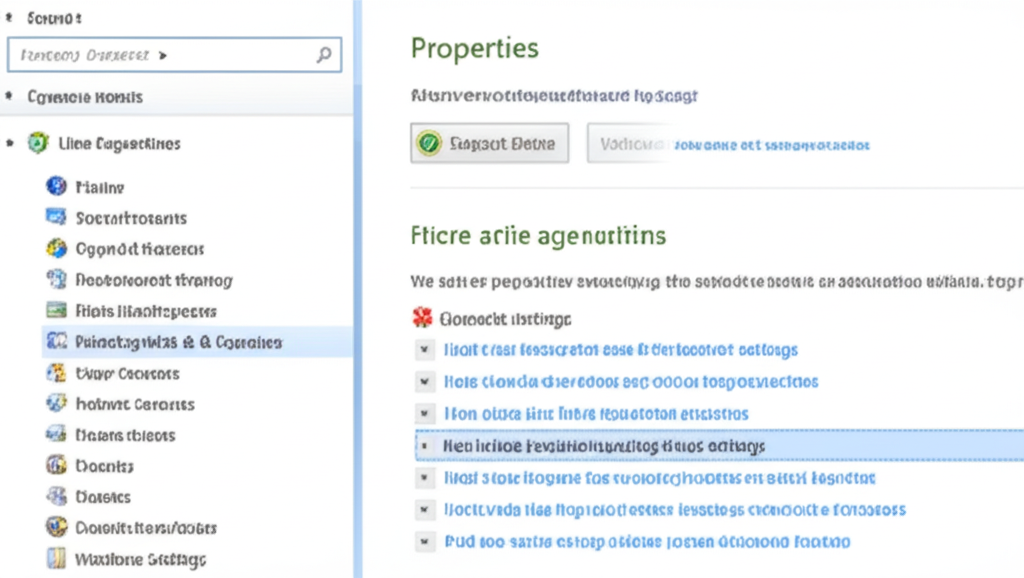
How to Check Services:
-
Press Windows + R, type
services.msc, and hit Enter. -
In the Services window, locate the following:
-
Windows Update
-
Background Intelligent Transfer Service (BITS)
-
Cryptographic Services
-
-
For each service:
-
Right-click and select Properties.
-
Set Startup type to Automatic.
-
Click Start if the service is not already running.
-
Click Apply and OK.
-
Step 3: Use Windows Update Troubleshooter
Windows has a built-in troubleshooter that can detect and fix issues related to updates.
Steps:
-
Go to Settings > Update & Security > Troubleshoot.
-
Click on Additional troubleshooters (if available).
-
Select Windows Update and click Run the troubleshooter.
-
Follow on-screen instructions.
Restart your computer after completing the troubleshooter.
Step 4: Disable Metered Connection
If you’re using a metered connection, Windows may pause updates to reduce data usage.
Turn Off Metered Connection:
-
Go to Settings > Network & Internet > Wi-Fi (or Ethernet).
-
Click on your active connection.
-
Toggle off Set as metered connection.
Check Windows Update again after making the change.
Step 5: Check Group Policy Settings (Windows 10/11 Pro)
If you’re using Windows 10 or 11 Pro, the Group Policy Editor might be overriding your update settings.
How to Use Group Policy Editor:
-
Press Windows + R, type
gpedit.msc, and press Enter. -
Navigate to:
-
Double-click Configure Automatic Updates.
-
Set it to Not Configured or Enabled, then select your preferred automatic update settings.
-
Click Apply and OK.
Restart your computer for the changes to take effect.
Step 6: Scan and Repair Corrupted System Files
Corrupt system files can break the update mechanism.
Use System File Checker (SFC):
-
Open Command Prompt as Administrator.
-
Type the following command and press Enter:
-
Wait for the scan to complete. If issues are found, Windows will attempt to fix them automatically.
Once the scan finishes, restart your system and try checking for updates again.

Step 7: Modify the Windows Registry (Advanced)
Caution: Editing the registry can harm your system if done incorrectly. Back up your registry first.
Steps:
-
Press Windows + R, type
regedit, and press Enter. -
Navigate to:
-
Look for entries like DisableWindowsUpdateAccess or AUOptions.
-
Right-click and Delete them (if you’re unsure, export the key first as a backup).
-
Close the Registry Editor and reboot.
Step 8: Check for Interference from Third-Party Software
Some optimization tools or antivirus programs can disable updates without your knowledge.
Actions to Take:
-
Open your antivirus software.
-
Check if there’s a “disable automatic updates” option.
-
Disable or remove any third-party “tweak” tools that might override system settings.
-
Consider temporarily disabling antivirus and testing Windows Update.
Step 9: Reset Windows Update Components
If nothing else works, reset Windows Update manually.
Use Command Prompt:
-
Open Command Prompt as Administrator.
-
Run these commands one at a time:
This will clear out any corrupt update cache files and restart the related services.
Step 10: Create a New User Profile
Sometimes, user profiles get corrupted and cause unexpected issues.
To create a new profile:
-
Go to Settings > Accounts > Family & other users.
-
Click Add someone else to this PC.
-
Follow the prompts to create a new local or Microsoft account.
-
Log in with the new account and check if Windows Update works properly.
Final Thoughts
It can be concerning when Windows Updates keep turning off on their own. Fortunately, by checking services, policy settings, user privileges, and using built-in tools, you can restore update functionality.
If the issue continues even after trying every fix listed here, it might be time to consider reinstalling Windows or contacting Microsoft Support for a deeper investigation.