


Troubleshooting Steps When Microsoft Office 2016 Will not Install on Your Mac
Installing Microsoft Office 2016 for Mac should be a smooth process, but sometimes users run into issues that prevent the software from installing properly. Whether you’re getting error messages, stuck at a loading screen, or the installer simply doesn’t launch, there are multiple potential causes—and just as many solutions.
This guide will walk you through a range of troubleshooting steps that you can try if Microsoft Office 2016 refuses to install on your Mac.
Check System Requirements First
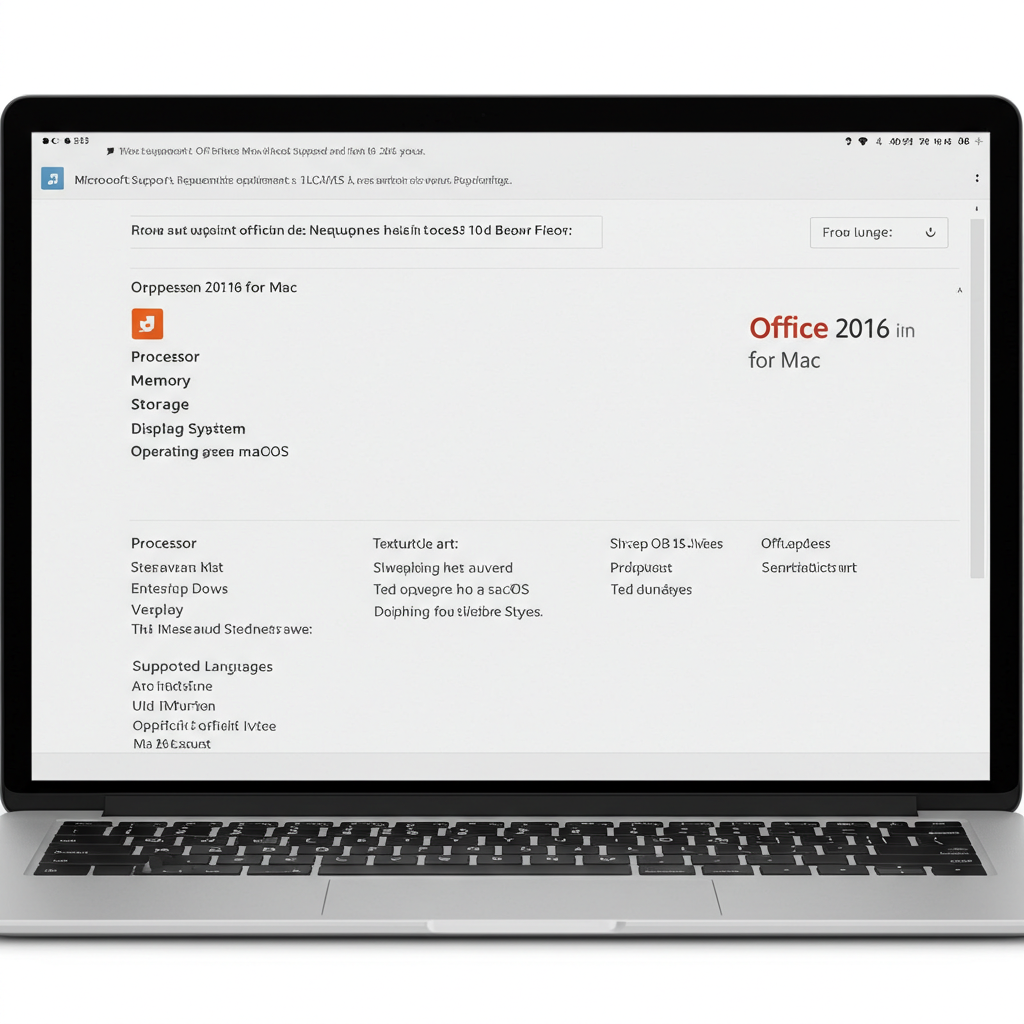
Before anything else, make sure your Mac actually supports Office 2016.
Office 2016 for Mac minimum requirements:
-
macOS 10.10 (Yosemite) or later
-
At least 4 GB RAM
-
6 GB of available hard disk space
-
Intel-based Mac processor
If you’re running a newer version of macOS (like Ventura or Sonoma), Office 2016 may still work, but Microsoft no longer supports updates or fixes for it. Compatibility can vary.
1. Restart Your Mac
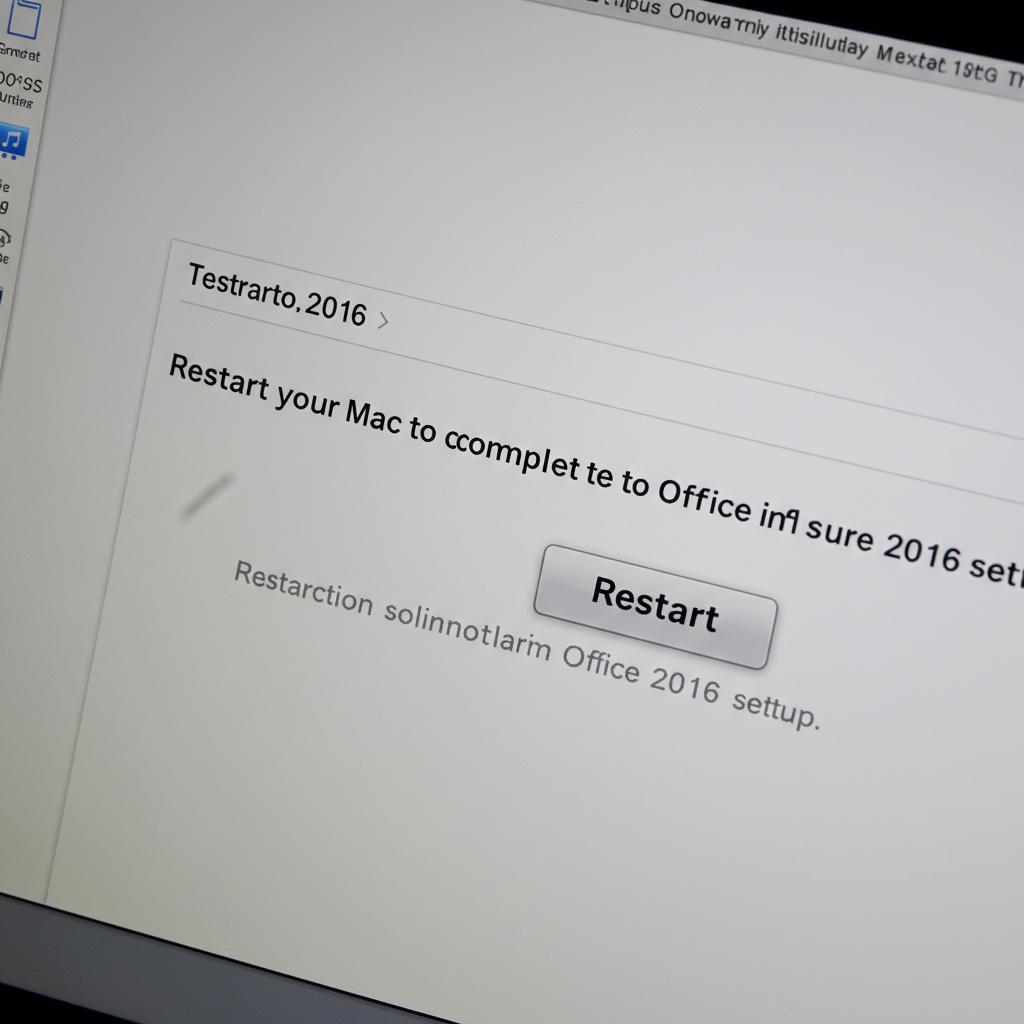
This may seem basic, but a simple restart can often clear temporary glitches or installation hang-ups.
Steps:
-
Click the Apple logo in the top-left corner.
-
Choose Restart.
-
Once your system is back on, try launching the Office 2016 installer again.
2. Check for Software Updates
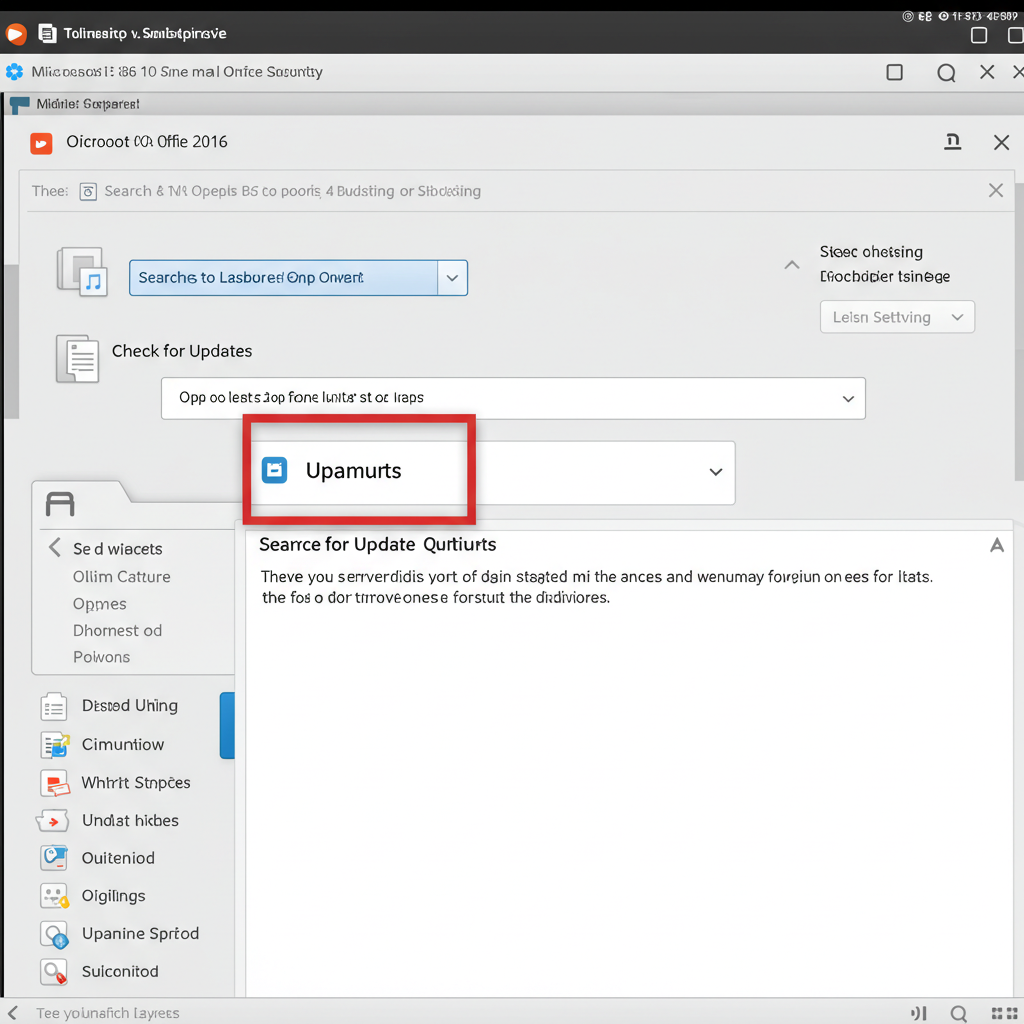
Installing the latest macOS updates can resolve compatibility issues that prevent Office from installing.
Steps:
-
Go to System Settings or System Preferences, depending on your macOS version.
-
Click Software Update.
-
If an update is available, install it.
-
Restart your Mac and try the Office installer again.
3. Make Sure You’re Using the Correct Installer
Office 2016 is no longer available directly from Microsoft’s main website, so many people download it from older links or backups. You need the correct version to ensure successful installation.
Tips:
-
Use the official Microsoft Office 2016 .pkg or .dmg installer.
-
Avoid third-party download sites as they may provide corrupted or unsafe files.
-
If you got the software through a volume license or enterprise subscription, contact your IT department for the correct version.
4. Check Gatekeeper and Security Settings
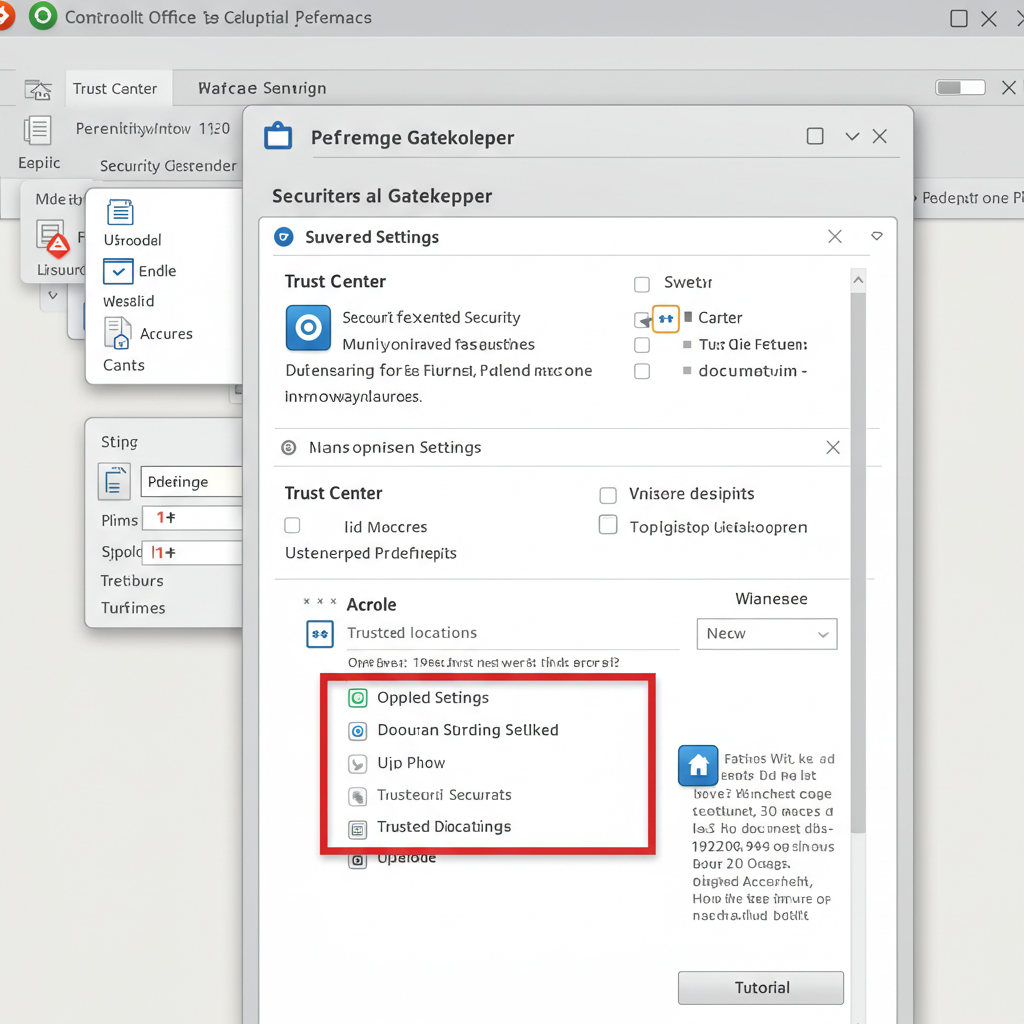
macOS includes security features that can block apps from unidentified developers, which may include older Office installers.
Steps:
-
Go to System Settings > Privacy & Security.
-
Look for a message that says the installer was blocked.
-
Click Allow Anyway if you see it.
-
Right-click the installer and choose Open, then click Open again when prompted.
This allows the installer to bypass Apple’s default restrictions.
5. Run the Installer as Administrator
If you’re not using an admin account, you may run into permission problems during installation.
Steps:
-
Make sure you are logged in as an administrator.
-
If prompted during installation, enter your admin password.
-
If you share your Mac, ask the device owner to install Office for you.
6. Clear Existing Microsoft App Files
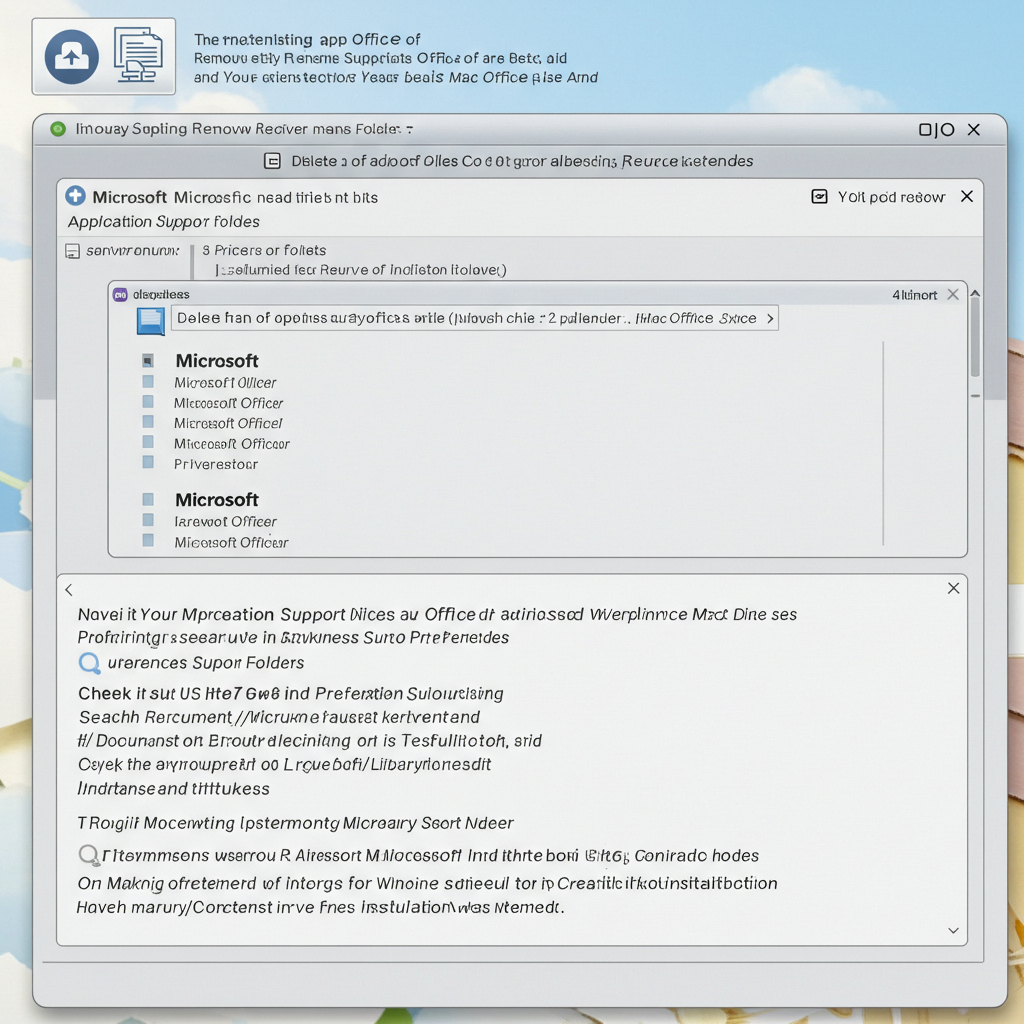
If you’ve tried installing before and it failed, leftover files may be causing conflicts.
Steps to Remove Microsoft Office Files:
-
Go to your Applications folder and delete any Office-related apps (Word, Excel, etc.).
-
Open Finder, press Cmd + Shift + G, and type
~/Library. -
Delete these folders if they exist:
-
~/Library/Containers/com.microsoft.* -
~/Library/Group Containers/UBF8T346G9.*
-
-
Empty the Trash.
-
Restart your Mac, then try installing Office again.
This removes partial or corrupted installations that could be blocking new ones.
7. Disable Antivirus Software Temporarily
Third-party antivirus programs or firewalls may block the installer or necessary connections to Microsoft’s servers.
Steps:
-
Temporarily disable your antivirus or firewall.
-
Try running the Office installer again.
-
Re-enable antivirus protection immediately after the installation is complete.
Only do this if you’re using a trustworthy Office installation file.
8. Install Office in Safe Mode (Optional Step)
Safe Mode disables unnecessary processes and helps isolate software issues.
Steps to Enter Safe Mode:
-
Shut down your Mac.
-
Press the Power button, then immediately hold down the Shift key.
-
Release the key when you see the login screen.
-
Try installing Office in Safe Mode.
-
Restart normally when done.
This can help avoid software conflicts during installation.
9. Check Storage Space
Office 2016 requires several gigabytes of free disk space. If your Mac is running low on storage, the installation may fail.
Steps:
-
Click the Apple logo > About This Mac > Storage.
-
Make sure you have at least 6–8 GB of free space.
-
Clear unnecessary files, empty Trash, or move files to external drives if needed.
10. Try Microsoft Office Online or Upgrade
If Office 2016 still won’t install and you’re open to alternatives, consider:
-
Office Online – Free versions of Word, Excel, and PowerPoint available at office.com.
-
Microsoft 365 – The latest version of Office with full compatibility and continuous updates.
-
LibreOffice or Apple Numbers – Free alternatives for basic spreadsheet and document tasks.
Conclusion
Not being able to install Microsoft Office 2016 for Mac can be frustrating, especially if you depend on it for work or school. Fortunately, most issues can be resolved with a few troubleshooting steps. Whether it’s adjusting system settings, clearing old files, or switching to the correct installer, one of the fixes above should get you back on track.
If you’ve tried all the steps and the installation still fails, consider contacting Microsoft Support or your institution’s IT team for additional help.