


Missing ‘Switch User’ Option on Windows 10? Here’s the Fix
Windows 10 offers a handy feature called “Switch User”, which allows multiple users to stay signed in simultaneously without logging out or closing each other’s apps. This function is especially useful for families, shared workspaces, or anyone who uses multiple accounts on the same device. But sometimes, the “Switch User” option disappears from the Start menu, Ctrl + Alt + Delete screen, or the sign-in interface.
If you’re facing this issue, don’t worry—this guide will walk you through various fixes to restore the “Switch User” option in Windows 10.
Why Is the “Switch User” Option Missing?
There are several possible reasons why the Switch User option disappears:
-
Group Policy settings have disabled fast user switching.
-
Windows has been configured to show only one user account at a time.
-
System corruption or misconfiguration.
-
You’re using a version of Windows 10 that limits this feature (e.g., Windows 10 Home in some enterprise environments).
Method 1: Enable Fast User Switching via Local Group Policy Editor
Fast User Switching must be enabled to show the “Switch User” option. Here’s how to check that setting using the Group Policy Editor (Note: not available in Windows 10 Home).
Steps:
-
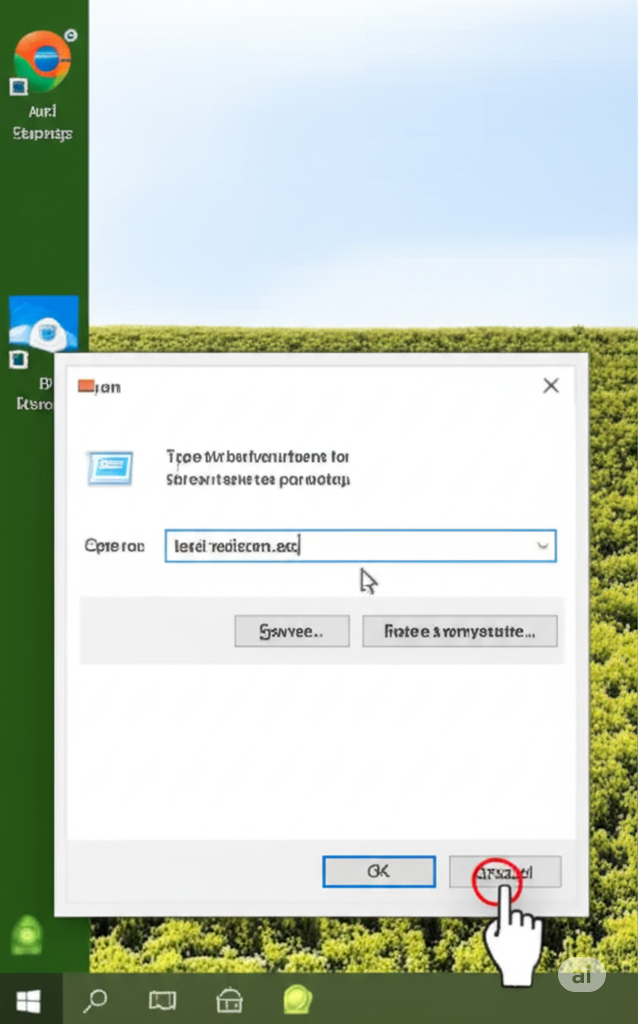
Press
Windows + R, typegpedit.msc, and hit Enter. -
In the Local Group Policy Editor, navigate to:
Computer Configuration > Administrative Templates > System > Logon -
Find the policy named “Hide entry points for Fast User Switching.”
-
Double-click it.
-
Set it to Disabled or Not Configured.
-
Click Apply and OK, then restart your computer.
If you’re using Windows 10 Home, skip to Method 2.
Method 2: Enable Fast User Switching via Registry Editor
If you’re on Windows 10 Home, you can achieve the same change using the Windows Registry.
Warning: Editing the registry can affect system stability. Be cautious and back up your registry before proceeding.
Steps:
-
Press
Windows + R, typeregedit, and press Enter. -
Navigate to:
HKEY_LOCAL_MACHINE\SOFTWARE\Microsoft\Windows\CurrentVersion\Policies\System -
In the right pane, look for a value named
HideFastUserSwitching.-
If it doesn’t exist, right-click and choose New > DWORD (32-bit) Value, and name it
HideFastUserSwitching.
-
-
Set the value to 0.
-
Close the Registry Editor and restart your PC.
Method 3: Use Ctrl + Alt + Delete to Switch Users
Even if the “Switch User” option is missing from the Start menu, try using Ctrl + Alt + Delete:
-
Press
Ctrl + Alt + Deletesimultaneously. -
If the “Switch User” option appears here, click it.
If it’s also missing from this menu, continue to the next method.
Method 4: Use Alt + F4 on Desktop
This method can sometimes bypass interface issues.
Steps:
-
Minimize all windows or go to your desktop.
-
Press
Alt + F4to open the Shut Down Windows dialog box. -
From the dropdown list, choose Switch user.
-
Click OK.
This can help confirm that the function still exists even if not visible in menus.
Method 5: Create a Shortcut to Switch User
You can create a desktop shortcut to force the switch user function.
Steps:
-
Right-click on your desktop, choose New > Shortcut.
-
In the location field, paste this:
-
Click Next, name it something like “Switch User”, and click Finish.
-
Double-click the shortcut anytime you want to switch users.
Note: If tsdiscon.exe is not available on your edition of Windows, this method may not work.
Method 6: Make Sure Multiple Accounts Exist
Sometimes the Switch User option won’t appear if there’s only one user account on the system.
To add another account:
-
Go to Settings > Accounts > Family & other users.
-
Under Other users, click Add someone else to this PC.
-
Follow the prompts to add a local or Microsoft account.
After adding another user, the Switch User option should appear automatically.
Method 7: Check Windows Services
A disabled or misconfigured Windows service might block user session switching.
Steps:
-
Press
Windows + R, typeservices.msc, and press Enter. -
Look for User Profile Service and Remote Desktop Services.
-
Make sure both services are running and set to Manual or Automatic.
-
Restart the computer and check if the option is restored.
Method 8: Run System File Checker (SFC) Scan
Corrupted system files may cause missing options in the UI.
To run an SFC scan:
-
Press
Start, typecmd, then right-click Command Prompt and select Run as administrator. -
Type:
-
Wait for the scan to complete. If errors are found and fixed, restart your PC.
Final Thoughts
The missing “Switch User” option in Windows 10 can be confusing, but in most cases, it’s due to a configuration setting that can be corrected easily. From using Group Policy and Registry edits to creating a simple shortcut, there are several ways to bring this functionality back.
Try the methods in this guide one by one. If none of them work, your system may require a deeper repair or fresh installation of Windows.