


Fix for Error: Unable to Complete Updates – Undoing Changes
Windows updates are crucial for security, performance, and new features. However, sometimes these updates fail, and users encounter a frustrating message:
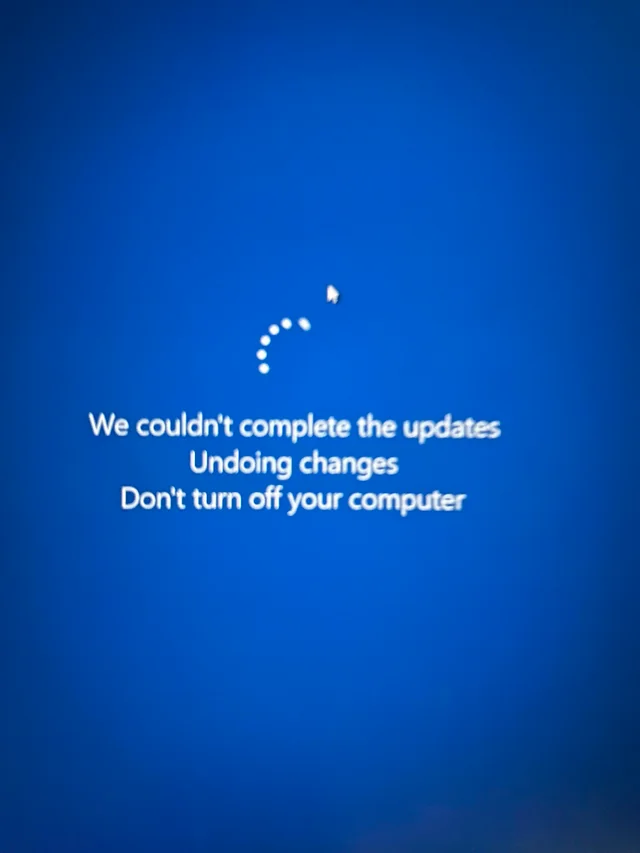
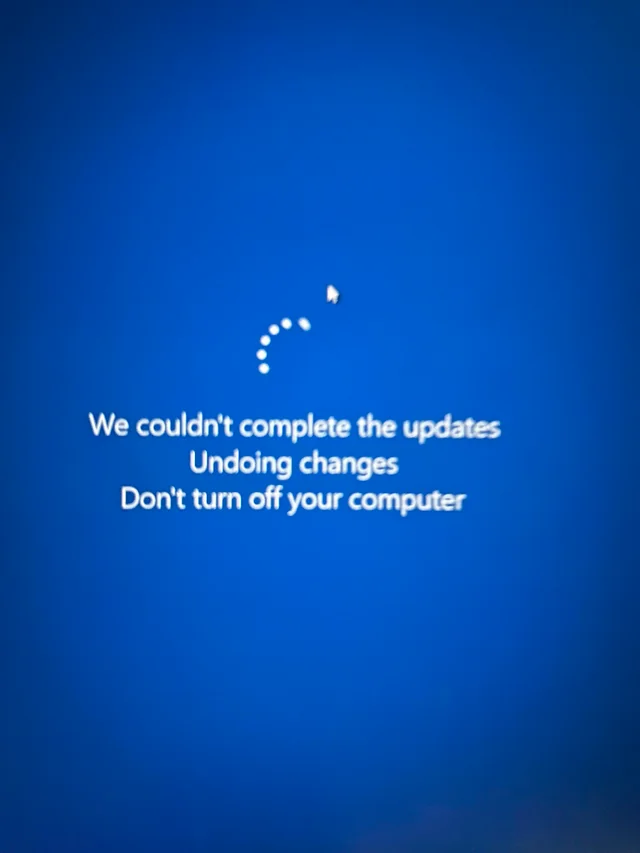
“We couldn’t complete the updates. Undoing changes. Don’t turn off your computer.”
This message usually appears after a failed attempt to install updates and is followed by a long boot process that may repeat or freeze. If you’re facing this issue on Windows 10 or 11, this guide will walk you through the most effective ways to fix it and prevent it from happening again.
What Causes the “We Couldn’t Complete the Updates” Error?
This message indicates that Windows tried to apply one or more updates during startup but failed. As a result, it’s rolling back the changes. The most common causes include:
-
Corrupted or incomplete update files
-
Insufficient disk space
-
Outdated or incompatible drivers
-
Conflicts with third-party antivirus software
-
File system errors or corrupt Windows components
-
Sudden shutdowns during update installation
Let’s go through the step-by-step solutions to resolve the issue.
Fix 1: Let Windows Finish Rolling Back
When you see the “Undoing changes” screen, do not turn off your PC unless it’s stuck for over an hour.
-
Wait until the message clears and Windows boots back into the desktop.
-
If it reboots and loops the message again, proceed to the next fixes.
Fix 2: Boot Into Safe Mode
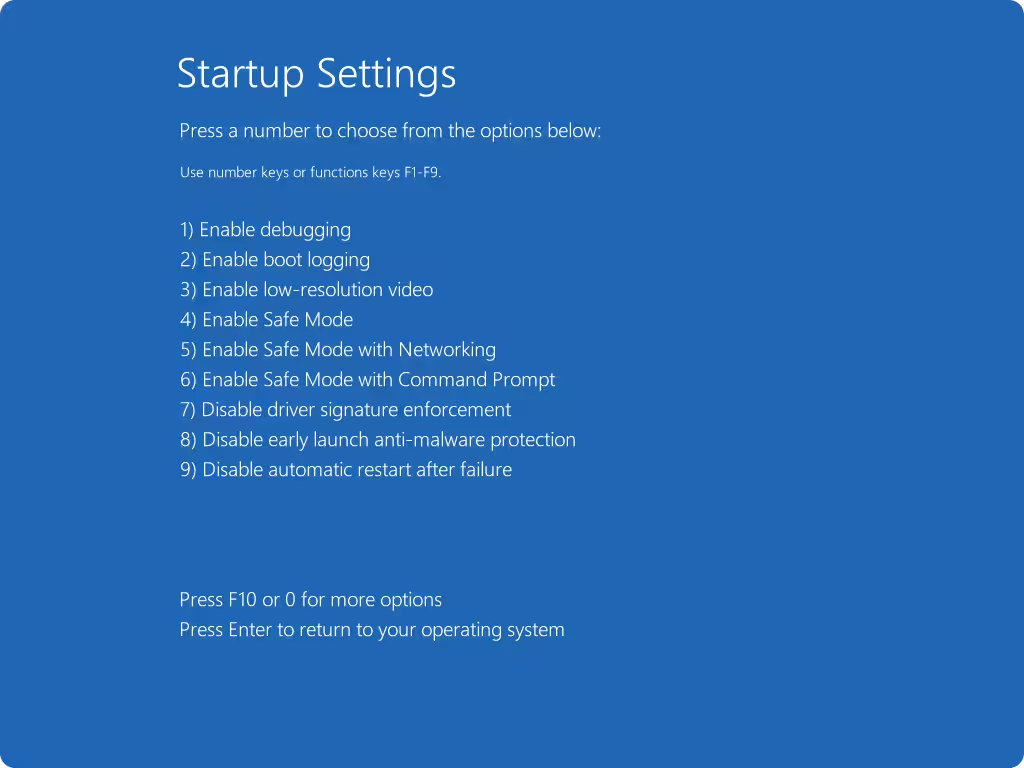
Booting into Safe Mode lets you bypass startup processes that may be interfering with Windows Update.
How to boot into Safe Mode:
-
Turn your PC on and off three times during the logo screen to trigger Startup Repair.
-
On the Recovery screen, click Advanced Options > Troubleshoot > Advanced options > Startup Settings > Restart.
-
After the restart, press 4 to choose Enable Safe Mode.
Once in Safe Mode, you can try deleting update files or running system repairs.
Fix 3: Delete the SoftwareDistribution Folder
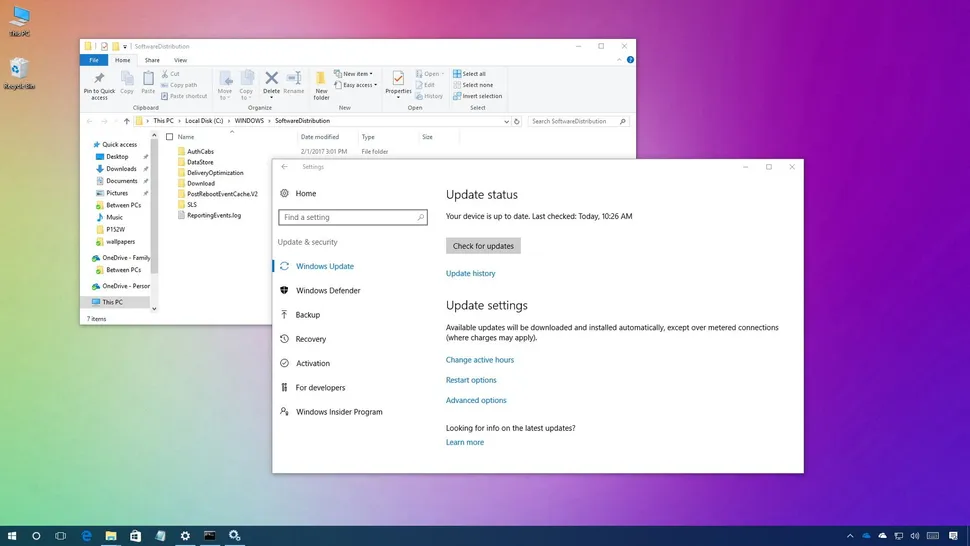
This folder stores temporary update files, and corruption here can cause update failures.
Steps:
-
Boot into Safe Mode (as shown above).
-
Open File Explorer and navigate to:
-
Delete all files and folders inside it. You may need admin permissions.
-
Reboot your PC normally.
Windows will recreate this folder and download fresh update files when you check for updates again.
Fix 4: Run Windows Update Troubleshooter
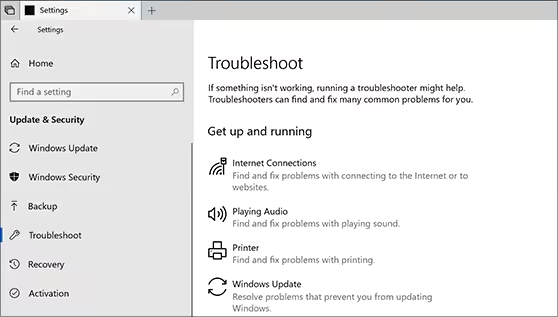
The built-in Windows Update Troubleshooter can automatically detect and fix common update-related problems.
How to run it:
-
Go to Settings > Update & Security > Troubleshoot.
-
Click Additional troubleshooters.
-
Select Windows Update and click Run the troubleshooter.
-
Follow the prompts and apply the recommended fixes.
After running the troubleshooter, restart your computer and attempt to install updates again.
Fix 5: Check Disk Space and System Drive
A lack of storage on your system drive (usually C:) can cause updates to fail.
What to do:
-
Ensure you have at least 10–20 GB of free space on your system drive.
-
Empty your Recycle Bin, delete unnecessary files, or run Disk Cleanup:
-
Type
Disk Cleanupinto the Start Menu and choose your system drive. -
Select files to delete (including old Windows updates) and click OK.
-
Freeing up space ensures updates have room to install properly.
Fix 6: Run System File Checker and DISM
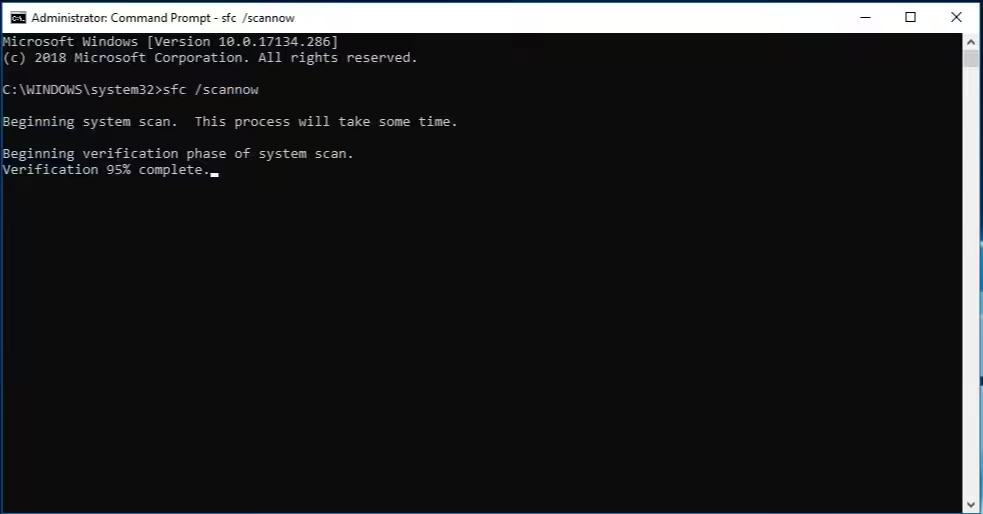
System corruption is a major reason for update errors. Use these built-in tools to repair Windows files.
Steps:
-
Open Command Prompt as Administrator
-
Run this command:
Let it complete (it may take 10–15 minutes). Afterward, run:
These tools will scan and repair system corruption. Restart your PC when done.
Fix 7: Uninstall the Problematic Update
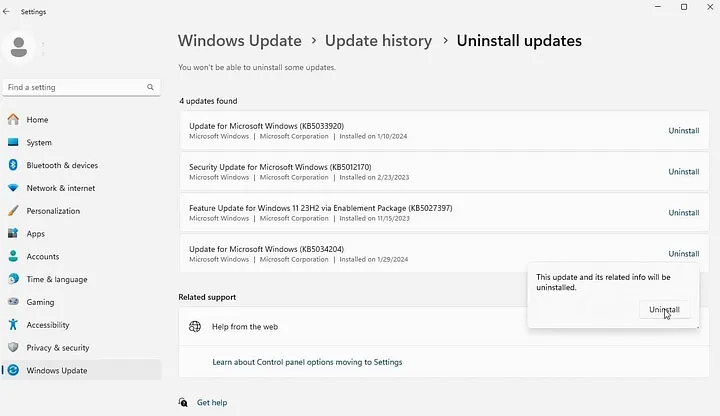
If you can boot into Windows (either normally or in Safe Mode), you can uninstall the specific update that failed.
How to do it:
-
Go to Settings > Update & Security > Windows Update > View update history.
-
Click Uninstall updates.
-
Select the latest installed update (especially one that failed) and click Uninstall.
After uninstalling, reboot your PC and check if the issue is resolved.
Fix 8: Pause Updates Temporarily
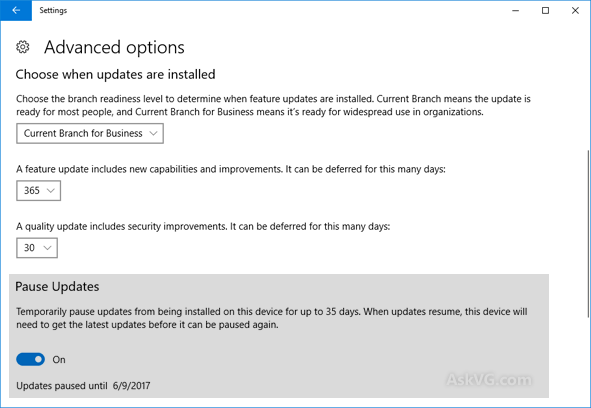
If updates continue to fail, pause them until a more stable version is released.
How to pause updates:
-
Go to Settings > Update & Security > Windows Update
-
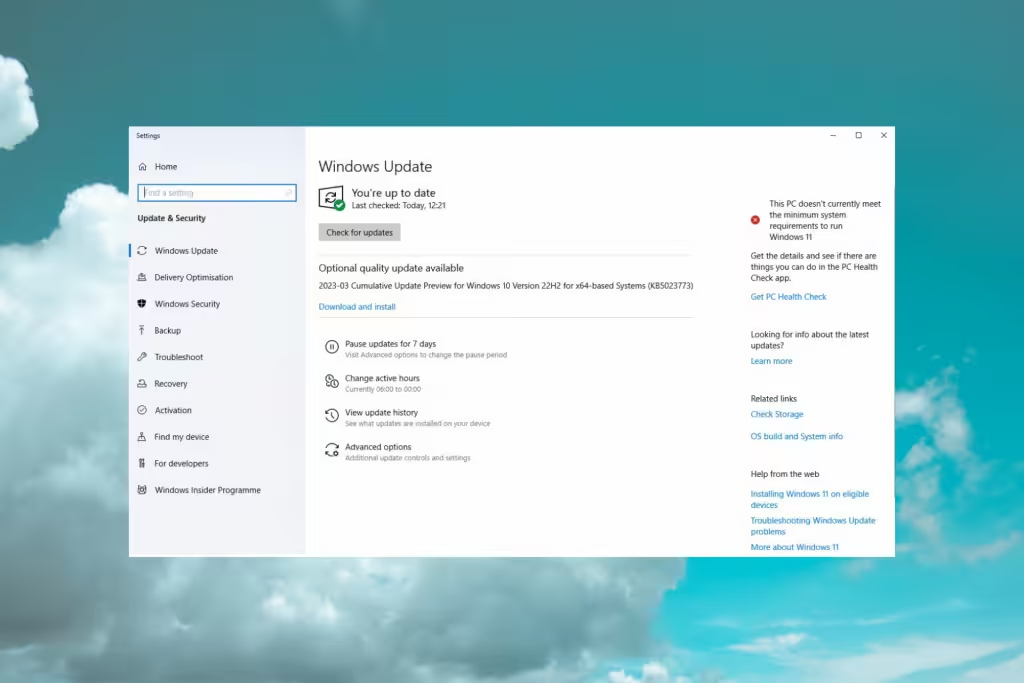
Click Pause updates for 7 days (you can extend this further in Advanced Options)
This gives you time to troubleshoot or wait for Microsoft to release a fix.
Fix 9: Use System Restore (If Available)
If System Restore was enabled, you can roll back your system to a previous working state.
To use System Restore:
-
Boot into Advanced Startup > Troubleshoot > Advanced Options > System Restore
-
Select a restore point created before the update failed.
-
Follow the wizard to restore your system.
This won’t affect your personal files, but it will remove recent changes to system files and drivers.
Fix 10: Perform an In-Place Repair (Last Resort)
If none of the above works, an in-place upgrade repair using the Media Creation Tool can fix update issues without erasing your files.
How to do it:
-
Download the Windows Media Creation Tool from Microsoft’s website.
-
Run the tool and choose Upgrade this PC now.
-
Follow the on-screen instructions.
This reinstalls Windows but keeps your apps and files intact.
Conclusion
The error “We couldn’t complete the updates. Undoing changes.” may seem daunting, but it’s usually fixable with some patience and the right tools. Whether it’s clearing corrupted update files, repairing your system, or simply ensuring your PC has enough storage, the steps above will help you get past this loop and back to using your computer normally.
Summary of Key Fixes:
-
Boot into Safe Mode
-
Delete the SoftwareDistribution folder
-
Use the Update Troubleshooter
-
Repair system files with SFC and DISM
-
Uninstall faulty updates
-
Use System Restore or perform a repair install
By carefully following these methods, you can resolve the update error and ensure smoother future Windows updates.