


Troubleshooting Activation Problems and Unlicensed Status in Office
If you open Microsoft Word, Excel, or PowerPoint and see a red title bar with the words “Unlicensed Product” or “Product Activation Failed”, you’re not alone. These activation errors in Microsoft Office are frustrating, especially when you need to get work done urgently.
This issue typically means Office couldn’t verify your license, either because it wasn’t properly activated, the subscription expired, or something disrupted communication between your computer and Microsoft’s activation servers. Fortunately, there are a number of solutions to resolve this problem.
What Causes the “Unlicensed Product” Error?
Before jumping into the fixes, it helps to understand what might be causing the problem. Common causes include:
-
Expired Microsoft 365 subscription
-
Office was never activated after installation
-
The user is not signed into the correct Microsoft account
-
Issues with the internet connection or activation servers
-
Conflicts with other Office installations
-
Corrupt Office license files or registry entries
-
Antivirus or firewall blocking activation
Now, let’s go step-by-step through the solutions.
Sign in with the Correct Microsoft Account
Microsoft Office licenses are tied to the account used during activation. If you are signed in with the wrong account or not signed in at all, Office won’t recognize your license.
Steps:
-
Open any Office application like Word or Excel.
-
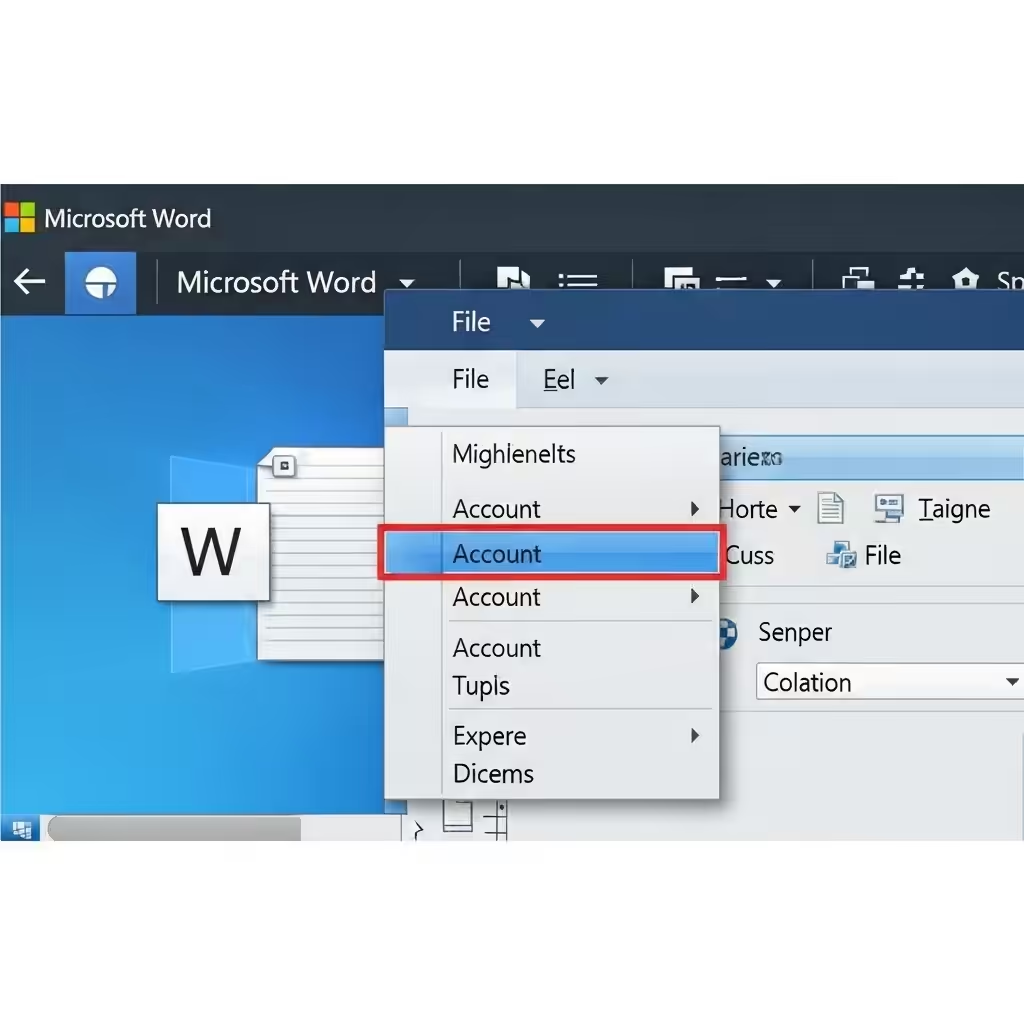
Click File > Account (or Office Account).
-
Under User Information, check if you’re signed in.
-
If not signed in or using the wrong account, click Sign in with a different account.
-
Enter the email associated with your Microsoft Office purchase.
After signing in, Office should automatically try to activate itself.
Check Your Subscription Status
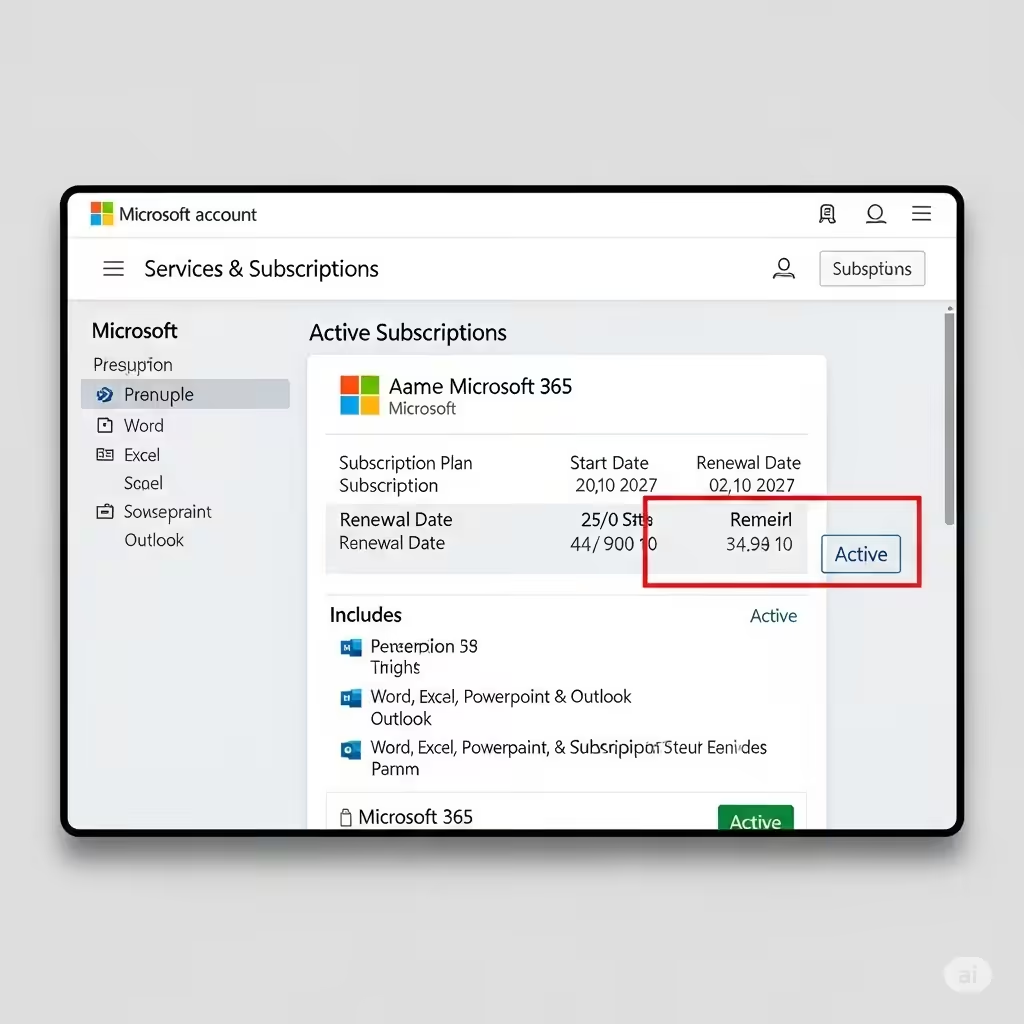
If you’re using Microsoft 365 (formerly Office 365), ensure that your subscription is still active.
To check:
-
Visit https://account.microsoft.com and sign in.
-
Go to Services & Subscriptions.
-
Look for your Office or Microsoft 365 subscription.
-
If it shows expired, you’ll need to renew it.
If your subscription is active but the product still shows as unlicensed, continue with the next steps.
Activate Office Manually
Sometimes automatic activation fails, especially on fresh installs or new devices. You can force activation manually.
Steps:
-
Open any Office app (e.g., Word).
-
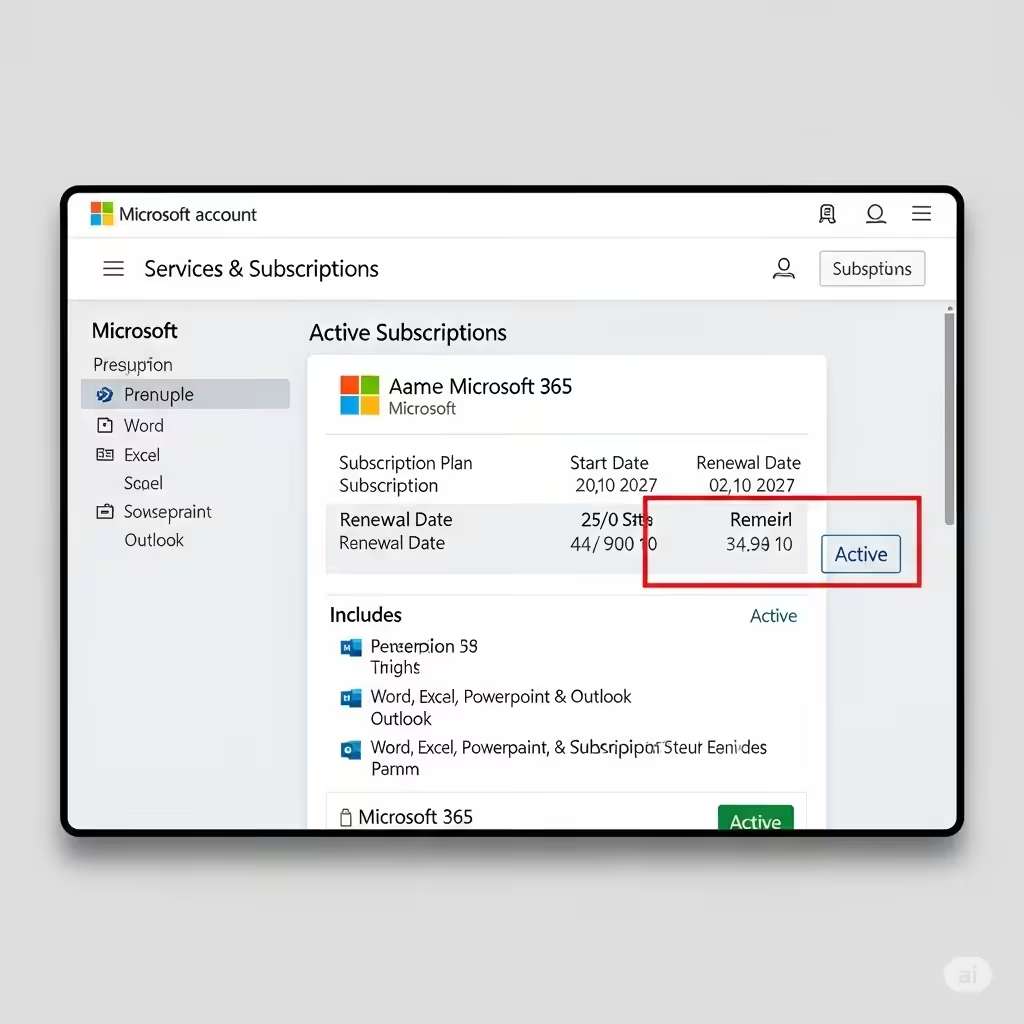
Go to File > Account.
-
Click Change Product Key (if visible).
-
Enter your 25-character product key if you have one.
If you’re using Microsoft 365, you may not see this option. In that case, make sure you’re logged in with your subscription account.
Run Office as Administrator
Permissions can interfere with activation, especially in enterprise or restricted environments. Running Office with administrative rights can help.
Steps:
-
Close all Office applications.
-
Right-click the Office app icon (e.g., Word).
-
Select Run as administrator.
-
Office may automatically reattempt activation when run this way.
Try creating or editing a document afterward to check if the banner disappears.
Use the Microsoft Support and Recovery Assistant
Microsoft provides a dedicated tool to automatically diagnose and fix Office activation issues.
Steps:
-
Download the Microsoft Support and Recovery Assistant (SaRA) from the official Microsoft website.
-
Install and launch the tool.
-
Select Office > I have a problem with activation.
-
Follow the on-screen prompts to let the tool detect and resolve issues.
This tool can fix common problems such as invalid licenses, corrupt activation tokens, and network issues.
Check Date and Time Settings
Incorrect date and time can interfere with Office’s activation server communication.
Steps:
-
Press Windows + I to open Settings.
-
Go to Time & Language > Date & Time.
-
Enable Set time automatically and Set time zone automatically.
-
Restart your PC and try activating Office again.
Disable Antivirus or Firewall Temporarily
Security software can block Office from reaching Microsoft’s servers, preventing activation.
To test:
-
Temporarily disable your antivirus and firewall.
-
Open any Office application and go to File > Account to check the activation status.
-
If it activates successfully, add Office to your antivirus’ exception list.
Always remember to re-enable your antivirus after testing.
Repair Microsoft Office
If Office components are damaged, they can block activation.
Steps:
-
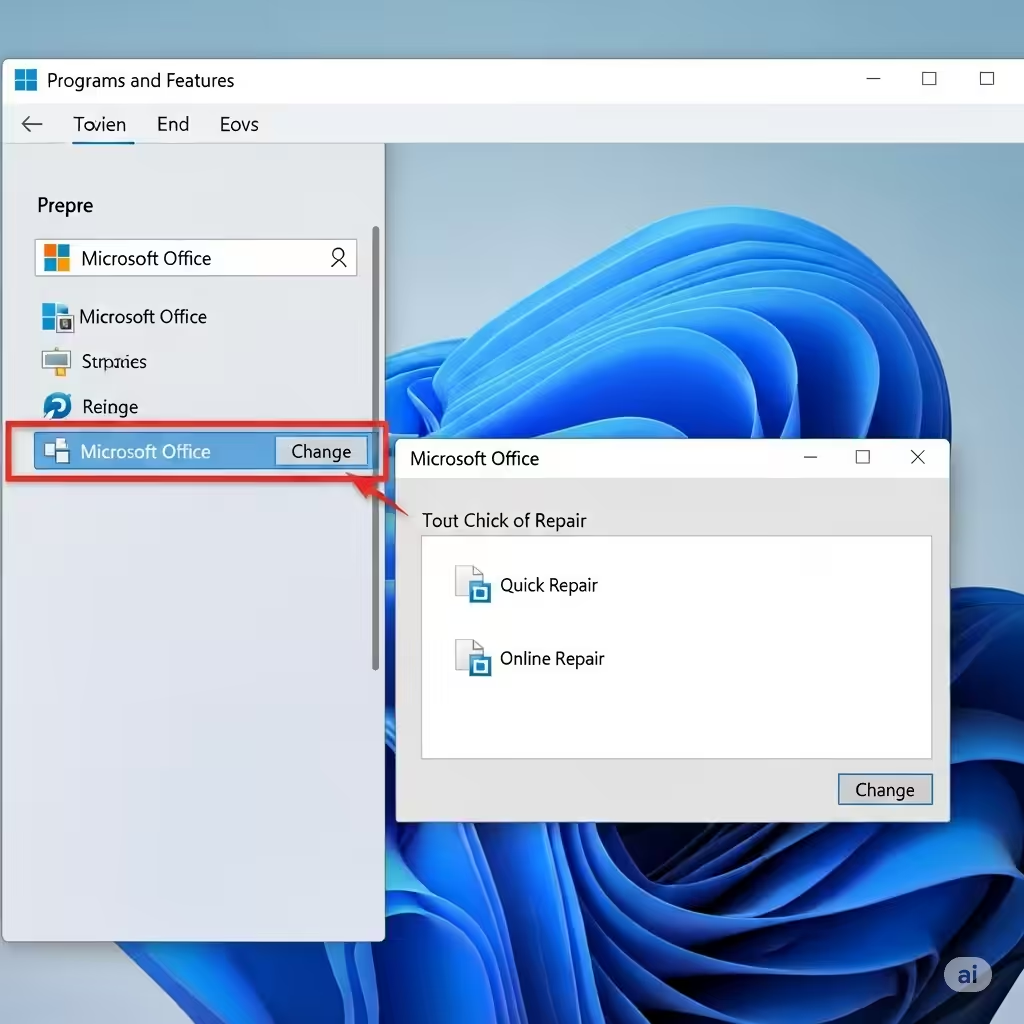
Press Windows + R, type
appwiz.cpl, and press Enter. -
Find Microsoft Office in the list and click Change.
-
Choose Quick Repair.
-
If that doesn’t work, try Online Repair (more thorough but requires internet).
Once the repair is done, launch Office and see if activation succeeds.
Remove Old or Conflicting Office Versions
Conflicting Office installations (like having Office 2013 and Office 365 together) can prevent proper activation.
Steps:
-
Go to Control Panel > Programs > Programs and Features.
-
Uninstall older versions of Microsoft Office that you no longer use.
-
Restart your computer.
-
Reopen the newer Office version and try activating again.
Reactivate Using Command Prompt (Advanced)
Advanced users can use the command line to reactivate Office manually.
Steps:
-
Open Command Prompt as Administrator.
-
Navigate to the Office installation directory. For example:
-
Enter the following command:
This will force Office to reattempt activation. Make sure you’re connected to the internet.
Final Thoughts
The Unlicensed Product and Product Activation Failed messages in Microsoft Office are common but solvable problems. Whether caused by account issues, expired subscriptions, or installation conflicts, you can often fix them with a few methodical steps.
To recap:
-
Sign in with the correct Microsoft account
-
Check and renew your subscription if necessary
-
Use Microsoft’s Support and Recovery Assistant
-
Repair or reinstall Office
-
Run Office as administrator
-
Disable interfering antivirus or firewall temporarily
-
Use command-line tools for advanced reactivation
By following these solutions, you should be able to restore full functionality to Microsoft Office and eliminate the warning messages for good.