


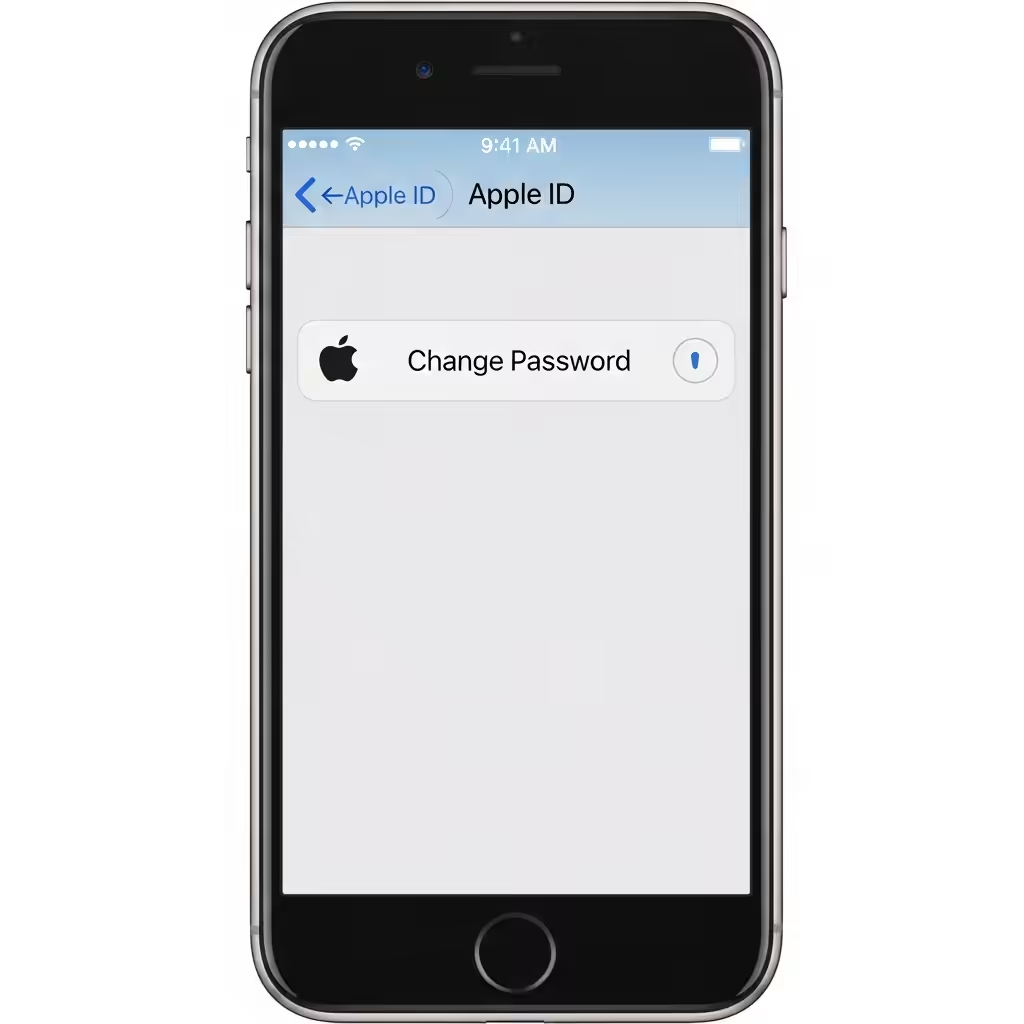
Modify Your Apple ID Password from Any Device
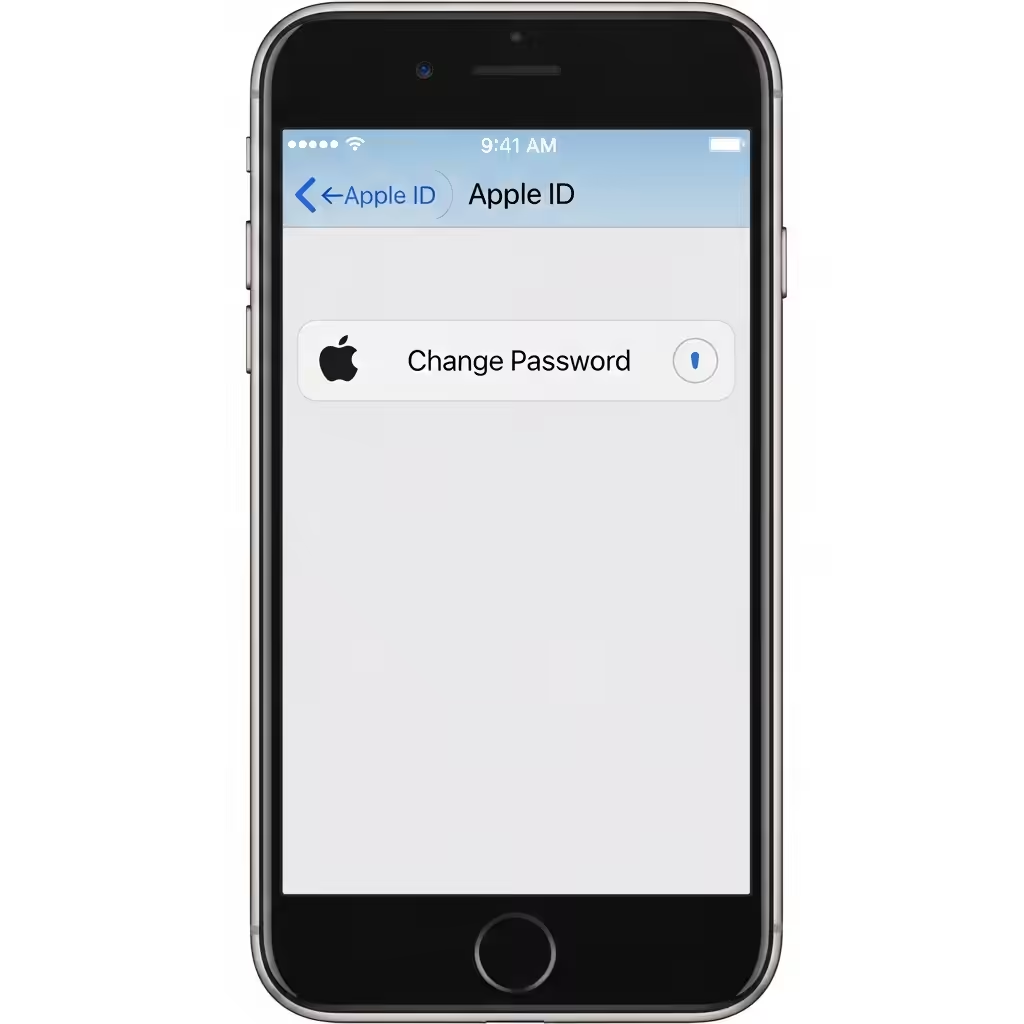
Your Apple ID password is the key to accessing all of Apple’s services, including iCloud, the App Store, Apple Music, FaceTime, iMessage, and more. Keeping this password secure — and updating it regularly — is crucial for protecting your data and digital identity.
Whether you’ve forgotten your password, suspect suspicious activity, or just want to change it as a precaution, Apple makes it easy to reset or update your Apple ID password from any device — iPhone, iPad, Mac, or a browser.
In this guide, we’ll walk you through the steps to change your Apple ID password on all supported platforms.
When Should You Change Your Apple ID Password?
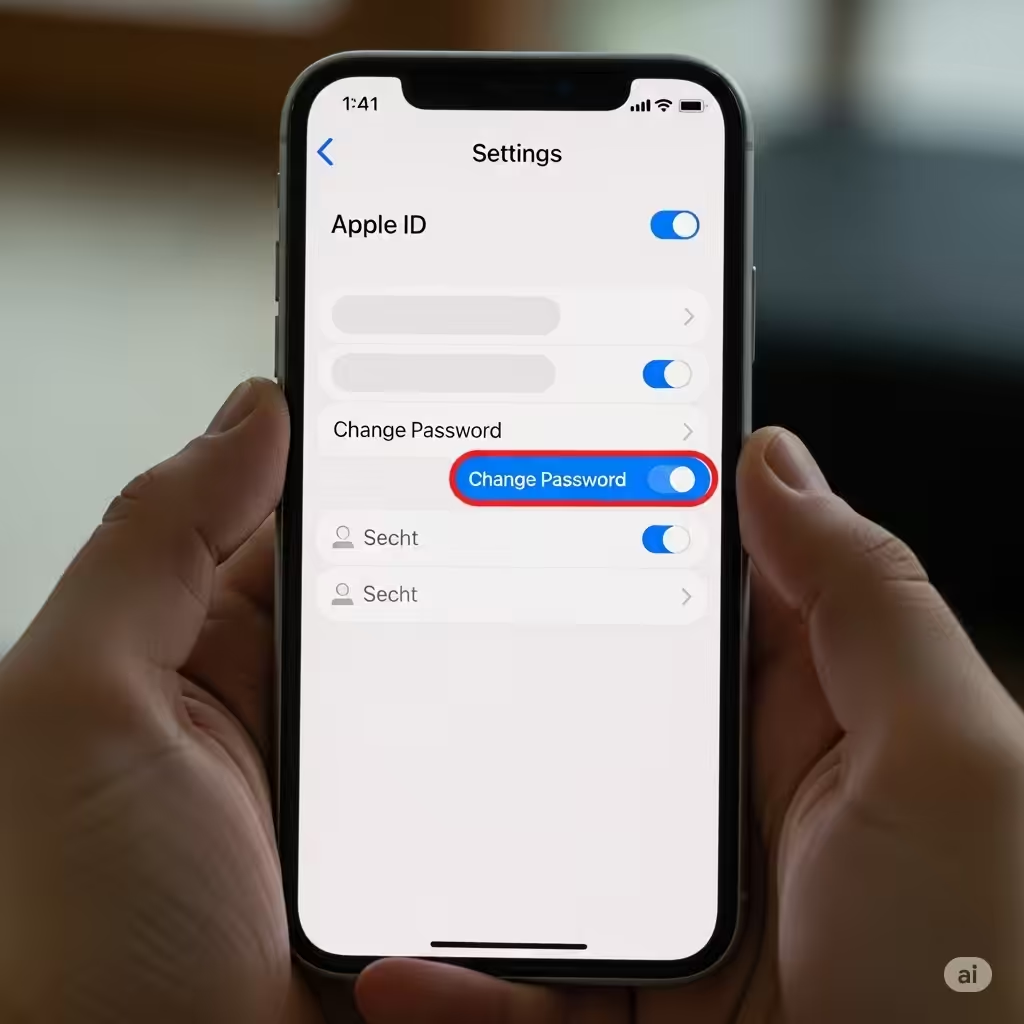
You should consider changing your Apple ID password if:
-
You forgot your current password
-
You suspect unauthorized access to your Apple account
-
You receive a security notification from Apple
-
You recently lost a device signed in with your Apple ID
-
You simply want to improve your security with a new password
Changing your password takes only a few minutes, and it’s one of the best steps you can take to protect your data.
What You Need Before Changing Your Apple ID Password
Before you begin, make sure:
-
You know your current Apple ID and password (unless you’re resetting it because you forgot)
-
You have access to a trusted Apple device or phone number
-
Your device is running the latest version of iOS, iPadOS, or macOS
-
You have internet access
Now, let’s look at how to change your password on different devices.
How to Change Your Apple ID Password on iPhone or iPad
If you’re already signed in and just want to change your password:
-
Open the Settings app.
-
Tap your name at the top to open your Apple ID settings.
-
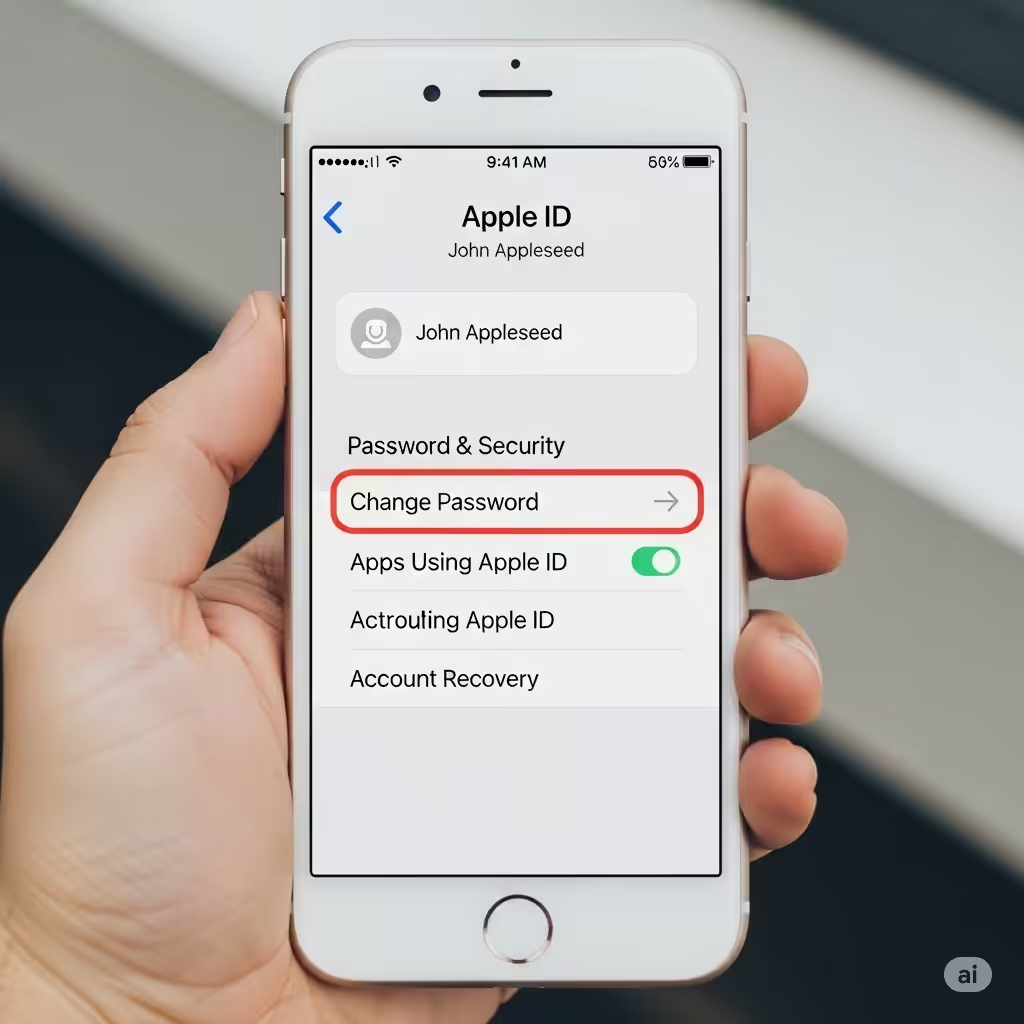
Select Password & Security.
-
Tap Change Password.
-
If prompted, enter your device passcode.
-
Enter your new password, confirm it, and tap Change.
Your new password must:
-
Be at least eight characters long
-
Include at least one number
-
Include at least one uppercase and lowercase letter
-
Not be one you’ve used in the past year
Once updated, Apple will sign you out of all other devices for security, and you’ll need to sign in again with the new password.
How to Change Your Apple ID Password on a Mac
To change your password using your Mac:
-
Click the Apple menu in the top-left corner.
-
Go to System Settings (macOS Ventura and later) or System Preferences.
-
Click your name (or Apple ID) in the sidebar.
-
Choose Password & Security.
-
Click Change Password.
-
Enter your Mac’s administrator password if asked.
-
Set your new password, then confirm.
Just like on an iPhone or iPad, you’ll be signed out of other devices after the change is completed.
How to Change Your Apple ID Password Using a Web Browser
If you don’t have access to your Apple devices but can use a web browser:
-
Go to https://appleid.apple.com.
-
Sign in using your Apple ID and current password.
-
Under Sign-In and Security, click Password.
-
Enter your current password, then your new password twice.
-
Click Change Password to confirm.
This method works on any computer or mobile device and is helpful if you’re temporarily using a different device.
How to Reset Your Apple ID Password If You Forgot It
If you can’t remember your Apple ID password, you can reset it instead of changing it.
On iPhone or iPad:
-
Go to Settings > Tap your name > Password & Security.
-
Tap Change Password.
-
If you’re signed out, tap Forgot Password? on the sign-in screen.
-
Follow the on-screen instructions to reset your password using your phone number or another trusted device.
On a Web Browser:
-
Visit iforgot.apple.com.
-
Enter your Apple ID email.
-
Follow the prompts to verify your identity and reset your password.
You may need to answer security questions or verify your identity with two-factor authentication.
What Happens After Changing Your Password?
When you update your Apple ID password, the following changes occur:
-
You’ll be signed out of all devices using your Apple ID, except the one you’re using to change the password.
-
Apps and services that use iCloud (e.g., Photos, Mail, iMessage) may ask you to sign in again.
-
You’ll need to enter the new password on other devices or browsers the next time you use Apple services.
Tips for Creating a Strong Apple ID Password
Security is key when it comes to your Apple ID. Follow these best practices when choosing a new password:
-
Don’t use personal information like your name or birth date.
-
Avoid common words or easy-to-guess phrases.
-
Use a mix of upper and lowercase letters, numbers, and symbols.
-
Consider using a password manager to generate and store strong passwords.
Enable Two-Factor Authentication for Added Security
If you haven’t already, enable two-factor authentication (2FA) on your Apple ID. This adds an extra layer of protection by requiring a verification code sent to a trusted device or phone number.
To enable 2FA:
-
Go to Settings > [your name] > Password & Security
-
Tap Turn On Two-Factor Authentication
-
Follow the steps to complete setup
With 2FA, even if someone knows your password, they can’t access your account without the verification code.
Conclusion
Changing your Apple ID password is a simple yet essential way to protect your digital life. Whether you’re using an iPhone, iPad, Mac, or web browser, Apple provides easy methods for updating your credentials securely.
Make it a habit to update your password regularly, avoid reusing old ones, and always enable two-factor authentication for better account protection. A few minutes of effort can save you from potential headaches in the future.
If you need additional help or can’t access your devices, Apple Support is available at support.apple.com for further assistance.