


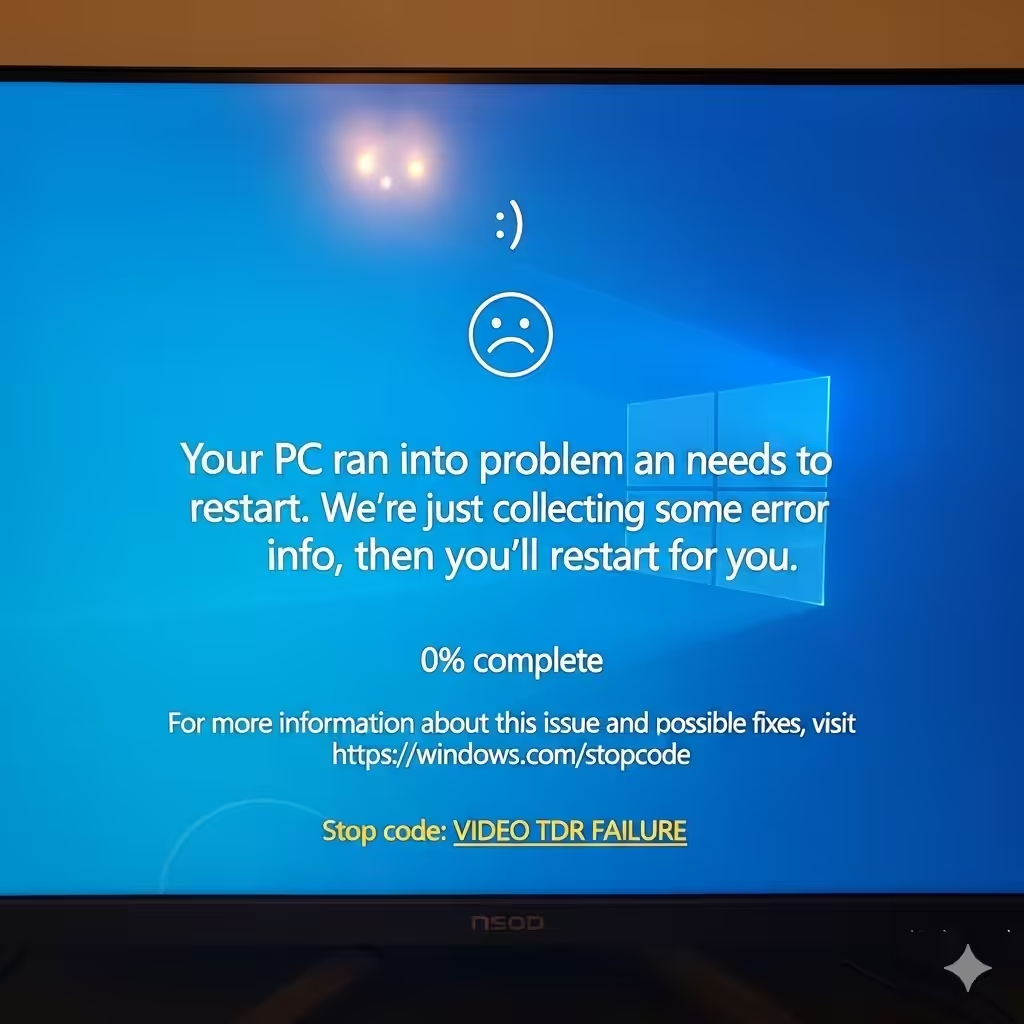
How to Resolve the Video TDR Failure Issue in Windows (atikmpag.sys)
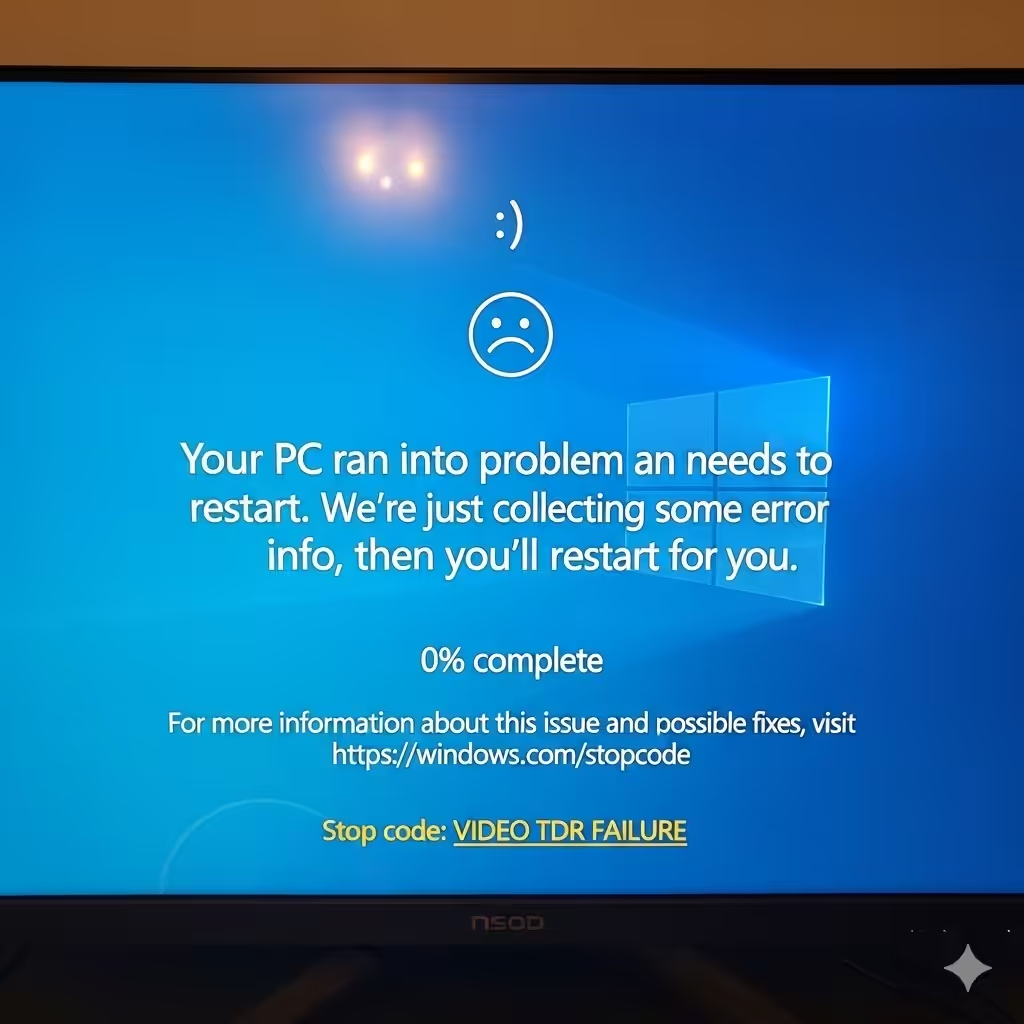
Blue Screen of Death (BSOD) errors are among the most frustrating issues Windows users encounter. One of the most common BSOD errors related to graphics problems is the Video TDR Failure, often caused by the file atikmpag.sys. This error is particularly frequent on computers with AMD graphics cards and can interrupt your work, gaming, or everyday computer usage.
In this guide, we will explain what this error means, why it happens, and most importantly, how you can fix it step by step.
What Is Video TDR Failure (atikmpag.sys)?
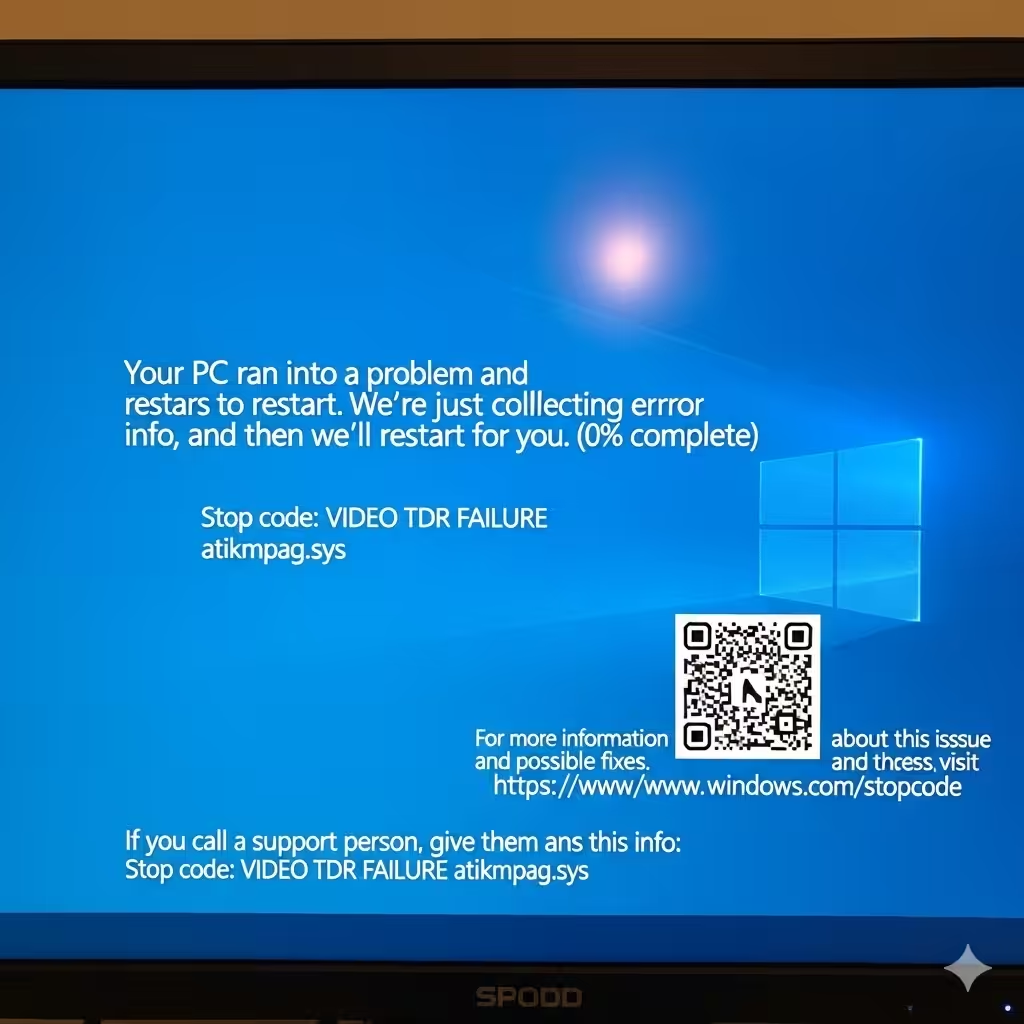
TDR stands for Timeout, Detection, and Recovery, a Windows feature designed to detect when the graphics card or driver becomes unresponsive. Instead of completely crashing, Windows attempts to reset the driver. However, when this process fails, it leads to a Blue Screen of Death with the Video TDR Failure error.
The atikmpag.sys file is a system file linked to AMD graphics drivers. If it becomes corrupted, outdated, or incompatible, it may trigger this BSOD.
Common Causes of the Error
Several factors can trigger the Video TDR Failure error:
-
Corrupted or outdated AMD graphics drivers
-
Overheating of the GPU
-
Hardware conflicts or faulty graphics card
-
Incorrect system configurations
-
Windows updates that are not compatible with the graphics driver
Understanding these causes will help you choose the right fix.
Restart Your Computer
Before diving into advanced solutions, a simple restart might temporarily resolve the issue. If the BSOD appeared due to a minor driver hiccup, rebooting may restore normal system function. However, if the error repeats frequently, proceed with the following steps.
Update or Reinstall AMD Graphics Drivers
The most common fix is to update or reinstall your graphics drivers.
-
Press Windows + X and select Device Manager.
-
Expand the Display adapters section.
-
Right-click your AMD graphics card and select Update driver.
-
Choose Search automatically for drivers.
If updating doesn’t help, reinstall the driver:
-
In Device Manager, right-click the AMD card and choose Uninstall device.
-
Check the box Delete the driver software for this device.
-
Restart your computer.
-
Download the latest driver from the official AMD website and install it manually.
This ensures any corrupted driver files are replaced.
Replace the atikmpag.sys File Manually
If the atikmpag.sys file itself is corrupted, replacing it can fix the issue.
-
Navigate to C:\Windows\System32\drivers.
-
Locate atikmpag.sys and rename it to atikmpag.sys.old.
-
Insert your AMD driver installation package (download it from AMD’s site).
-
Extract the package and look for a file named atikmpag.sy_.
-
Open Command Prompt as administrator and type:
-
Copy the new atikmpag.sys file into C:\Windows\System32\drivers.
-
Restart your computer.
This manual replacement often resolves corrupted system file issues.
Check for Overheating
Overheating graphics cards can also cause the TDR failure error. Ensure your system stays cool by:
-
Cleaning dust from inside your PC or laptop
-
Ensuring fans and vents are not blocked
-
Using a cooling pad for laptops
-
Monitoring GPU temperatures with tools like HWMonitor or MSI Afterburner
If the GPU consistently overheats, you may need to improve cooling or replace thermal paste.
Adjust TDR Settings in Windows Registry
You can adjust Timeout Detection and Recovery (TDR) settings to give your GPU more time before Windows triggers the error.
-
Press Windows + R, type regedit, and hit Enter.
-
Navigate to:
-
Right-click and select New > DWORD (32-bit) Value.
-
Name it TdrDelay and set the value to 8.
-
Close Registry Editor and restart your PC.
This gives the GPU more time to respond before Windows considers it unresponsive.
Run a System File Check
Corrupted system files can also contribute to the BSOD. Run the built-in System File Checker:
-
Open Command Prompt as administrator.
-
Type:
-
Wait for the scan to finish. If errors are found, Windows will repair them automatically.
After completing the process, restart your computer and check if the problem persists.
Update Windows
Sometimes the issue is caused by outdated or incompatible system updates. Ensure Windows is fully updated:
-
Press Windows + I to open Settings.
-
Go to Update & Security > Windows Update.
-
Click Check for updates and install any available updates.
This ensures compatibility between your operating system and graphics drivers.
Test Your Hardware
If none of the software solutions work, the error might point to failing hardware. You can test your GPU with stress-testing software like FurMark. If the GPU crashes or produces artifacts under load, it may be defective and require replacement.
Perform a Clean Boot
A clean boot allows Windows to start with only essential drivers and services, which helps identify if third-party applications are causing conflicts.
-
Press Windows + R, type msconfig, and hit Enter.
-
Go to the Services tab, check Hide all Microsoft services, and click Disable all.
-
Go to the Startup tab and open Task Manager.
-
Disable all startup programs.
-
Restart your computer and see if the issue persists.
If the BSOD disappears, re-enable services one by one to find the culprit.
Reset or Reinstall Windows
If all else fails, you may need to reset or reinstall Windows. This should only be done after backing up your data.
-
Go to Settings > Update & Security > Recovery.
-
Under Reset this PC, choose Get started.
-
Select whether to keep your files or remove everything.
This will reinstall Windows and may permanently resolve the error.
Conclusion
The Video TDR Failure (atikmpag.sys) error is typically caused by driver issues, overheating, or corrupted system files. By updating or reinstalling your AMD drivers, replacing the atikmpag.sys file, adjusting TDR settings, and checking hardware health, you can usually resolve the problem.
If the issue persists after trying all the above fixes, it may indicate a failing graphics card that requires replacement. Taking proactive steps such as keeping your drivers updated, maintaining proper cooling, and running regular system checks will help prevent the error from recurring.