


Fixing the “Windows Cannot Stop the Device” Problem
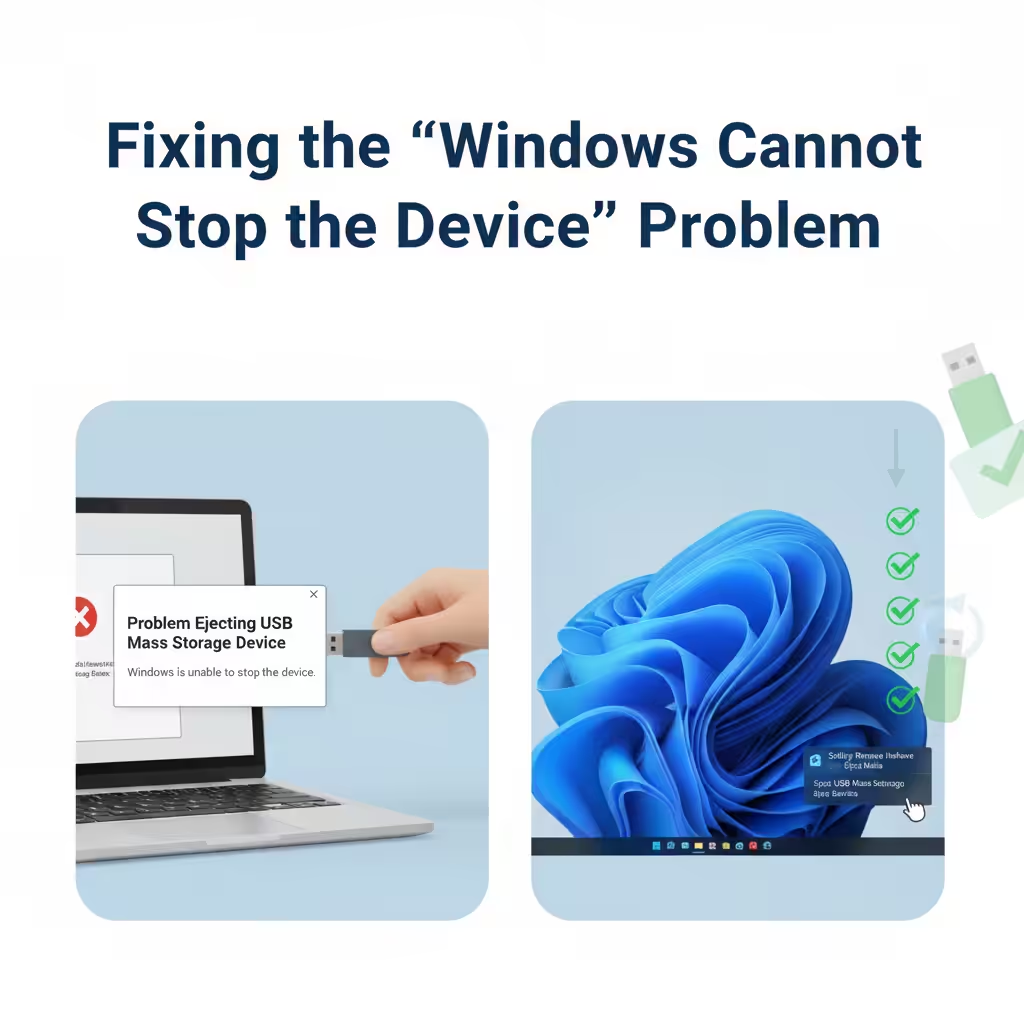
If you have ever tried to safely remove a USB flash drive, external hard disk, or another removable device in Windows, you may have encountered the frustrating message: “Windows is unable to stop the device.” This error prevents you from ejecting the hardware safely and may leave you worried about losing data or damaging the device.
Fortunately, this issue can be fixed. In this guide, we will explain why it happens and provide several solutions to help you remove your devices safely without data loss.
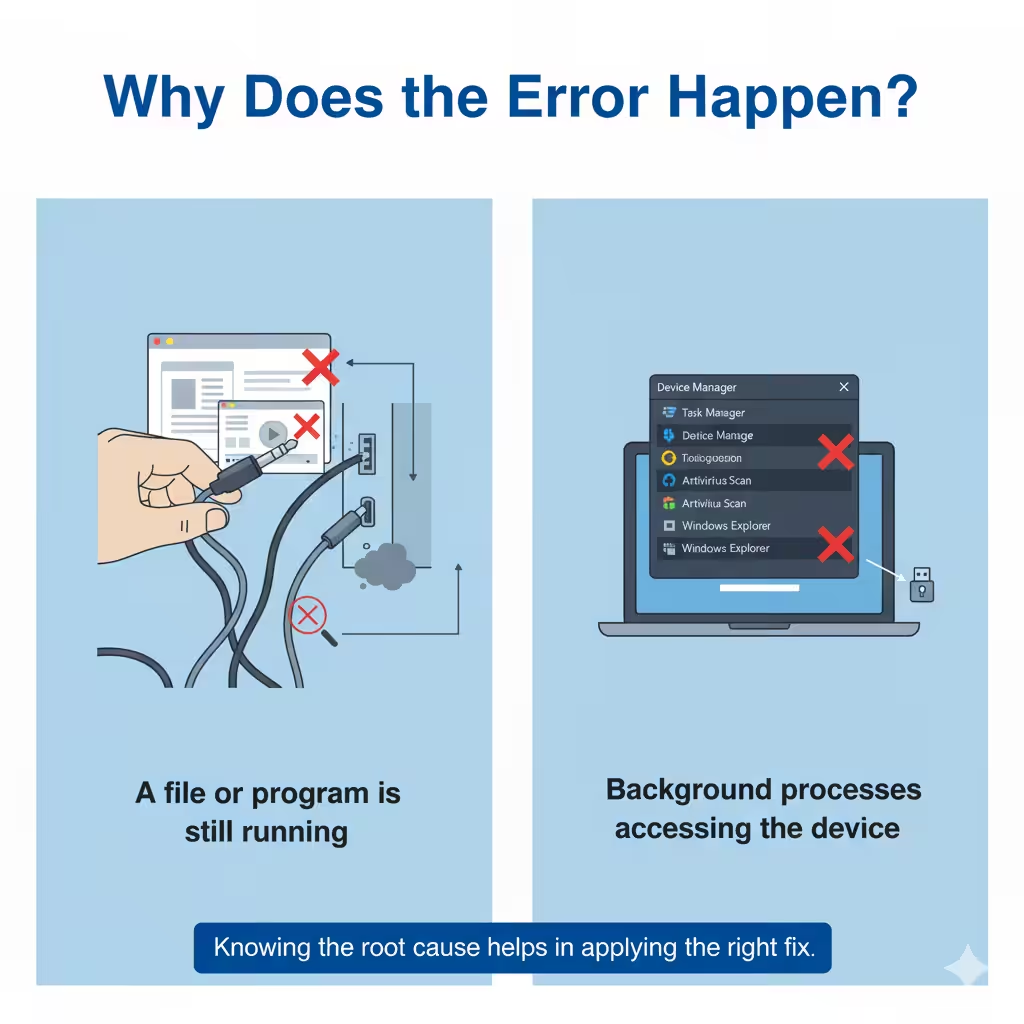
Why Does the Error Happen?
The error typically appears when Windows believes the device is still in use. Some of the most common reasons include:
-
A file or program is still running from the USB device.
-
Background processes (such as antivirus scans) are accessing the device.
-
Windows Explorer has locked certain files or folders.
-
The device drivers are outdated or malfunctioning.
-
System services are interfering with the ejection process.
Knowing the root cause helps in applying the right fix.
Basic Troubleshooting Steps
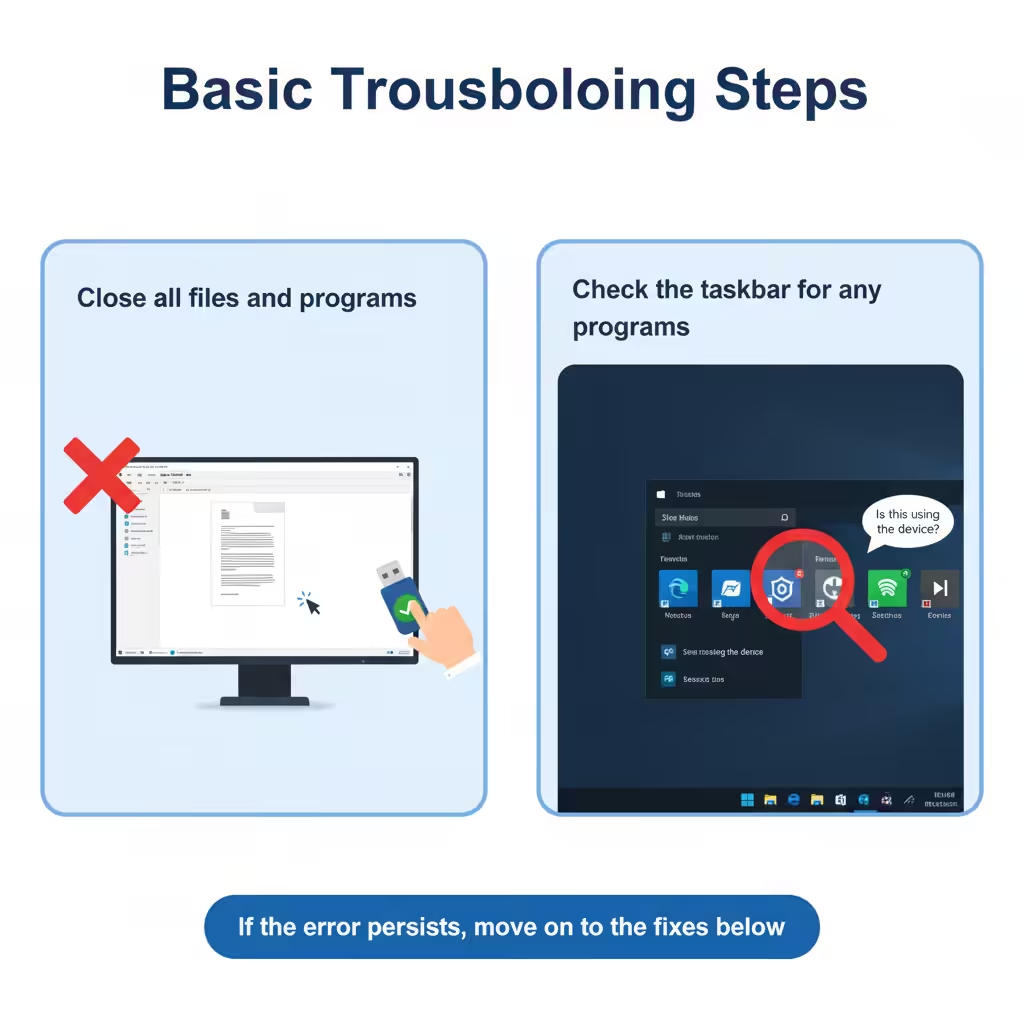
Before moving into advanced solutions, try the following simple checks:
-
Close all files and programs that may be using the device. For example, if you opened a document directly from the USB drive, save and close it before ejecting.
-
Wait a few moments after closing applications. Sometimes Windows needs extra time to release the device.
-
Check the taskbar for any programs still running that may be linked to the device, such as music players or backup tools.
If the error persists, move on to the fixes below.
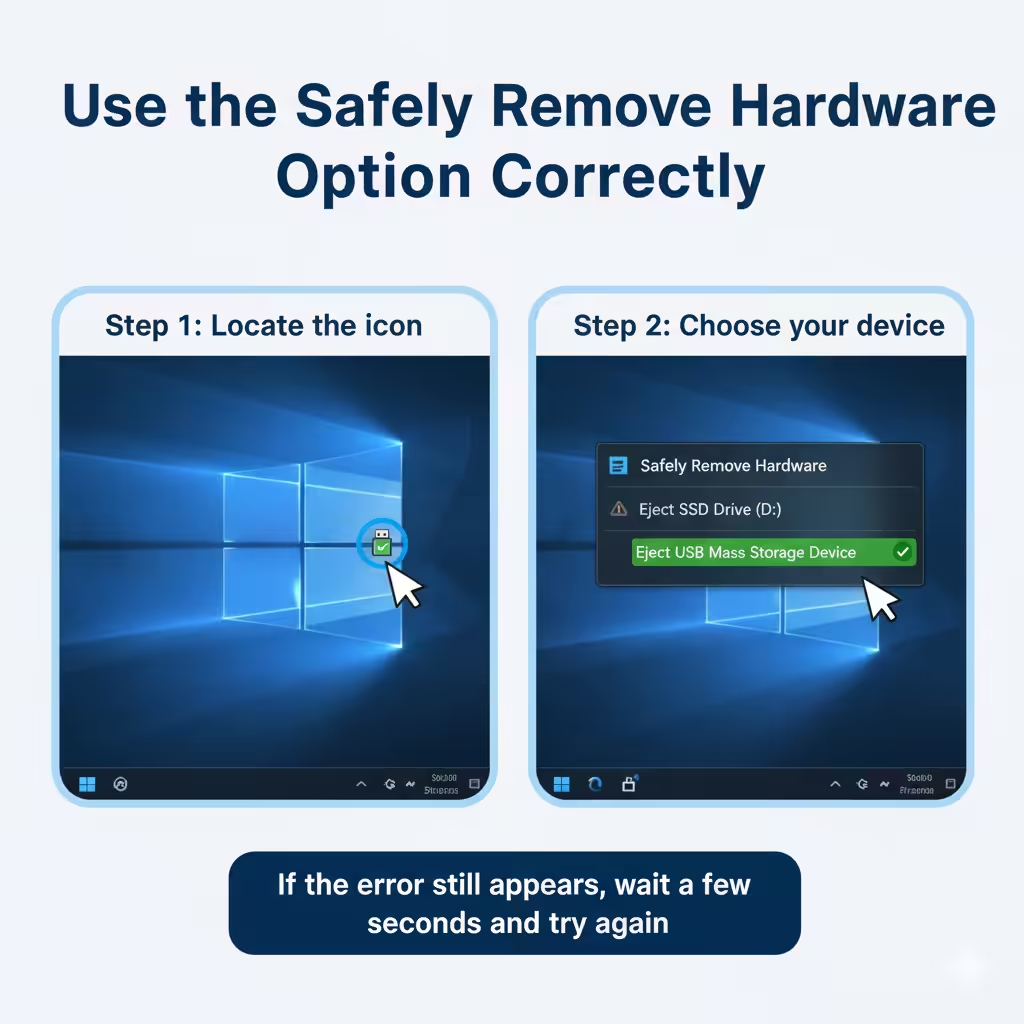
Use the Safely Remove Hardware Option Correctly
Windows provides a built-in method for ejecting devices.
-
Locate the Safely Remove Hardware and Eject Media icon in the system tray (bottom-right corner).
-
Click on it and choose the device you want to remove.
-
If the error still appears, wait a few seconds and try again.
In many cases, this resolves the issue after background processes finish using the device.
Stop Background Processes
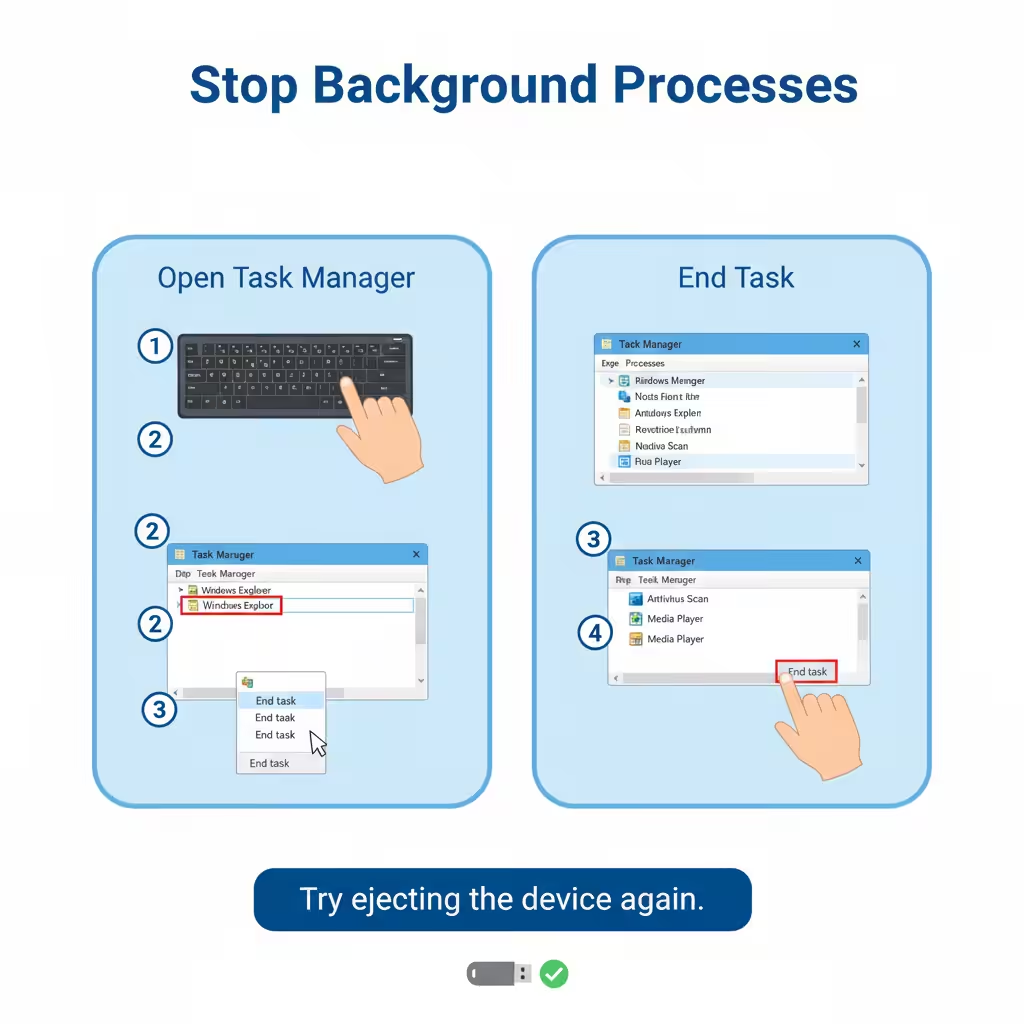
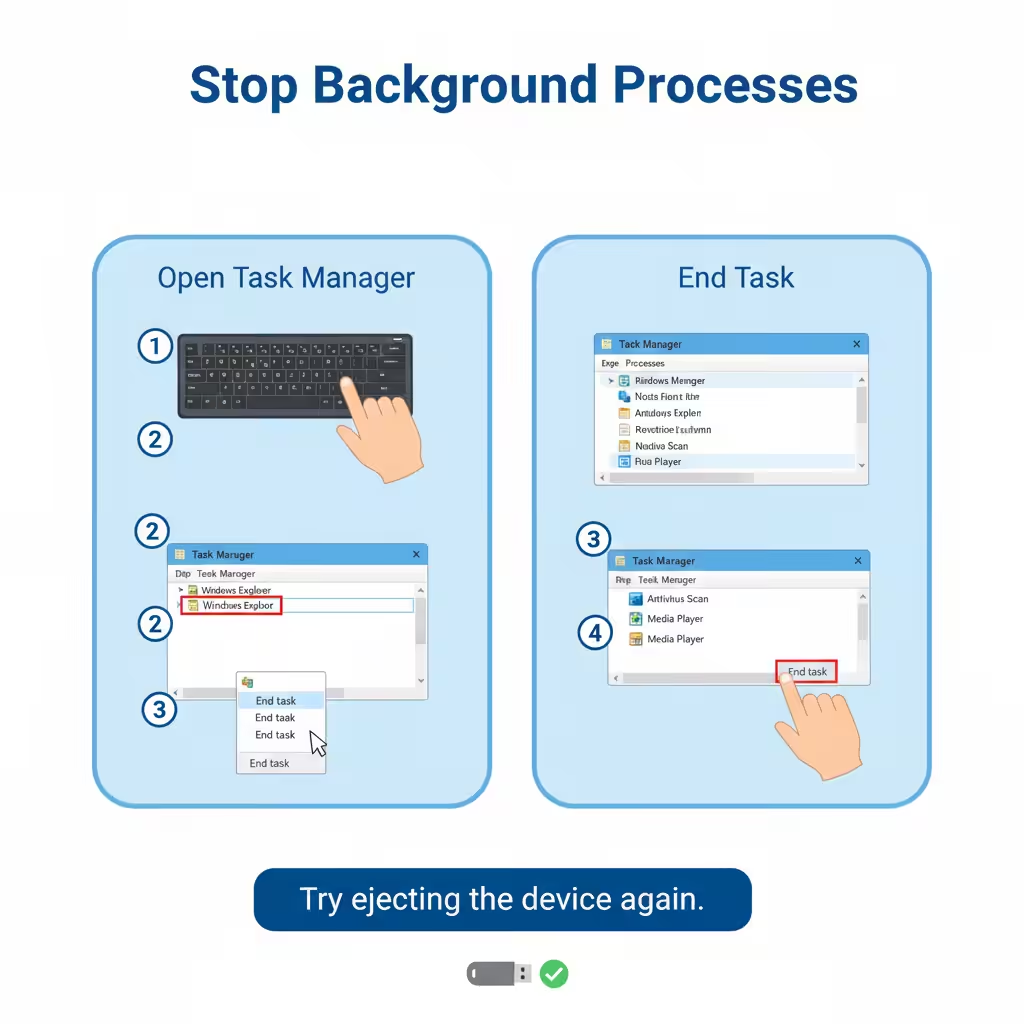
Sometimes background applications prevent Windows from ejecting the device. To fix this:
-
Press Ctrl + Shift + Esc to open Task Manager.
-
Look for processes that may be linked to the device, such as Windows Explorer, antivirus software, or media players.
-
Right-click and select End Task.
-
Try ejecting the device again.
This is particularly useful if an antivirus program is scanning your USB drive.
Use Disk Management to Eject the Device
If the Safely Remove option fails, you can use Windows Disk Management.
-
Press Windows + X and choose Disk Management.
-
Locate your removable drive in the list.
-
Right-click the drive and select Offline or Eject (depending on your Windows version).
-
Once the drive is marked offline, you can safely unplug it.
This method bypasses some of the restrictions of the Safely Remove option.
Safely Eject Through Device Manager
Device Manager provides another way to disable the device before removal.
-
Press Windows + X and select Device Manager.
-
Expand the category Disk drives.
-
Find your USB or external hard drive, right-click it, and choose Disable device.
-
Wait a few seconds, then unplug the device.
This ensures that Windows no longer communicates with the hardware.
Check for File Explorer Locks
Sometimes Windows Explorer holds onto a file or folder on your device. To release it:
-
Close all File Explorer windows.
-
Open Task Manager with Ctrl + Shift + Esc.
-
Under the Processes tab, locate Windows Explorer.
-
Right-click it and choose Restart.
-
Try ejecting the device again.
Restarting Explorer often clears file locks and allows safe removal.
Update Device Drivers
Outdated or corrupted drivers can cause device ejection issues.
-
Open Device Manager.
-
Expand Universal Serial Bus controllers.
-
Right-click each USB Root Hub or connected device and select Update driver.
-
Choose Search automatically for drivers.
Updating drivers ensures better communication between Windows and your USB devices.
Change Device Policies
Windows offers two policies for removable drives: Quick Removal and Better Performance. If you are facing frequent errors, switching to Quick Removal may help.
-
Right-click your USB drive in This PC and select Properties.
-
Go to the Hardware tab, select your device, and click Properties again.
-
Under the Policies tab, choose Quick Removal.
-
Click OK to save changes.
With Quick Removal, you can unplug the device without using Safely Remove Hardware, though it’s still safer to eject properly.
Use Command Prompt to Remove the Device
Advanced users can use Command Prompt to dismount the drive.
-
Press Windows + S, type cmd, and choose Run as administrator.
-
Enter the command:
(Replace X with the volume number of your USB device.)
-
Once dismounted, you can safely unplug the device.
Run the Hardware and Devices Troubleshooter
Although hidden in newer Windows versions, the troubleshooter can still help.
-
Press Windows + R, type:
-
Press Enter and follow the on-screen instructions.
-
Restart your computer and try ejecting the device again.
Final Resort: Shut Down the Computer
If none of the above methods work and you urgently need to remove the device, the safest approach is to shut down your PC. Once the system is completely off, unplug the device. This guarantees no processes are using it.
Conclusion
The “Windows is unable to stop the device” error can be annoying, but it usually indicates that some process or service is still using your USB or external device. By following the methods outlined above—from closing programs and restarting Explorer to updating drivers and using Disk Management—you can safely eject your hardware without risking data corruption.
If the error keeps recurring, consider enabling Quick Removal mode or checking the device on another computer to rule out hardware issues. With these solutions, you’ll be able to protect your data and ensure safe usage of external drives.