


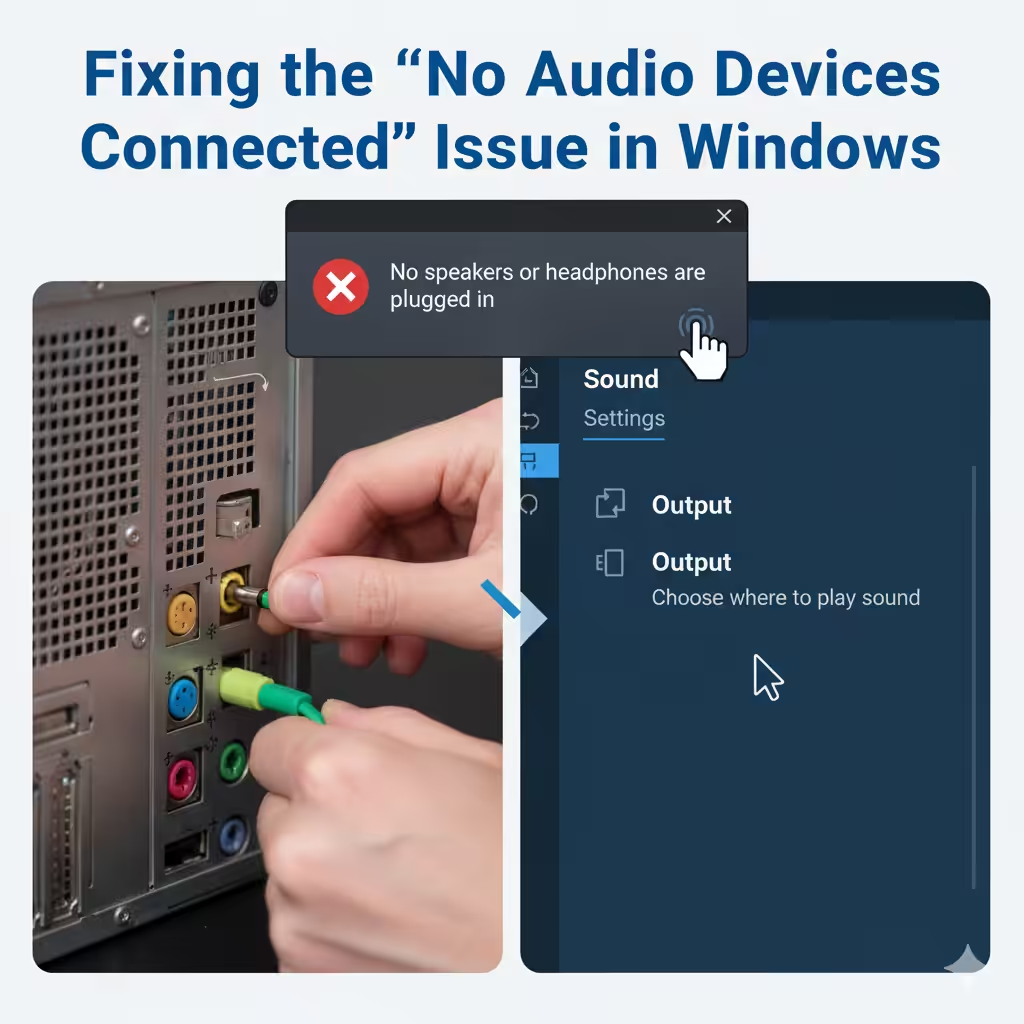
Fixing the “No Audio Devices Connected” Issue in Windows
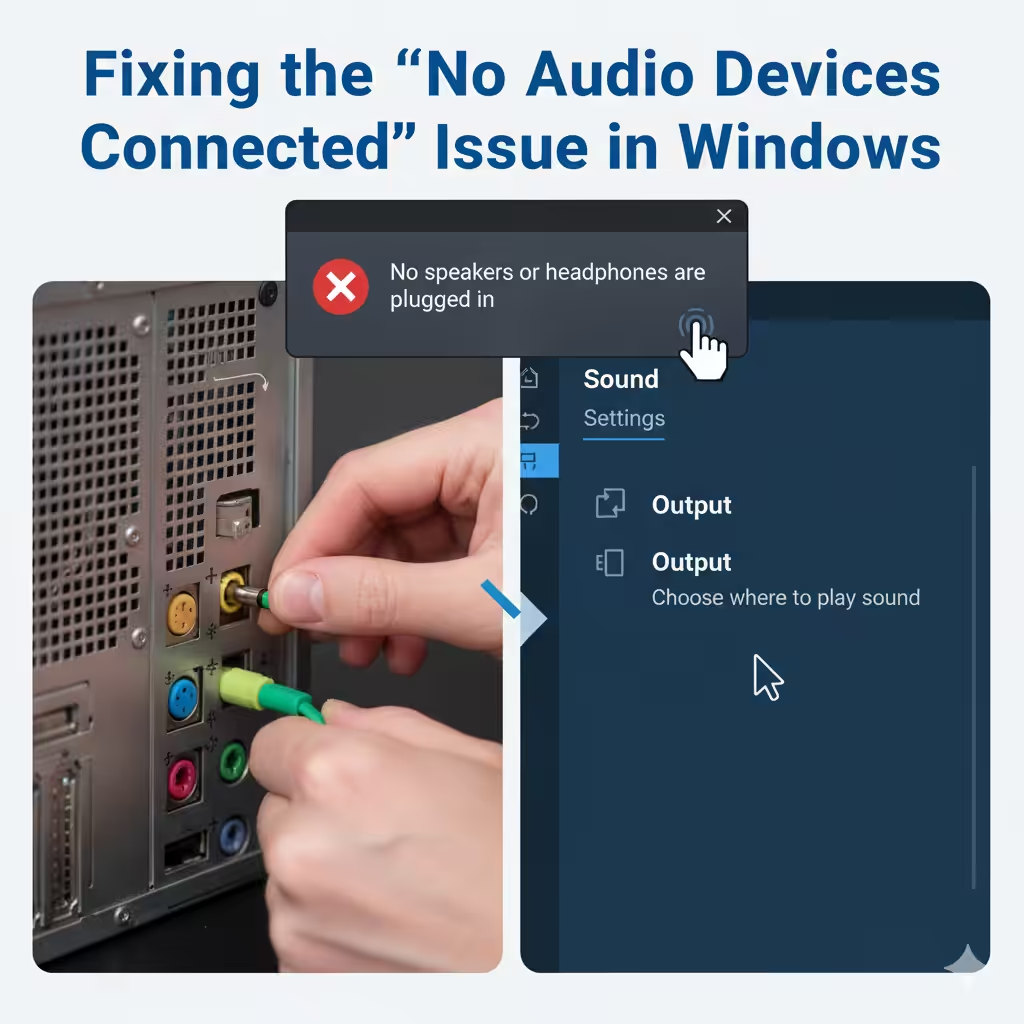
The error message “No speakers or headphones are plugged in” is one of the most common sound issues faced by Windows users. It usually appears when your computer cannot detect an audio device, even if speakers or headphones are already connected. This problem can be frustrating, especially when you need sound for work, entertainment, or online communication.
The good news is that the issue can usually be fixed with a few troubleshooting steps. In this guide, we’ll walk you through the causes of the error and multiple methods to resolve it effectively.
Common Causes of the Error
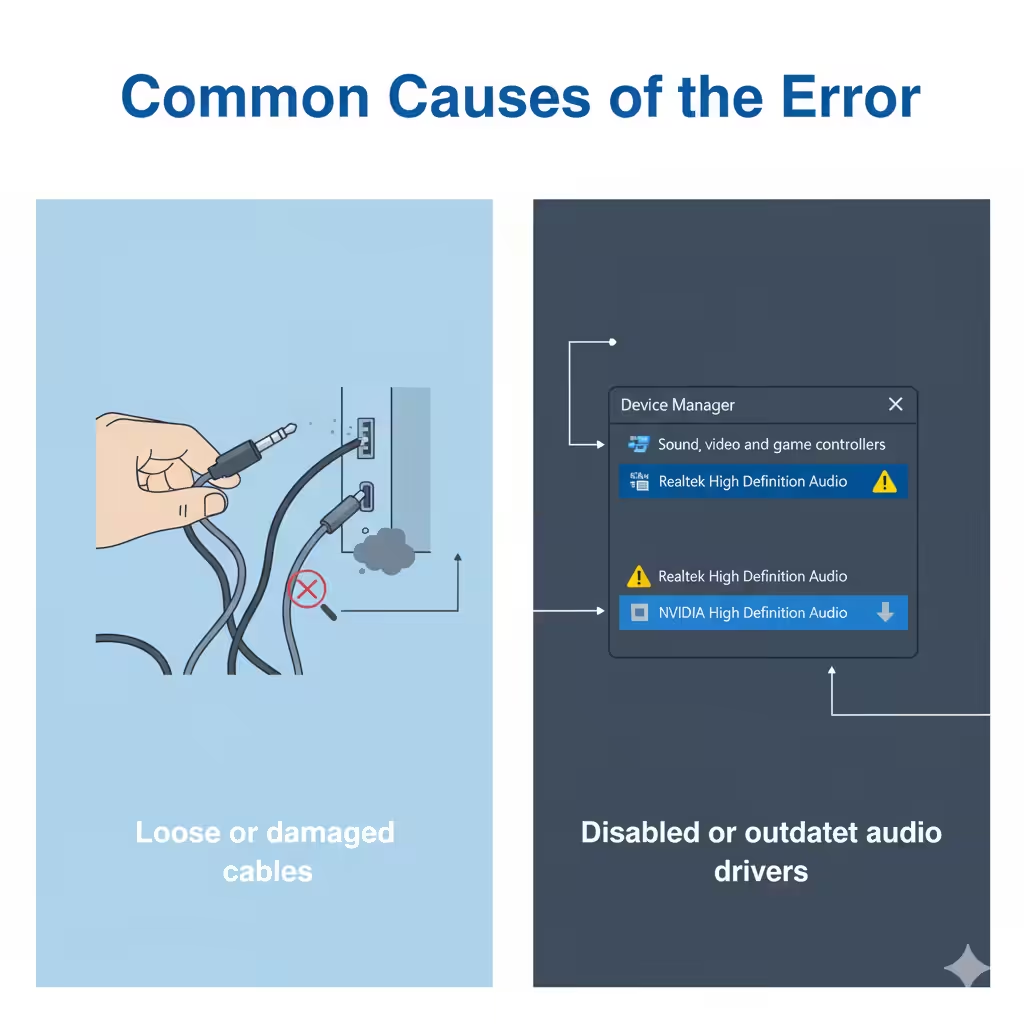
Before fixing the issue, it’s helpful to understand why it happens. Some common reasons include:
-
Loose or damaged cables: The audio device might not be properly connected to the port.
-
Disabled or outdated audio drivers: Missing or corrupted drivers often cause sound issues.
-
Incorrect default playback device: Windows might not be using the right output device.
-
Faulty audio port: The headphone jack or USB port may not be functioning properly.
-
Disabled audio service: If Windows Audio Service is turned off, sound devices won’t work.
Knowing the cause can help you choose the right fix quickly.
Check Physical Connections First
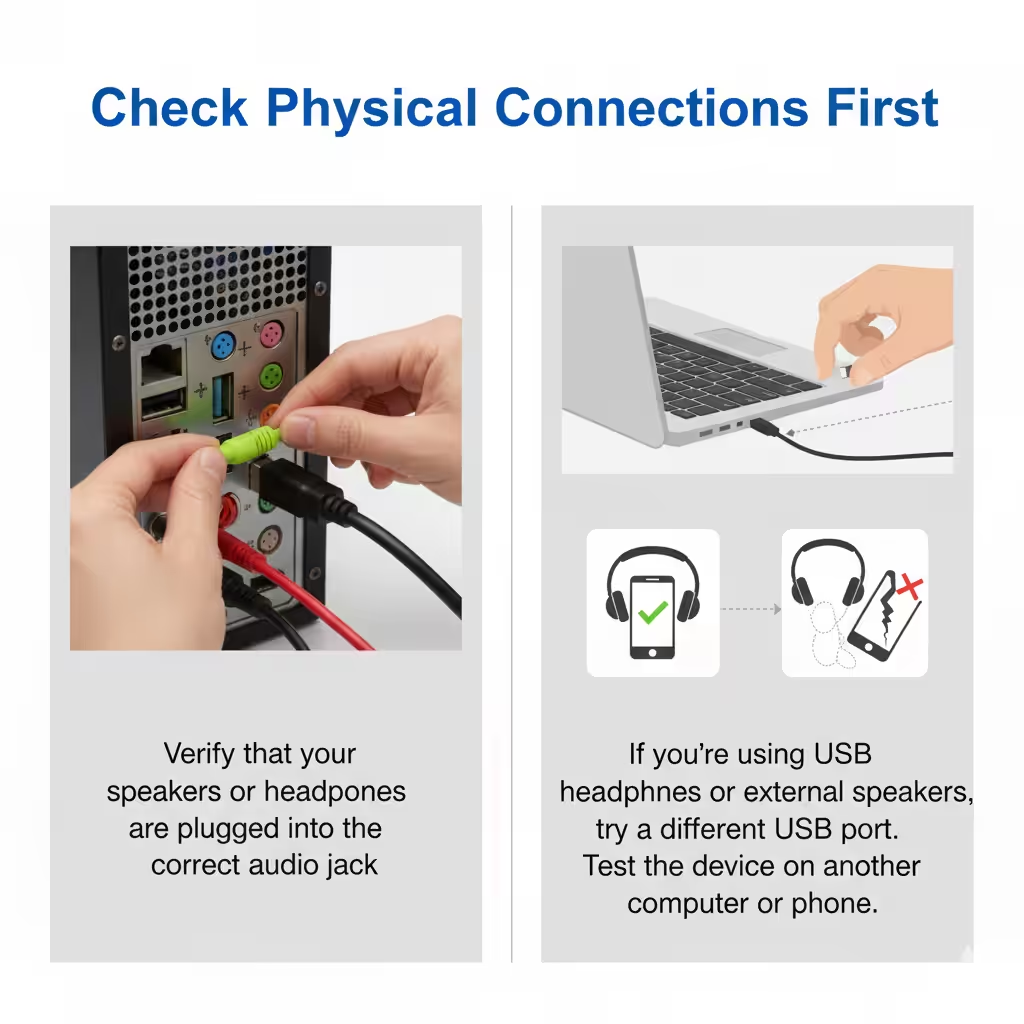
The first step is always the simplest—make sure your device is connected properly.
-
Verify that your speakers or headphones are plugged into the correct audio jack (usually green for speakers/headphones).
-
If you’re using USB headphones or external speakers, try a different USB port.
-
Test the device on another computer or phone to confirm it’s working.
-
For desktop PCs, make sure you’re plugging into the back panel instead of the front (sometimes front jacks fail).
If the device works elsewhere, the problem is likely within your computer’s settings or drivers.
Set the Correct Default Playback Device
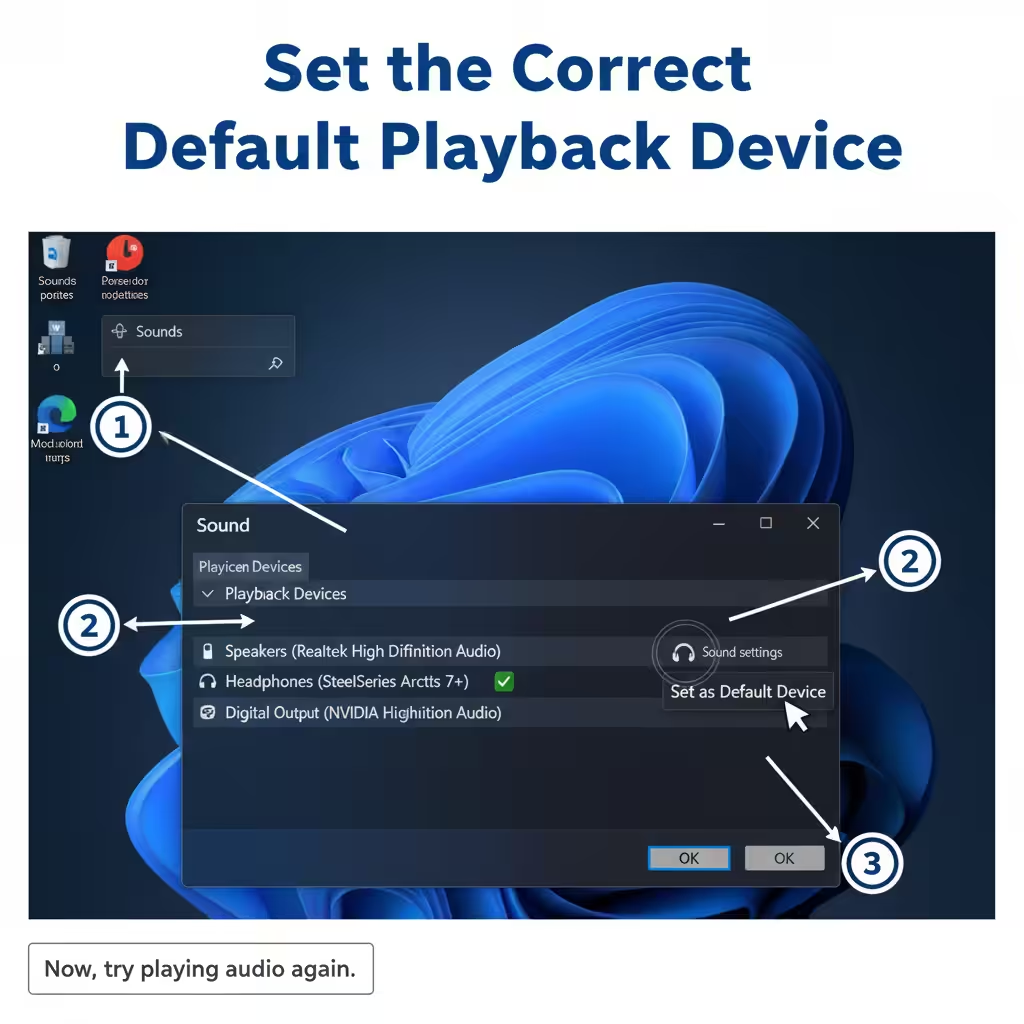
Windows might be sending audio to the wrong output. To fix this:
-
Right-click the sound icon in the taskbar and select Sounds.
-
Go to the Playback tab.
-
Locate your speakers or headphones in the list.
-
Right-click them and choose Set as Default Device.
-
Click OK to confirm.
Now, try playing audio again.
Update or Reinstall Audio Drivers
Outdated or corrupted audio drivers are a major cause of sound errors.
To Update Drivers Automatically:
-
Press Windows + X and select Device Manager.
-
Expand the Sound, video and game controllers section.
-
Right-click your audio device and select Update driver.
-
Choose Search automatically for drivers.
To Reinstall Drivers:
-
In Device Manager, right-click your audio device.
-
Select Uninstall device.
-
Restart your computer.
-
Windows will automatically reinstall the drivers.
If Windows doesn’t find drivers, visit your PC or motherboard manufacturer’s website to download the latest version.
Enable Your Audio Device
Sometimes the audio device may be disabled in Windows settings.
-
Right-click the sound icon in the taskbar.
-
Select Sounds and go to the Playback tab.
-
Right-click inside the window and select Show Disabled Devices.
-
If your speakers or headphones appear grayed out, right-click and choose Enable.
Restart Windows Audio Services
Windows audio relies on background services. If these services stop running, sound devices won’t be detected.
-
Press Windows + R, type
services.msc, and hit Enter. -
Locate Windows Audio in the list.
-
Right-click and choose Restart.
-
Ensure the Startup type is set to Automatic.
If you also see Windows Audio Endpoint Builder, restart it as well.
Run the Windows Audio Troubleshooter
Windows includes a built-in tool for detecting and fixing sound problems.
-
Open Settings with Windows + I.
-
Go to System > Sound.
-
Scroll down and click Troubleshoot under the Output section.
-
Follow the on-screen instructions to let Windows identify and fix issues.
Check for Windows Updates
Sometimes, system updates fix compatibility issues with audio drivers.
-
Open Settings with Windows + I.
-
Go to Update & Security > Windows Update.
-
Click Check for updates.
-
Install any pending updates and restart your PC.
Inspect Audio Ports and Hardware
If none of the software fixes work, the issue might be hardware-related.
-
Test different headphones or speakers.
-
Try a USB headset if the 3.5mm jack doesn’t work.
-
Check for dust or damage inside the audio port.
-
If you’re using an external sound card, test it on another system.
If the port itself is faulty, you may need professional repair.
Additional Fixes You Can Try
-
Disable HDMI Audio: If you’re using a monitor with HDMI audio, Windows may default to it instead of your speakers. Disable HDMI audio in the Playback tab.
-
Check BIOS Settings: Some BIOS settings allow you to enable or disable onboard audio. Restart your computer, enter BIOS, and ensure onboard audio is enabled.
-
System Restore: If the issue started recently, restoring your PC to an earlier point may solve it.
Conclusion
The “No speakers or headphones are plugged in” error can be frustrating, but in most cases, it’s caused by simple issues like incorrect settings, outdated drivers, or disabled devices. By following the steps in this guide—from checking physical connections to updating drivers and restarting audio services—you can usually resolve the problem quickly.
If none of the methods work, the issue may be hardware-related, and you should consider testing your device on another computer or consulting a technician. With the right troubleshooting approach, you’ll be able to restore sound to your system and get back to work or entertainment without hassle.