


How to Locate and Organize Emails Using Search in Microsoft Outlook
Managing a busy inbox can be overwhelming, especially when you receive hundreds of emails daily. Thankfully, Microsoft Outlook offers powerful filtering and search tools that help you quickly find specific emails, attachments, or conversations. Whether you’re using Outlook on Windows, Mac, or the web, mastering these tools can significantly improve your productivity and organization.
This guide will walk you through step-by-step methods to filter and search for emails in Outlook, along with tips for refining your results and keeping your mailbox clutter-free.

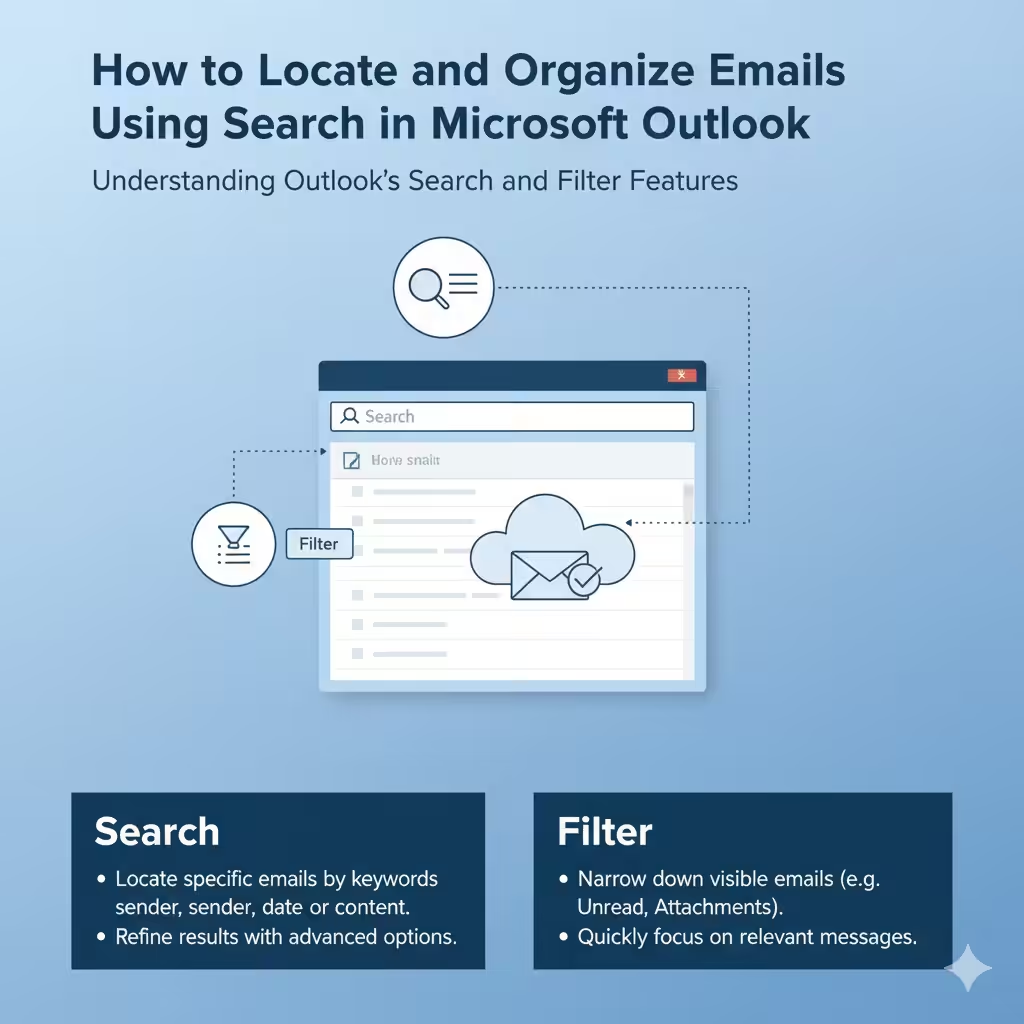
Understanding Outlook’s Search and Filter Features
Outlook includes two key tools that make email management easier:
-
Search: Helps you locate specific emails by keywords, sender, recipient, date, or content.
-
Filter: Allows you to narrow down visible emails based on certain criteria like unread messages, flagged emails, or those with attachments.
These tools work together to help you locate the exact information you need, even in a crowded mailbox.

How to Search for Emails in Outlook
1. Use the Search Box
The simplest way to search in Outlook is by using the Search Box at the top of your inbox.
Steps:
-
Open Outlook.
-
Click inside the Search box located above your message list.
-
Type a keyword, phrase, or name related to the email you’re looking for.
-
Outlook will instantly display results that match your query.
For example:
-
Type a contact’s name to find all emails from that person.
-
Enter a keyword like “invoice” to locate all emails mentioning that word.
2. Use Advanced Search Options
If you need more precise results, use Advanced Search.
Steps:
-
Click the Search box.
-
Select the Search Tools tab (in some versions, this appears automatically).
-
Choose Advanced Find.
-
In the dialog box, you can specify detailed criteria such as:
-
From: Search by sender.
-
To: Search by recipient.
-
Subject: Search for specific words in the subject line.
-
Has Attachment: Only show emails with attachments.
-
Sent or Received Date: Filter emails from a particular time period.
-
This method gives you fine-grained control over your search, ensuring you find exactly what you need.
Using Search Operators for Precise Results
Outlook supports several search operators (keywords) that make searching even faster and more efficient.
Here are some commonly used ones:
| Operator | Example | Description |
|---|---|---|
| from: | from:John | Finds emails sent by John. |
| to: | to:Mary | Finds emails sent to Mary. |
| subject: | subject:Meeting | Searches for emails with “Meeting” in the subject. |
| hasattachments: | hasattachments:yes | Shows only emails with attachments. |
| received: | received:>=01/01/2024 | Finds emails received after January 1, 2024. |
| cc: | cc:Alex | Finds emails where Alex was copied. |
You can also combine operators.
Example:
This will find all emails from John that have “Report” in the subject and include attachments.
How to Filter Emails in Outlook
While search helps you locate specific messages, filters let you narrow down what’s visible in your inbox.
1. Use Built-in Filters
Outlook provides built-in filters to display certain categories of emails.
Steps:
-
Go to the Home tab.
-
Click Filter Email in the ribbon.
-
Choose a filter option such as:
-
Unread – Shows only unread messages.
-
Has Attachments – Displays emails with attachments.
-
This Week – Filters emails received this week.
-
Flagged – Shows emails marked for follow-up.
-
Important – Displays high-priority emails.
-
This is a quick way to focus on the most relevant emails without running a full search.
2. Filter by Date, Category, or Folder
If you want more specific filters:
-
Click the View tab.
-
Choose View Settings > Filter.
-
From here, you can filter messages by date range, sender, subject, or even assigned categories.
These settings can be saved for reuse, which is helpful for recurring searches (e.g., monthly reports or client communications).
Using Search Folders in Outlook
Search Folders are a great feature that automatically display emails matching specific criteria, without moving them from their original locations.
Steps to Create a Search Folder:
-
In Outlook, go to the Folder tab.
-
Click New Search Folder.
-
Choose a predefined folder such as:
-
Mail flagged for follow-up.
-
Unread mail.
-
Mail from specific people.
-
-
Or click Create a Custom Search Folder to define your own conditions.
-
Name your folder and click OK.
Now, Outlook will automatically keep this folder updated with matching emails, saving you time on repeated searches.
Filtering and Searching in Outlook Web (Outlook.com or Office 365)
If you use Outlook on the web, the process is slightly different but just as effective.
Searching in Outlook Web
-
Log in to your Outlook.com or Microsoft 365 Outlook.
-
Type your keyword or phrase in the Search bar at the top.
-
Press Enter to see results.
-
Use the filters above the message list (From, To, Subject, Folder, etc.) to refine your results.
Filtering in Outlook Web
-
Click the Filter button above your inbox.
-
Choose filters like Unread, To me, Flagged, or Attachments.
-
You can combine filters for more accuracy (e.g., “Unread” + “Has attachments”).
Tips for Effective Email Management
To make the most of Outlook’s search and filter capabilities, try the following tips:
-
Regularly archive old emails to reduce clutter and speed up searches.
-
Use categories and flags to mark important messages for easy retrieval.
-
Create folders for projects or clients to organize messages systematically.
-
Clean up your inbox using Outlook’s Clean Up tool to remove redundant messages.
-
Use search history to repeat common searches quickly.
-
Learn keyboard shortcuts (like
Ctrl + Efor search) to save time.
By combining smart organization with Outlook’s built-in tools, you can manage your emails more efficiently and focus on what matters most.
Troubleshooting Outlook Search Issues
Sometimes Outlook’s search feature may not work as expected. If you’re not seeing expected results:
-
Rebuild the Search Index:
-
Go to File > Options > Search > Indexing Options.
-
Click Advanced, then select Rebuild.
-
-
Update Outlook:
-
Ensure you have the latest version of Outlook installed, as updates often fix search bugs.
-
-
Repair Your Outlook Data File:
-
Use the Inbox Repair Tool (SCANPST.EXE) to repair corrupt PST or OST files.
-
-
Restart Outlook in Safe Mode:
-
Press Windows + R, type
outlook /safe, and hit Enter. -
This helps identify if an add-in is causing the issue.
-
Conclusion
Knowing how to filter and search for emails in Outlook can drastically improve your workflow. With features like Advanced Search, filters, and Search Folders, you can easily find important messages, attachments, and conversations in seconds.
By combining these tools with regular inbox management practices—like categorizing emails, archiving old ones, and keeping your folders organized—you’ll maintain a cleaner, more efficient email experience.