


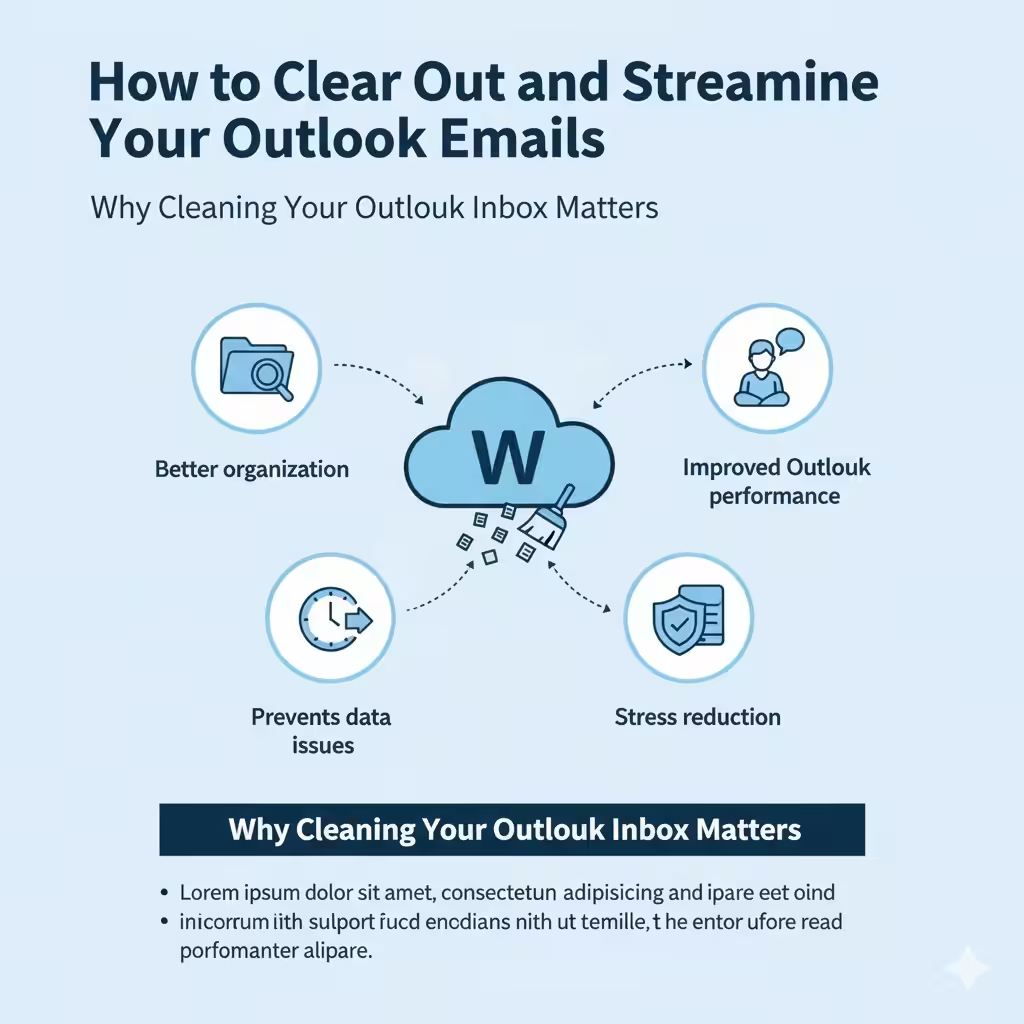
How to Clear Out and Streamline Your Outlook Emails
An overflowing inbox can make it difficult to stay organized, find important messages, and manage your day efficiently. Over time, emails pile up—newsletters, promotions, updates, and work correspondence—cluttering your Microsoft Outlook mailbox. Fortunately, Outlook offers a variety of tools and features that make cleaning and organizing your inbox simple and efficient.
This guide will walk you through how to clean your Microsoft Outlook inbox, including practical methods to remove clutter, organize messages, and maintain a cleaner email space long-term.
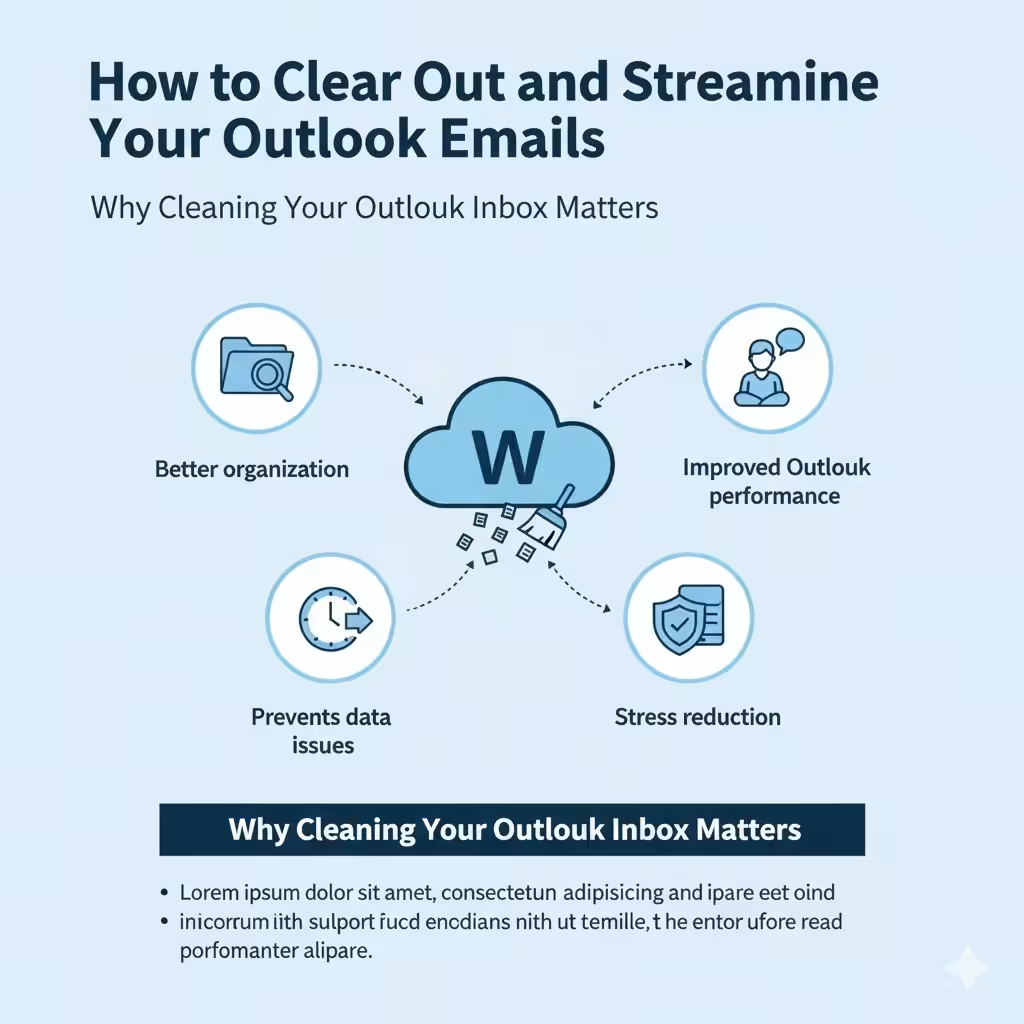
Why Cleaning Your Outlook Inbox Matters
A clean inbox doesn’t just look good—it improves productivity and email performance. Here are several reasons why you should regularly clean your Outlook inbox:
-
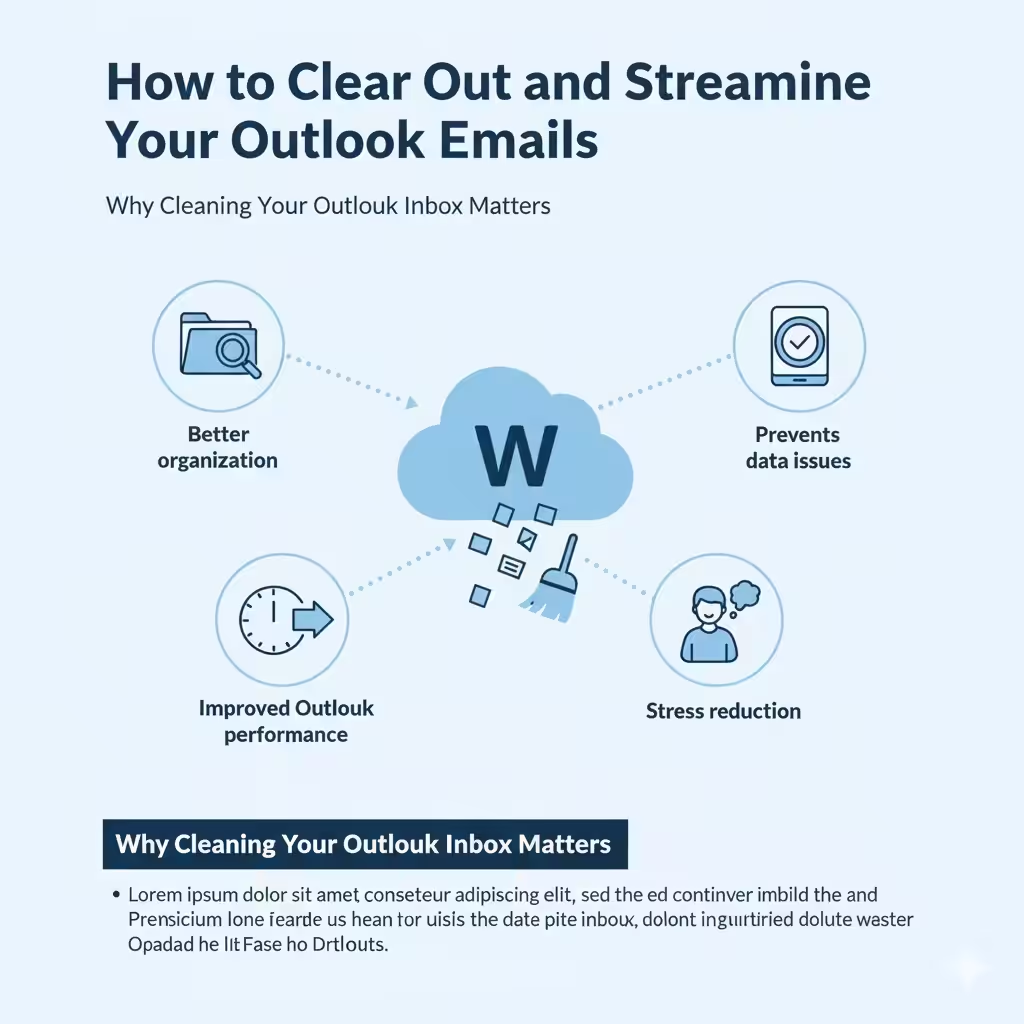
Better organization: Makes it easier to find important emails quickly.
-
Improved Outlook performance: A smaller mailbox loads faster and reduces lag.
-
Prevents data issues: Reduces the risk of corruption in large Outlook data files.
-
Stress reduction: A tidy inbox gives you a sense of control and focus.
Regular maintenance ensures that Outlook runs smoothly and keeps you productive every day.
Step 1: Identify and Delete Unnecessary Emails
The first step in cleaning your inbox is identifying which emails are no longer needed.
1. Delete Junk and Spam Emails
Outlook’s Junk Email folder automatically filters unwanted messages, but it’s good to manually review it periodically.
Steps:
-
Open the Junk Email folder.
-
Delete all unnecessary emails.
-
If you find legitimate messages there, right-click and choose Mark as not junk to improve Outlook’s filtering.
2. Remove Promotional and Newsletter Emails
Promotional emails and newsletters are some of the biggest space consumers in your inbox.
Steps:
-
Search for terms like “unsubscribe,” “newsletter,” or “promotion” in the search bar.
-
Select all the results you no longer need.
-
Click Delete to clear them from your inbox.
-
For future prevention, scroll to the bottom of these emails and click Unsubscribe to stop receiving them.
Step 2: Use the Clean Up Tool
Outlook includes a handy Clean Up tool that automatically removes redundant messages from conversations, folders, or your entire inbox.
Steps:
-
Go to your Inbox.
-
Click the Home tab.
-
Select Clean Up from the ribbon.
-
Choose one of the options:
-
Clean Up Conversation: Deletes duplicate emails in a single thread.
-
Clean Up Folder: Removes redundant emails from an entire folder.
-
Clean Up Folder & Subfolders: Cleans the selected folder and all its subfolders.
-
Outlook keeps only the most recent message containing the entire conversation history, helping you reclaim significant space.
Step 3: Archive Old Emails
Archiving is a great way to store older emails that you may need later without cluttering your main inbox.
Steps to Archive:
-
Click the File tab.
-
Choose Tools > Clean Up Old Items.
-
Select the folder you want to archive (e.g., Inbox).
-
Choose a date range—for example, “Archive items older than 6 months.”
-
Select a destination for the archived file and click OK.
Your old emails are safely stored in an archive file (PST), which you can access anytime from Outlook’s navigation pane.
Step 4: Use Focused Inbox
Outlook’s Focused Inbox automatically separates important emails from less relevant ones.
Steps:
-
Go to the View tab.
-
Click Show Focused Inbox.
-
Outlook will now split your inbox into two tabs:
-
Focused: Important emails from people you interact with frequently.
-
Other: Newsletters, promotions, and low-priority emails.
-
You can manually move emails between tabs by right-clicking a message and selecting Move to Focused or Move to Other.
This feature helps you stay focused on the most important messages while keeping clutter at bay.
Step 5: Sort Emails by Size or Sender
Large attachments and repetitive emails can take up significant space. Sorting by size helps identify which ones are worth deleting.
Steps:
-
Go to your Inbox or another folder.
-
Click View > Arrange By > Size.
-
Review large emails (typically over 5 MB) and delete unnecessary ones or save attachments to your computer before removing them.
You can also sort by Sender to quickly clean up messages from particular contacts or organizations.
Step 6: Use Rules to Automate Organization
Outlook allows you to create Rules that automatically move, categorize, or delete emails based on specific criteria.
Steps to Create a Rule:
-
Right-click an email similar to the ones you want to organize.
-
Select Rules > Create Rule.
-
Set conditions such as:
-
Emails from a specific sender.
-
Messages with certain keywords in the subject.
-
-
Choose what happens (e.g., move to a folder, delete, or categorize).
-
Click OK to apply.
Automation ensures that your inbox stays cleaner with minimal manual effort.
Step 7: Empty the Deleted Items and Junk Folders
After deleting and cleaning, don’t forget to permanently remove the messages in your Deleted Items and Junk Email folders.
Steps:
-
Right-click on the Deleted Items folder.
-
Choose Empty Folder.
-
Repeat the same for the Junk Email folder.
This will permanently remove those emails from your account, freeing up storage space.
Step 8: Manage Attachments Effectively
Attachments often account for the majority of inbox size. To keep your mailbox lean, download and remove large attachments from emails.
Steps:
-
Open the email with the attachment.
-
Right-click the file and select Save As to store it on your computer or cloud storage.
-
Once saved, delete the attachment from the email or the entire message if it’s no longer needed.
Alternatively, use OneDrive or SharePoint for sharing files instead of sending them as attachments.
Step 9: Organize Emails into Folders
Creating folders helps you manage messages by project, client, or topic.
Steps:
-
Right-click on your mailbox or inbox.
-
Select New Folder.
-
Name it appropriately (e.g., “Work,” “Invoices,” “Clients”).
-
Drag and drop emails into their respective folders.
For even better organization, combine folders with categories or color coding.
Step 10: Maintain a Regular Cleaning Schedule
Inbox cleaning is not a one-time task—it’s a habit. Schedule regular cleanups to keep your mailbox organized.
Tips:
-
Dedicate 10 minutes every Friday to delete or archive unnecessary emails.
-
Set Outlook reminders for monthly mailbox cleanup.
-
Review and adjust inbox rules periodically to ensure they still fit your workflow.
Consistency will help you maintain control and prevent inbox overload.
Bonus Tip: Use Outlook’s Mailbox Cleanup Tool
Outlook includes a built-in Mailbox Cleanup feature that gives you an overview of your mailbox size and helps manage it efficiently.
Steps:
-
Go to File > Tools > Mailbox Cleanup.
-
Use the available options to:
-
View the size of your mailbox and folders.
-
Find old or large emails.
-
Empty Deleted Items or Archive folders.
-
This feature helps you monitor mailbox usage and take action before reaching storage limits.
Conclusion
Cleaning your Microsoft Outlook inbox doesn’t have to be a tedious task. By using Outlook’s built-in tools—such as the Clean Up Tool, Rules, Focused Inbox, and Mailbox Cleanup—you can easily manage clutter and improve your productivity.
A clean inbox means less time searching for emails, better organization, and a faster Outlook experience. Make it a habit to regularly review, archive, and delete unnecessary messages to keep your email environment efficient and stress-free.