


How to Turn Off Email Threads in Microsoft Outlook
Email overload is a common challenge for anyone who uses Microsoft Outlook regularly. Among the flood of daily messages, some conversations might be unnecessary or irrelevant—especially in workplace group threads that no longer require your input. Fortunately, Microsoft Outlook provides a useful feature called Ignore Conversation, which helps you automatically move unwanted conversation threads out of your inbox.
This guide will show you how to ignore conversations in Microsoft Outlook, explain what happens when you do, and how you can recover ignored conversations if needed. You’ll also learn practical tips to keep your inbox clean and organized.
What Does “Ignore Conversation” Mean in Outlook?
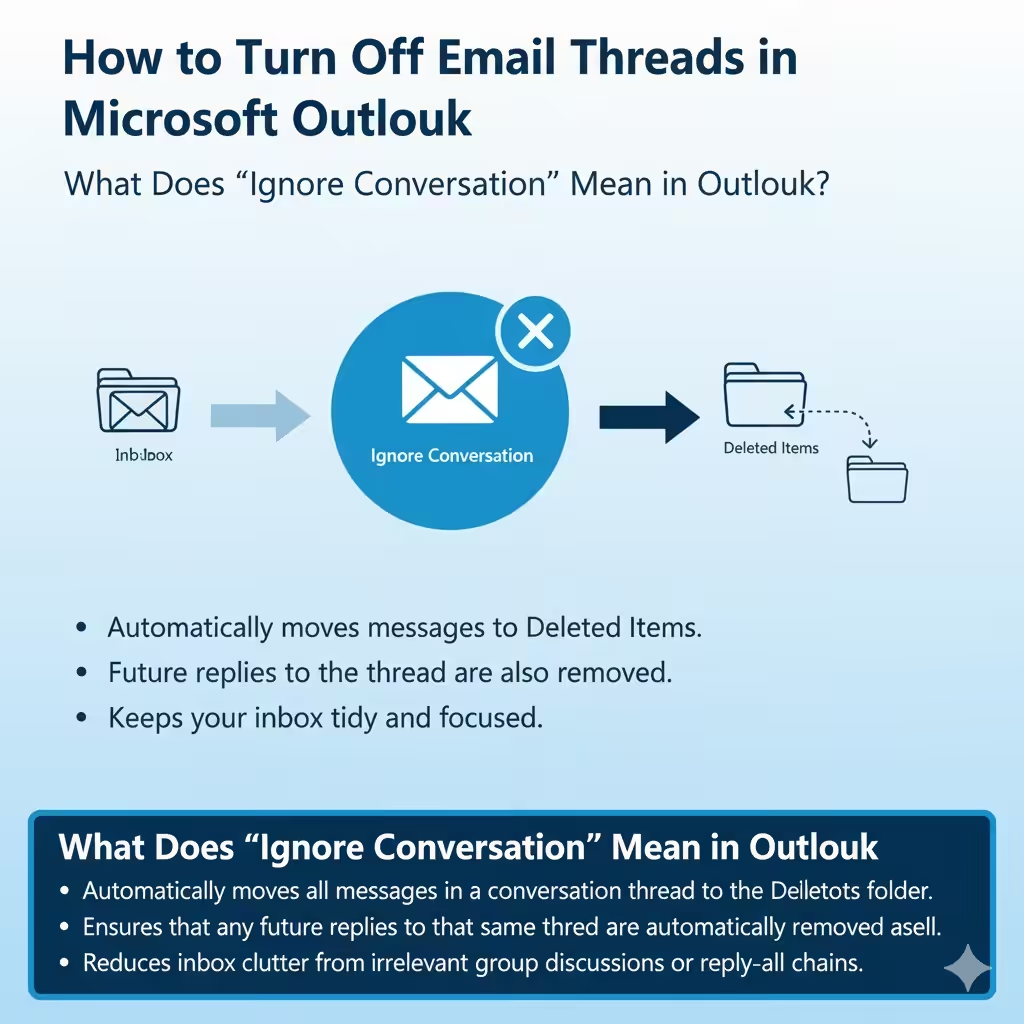
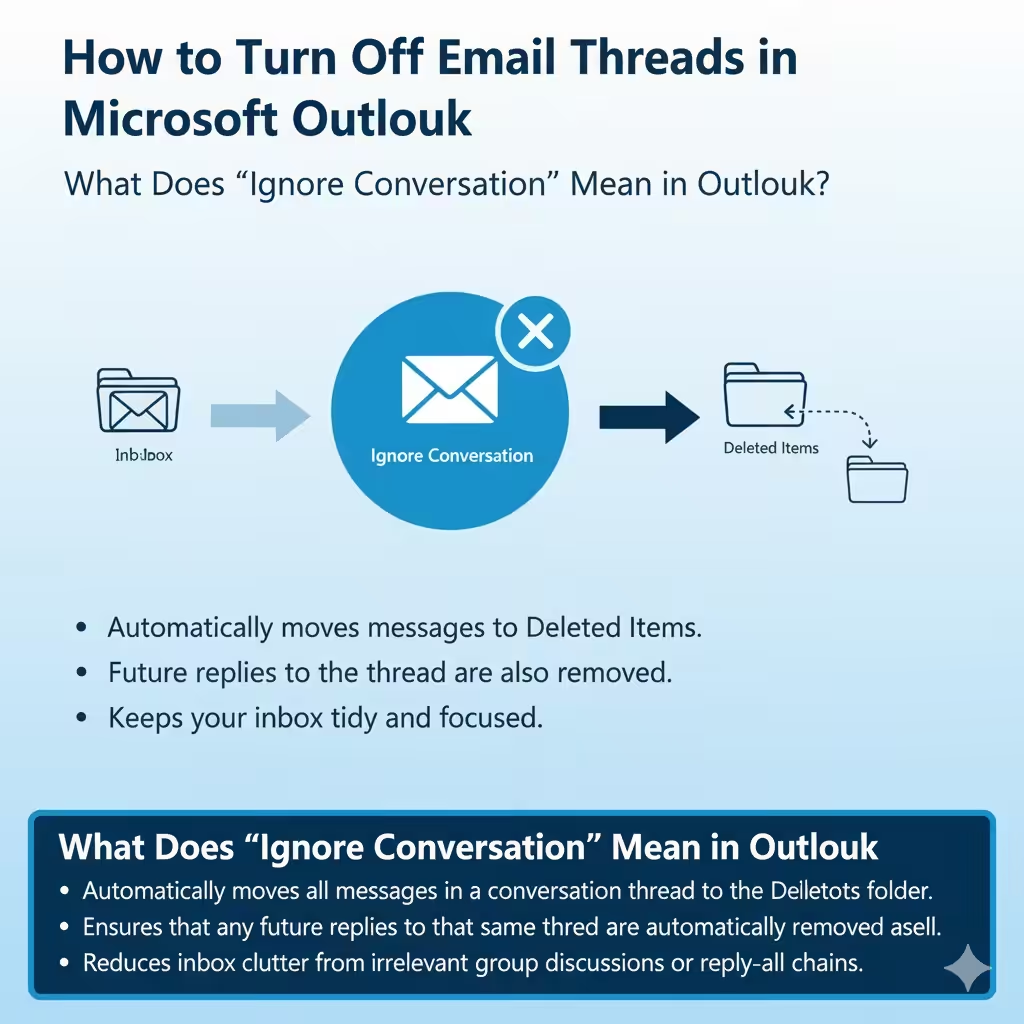
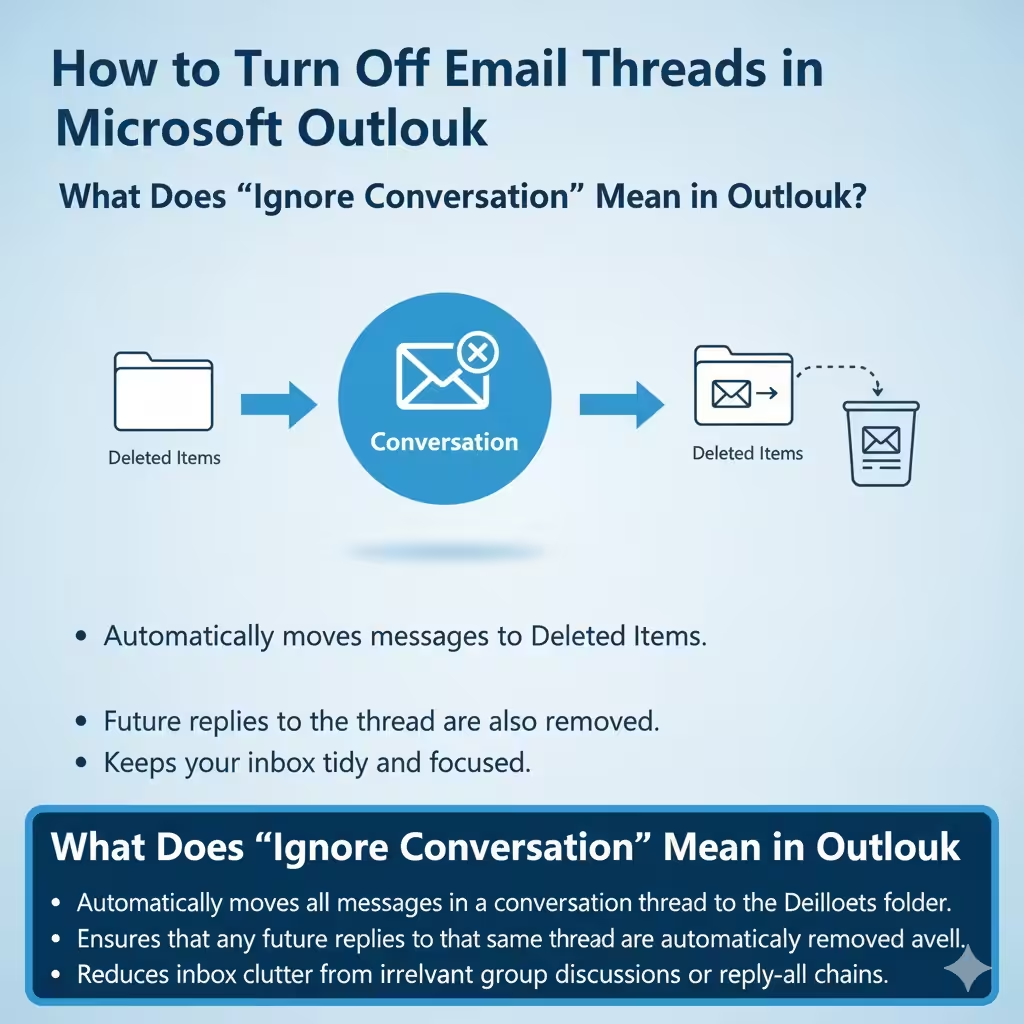
The Ignore Conversation feature in Outlook allows you to automatically move all messages in a particular email thread to the Deleted Items folder. It also ensures that any future replies to that same thread are automatically removed as well.
This is especially useful when you’re part of a group conversation that continues long after it’s relevant to you—such as a meeting chain you no longer need or internal team discussions that have shifted topics.
When you use the Ignore feature, Outlook keeps your inbox tidy by ensuring that you’re not distracted by messages you don’t need to see.
When Should You Use Ignore Conversation?
Here are a few situations where ignoring a conversation can help:
-
Irrelevant group emails: You were added to a group discussion that no longer involves your department or role.
-
Repetitive reply chains: Long reply-all conversations where everyone keeps responding with minor updates.
-
Completed projects: Conversations related to old or completed projects that are no longer active.
-
Notification loops: Automated system or alert emails that keep replying within the same thread.
Instead of manually deleting these messages every time they appear, ignoring the conversation automates the process.
How to Ignore a Conversation in Outlook for Windows
If you’re using the desktop version of Outlook, ignoring a conversation is quick and easy.
Steps to Ignore a Conversation:
-
Open Outlook on your computer.
-
Select the conversation you want to ignore in your Inbox.
-
On the Home tab, find the Delete group.
-
Click Ignore.
-
When prompted with a confirmation message, click Ignore Conversation to confirm.
Outlook will immediately move that entire thread to your Deleted Items folder. Any future replies in that same conversation will automatically be moved there as well.
Tip: You can also right-click the conversation, then choose Ignore from the context menu.
How to Ignore a Conversation in Outlook on the Web
If you’re using Outlook on the web (Outlook.com or Microsoft 365), you can also ignore conversations directly from your browser.
Steps to Ignore a Conversation on the Web:
-
Open Outlook on the web and sign in with your Microsoft account.
-
Go to your Inbox.
-
Right-click the conversation you want to ignore.
-
Select Ignore Conversation.
-
Confirm the action when prompted.
Just like in the desktop app, the entire conversation and all future messages in that thread will be moved to the Deleted Items folder automatically.
What Happens When You Ignore a Conversation
When you ignore a conversation, here’s what Outlook does behind the scenes:
-
Moves existing emails: All emails belonging to that conversation are transferred to the Deleted Items folder.
-
Filters future messages: Any new emails that belong to the same conversation thread will also be moved automatically.
-
Conversation tracking: Outlook tracks the conversation ID, so even if the subject line changes slightly, it still recognizes related replies.
This process helps reduce inbox clutter while ensuring you don’t have to manually delete recurring messages.
How to Stop Ignoring a Conversation
If you accidentally ignored an important conversation, don’t worry. You can easily undo it and start receiving those emails again.
Steps to Stop Ignoring a Conversation:
-
Go to your Deleted Items folder.
-
Find and select the ignored conversation.
-
On the Home tab, click Ignore again.
-
Outlook will display a message asking if you want to stop ignoring this conversation.
-
Click Stop Ignoring Conversation.
After that, all future messages in that conversation will appear normally in your inbox again.
How to Manage Conversations Effectively
While the Ignore feature is great for removing irrelevant emails, Outlook also offers several other tools to help manage conversations efficiently.
1. Use the Clean Up Tool
The Clean Up feature helps remove redundant messages from a conversation by keeping only the latest version that includes the full message history.
Steps:
-
Go to the Home tab.
-
Click Clean Up.
-
Choose Clean Up Conversation, Clean Up Folder, or Clean Up Folder & Subfolders.
This reduces clutter while preserving all necessary information.
2. Use Folders and Rules
Create rules that automatically organize emails into folders based on senders, keywords, or subjects.
Steps:
-
Right-click an email and select Rules > Create Rule.
-
Choose conditions (e.g., emails from a specific address).
-
Define actions, such as Move to Folder or Delete.
Automating this process prevents your inbox from becoming overcrowded.
3. Use Focused Inbox
The Focused Inbox feature separates your most important emails from less important ones.
-
Focused Tab: Important messages from people you interact with often.
-
Other Tab: Bulk messages or newsletters.
To enable it, go to the View tab and click Show Focused Inbox.
Advantages of Ignoring Conversations
Using the Ignore feature brings several benefits for productivity and organization:
-
Saves time: You no longer need to manually delete repetitive or irrelevant messages.
-
Reduces distractions: Keeps your inbox focused on messages that truly matter.
-
Improves email management: Prevents you from overlooking important messages buried under group threads.
-
Frees up storage space: Automatically moves unnecessary messages out of your main inbox.
This feature is ideal for professionals who receive dozens or even hundreds of emails daily.
Common Questions About Ignoring Conversations
1. Can I recover ignored emails?
Yes. All ignored emails are moved to the Deleted Items folder, so you can recover them from there if needed.
2. Does it delete emails permanently?
No. Ignored emails stay in the Deleted Items folder until you empty it manually.
3. Will I miss important follow-ups if I ignore a conversation?
If the conversation becomes relevant again, you can stop ignoring it anytime to resume receiving new messages.
4. Can I ignore multiple conversations at once?
Yes. You can select multiple conversations using Ctrl + Click and then choose Ignore to apply the feature to all of them.
Tips for Maintaining an Organized Inbox
In addition to using the Ignore feature, here are some habits to keep your Outlook inbox organized and efficient:
-
Unsubscribe from unwanted newsletters.
-
Archive older emails instead of deleting them.
-
Schedule regular clean-ups (e.g., once a week).
-
Use Search Folders to group similar emails automatically.
-
Categorize emails with color codes or labels for easier tracking.
By combining these strategies, you can ensure your inbox stays focused, clean, and manageable.
Conclusion
Knowing how to ignore conversations in Microsoft Outlook can save you time and reduce distractions caused by irrelevant email threads. Whether you’re using Outlook on Windows or the web, this feature helps you stay focused on messages that truly matter while keeping your inbox clutter-free.
If you ever change your mind, you can easily stop ignoring a conversation and resume receiving updates. Combined with tools like Rules, Clean Up, and Focused Inbox, Outlook gives you complete control over your email management.