


How to Transfer Outlook Contacts to Another Device or Account
When you’re switching devices, setting up a new email account, or just want a backup of your contact list, exporting your Outlook contacts is essential. Microsoft Outlook makes it easy to export your contacts into a file format that can be imported into another account, stored as a backup, or shared with others.
This comprehensive guide will show you how to export contacts from Outlook across different versions, including Microsoft 365, Outlook 2021, 2019, 2016, and Outlook on the web. You’ll also learn about file types, step-by-step methods, and troubleshooting tips to ensure a smooth export process.
Understanding Contact Exporting in Outlook
Before diving into the steps, it helps to understand what exporting contacts really means.
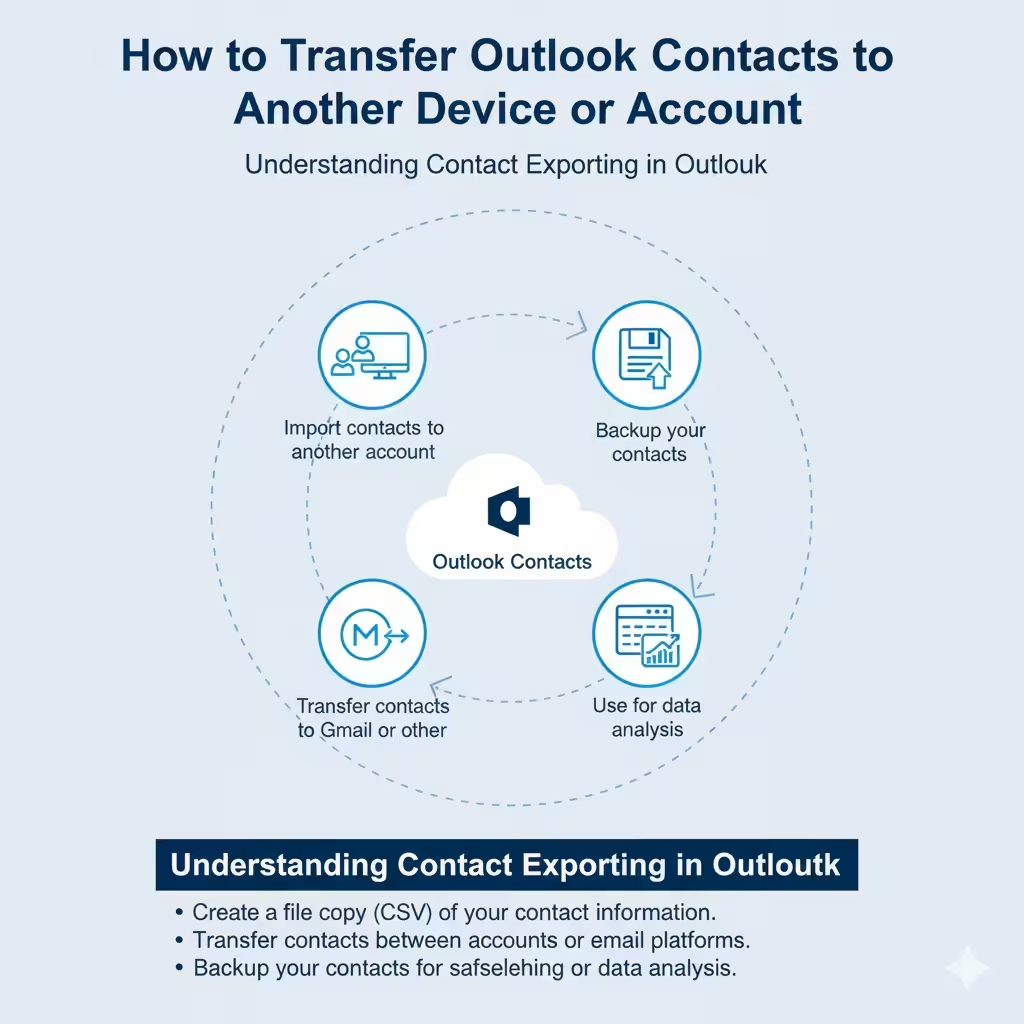
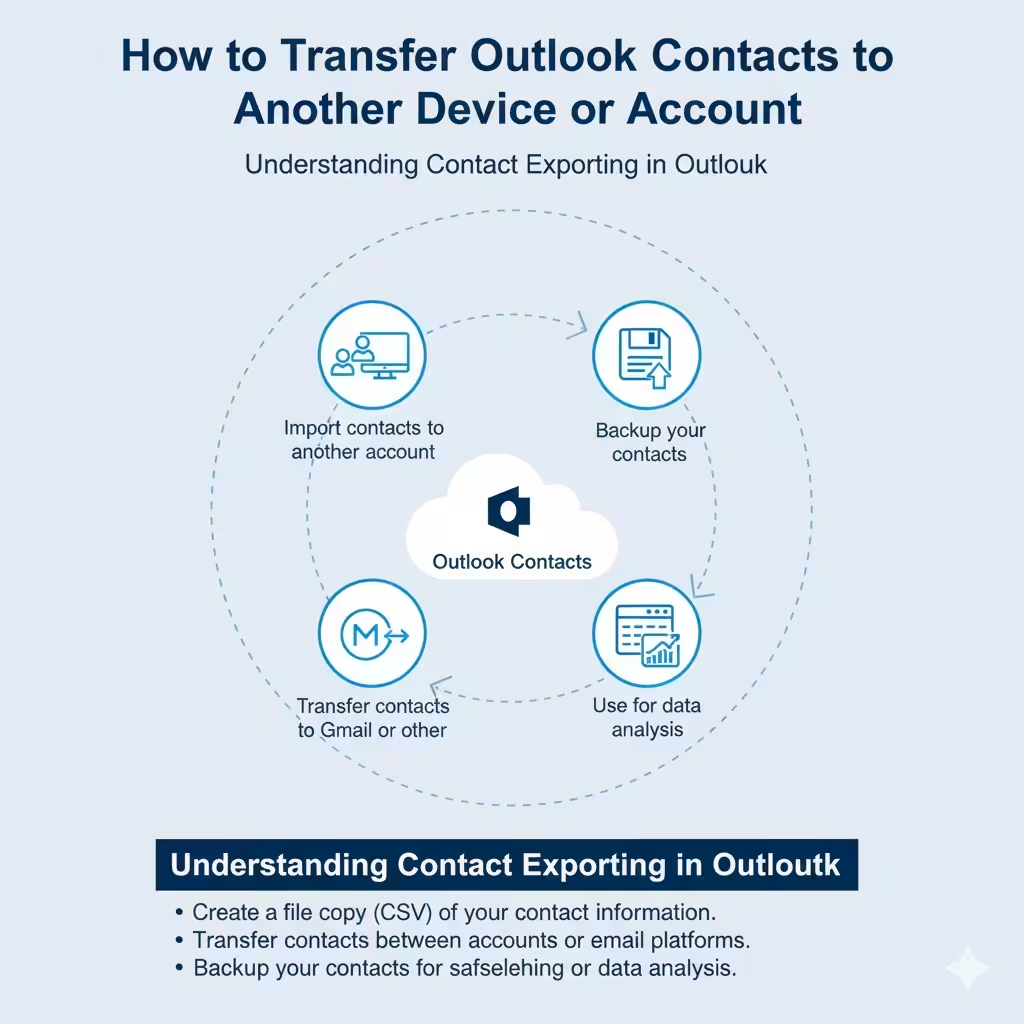
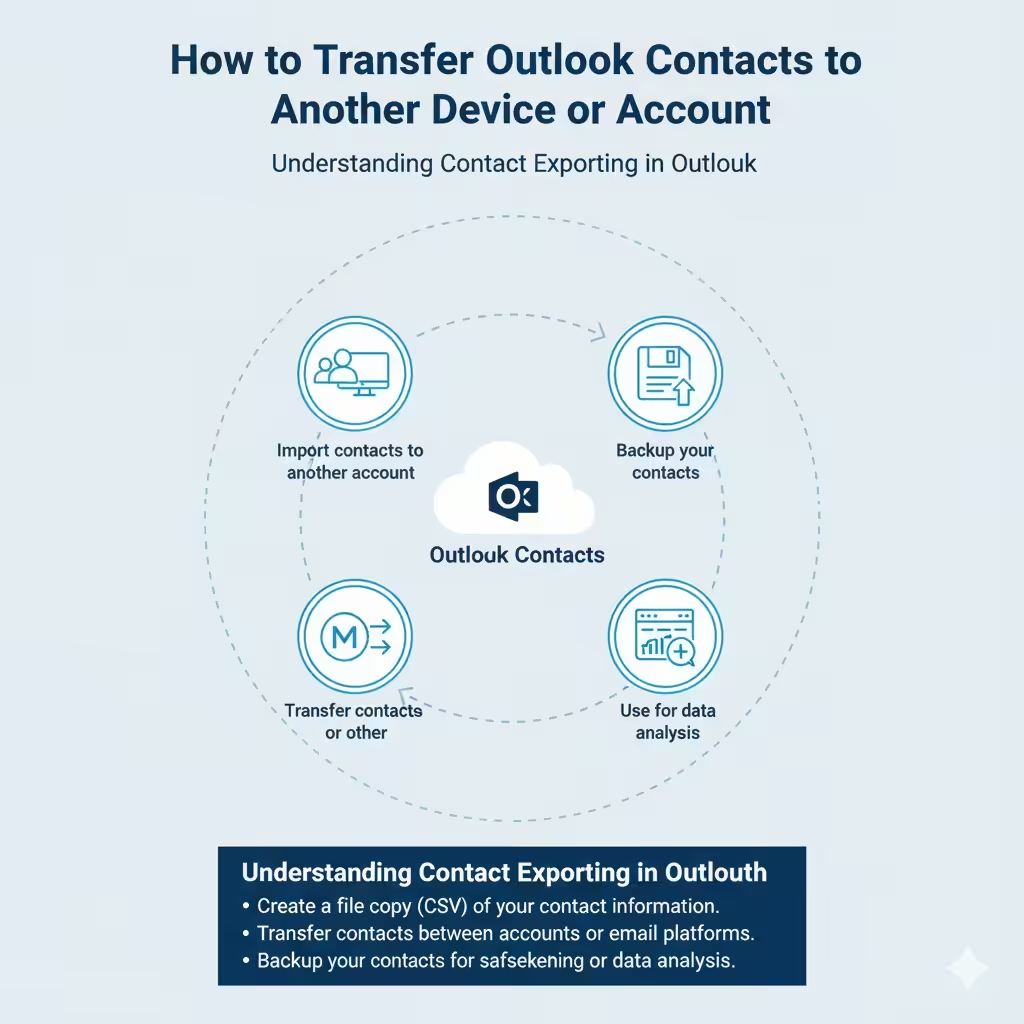
When you export contacts, Outlook creates a file copy of your contact information and saves it in a format like CSV (Comma Separated Values). This file includes names, email addresses, phone numbers, and other details you’ve saved.
Once exported, you can:
-
Import contacts into another Outlook account.
-
Transfer contacts to Gmail or another email platform.
-
Backup your contacts for safekeeping.
-
Use the file for data analysis or mailing lists.
Why Export Outlook Contacts?
There are several reasons why exporting contacts can be helpful:
-
Backup and restore: Keep a backup in case your account or computer crashes.
-
Switching devices: Easily move contacts to a new computer or Outlook installation.
-
Importing to another email provider: Move your contacts to Gmail, Yahoo Mail, or another system.
-
Merging accounts: Combine contact lists from multiple accounts into one.
-
Offline access: Store your contacts in a spreadsheet for offline viewing or editing.
How To Export Contacts From Outlook (Microsoft 365, 2021, 2019, 2016)
Follow these steps if you’re using the desktop version of Outlook:
Step 1: Open the Import and Export Wizard
-
Launch Microsoft Outlook on your computer.
-
Click on the File tab at the top-left corner.
-
Select Open & Export from the left sidebar.
-
Choose Import/Export to open the Import and Export Wizard.
Step 2: Choose Export Option
-
In the wizard, select Export to a file and click Next.
-
Choose Comma Separated Values (CSV) and click Next.
Step 3: Select Contacts Folder
-
Under your account name, select the Contacts folder you want to export.
-
Click Next to continue.
Step 4: Choose Destination and File Name
-
Click Browse and select a folder on your computer to save the exported file.
-
Enter a file name, for example, OutlookContacts.csv.
-
Click OK, then Next.
Step 5: Complete the Export
-
Click Finish to start exporting.
-
Outlook will create the file and save it in your chosen location.
Tip: If you have many contacts, the process might take a few minutes.
How To Export Contacts From Outlook on the Web
If you use Outlook through your web browser (Outlook.com or Microsoft 365 online), the process is slightly different.
Step 1: Open Outlook Contacts
-
Go to Outlook.com and sign in.
-
Select the People icon (the two-person silhouette) on the sidebar.
Step 2: Export Your Contacts
-
At the top-right, click on Manage (gear or three dots icon).
-
Choose Export Contacts from the dropdown menu.
-
Select All Contacts or choose a specific folder.
-
Click Export.
Your browser will automatically download a CSV file containing your contacts.
How To Export Contacts From Outlook for Mac
The process on Mac is slightly different since Outlook uses .olm or .csv files depending on the version.
Step 1: Open Outlook and Access Tools
-
Open Outlook for Mac.
-
Click on the Tools menu in the top toolbar.
-
Select Export.
Step 2: Choose What to Export
-
In the export window, select Contacts.
-
Click Continue.
Step 3: Save the Export File
-
Choose where to save the exported file.
-
Enter a file name (for example, ContactsBackup.olm).
-
Click Save.
If you want to use the file in another email program, you can convert the .olm file to a .csv file later using conversion tools or importing it into Outlook on Windows first.
Understanding File Formats
When exporting from Outlook, you’ll typically see two main file formats:
-
CSV (Comma Separated Values):
This is the most common format. It can be opened in Excel or imported into most other email systems. -
PST (Outlook Data File):
Used to back up or move all Outlook data (emails, contacts, calendar). If you only want contacts, CSV is the better choice.
Tip: CSV is recommended if you want flexibility, compatibility, and easy viewing in Excel.
How To Verify the Exported Contacts
After exporting your contacts, it’s a good idea to check the file to ensure all information is there.
-
Navigate to the folder where your CSV file is saved.
-
Open the file using Microsoft Excel or Google Sheets.
-
Review the list to confirm that contact names, emails, and phone numbers are properly displayed.
If the file looks empty or incomplete, repeat the export process and make sure you selected the correct Contacts folder.
How To Import the Exported Contacts
Once you’ve successfully exported your contacts, you can import them into another account or service.
Import to Another Outlook Account
-
Open Outlook on the new device.
-
Go to File > Open & Export > Import/Export.
-
Select Import from another program or file, then click Next.
-
Choose Comma Separated Values.
-
Browse and select the exported CSV file.
-
Choose how to handle duplicates, then click Finish.
Import to Gmail
-
Sign in to your Gmail account.
-
Go to Google Contacts.
-
Click Import from the sidebar.
-
Choose your Outlook CSV file and click Import.
Your contacts will appear instantly in your Gmail address book.
Troubleshooting Contact Export Problems
Sometimes, users encounter issues during export. Here are common problems and solutions:
1. CSV File Is Empty:
You may have selected the wrong contact folder. Double-check the folder before exporting again.
2. Special Characters Don’t Display Correctly:
This can happen due to encoding issues. Try saving the CSV file using UTF-8 encoding.
3. Duplicate Contacts:
If you export multiple times, duplicates may appear. Use Outlook’s Duplicate Contact Cleaner or Excel to remove repeats.
4. Outlook Freezes During Export:
Close other running applications and restart Outlook before retrying.
Best Practices for Managing Outlook Contacts
To make contact exporting and management easier in the future, follow these best practices:
-
Regularly back up your contacts every few months.
-
Keep your contact list clean by removing outdated entries.
-
Categorize contacts using groups or categories for easy sorting.
-
Sync Outlook with your Microsoft account to ensure contacts are stored in the cloud.
-
Avoid storing unnecessary personal information in contact fields.
By maintaining a well-organized contact list, you’ll simplify communication and avoid confusion when exporting or importing later.
Conclusion
Learning how to export contacts from Outlook is an essential skill for managing your digital communication efficiently. Whether you’re migrating to a new computer, creating a backup, or transferring data to another email service, Outlook’s export tools make the process simple and reliable.
By following the steps outlined above for your version of Outlook—Windows, web, or Mac—you can safely store or transfer your contact list anytime. Always verify the exported data, keep a secure backup, and maintain an organized contact list to save time in the future.