


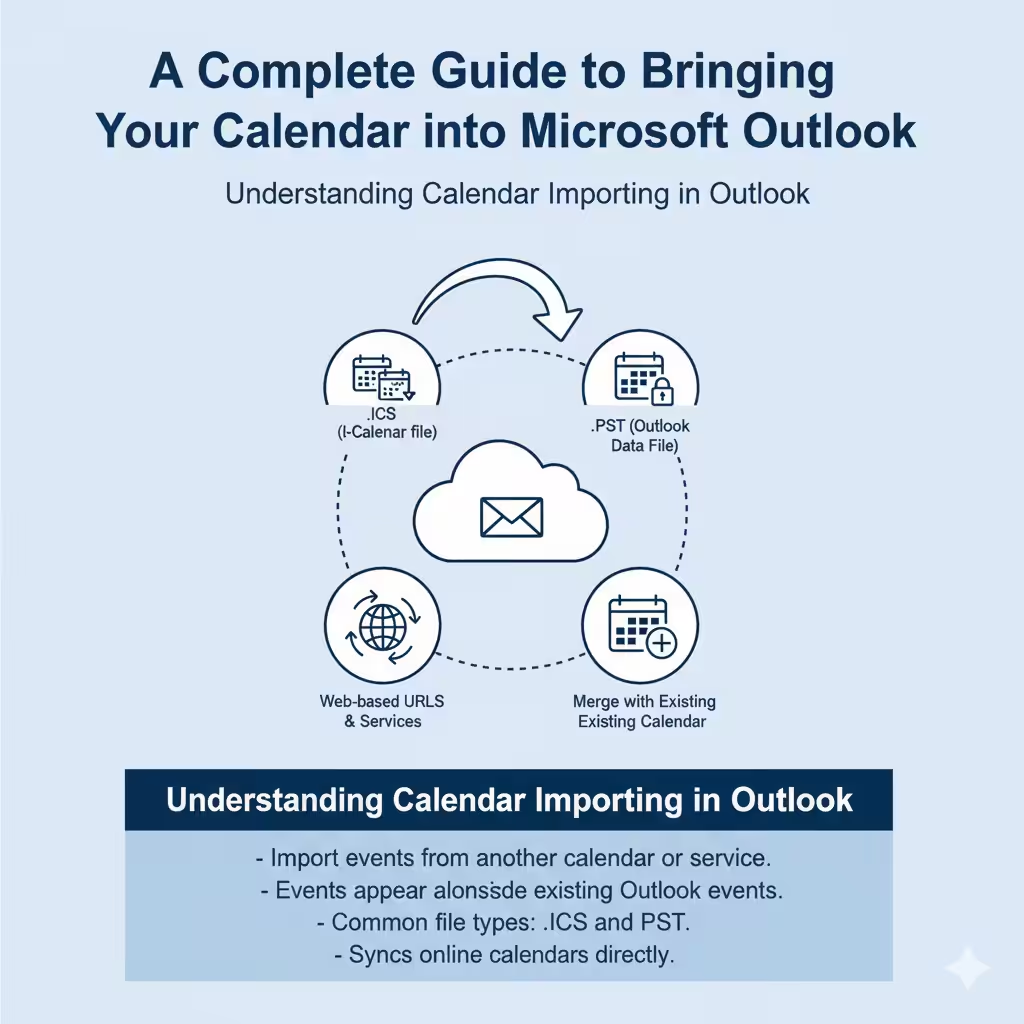
A Complete Guide to Bringing Your Calendar into Microsoft Outlook
Managing your schedule efficiently is one of the key benefits of using Microsoft Outlook. Whether you’re switching devices, moving from another email client, or collaborating with colleagues, importing calendars into Outlook helps you stay organized and never miss important events. Outlook supports several import methods and file formats, allowing you to bring in events from Google Calendar, Apple Calendar, or even exported Outlook data files.
This complete guide will walk you through how to import calendars in Microsoft Outlook for desktop, web, and Mac versions. You’ll also learn how to import ICS and PST files, sync online calendars, and fix common issues that may arise during the process.
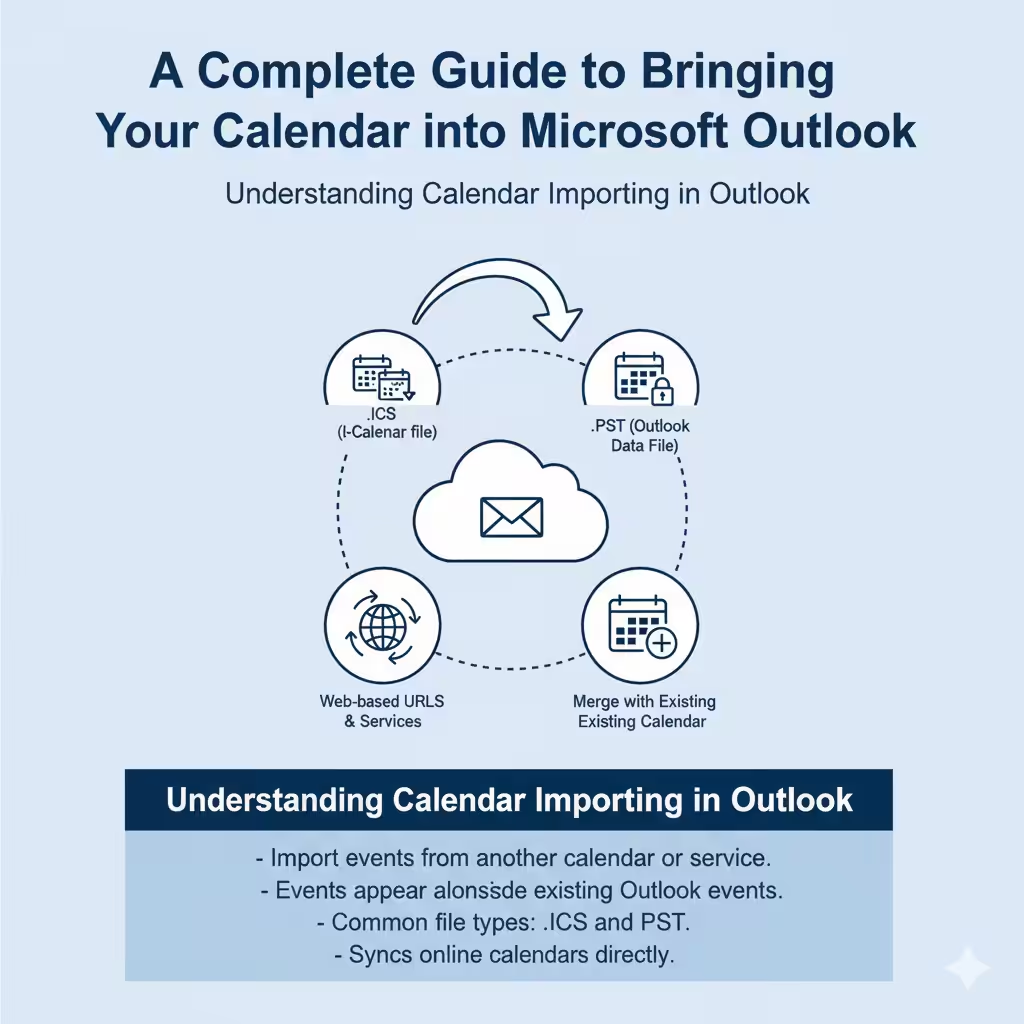
Understanding Calendar Importing in Outlook
Before jumping into the steps, it’s helpful to understand what importing a calendar means.
When you import a calendar into Outlook, you’re bringing events and appointments from another calendar file or service into your Outlook Calendar. The imported events will appear alongside your existing ones, and you can view, edit, or delete them just like your original Outlook events.
The most common file types used for calendar imports are:
-
.ICS (iCalendar file): A universal calendar format used by Google, Apple, and other services.
-
.PST (Outlook Data File): Contains Outlook data including emails, contacts, and calendars.
Outlook can also import calendars directly from web-based URLs or other email services.
Why Import a Calendar into Outlook?
There are several situations where importing a calendar can save time and effort:
-
Switching devices or accounts: When moving from one Outlook account to another.
-
Syncing with external services: Combine calendars from Google, Apple, or another platform.
-
Collaborating with others: Import shared calendar files from team members or clients.
-
Backup and recovery: Restore events from an exported PST or ICS file.
-
Organizing multiple schedules: Merge work, personal, or project calendars for unified viewing.
With Outlook’s calendar import tools, you can easily integrate all your schedules into one place.
How to Import a Calendar File (.ICS) into Outlook for Desktop
If you’ve downloaded a calendar file (for example, from Google Calendar or an event website), you can import it directly into Outlook on your computer.
Step 1: Open Outlook and Go to Calendar View
-
Launch Microsoft Outlook on your PC.
-
At the bottom of the window, click the Calendar icon to switch to calendar view.
Step 2: Import the Calendar File
-
Click on the File tab at the top left corner.
-
Select Open & Export from the sidebar.
-
Choose Import/Export.
-
In the Import and Export Wizard, select Import an iCalendar (.ics) or vCalendar (.vcs) file and click Next.
Step 3: Select the File to Import
-
Browse your computer to locate the .ics file you want to import.
-
Click OK or Open.
You’ll now see two options:
-
Open as New: Opens the imported calendar separately, allowing you to view it alongside your existing calendar.
-
Import: Merges the events from the ICS file into your main Outlook calendar.
Choose Import to combine the events into your current calendar.
How to Import a PST Calendar File into Outlook
A PST file contains Outlook data, including emails, contacts, and calendars. If you previously exported your Outlook calendar, this is the method to restore it.
Step 1: Access the Import Tool
-
Open Microsoft Outlook.
-
Click File > Open & Export > Import/Export.
Step 2: Select the Import Option
-
Choose Import from another program or file, then click Next.
-
Select Outlook Data File (.pst) and click Next.
Step 3: Locate and Import Your PST File
-
Browse for the .pst file you want to import.
-
Choose how to handle duplicates (Replace, Allow, or Do not import duplicates).
-
Click Next.
-
Select the folder that contains your Calendar and make sure Include subfolders is checked.
-
Click Finish to complete the import.
Your calendar events will now appear in Outlook exactly as they were in the original file.
How to Import a Calendar into Outlook on the Web (Outlook.com)
If you use the web version of Outlook, importing a calendar is just as simple.
Step 1: Open Outlook Calendar
-
Go to Outlook.com and sign in to your Microsoft account.
-
Select the Calendar icon from the sidebar.
Step 2: Add a Calendar
-
Click on Add calendar in the toolbar.
-
Choose Upload from file.
Step 3: Upload and Import the Calendar
-
Click Browse and select your .ics file.
-
Choose which Outlook calendar you want to import the events into.
-
Click Import.
Your events will appear instantly in your Outlook.com calendar.
How to Import Google Calendar into Outlook
If you use Google Calendar and want to view your events in Outlook, there are two main methods: importing or subscribing.
Method 1: Import Google Calendar File
-
Open Google Calendar.
-
Click the Settings gear icon, then choose Settings.
-
Go to Import & export.
-
Under the Export section, click Export to download your calendar as a .zip file.
-
Unzip the file to find the .ics calendar file.
-
Import this file into Outlook using the steps in the “Import an ICS File” section above.
Method 2: Subscribe to Google Calendar (Automatic Sync)
If you want Outlook to stay updated with your Google Calendar, you can subscribe instead of importing.
-
In Google Calendar, go to Settings > Integrate Calendar.
-
Copy the Secret address in iCal format.
-
In Outlook, go to Add Calendar > Subscribe from Web.
-
Paste the Google Calendar URL and click Import.
Now your Outlook calendar will automatically show updates from Google Calendar.
How to Import Calendars in Outlook for Mac
Outlook for Mac users can also import calendars easily.
Step 1: Open Outlook and Go to Tools
-
Launch Outlook for Mac.
-
Go to the Tools tab in the top menu bar.
-
Select Import.
Step 2: Choose Import Type
-
Choose Outlook for Windows archive file (.pst) or .ics file depending on what you have.
-
Click Continue.
Step 3: Select File and Import
-
Browse for the file you want to import.
-
Click Import.
-
Outlook will process and display the imported calendar in the Calendar view.
Troubleshooting Calendar Import Issues
Sometimes users encounter errors while importing calendars. Here are common issues and fixes:
1. The File Won’t Import:
Make sure the file type is supported (.ics or .pst). If it’s a zip file, extract it first.
2. Duplicate Events Appear:
This can happen if you import the same file multiple times. Delete duplicates manually or merge calendars carefully.
3. Time Zone Problems:
If events show incorrect times, check your Outlook time zone under File > Options > Calendar > Time Zones.
4. File Is Too Large:
Split the calendar file or import in smaller parts if Outlook shows a size-related error.
5. Calendar Doesn’t Display:
After importing, ensure you’ve selected the right calendar to view in the sidebar.
Best Practices for Managing Imported Calendars
To make the most of your imported calendars, follow these recommendations:
-
Create separate calendars for different projects or accounts.
-
Color-code calendars for better visual organization.
-
Regularly update your subscriptions if using external calendars.
-
Back up important calendars before importing new ones.
-
Avoid duplicate imports by checking existing data first.
These tips will help you keep your schedule clean, organized, and efficient.
Conclusion
Learning how to import calendars in Microsoft Outlook can greatly improve your time management and productivity. Whether you’re importing a simple ICS file, restoring an old PST backup, or syncing with Google Calendar, Outlook provides flexible options for every scenario.
With just a few clicks, you can consolidate multiple calendars, manage events from different platforms, and ensure all your appointments are easily accessible in one place.