


How to Schedule Meetings and Appointments in Microsoft Outlook
Microsoft Outlook is more than just an email client—it’s also one of the most powerful tools for managing your time, scheduling meetings, and organizing daily tasks. Whether you’re planning a one-on-one meeting, a team discussion, or simply setting a reminder for yourself, Outlook’s calendar features can help you stay on top of everything.
In this guide, you’ll learn how to create meetings and appointments in Microsoft Outlook, along with tips for managing schedules efficiently on Windows, Mac, and the web version of Outlook.
Understanding the Difference Between Meetings and Appointments
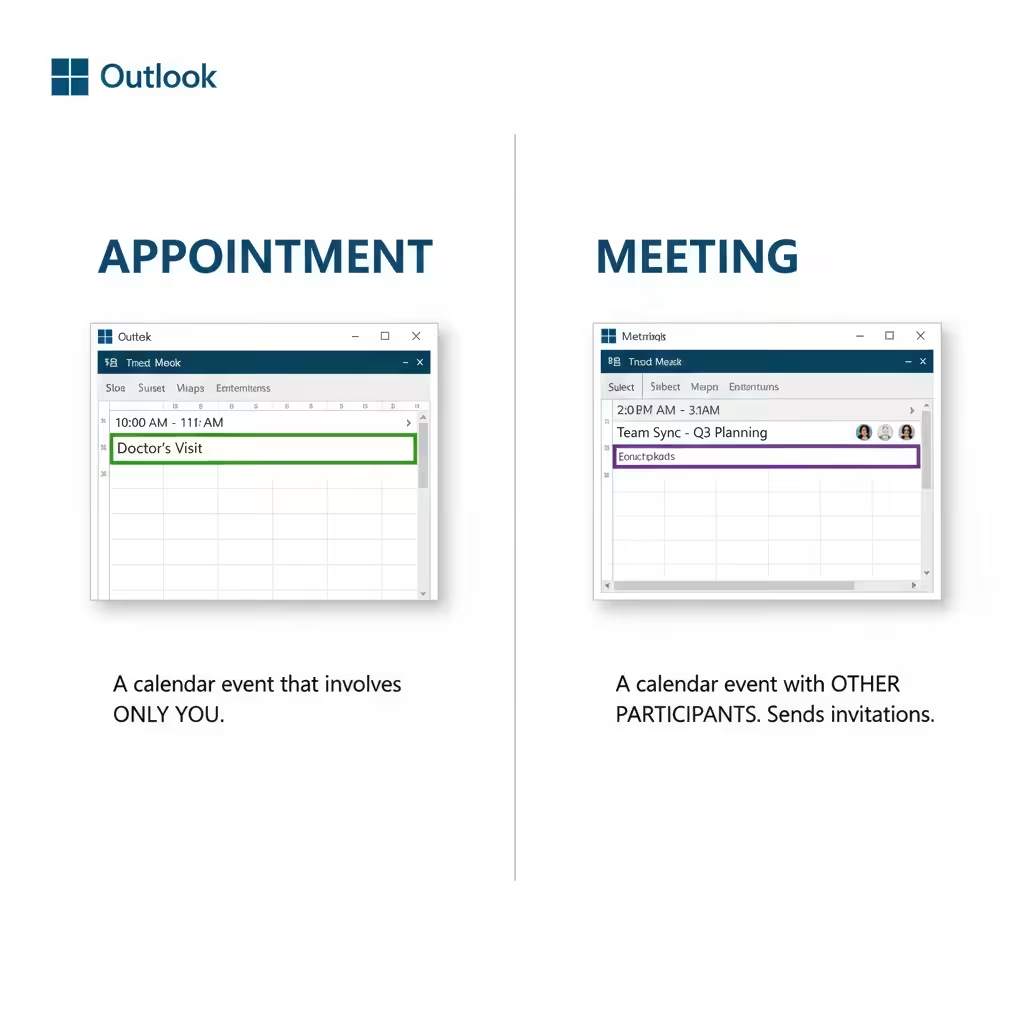
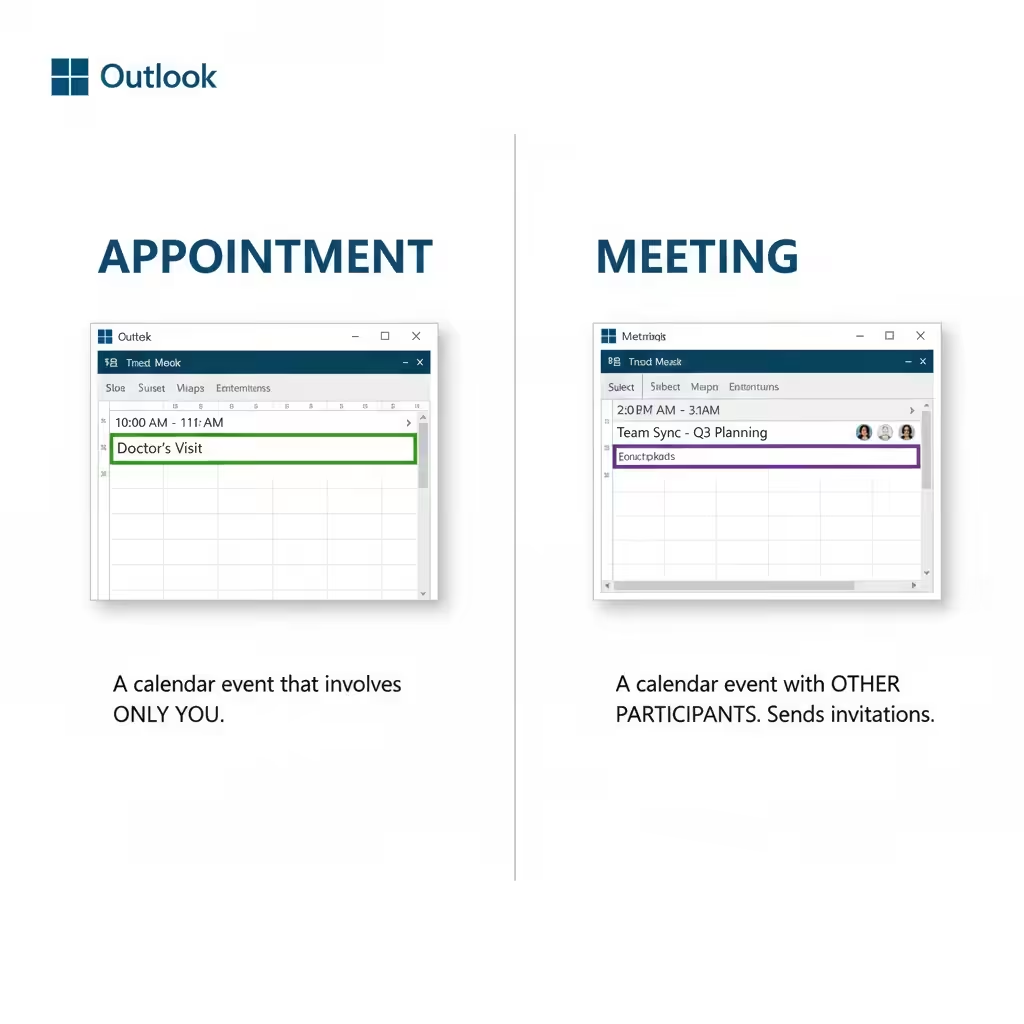
Before diving into the steps, it’s important to understand the difference between an appointment and a meeting in Outlook.
Appointment: A calendar event that involves only you. It can be used to block off personal time or remind you of a task, such as “Doctor’s Appointment” or “Project Review”.
Meeting: A calendar event that includes other participants. When you create a meeting, Outlook automatically sends invitations to attendees and tracks their responses.
Knowing this distinction helps you use Outlook’s calendar effectively and avoid confusion.
How to Create an Appointment in Microsoft Outlook
Creating an appointment in Outlook is simple and takes only a few seconds.
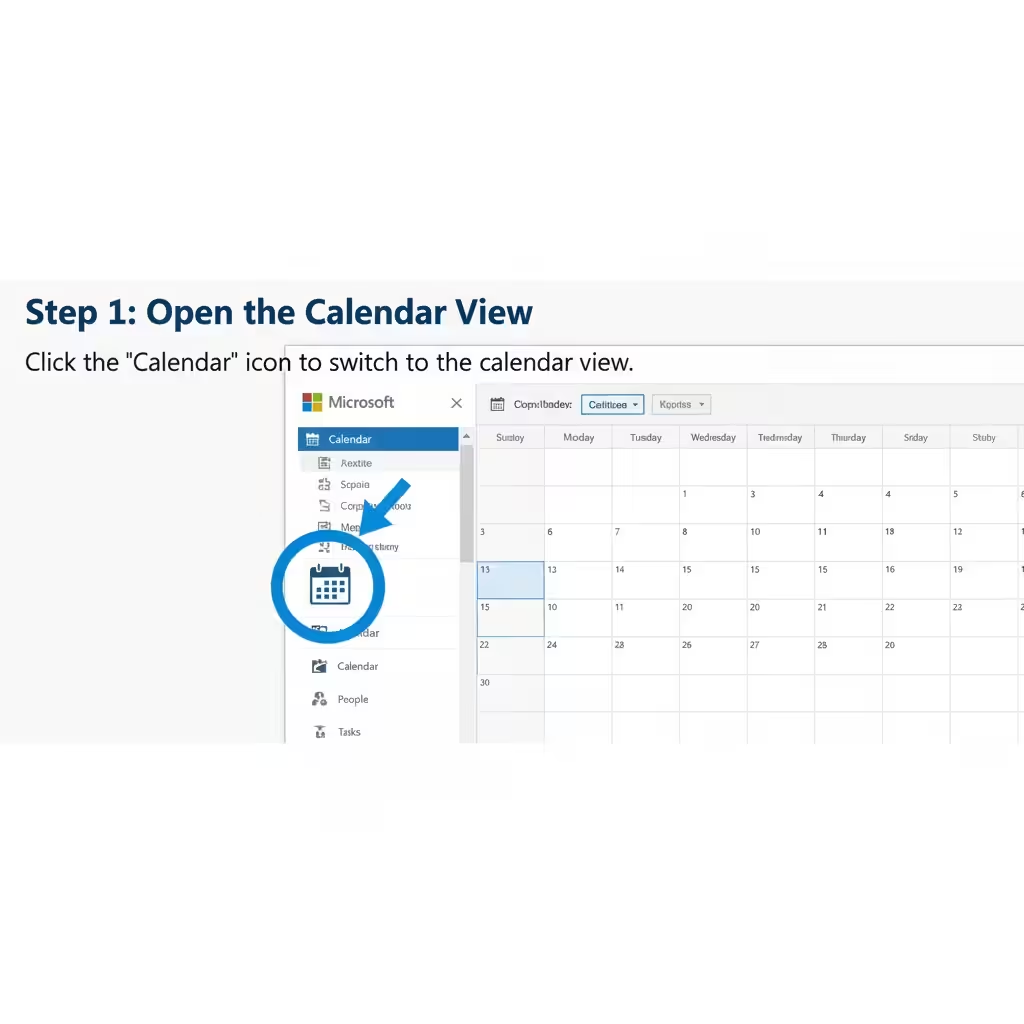
Step 1: Open the Calendar View
-
Open Microsoft Outlook on your desktop or laptop.
-
At the bottom of the navigation pane, click the Calendar icon to switch to the calendar view.
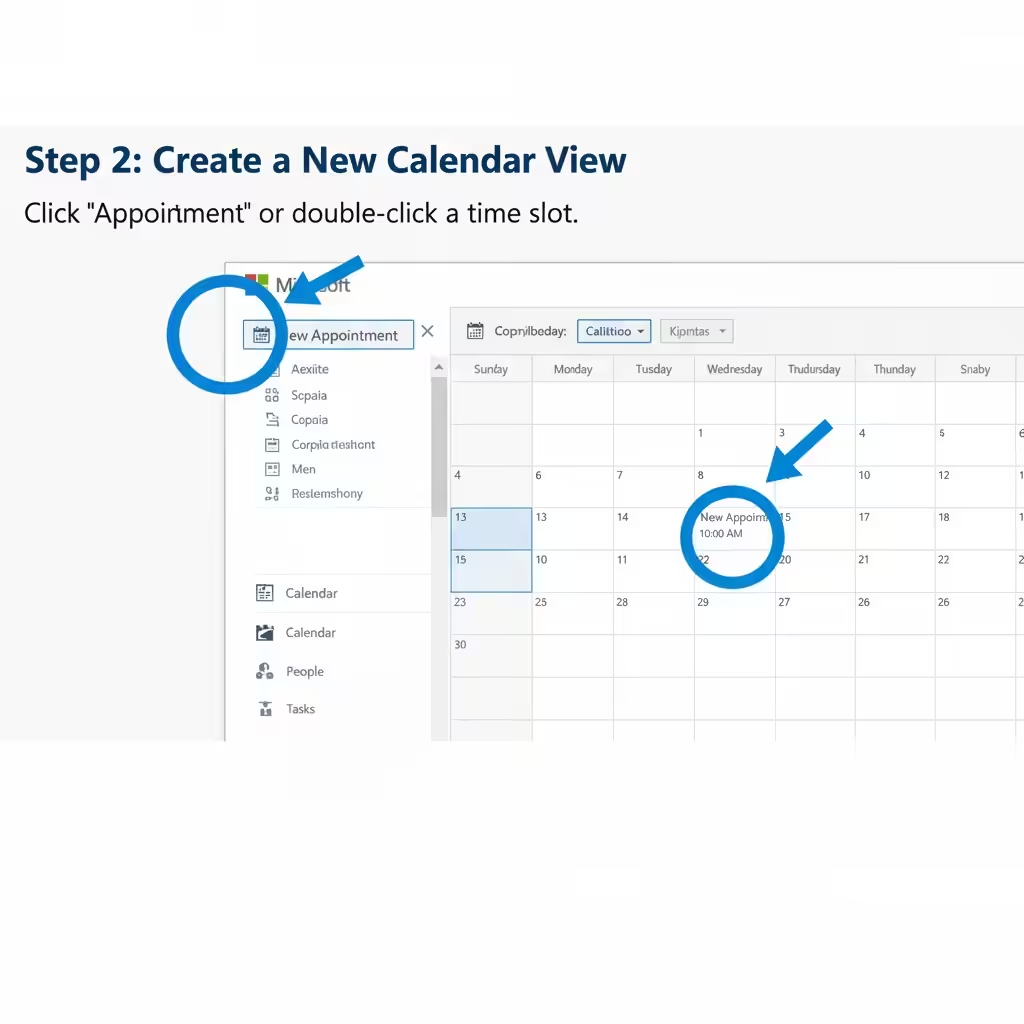
Step 2: Create a New Appointment
There are two main ways to create an appointment:
Click New Appointment on the Home tab.
Or, double-click on a time slot in your calendar.
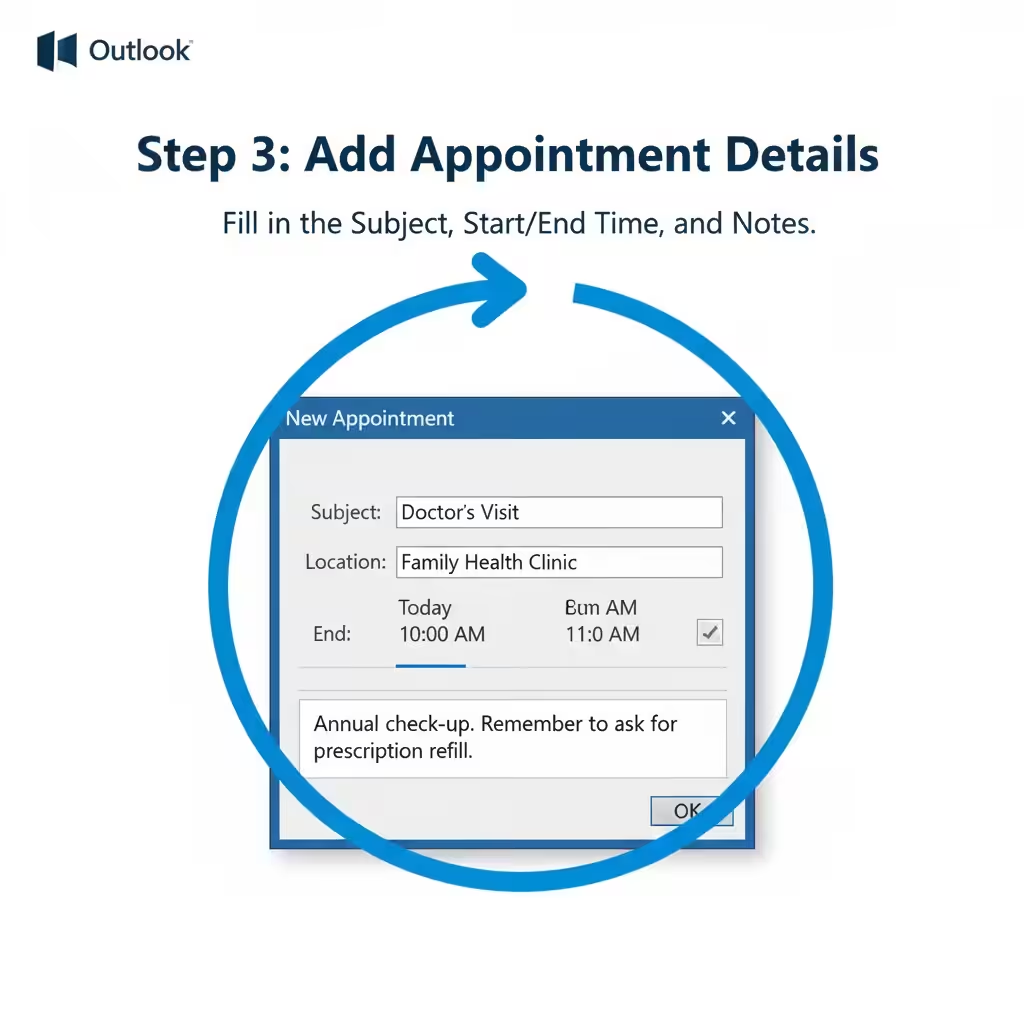
Step 3: Add Appointment Details
A new window will appear where you can enter:
Subject: The name of your appointment.
Location: Where it will take place (optional).
Start and End Time: The duration of your appointment.
Notes: Add any extra information or reminders.
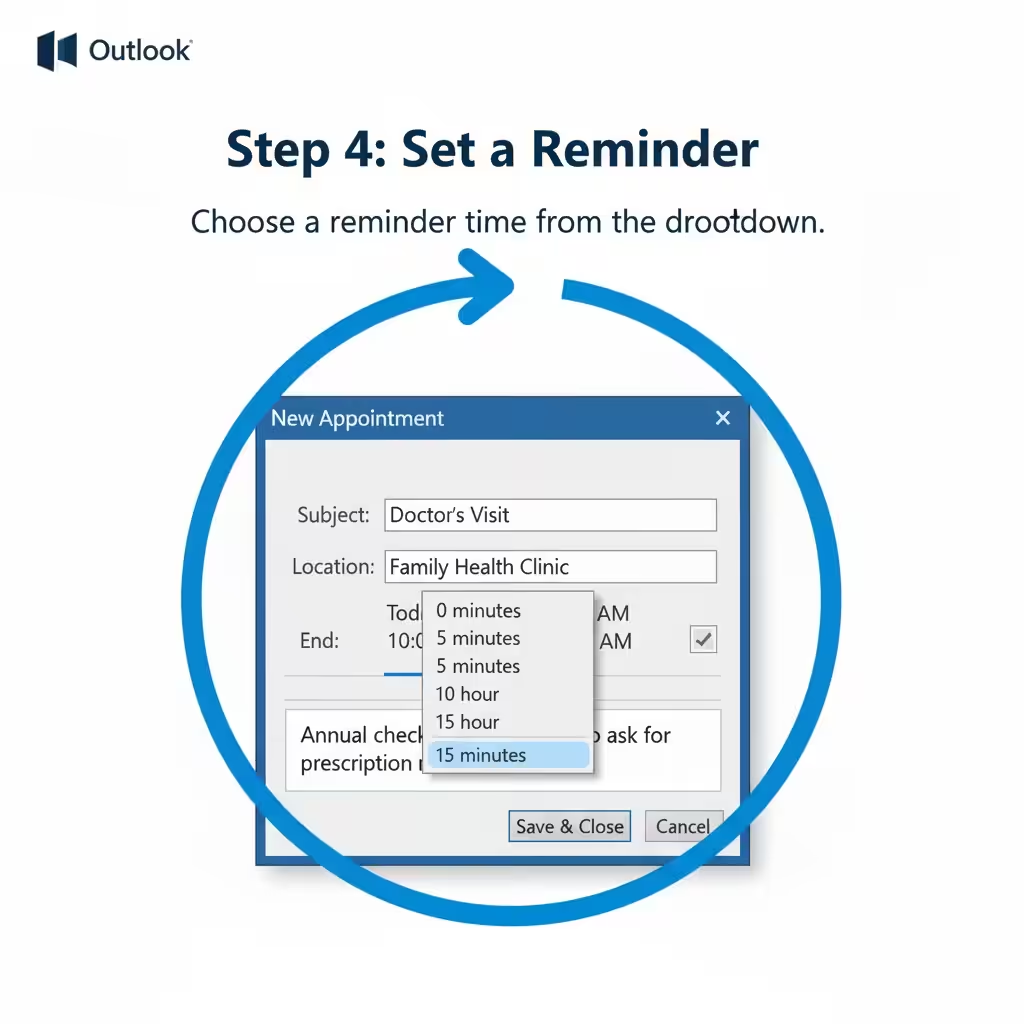
Step 4: Set a Reminder
Outlook allows you to set reminders to notify you before your appointment starts. Choose a reminder time (e.g., 15 minutes before) from the Reminder dropdown.
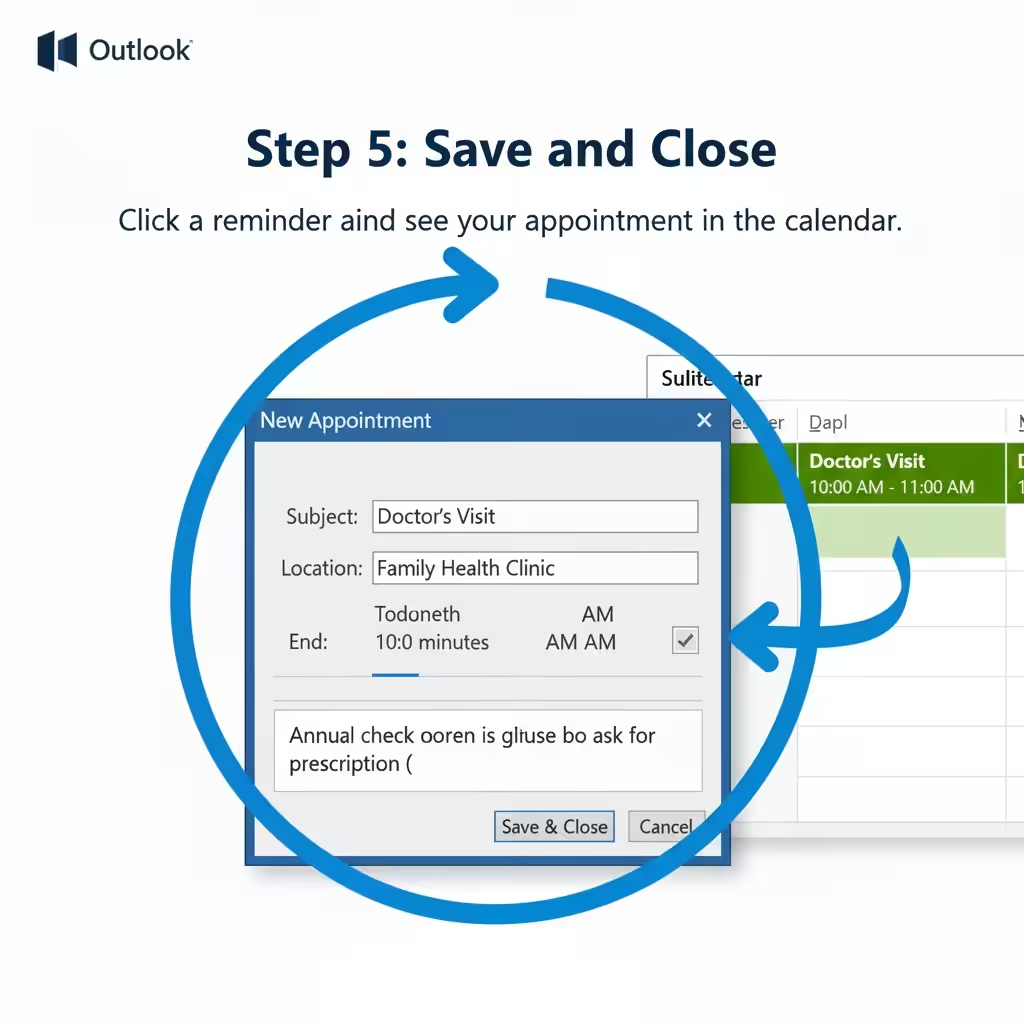
Step 5: Save and Close
Once you’ve filled in all details, click Save & Close. Your appointment will now appear in your calendar.
How to Create a Meeting in Microsoft Outlook
Creating a meeting is very similar to setting up an appointment, except you invite others to join.
Step 1: Start a New Meeting
-
In Outlook, go to your Calendar.
-
Click New Meeting on the Home tab.
Alternatively, if you already have an appointment, you can convert it into a meeting by selecting Invite Attendees.
Step 2: Add Meeting Information
In the new meeting window, fill in the details:
To: Enter the email addresses of the participants.
Subject: The title of your meeting (e.g., “Marketing Strategy Discussion”).
Location: Add a physical meeting room or virtual platform (e.g., Microsoft Teams).
Start and End Time: Define when the meeting begins and ends.
You can also use Scheduling Assistant to view participants’ availability and select the most convenient time.
Step 3: Add Meeting Details and Agenda
In the main text box, write the agenda or notes for the meeting. This helps attendees prepare in advance.
Step 4: Add an Online Meeting Link (Optional)
If you’re hosting a virtual meeting, click Teams Meeting or Skype Meeting, depending on your setup. Outlook will automatically insert the online meeting link into the invitation.
Step 5: Send the Invitation
After reviewing the details, click Send. All participants will receive the meeting invitation and can respond with Accept, Decline, or Tentative.
How to Schedule Recurring Meetings and Appointments
If you have events that repeat regularly—such as weekly team meetings or monthly check-ins—you can easily make them recurring.
Step 1: Open an Appointment or Meeting
After creating a new event, click the Recurrence button in the toolbar.
Step 2: Set the Recurrence Pattern
You can choose to repeat the event: daily, weekly, monthly, or yearly. Specify the start date, end date, and frequency. Once you’ve configured everything, click OK, then Save & Close (for appointments) or Send Update (for meetings).
Recurring events will now automatically appear on your Outlook calendar.
How to Edit or Cancel a Meeting in Outlook
Sometimes, schedules change and meetings need to be rescheduled or canceled. Outlook makes this process simple.
To Edit a Meeting
-
Open your calendar and double-click the meeting.
-
Make any necessary changes (such as time, location, or notes).
-
Click Send Update to notify all attendees.
To Cancel a Meeting
-
Open the meeting you want to cancel.
-
Click Cancel Meeting.
-
Add an optional message explaining the reason for cancellation.
-
Click Send Cancellation.
Attendees will receive an automatic notification, and the meeting will be removed from their calendars.
How to Use Scheduling Assistant for Better Time Management
The Scheduling Assistant in Outlook is a powerful tool that helps you find the best time to meet with multiple people.
-
When creating a new meeting, click Scheduling Assistant on the ribbon.
-
Outlook displays each participant’s availability in a grid view.
-
Choose a time slot where everyone is available.
This feature is especially useful for businesses and teams using Microsoft 365 or Exchange, where availability information is shared.
How to Create Meetings in Outlook Web
If you prefer using the web version of Outlook, creating a meeting or appointment is just as easy.
Step 1: Access Outlook on the Web
Go to Outlook.com and sign in with your Microsoft account.
Step 2: Create a New Event
-
Click the Calendar icon.
-
Select New event at the top of the screen.
Step 3: Add Event Details
Enter the event’s title, date, and time. If you want to invite others, click Add attendees and type their email addresses. You can also toggle Teams meeting to automatically add an online meeting link.
Step 4: Save or Send
Click Save for appointments or Send to share invitations for meetings. Your meeting will now appear in your Outlook.com calendar and sync across all connected devices.
How to Create Meetings and Appointments in Outlook for Mac
For Mac users, Outlook’s interface is slightly different but just as intuitive.
-
Open Outlook for Mac and select the Calendar view.
-
Click New Event on the Home tab.
-
Add a Title, Location, Date, and Time.
-
To invite others, click Invite attendees and enter their email addresses.
-
Click Save & Close (for appointments) or Send (for meetings).
Mac users can also add Teams or Zoom meeting links directly within the event window.
Tips for Managing Meetings and Appointments Effectively
Color-code your events: Assign colors to different types of meetings to quickly identify them.
Set reminders: Use notifications to ensure you never miss important meetings.
Check your availability: Avoid double-booking by checking your calendar before accepting invitations.
Attach files or notes: Add documents or links directly to your meeting for easy access.
Use Outlook mobile app: Stay updated on meetings and appointments while on the go.
Conclusion
Mastering how to create meetings and appointments in Microsoft Outlook can significantly improve your productivity and time management. With Outlook’s intuitive tools, you can easily organize your day, collaborate with colleagues, and ensure every meeting runs smoothly—whether online or in person.