


How to Manage Outlook Emails with Categories, Colors, and Reminders
Microsoft Outlook is one of the most powerful productivity tools available for managing emails, tasks, and schedules. Beyond sending and receiving messages, Outlook helps you stay organized through features such as categories, flags, reminders, and colors. These tools make it easier to prioritize your work, track important messages, and visually organize your inbox for quick access.
This comprehensive guide will teach you how to use these features effectively, whether you’re using Outlook on Windows, Mac, or the web.
Understanding Categories, Flags, Reminders, and Colors
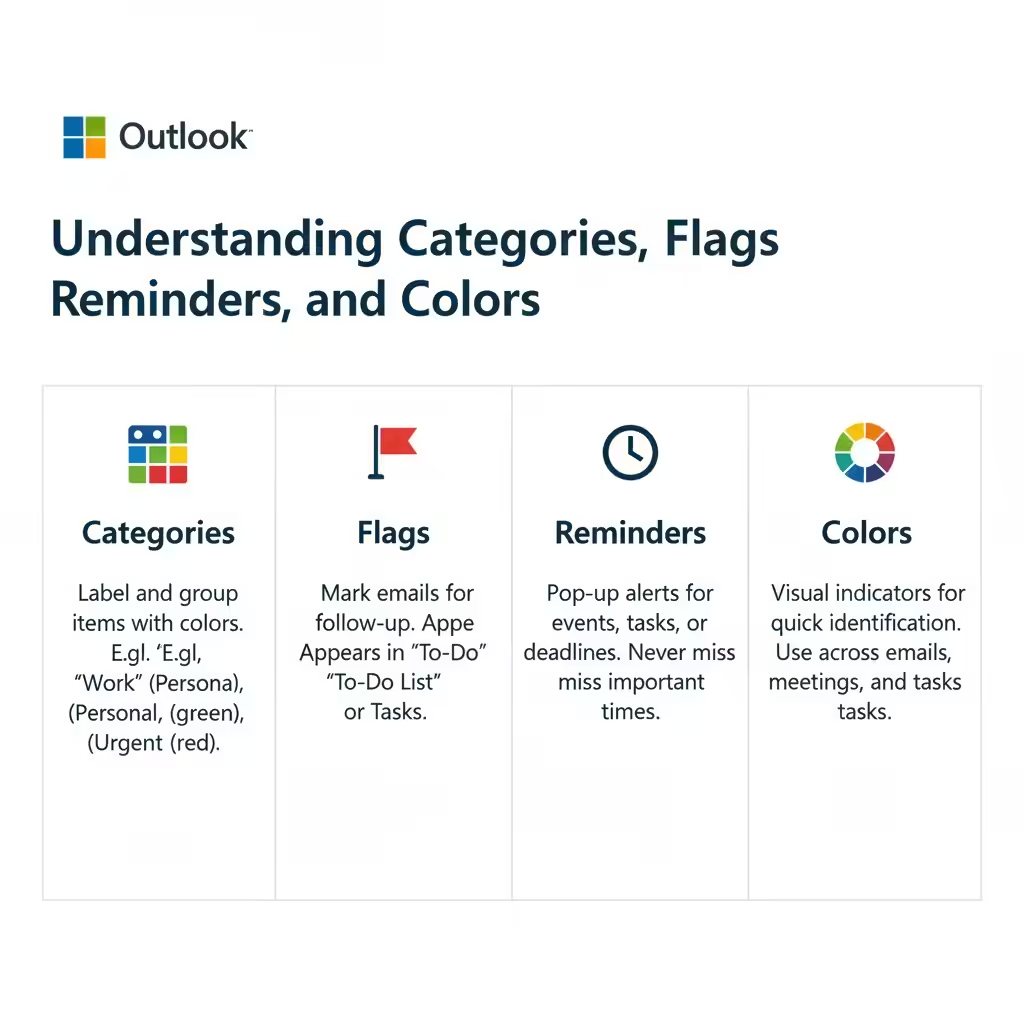
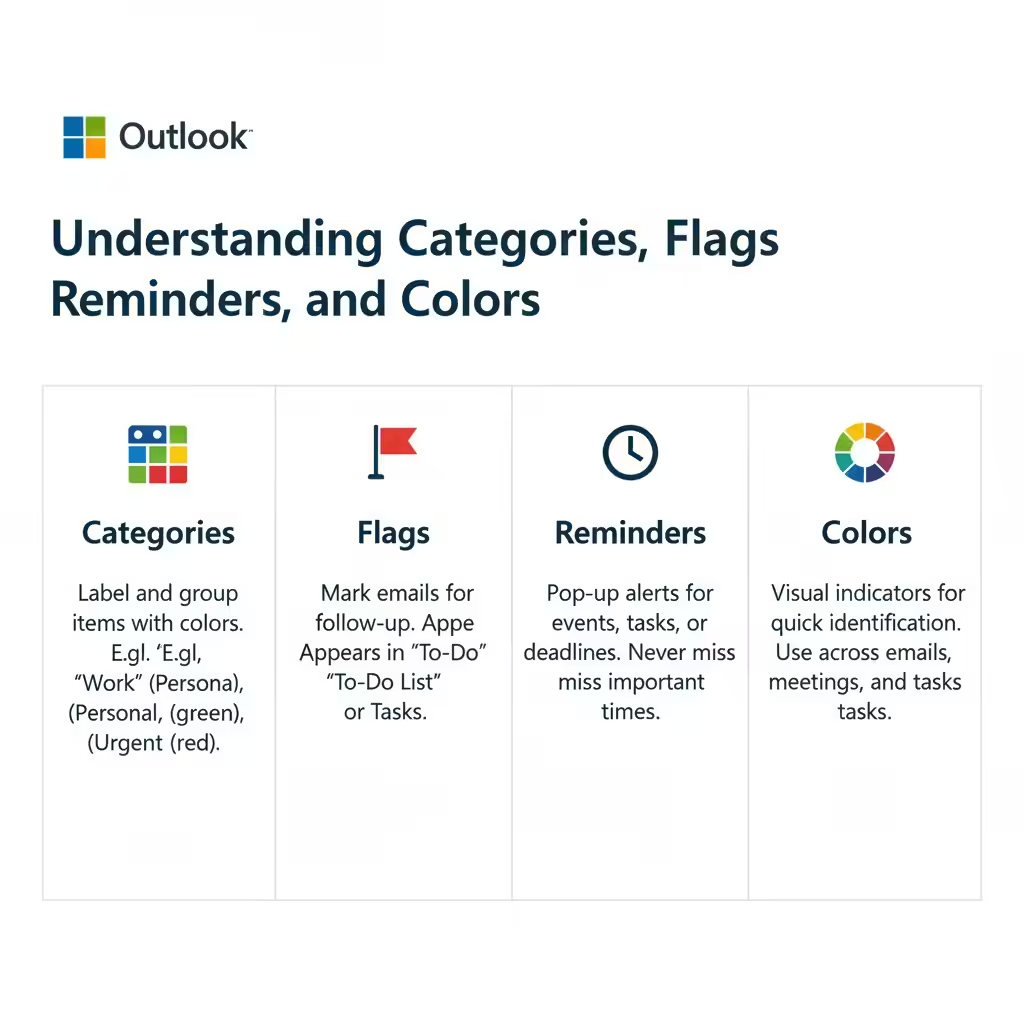
Before learning how to set each feature, it’s important to understand what they do and how they differ from one another.
Categories:
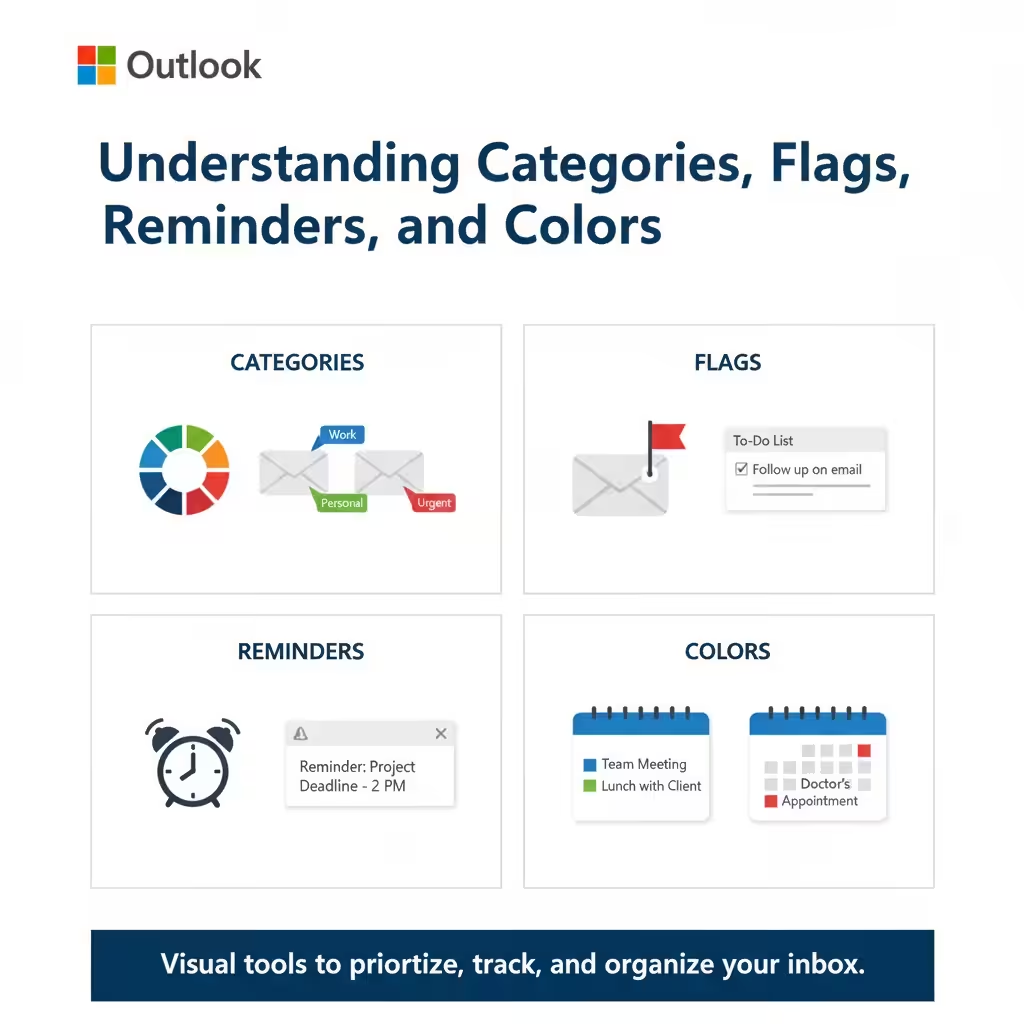
Categories are used to label and group emails, calendar events, contacts, and tasks. You can assign colors to categories for better visibility and organization. For example, you might use blue for “Work,” green for “Personal,” and red for “Urgent.”
Flags:
Flags help mark emails or items that require follow-up. When you flag an email, it appears in your “To-Do List” or “Tasks” section, reminding you to take action later.
Reminders:
Reminders alert you about upcoming events, tasks, or deadlines. They can pop up at specific times to make sure you don’t miss anything important.
Colors:
Colors in Outlook are visual indicators that help you quickly identify certain items. You can use color categories for emails, meetings, and tasks to visually separate different types of information.
How to Assign Categories in Outlook
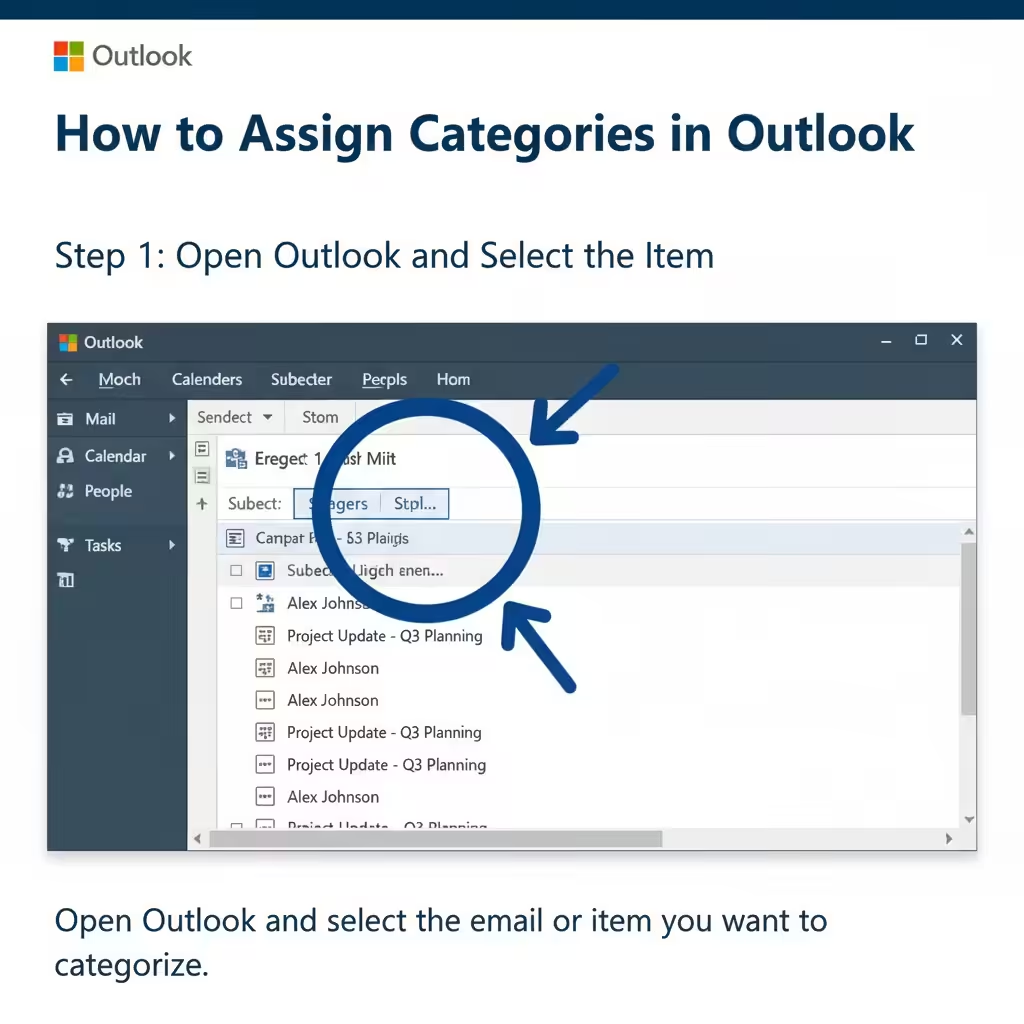
Step 1: Open Outlook and Select the Item
Start by opening Microsoft Outlook and navigating to your Mail, Calendar, or Tasks section. Select the email, appointment, or task you want to categorize.
Step 2: Assign a Category
-
Right-click the item.
-
Choose Categorize from the context menu.
-
Select a color category (e.g., Red Category, Blue Category).
If it’s your first time using categories, Outlook provides default names. You can rename them for easier identification.
Step 3: Rename and Customize Categories
To personalize your categories:
-
Click Home > Categorize > All Categories.
-
Select a category and click Rename.
-
Choose a new color and name (for example, “Project A” or “Finance”).
-
Click OK to save your changes.
Now your selected email or task will display the assigned color category, helping you quickly identify it later.
Step 4: View and Sort by Category
To see all items within a specific category:
-
Go to your inbox.
-
Click View > Arrange By > Categories.
You’ll now see your emails grouped by their category color.
How to Use Flags in Outlook
Flags in Outlook are perfect for marking items that require a response or further action.
Step 1: Flag an Email
In your inbox:
-
Hover your mouse over the message you want to flag.
-
Click the flag icon that appears to the right.
Alternatively, you can right-click the email and choose Follow Up, then select a time frame such as Today, Tomorrow, or Next Week.
Step 2: View Flagged Emails
To view all flagged messages, click the Tasks icon or open the To-Do List in Outlook. This view consolidates all flagged items for easier management.
Step 3: Customize Follow-Up Options
If you want to add more details:
-
Right-click the flagged email.
-
Select Follow Up > Custom.
-
Set a Start Date, Due Date, and Reminder (if needed).
Once completed, click OK, and Outlook will remind you about this task at the chosen time.
Step 4: Mark a Flag as Complete
When you finish the task or respond to the email, simply right-click the flag and choose Mark Complete. The flag will turn into a checkmark, showing that the task is done.
How to Set Reminders in Outlook
Reminders ensure you never miss deadlines, meetings, or important follow-ups.
Step 1: Add a Reminder to an Email or Task
To set a reminder for an email:
-
Right-click the message.
-
Select Follow Up > Add Reminder.
-
In the pop-up window, set the Date and Time for the reminder.
-
Click OK.
For calendar events, simply check the Reminder option when creating a new appointment or meeting and choose when you’d like to be notified.
Step 2: Change or Dismiss Reminders
When a reminder appears, you can choose to Snooze (delay) it or Dismiss it once the task is done.
You can also manage multiple reminders at once by opening the Reminders Window in Outlook, where you can view all upcoming alerts.
Step 3: Set Reminders for Recurring Events
For events that repeat (such as weekly meetings or monthly reports):
-
Open the calendar event.
-
Click Recurrence.
-
Choose your desired repetition pattern.
-
Add a reminder before saving.
How to Use Colors in Outlook Calendar and Mail
Colors in Outlook not only make your inbox visually appealing but also help differentiate between types of messages and appointments.
Step 1: Color Code Your Calendar
In the Calendar view:
-
Open the event or meeting.
-
Click Categorize and choose a color.
This color will now appear in your calendar, making it easy to distinguish between different types of events.
Step 2: Create Color Rules for Incoming Emails
You can automate color coding for certain messages:
-
Go to View > View Settings.
-
Click Conditional Formatting.
-
Choose Add and name your rule (e.g., “Emails from Manager”).
-
Click Font and choose a text color.
-
Set conditions under Condition (e.g., messages from a specific person).
-
Click OK.
Outlook will automatically apply the chosen color formatting when a new email matches your rule.
Step 3: Customize Color Schemes for Easier Navigation
Outlook also lets you change the overall theme color:
-
Go to File > Options > General.
-
Under Office Theme, choose from options like Colorful, Dark Gray, or White.
How to Combine Flags, Categories, and Reminders
The true power of Outlook lies in combining its features for better productivity. For example:
-
Flag an email for follow-up.
-
Add a Reminder so you get notified before the due time.
-
Categorize it by project or department.
This system creates an organized workflow where each item is prioritized, color-coded, and scheduled for completion.
Managing Categories and Flags on Mobile Devices
If you use the Outlook mobile app, you can still access many of these features:
-
Tap an email and choose Flag to mark it for follow-up.
-
Use Swipe Actions to quickly categorize or flag messages.
-
Color categories will sync automatically with your desktop version through your Microsoft 365 account.
However, some customization options (like conditional formatting or color rules) are only available in the desktop version.
Tips for Staying Organized in Outlook
-
Review your flagged items daily to keep your task list updated.
-
Use consistent color codes across all categories for easier recognition.
-
Archive completed tasks regularly to avoid clutter.
-
Use reminders strategically—set them only for critical items to avoid alert fatigue.
-
Sync Outlook with your mobile devices to stay on track anywhere.
Conclusion
Learning how to set categories, flags, reminders, or colors in Outlook can completely transform the way you manage emails and tasks. These simple yet powerful tools help you create an organized, color-coded system that enhances productivity and reduces stress.