


Installing Skype for Business on Your Mac Computer
Skype for Business is a powerful communication tool designed for organizations that need a professional platform for instant messaging, video conferencing, and online meetings. It integrates seamlessly with Microsoft Office apps and provides enterprise-grade security, making it ideal for both remote and in-office teams.
If you’re a Mac user and want to install Skype for Business on Mac, this guide will take you through every step—from downloading and installation to signing in and troubleshooting.
Understanding Skype for Business on Mac
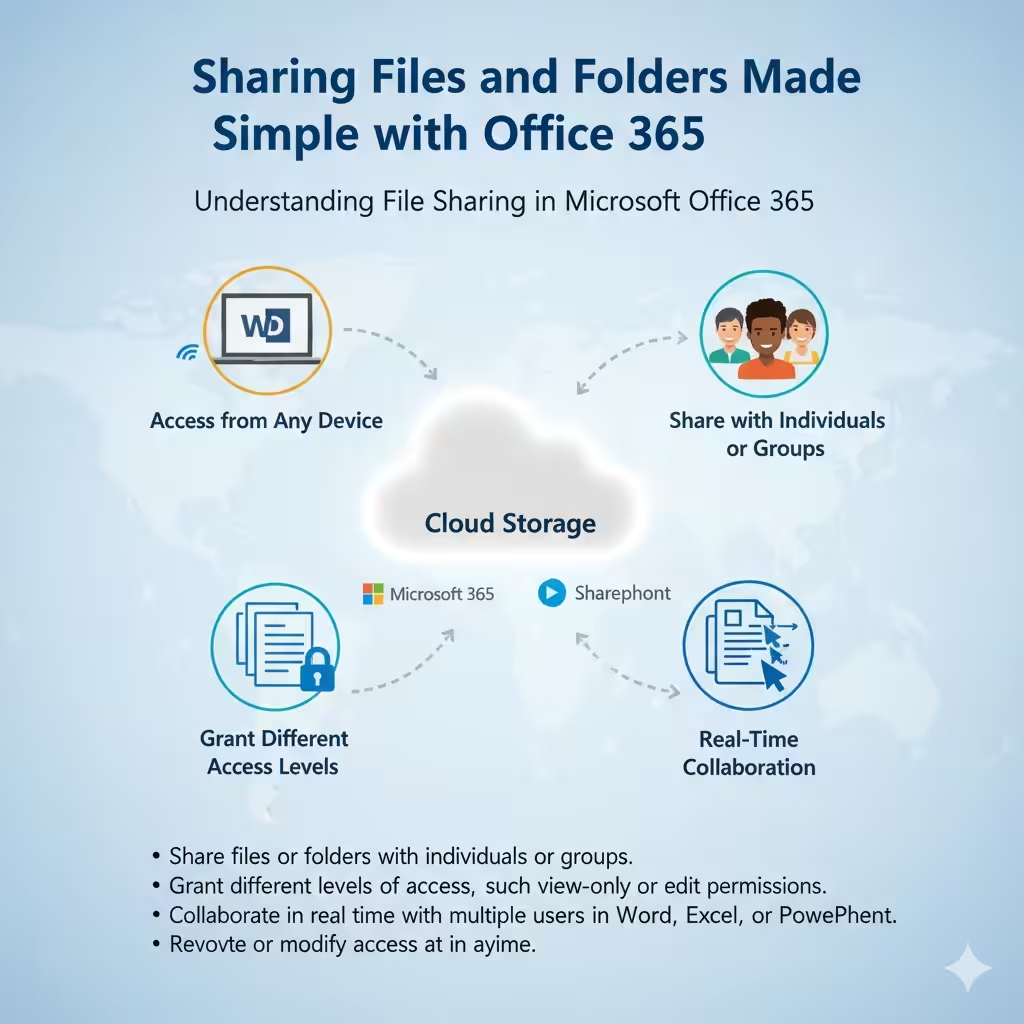
Before installing, it’s important to understand what Skype for Business offers compared to the standard version of Skype. While regular Skype focuses on personal communication, Skype for Business is tailored for professional use. It allows:
-
Secure video and audio meetings for up to 250 participants.
-
Integration with Microsoft Office (Outlook, Word, PowerPoint).
-
Enterprise-level contact management.
-
Screen sharing and real-time collaboration tools.
-
Unified communication within organizations.
However, note that Skype for Business is gradually being replaced by Microsoft Teams in Microsoft 365 environments. Still, many organizations continue using Skype for Business, especially in on-premises or hybrid setups.
Step 1: Check System Requirements
Before downloading Skype for Business, ensure your Mac meets the system requirements.
Minimum requirements include:
-
Operating System: macOS 10.11 (El Capitan) or later.
-
Processor: Intel Core 2 Duo or higher.
-
Memory: At least 4 GB of RAM.
-
Disk Space: 2 GB free space.
-
Internet Connection: Stable broadband connection.
To check your macOS version, click the Apple menu > About This Mac.
Step 2: Download Skype for Business for Mac
There are two main ways to download Skype for Business on your Mac:
Option 1: Download from Microsoft 365 Portal
If your organization uses Microsoft 365, follow these steps:
-
Go to https://portal.office.com.
-
Sign in using your work or school account.
-
Click Install Office apps.
-
Select Other install options.
-
Under Skype for Business, click Install for Mac.
Option 2: Download from Microsoft’s Official Website
If you don’t have access to Microsoft 365:
-
Visit the official Microsoft download page for Skype for Business for Mac.
-
Click Download.
-
Save the .pkg installation file to your Mac.
Once downloaded, proceed to the installation process.
Step 3: Install Skype for Business on Mac
-
Locate the downloaded SkypeForBusinessInstaller.pkg file in your Downloads folder.
-
Double-click the file to launch the installer.
-
Follow the on-screen instructions in the installation wizard.
-
Agree to the license terms when prompted.
-
Select the destination where you want to install Skype for Business.
-
Click Install to begin the installation process.
Once installation is complete, you’ll see a confirmation message. You can now find Skype for Business in your Applications folder.
Step 4: Sign In to Skype for Business
After installing the app, it’s time to sign in using your organization’s credentials.
-
Open Skype for Business from the Applications folder or Dock.
-
Enter your work email address and click Continue.
-
Enter your password when prompted.
-
Click Sign In.
If your organization uses multi-factor authentication (MFA), you may need to verify your identity via SMS or an authenticator app.
Once logged in, you’ll see your contacts and presence status (Available, Busy, Do Not Disturb, etc.).
Step 5: Configure Audio and Video Settings
Before making or joining calls, make sure your microphone, speakers, and camera are configured properly.
-
In Skype for Business, go to Preferences (click Skype for Business in the top menu).
-
Select Audio/Video.
-
Under Microphone, choose your preferred device.
-
Under Speakers, select the audio output you want to use.
-
Test your devices by clicking Check Call Quality.
For video settings:
-
Choose the camera you want to use.
-
Make sure lighting and angle are suitable for professional meetings.
Step 6: Schedule and Join Meetings
Skype for Business integrates tightly with Outlook for Mac, allowing you to schedule or join meetings directly.
To Schedule a Meeting
-
Open Outlook.
-
Go to the Calendar tab.
-
Click Meeting > Skype Meeting.
-
Add attendees and set the date and time.
-
Outlook automatically includes a Skype meeting link.
To Join a Meeting
You can join meetings by:
-
Clicking the Join Skype Meeting link in your Outlook calendar invitation.
-
Opening the Skype for Business app and selecting Meetings > Join.
Step 7: Updating Skype for Business
Keeping Skype for Business up to date ensures compatibility, stability, and security.
To check for updates:
-
Open Skype for Business.
-
Click Help in the menu bar.
-
Select Check for Updates.
If updates are available, follow the on-screen prompts to install them.
Alternatively, if your organization uses Microsoft AutoUpdate, it may automatically update Skype for Business when new versions are released.
Step 8: Troubleshooting Common Issues
If you encounter problems during installation or use, here are some quick fixes:
1. Unable to Sign In:
-
Double-check your username and password.
-
Make sure your internet connection is stable.
-
Contact your IT administrator to confirm your account permissions.
2. Audio or Video Problems:
-
Verify that your Mac has granted microphone and camera permissions.
-
Go to System Preferences > Security & Privacy > Privacy.
-
Enable access for Skype for Business.
-
-
Check that your audio devices are properly connected.
3. Crashing or Freezing:
-
Ensure macOS and Skype for Business are updated to the latest versions.
-
Restart your Mac and try again.
-
If the issue persists, uninstall and reinstall the app.
Step 9: Uninstalling Skype for Business on Mac
If you ever need to remove Skype for Business, follow these steps:
-
Quit Skype for Business if it’s open.
-
Open the Applications folder.
-
Drag Skype for Business to the Trash.
-
Go to Finder > Go > Go to Folder and enter:
Delete any files or folders related to Skype for Business (such as
com.microsoft.SkypeForBusiness.plist). -
Empty your Trash to complete the removal.
Final Thoughts
Installing Skype for Business on Mac is a straightforward process that allows professionals to stay connected with colleagues and clients. With its robust features, enterprise security, and seamless integration with Microsoft Office, it remains a valuable communication tool for many organizations.
By following the steps outlined above—checking system requirements, downloading from the official source, configuring settings, and troubleshooting issues—you can ensure a smooth installation and setup experience.