


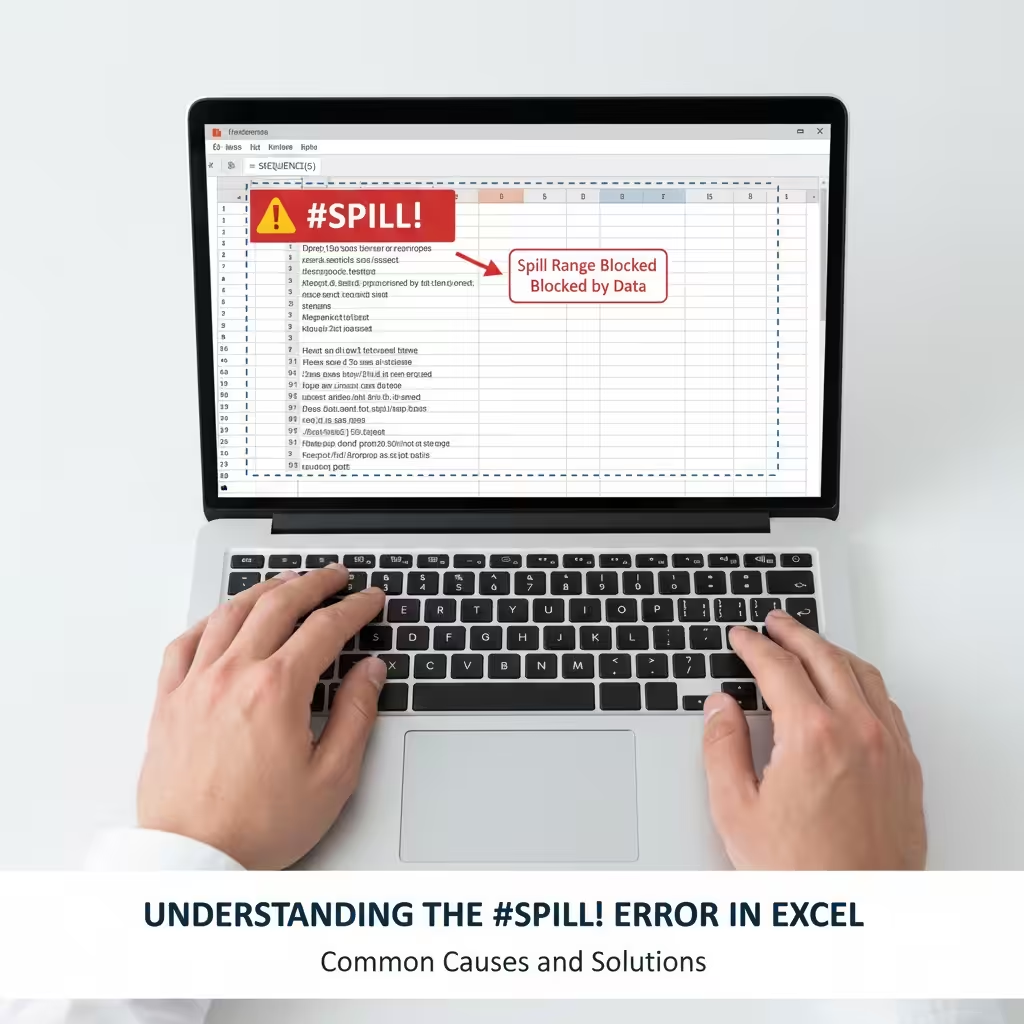
Understanding the #SPILL! Error in Excel: Common Causes and Solutions
If you’ve been using newer versions of Excel, you’ve probably seen the #SPILL! error appear in your worksheet at least once. It can be confusing, especially when you’re not sure what “spill” means in Excel. Fortunately, this error isn’t as scary as it looks. In fact, it’s Excel’s way of telling you that something is blocking your dynamic array formula from displaying all of its results.
In this guide, you’ll learn what the #SPILL! error means, what causes it, and how to fix it quickly. We’ll also explore some examples and practical tips to help you avoid running into it again.
What Is the #SPILL! Error in Excel?
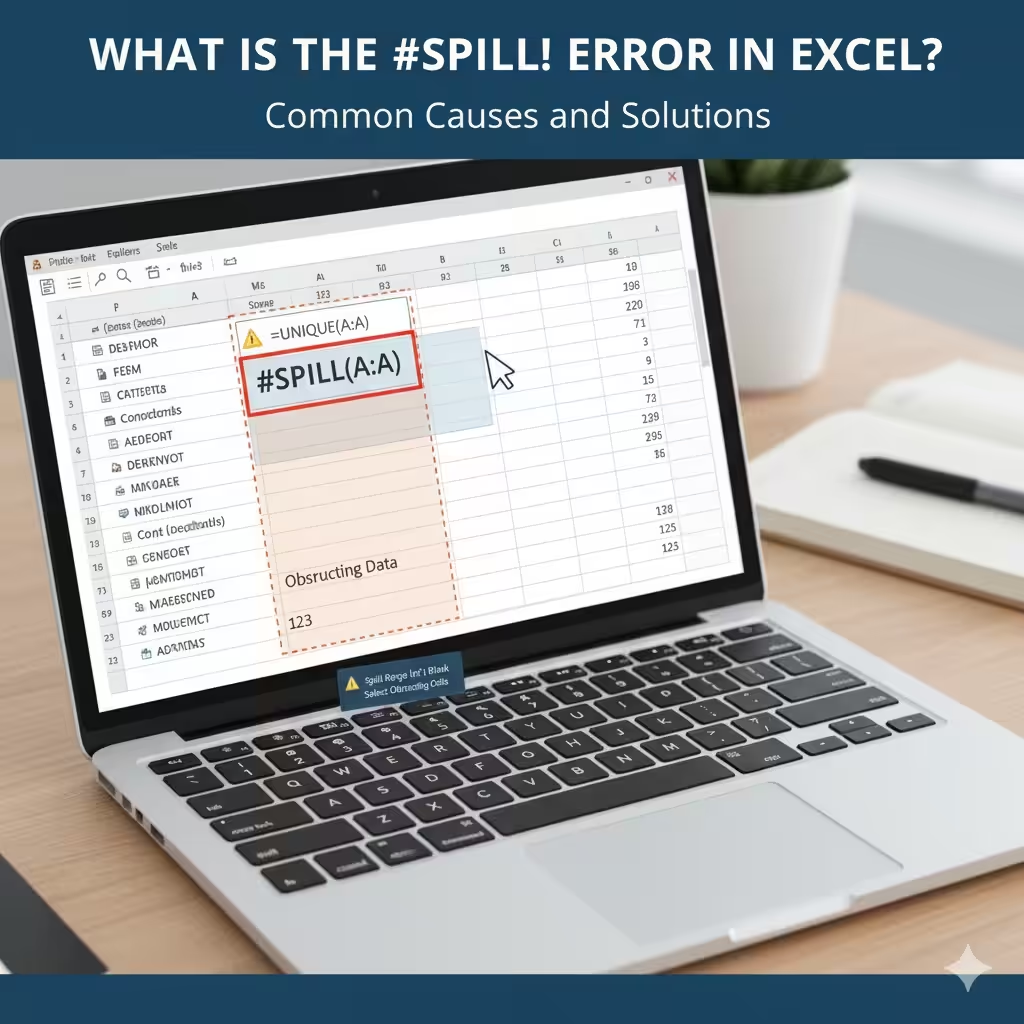
The #SPILL! error appears when Excel tries to return multiple results from a formula (a “spill range”) but can’t display them all in the worksheet.
Dynamic array functions like FILTER, SORT, SEQUENCE, UNIQUE, and others automatically return multiple values that “spill” over into neighboring cells. If something prevents those cells from being filled, Excel displays the #SPILL! message.
For example:
This formula tries to create a column of numbers from 1 to 5. However, if there’s any data, formatting, or merged cells in the next four rows, Excel won’t be able to fill them — and it will show #SPILL! in the formula cell.
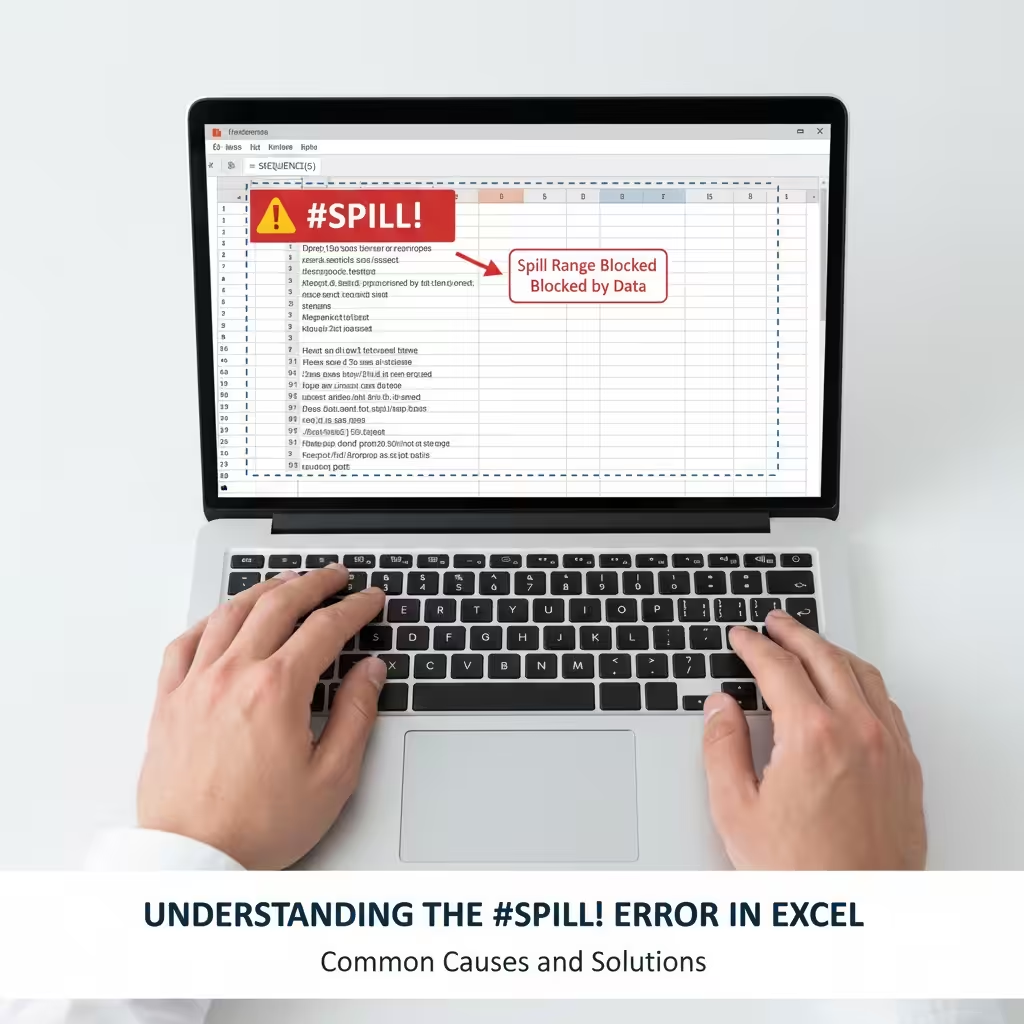
How Dynamic Arrays Work
Before fixing the #SPILL! error, it helps to understand what’s happening behind the scenes.
Dynamic arrays were introduced in Excel 365 and Excel 2021. They allow a single formula to return multiple results that “spill” into adjacent cells automatically.
When you enter a dynamic array formula:
-
The main cell is where you type the formula.
-
The spill range is where Excel fills the results.
-
If anything blocks that range, Excel shows #SPILL!.
If you select the cell with the #SPILL! error, Excel highlights the intended spill range with a dotted border, showing exactly where it’s trying to output data.
Common Causes of the #SPILL! Error
There are several reasons Excel may show this error. Let’s look at the most common ones and how to fix them.
1. Blocked Spill Range
The most common cause is when one or more cells in the spill range already contain data. Excel can’t overwrite existing content, so it stops and shows #SPILL!.
How to fix:
-
Click the warning icon next to the error.
-
Choose Select Obstructing Cells to see what’s blocking the spill range.
-
Delete or clear the contents of those cells.
-
The formula should now spill correctly.
2. Merged Cells in the Spill Range
If any of the cells in the spill range are merged, Excel cannot spill results into them.
How to fix:
-
Select the range of cells around your formula.
-
Go to Home > Merge & Center > Unmerge Cells.
-
Once unmerged, Excel should be able to display all results.
3. Table Format Restrictions
Dynamic arrays don’t work directly inside Excel Tables (created using Ctrl + T). Tables have a fixed structure that doesn’t allow spilling.
How to fix:
-
Convert the table back to a normal range.
-
Select any cell in the table, then go to Table Design > Convert to Range.
-
Re-enter the formula, and the #SPILL! error should disappear.
4. Insufficient Space for the Spill Range
Sometimes there isn’t enough space below or beside the formula cell to display all results. For example, if your formula tries to fill 20 rows but there are only 5 blank ones, Excel can’t complete the operation.
How to fix:
-
Ensure there’s enough blank space in the direction of the spill (down, right, or both).
-
Move the formula to a more open area on the sheet.
5. Entire Column References
Dynamic array formulas that use entire column references (like =A:A) can produce too many results, overwhelming Excel’s output area.
How to fix:
-
Limit your reference range. Instead of using
A:A, try something likeA1:A1000. -
This gives Excel a manageable spill area and avoids memory overload.
6. Volatile Formulas or Indirect References
Functions like INDIRECT, OFFSET, or RANDARRAY can sometimes cause #SPILL! if they produce inconsistent or unpredictable ranges.
How to fix:
-
Double-check that the referenced ranges are valid.
-
Use static ranges when possible.
-
Try recalculating the workbook by pressing Ctrl + Alt + F9.
How to Identify the Spill Range in Excel
To see where Excel is trying to place your spilled array:
-
Select the cell containing the #SPILL! error.
-
A dotted border will appear showing the intended spill area.
-
Check if there are any cells with data, formatting, or merged cells within that area.
-
Clear those cells if needed, and the formula should work.
You can also hover over the warning icon to see the specific reason Excel is giving the #SPILL! error — it’s often something simple like “Spill range isn’t blank” or “Merged cell.”
Examples of Fixing #SPILL! in Common Scenarios
Example 1 — Using the FILTER Function
If there’s a value or text in the cells below, the function can’t display all filtered results.
Solution: Clear all data from the cells below the formula.
Example 2 — Using the SEQUENCE Function
If the worksheet has text or formatting in the next nine rows, Excel will show #SPILL!.
Solution: Delete or clear those rows, or move the formula to an empty column.
Example 3 — Using the UNIQUE Function
If placed inside a table, it won’t work.
Solution: Convert the table to a normal range before using UNIQUE.
Preventing #SPILL! Errors in the Future
You can avoid this problem by following these best practices:
-
Keep spill areas clear — Leave enough space below and beside formula cells.
-
Avoid merged cells in areas where you use dynamic arrays.
-
Use defined ranges instead of entire column references.
-
Avoid using tables for formulas that need to spill multiple results.
-
Check warnings early — Excel often gives hints when the spill range is blocked.
By designing your sheets with these principles in mind, you’ll rarely encounter #SPILL! again.
Frequently Asked Questions
Can I turn off the #SPILL! error in Excel?
No. You can’t disable it, but you can prevent it by ensuring your spill range is clear and valid.
Do older versions of Excel show the #SPILL! error?
No. Dynamic arrays and the #SPILL! error only exist in Excel 365 and Excel 2021. Older versions will return different results or errors.
What does “Spill range isn’t blank” mean?
It means one or more cells in the area where the formula is trying to output results already contain data.
Final Thoughts
The #SPILL! error in Excel is a helpful message, not a failure. It tells you that Excel is trying to output multiple results but can’t because something is blocking the way.
By checking for obstructing cells, merged ranges, or tables, you can fix the problem in seconds. Once cleared, Excel will automatically “spill” the results as intended.