


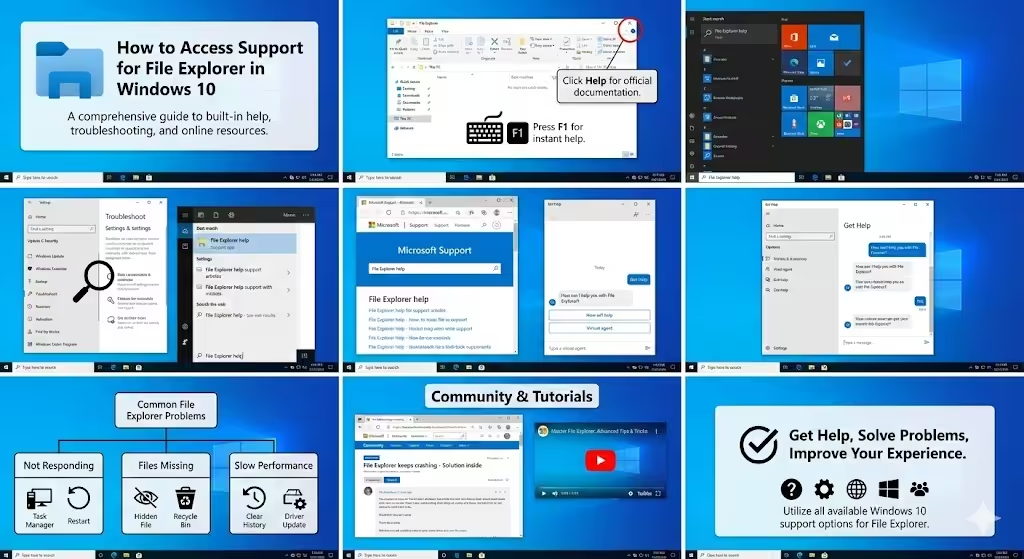
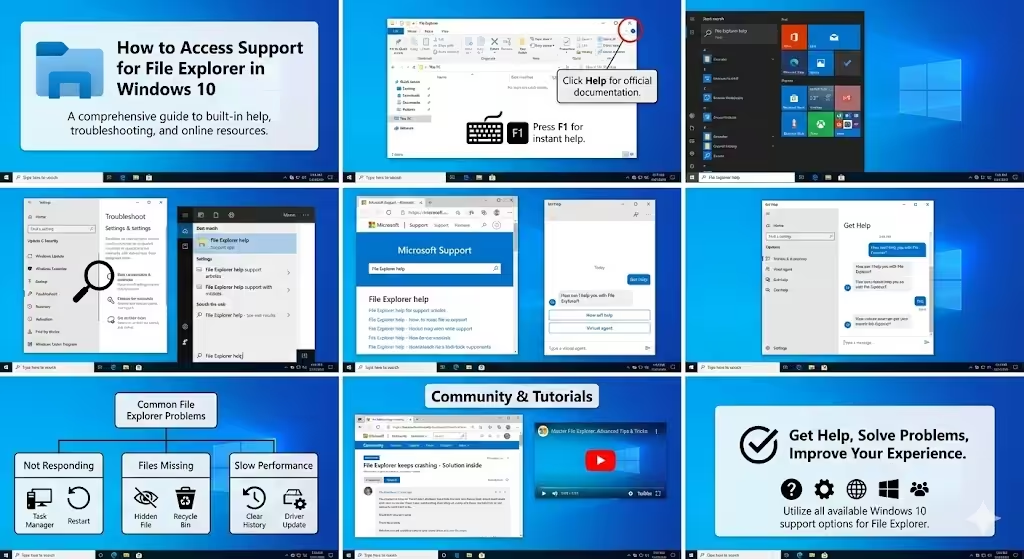
How to Access Support for File Explorer in Windows 10
File Explorer is one of the most essential tools in Windows 10. It allows users to browse files, manage folders, connect to external storage, and perform everyday tasks such as copying, moving, and organizing data. Despite its importance, many users are unaware of the various ways Windows 10 provides help and guidance when File Explorer becomes confusing or does not work as expected.
This article explains how to get help with File Explorer in Windows 10, covering built-in help options, troubleshooting methods, online resources, and practical tips to solve common problems efficiently.
What Is File Explorer and Why It Matters
File Explorer is the default file management application in Windows 10. It replaced Windows Explorer and serves as the main interface for interacting with files and folders on your computer.
With File Explorer, you can browse documents, pictures, videos, and downloads, access internal and external drives, manage cloud storage such as OneDrive, search for files and folders, and change file views and folder settings.
Because File Explorer is used so frequently, knowing how to get help when something goes wrong can save time and reduce frustration.
Using the Built-In Help Options in File Explorer
Windows 10 includes several built-in ways to get help directly from File Explorer itself.
Using the Help Button
When File Explorer is open, click the three-dot menu or Help option in the top toolbar (depending on your Windows version), then select Help. This will open Microsoft’s official support documentation in your web browser, where you can find tutorials, explanations, and step-by-step guides related to File Explorer features.
Using Keyboard Help Shortcuts
Windows includes helpful keyboard shortcuts that act as a quick reference for File Explorer functions. Pressing F1 opens Windows Help related to the active application. Ctrl + N opens a new File Explorer window, Alt + D moves the cursor to the address bar, and Ctrl + Shift + N creates a new folder instantly.
If you forget how something works, pressing F1 while File Explorer is active is a simple and fast way to access help.
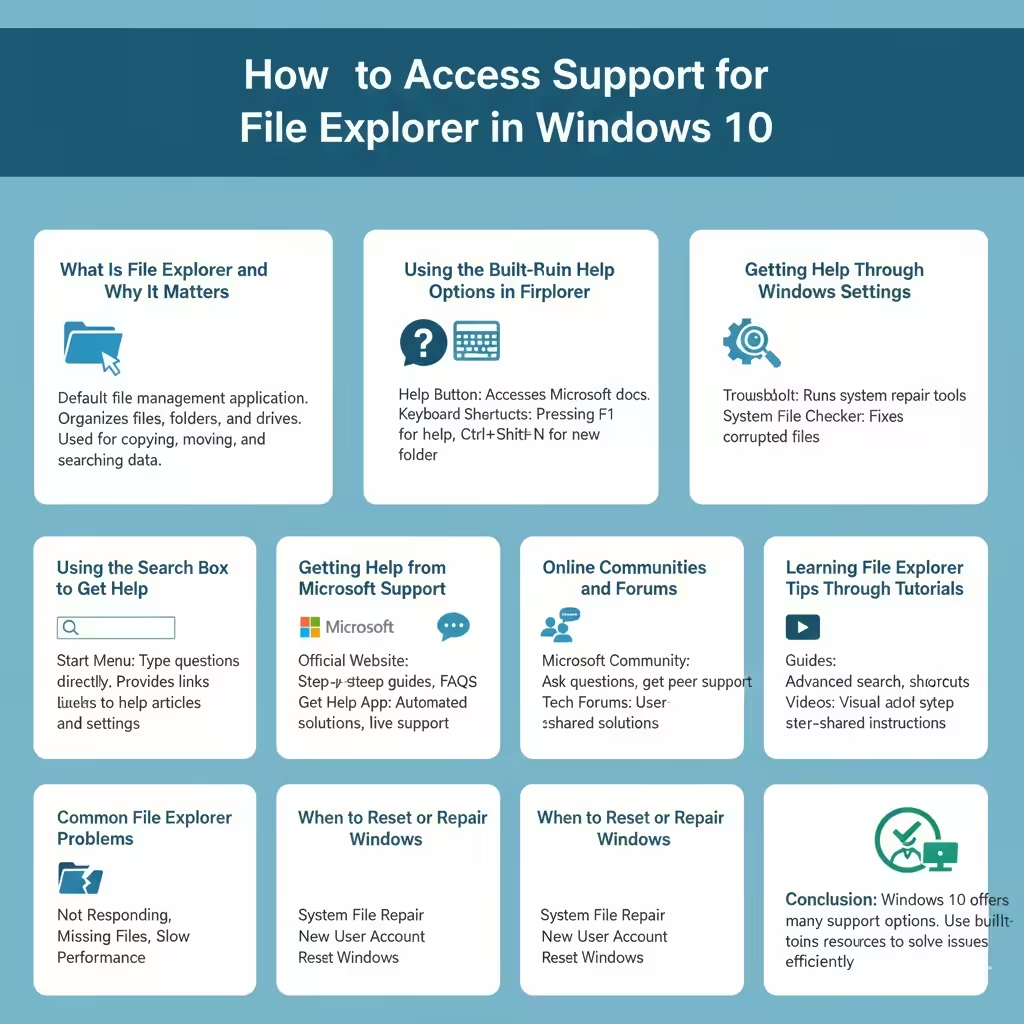
Getting Help Through Windows Settings
Windows 10 Settings is another useful place to find assistance for File Explorer issues.
To access help through Settings, open Settings, select Update & Security, then click Troubleshoot. Although there is no File Explorer–specific troubleshooter, system tools here can fix issues that affect File Explorer, such as corrupted system files, indexing problems, or performance slowdowns.
These tools often resolve problems indirectly without requiring advanced technical knowledge.
Using the Search Box to Get Help
Windows 10 has a powerful built-in search feature that connects users to help content and system settings.
To use it, click the Start menu and type a question or problem, such as “File Explorer not responding,” “How to show hidden files,” or “File Explorer keeps crashing.” Press Enter, and Windows will display relevant help articles, system settings, and links to official Microsoft documentation.
This method is especially helpful for beginners who may not know where a setting is located.
Getting Help from Microsoft Support
Microsoft provides comprehensive official support for Windows 10 and File Explorer.
The Microsoft Support website contains step-by-step guides, troubleshooting instructions, frequently asked questions, and visual explanations. Searching for File Explorer help on the Microsoft Support site ensures you receive accurate and up-to-date information.
Using the Get Help App
Windows 10 also includes a built-in Get Help app. You can open it by pressing Windows + S, typing “Get Help,” and launching the app. After describing your issue, the app will suggest automated solutions or guide you through troubleshooting steps. In some cases, it may offer access to live support options.
Common File Explorer Problems and Where to Get Help
Understanding common File Explorer problems can help you identify the right solution more quickly.
File Explorer Not Responding
This issue may be caused by corrupted system files, overloaded background processes, or faulty extensions. Helpful actions include restarting File Explorer from Task Manager, running system repair tools, or checking for Windows updates.
Files or Folders Missing
Missing files are often related to hidden file settings, accidental deletion, or incorrect folder views. You can get help by enabling the “Show hidden files” option, checking the Recycle Bin, or using Windows search more effectively.
Slow File Explorer Performance
If File Explorer feels slow, help resources usually recommend clearing File Explorer history, disabling unnecessary startup programs, and ensuring your system drivers are up to date.
Online Communities and Forums for File Explorer Help
In addition to official support, online communities are valuable sources of help. Microsoft Community forums and Windows-focused discussion boards allow users to ask questions, share experiences, and learn from others who have faced similar problems.
These platforms are particularly useful for uncommon issues or advanced troubleshooting scenarios.
Learning File Explorer Tips Through Tutorials
Tutorials are ideal for users who want to improve their File Explorer skills rather than just fix errors.
Tutorials often cover advanced search techniques, file organization strategies, folder view customization, and keyboard shortcuts that increase productivity. Both written guides and video tutorials can help users better understand how File Explorer works.
When to Reset or Repair Windows
If File Explorer problems persist after trying common solutions, more advanced help options may be necessary. These include repairing Windows system files, creating a new user account, or resetting Windows while keeping personal files.
Microsoft provides clear instructions for these procedures, helping users perform them safely and correctly.
Conclusion
File Explorer is a core component of Windows 10, and knowing how to get help with File Explorer can greatly improve your overall computing experience. Windows offers many support options, including built-in help tools, system settings, official Microsoft support, and community forums.