


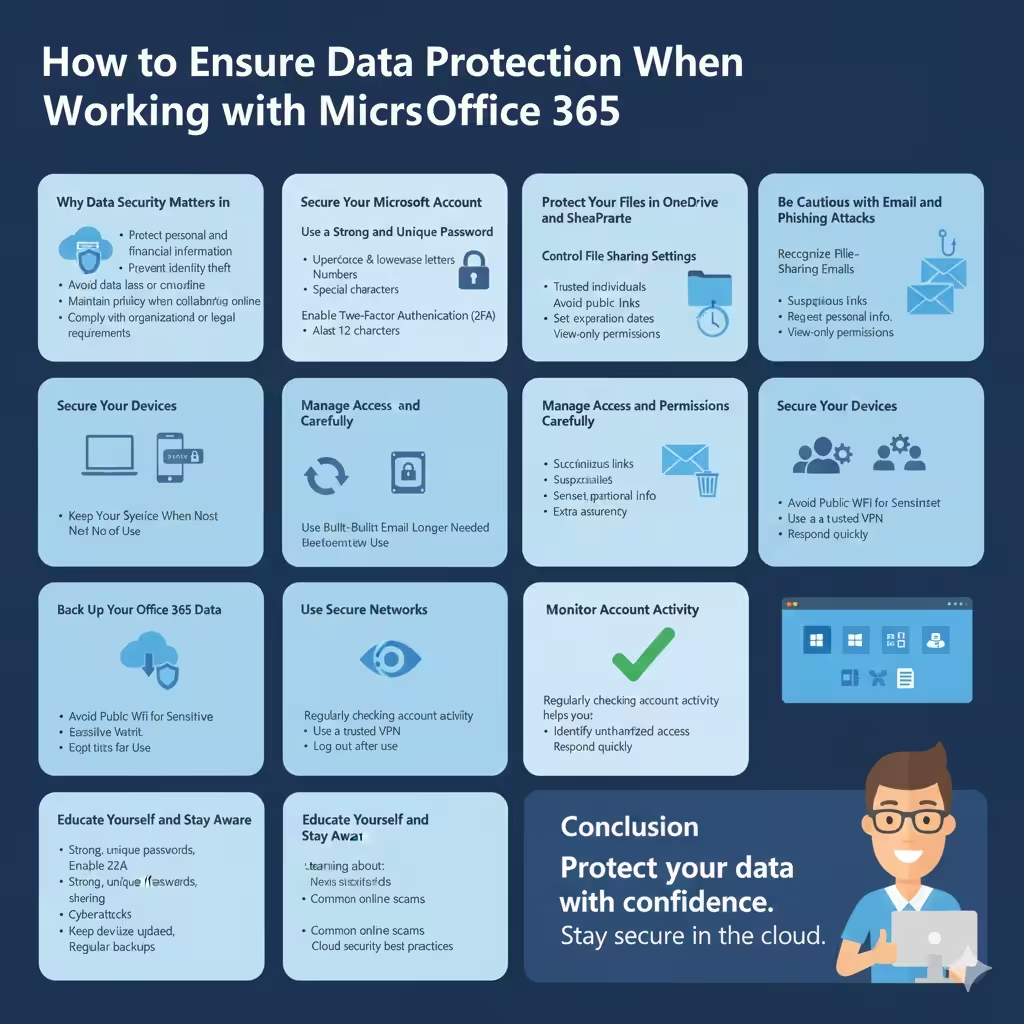
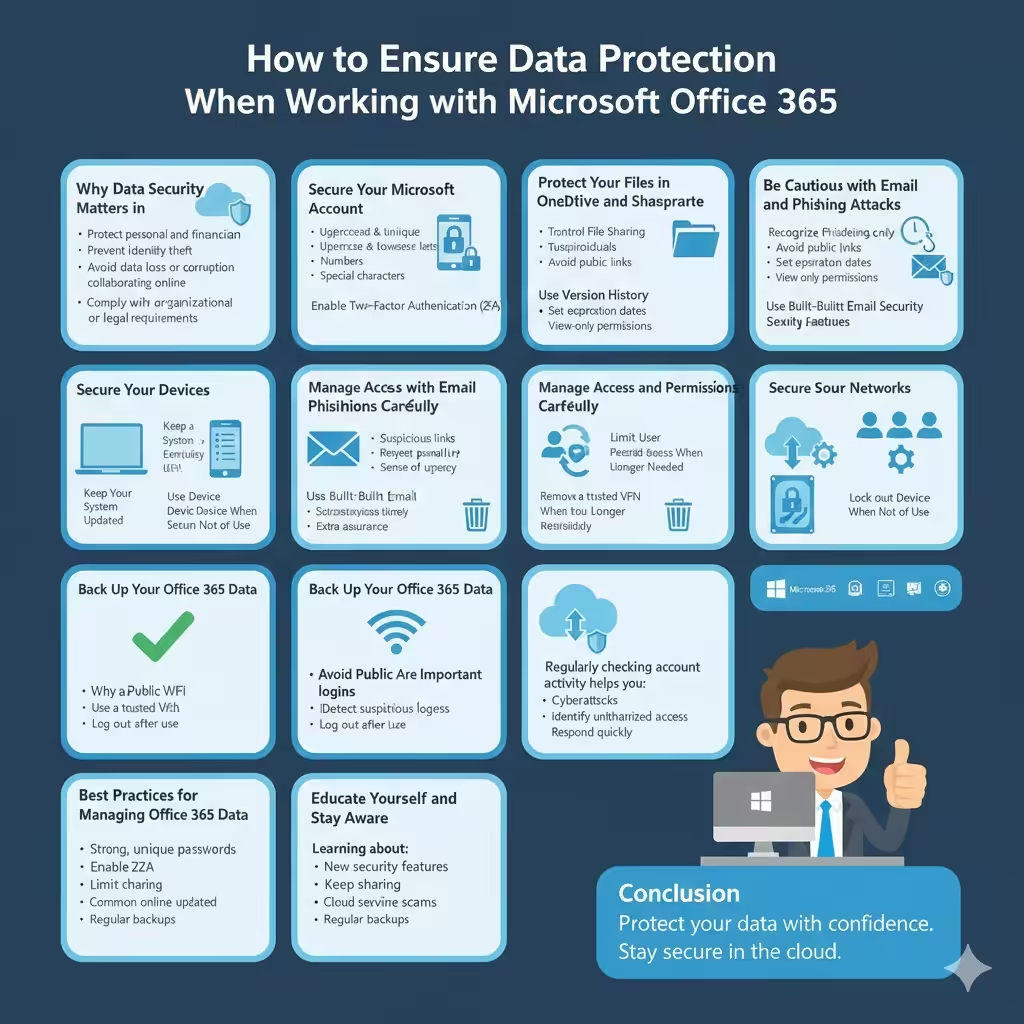
How to Ensure Data Protection When Working with Microsoft Office 365
Microsoft Office 365 (now commonly known as Microsoft 365) is widely used by individuals, students, and organizations for creating documents, managing emails, collaborating online, and storing files in the cloud. While Office 365 offers strong built-in security features, data safety still depends heavily on how users configure settings and follow best practices.
This article explains how to keep your data safe when using Microsoft Office 365, covering account protection, file security, cloud storage safety, collaboration risks, and practical habits that help prevent data loss and unauthorized access.
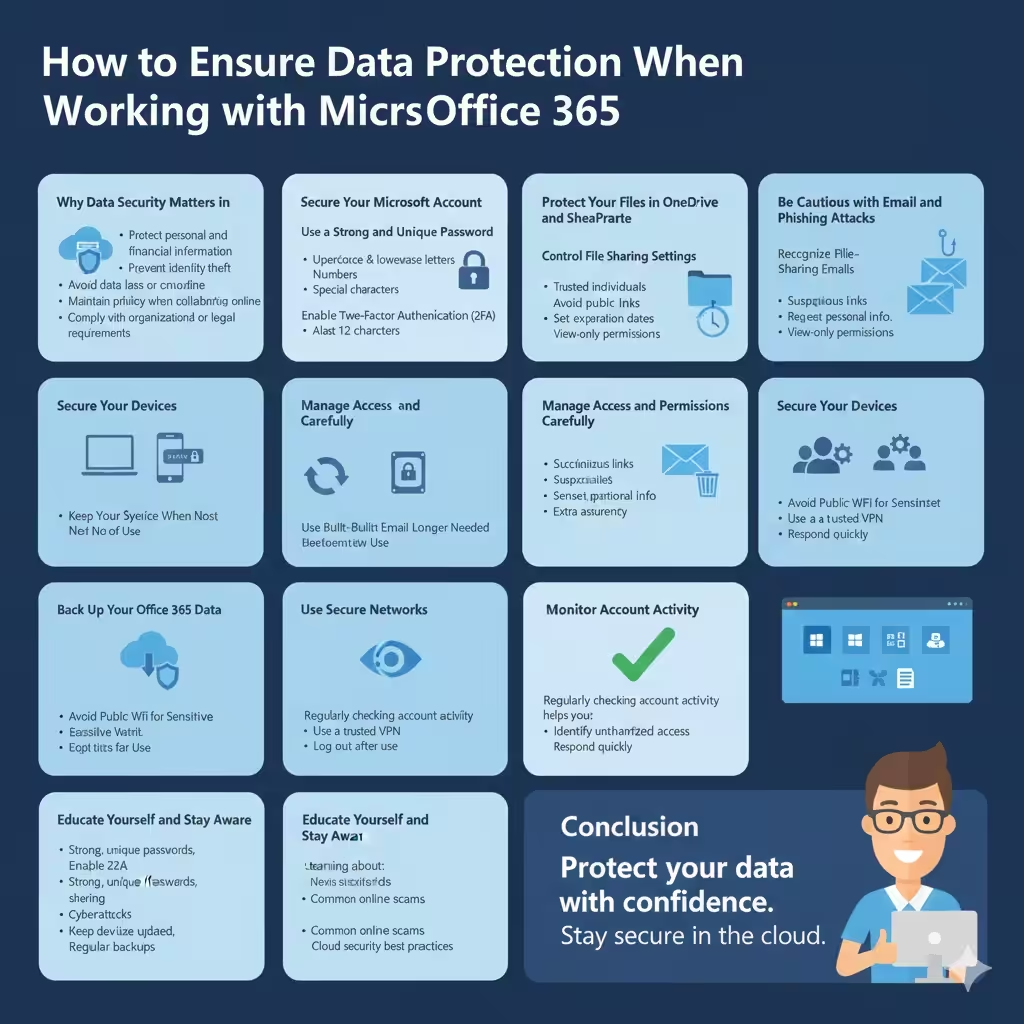
Why Data Security Matters in Microsoft Office 365
Office 365 stores sensitive information such as personal documents, business files, emails, calendars, and contact details. Because this data is often stored in the cloud and accessed from multiple devices, it can be exposed to risks such as hacking, phishing, accidental sharing, or data leaks.
Keeping your data safe is important to:
-
Protect personal and financial information
-
Prevent identity theft
-
Avoid data loss or corruption
-
Maintain privacy when collaborating online
-
Comply with organizational or legal requirements
Understanding potential risks is the first step toward protecting your Office 365 data.
Secure Your Microsoft Account
Your Microsoft account is the gateway to Office 365. If someone gains access to your account, they can access all your files and emails.
Use a Strong and Unique Password
A strong password should include:
-
Uppercase and lowercase letters
-
Numbers
-
Special characters
-
At least 12 characters
Avoid using the same password for multiple services. A unique password significantly reduces the risk of unauthorized access.
Enable Two-Factor Authentication (2FA)
Two-factor authentication adds an extra layer of protection by requiring a second verification step, such as a code sent to your phone or an authentication app.
With 2FA enabled, even if someone learns your password, they cannot access your account without the second verification method.
Protect Your Files in OneDrive and SharePoint
OneDrive and SharePoint are core components of Office 365, allowing users to store and share files online.
Control File Sharing Settings
One of the most common data security risks comes from accidental file sharing. To stay safe:
-
Share files only with trusted individuals
-
Avoid using public or “anyone with the link” access unless necessary
-
Set expiration dates for shared links
-
Use view-only permissions when editing is not required
Regularly reviewing shared files helps ensure no sensitive data is exposed unintentionally.
Use Version History and File Recovery
Office 365 automatically saves versions of your files. Version history allows you to:
-
Restore previous versions of documents
-
Recover files after accidental changes
-
Undo unwanted edits
This feature is especially useful when collaborating with others or recovering from mistakes.
Be Cautious with Email and Phishing Attacks
Email is one of the most common ways attackers attempt to steal data.
Recognize Phishing Emails
Phishing emails often:
-
Appear to come from trusted sources
-
Ask you to click suspicious links
-
Request personal or login information
-
Create a sense of urgency
Always verify the sender’s address and avoid clicking unknown links or downloading unexpected attachments.
Use Built-In Email Security Features
Office 365 includes spam filtering and threat protection features that help block malicious emails. Keeping these features enabled and updated reduces the risk of phishing and malware attacks.
Secure Your Devices
Even with strong online security, your data can still be compromised if your device is not secure.
Keep Your System Updated
Regular updates for Windows, macOS, and mobile devices fix security vulnerabilities. Always install updates promptly to reduce exposure to known threats.
Use Device Encryption
Device encryption protects your data if your laptop or phone is lost or stolen. Encryption ensures that files cannot be accessed without proper authentication.
Lock Your Device When Not in Use
Simple habits such as locking your screen when stepping away can prevent unauthorized access, especially in shared or public environments.
Manage Access and Permissions Carefully
Office 365 is designed for collaboration, but too much access can create security risks.
Limit User Permissions
Only grant access to files, folders, or services that users genuinely need. Reducing unnecessary permissions minimizes the risk of accidental or intentional data misuse.
Remove Access When No Longer Needed
When a project ends or a user no longer requires access, revoke permissions immediately. This is especially important in shared work environments.
Back Up Your Office 365 Data
Although Office 365 is reliable, data loss can still occur due to accidental deletion, syncing errors, or ransomware attacks.
Why Backups Are Important
Backups provide:
-
Protection against accidental deletion
-
Recovery from cyberattacks
-
Extra assurance beyond cloud storage
Using third-party backup solutions or maintaining offline backups ensures your data remains safe even in unexpected situations.
Use Secure Networks
Network security plays a critical role in protecting Office 365 data.
Avoid Public Wi-Fi for Sensitive Work
Public Wi-Fi networks are often unsecured. If you must use them:
-
Avoid accessing sensitive files
-
Use a trusted virtual private network (VPN)
-
Log out of Office 365 after use
A secure network connection greatly reduces the risk of data interception.
Monitor Account Activity
Microsoft allows users to view recent account activity, including sign-in locations and devices.
Regularly checking account activity helps you:
-
Detect suspicious logins
-
Identify unauthorized access
-
Respond quickly to security threats
If you notice unusual activity, change your password immediately and review security settings.
Educate Yourself and Stay Aware
Technology and security threats evolve constantly. Staying informed is one of the best ways to protect your data.
Learning about:
-
New security features in Office 365
-
Common online scams
-
Best practices for cloud security
helps you make safer decisions and reduce risks over time.
Conclusion
Microsoft Office 365 provides powerful tools for productivity and collaboration, but keeping your data safe requires active participation from users. By securing your account, managing file sharing carefully, staying alert to email threats, protecting your devices, and maintaining backups, you can significantly reduce the risk of data loss or unauthorized access.