


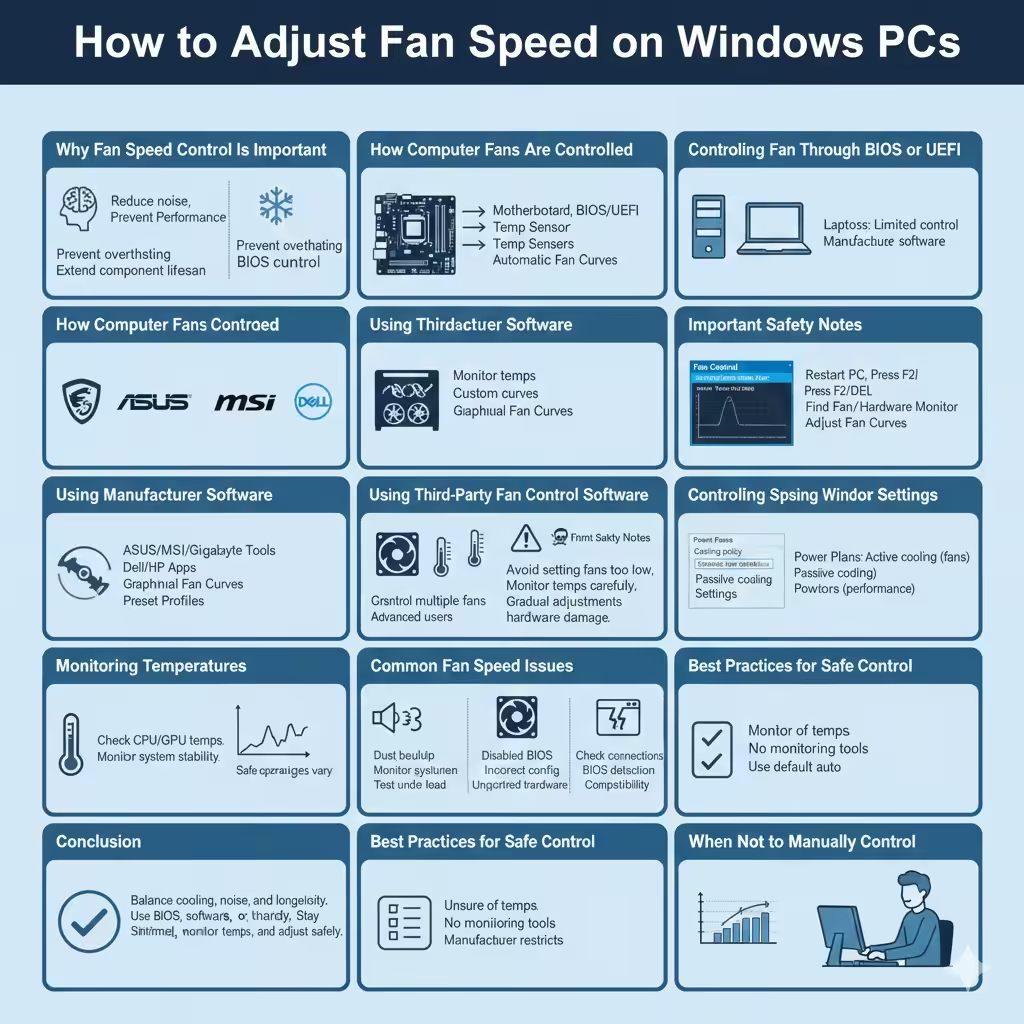
How to Adjust Fan Speed on Windows PCs
Fan speed control is an important part of maintaining a healthy and efficient Windows computer. Cooling fans help regulate internal temperatures by removing heat from components such as the CPU, GPU, and power supply. When fan speed is not properly managed, a computer may become noisy, overheat, or experience reduced performance.
This article explains how to control fan speed on Windows computers, including built-in options, BIOS and UEFI settings, third-party software, safety considerations, and best practices for long-term system stability.
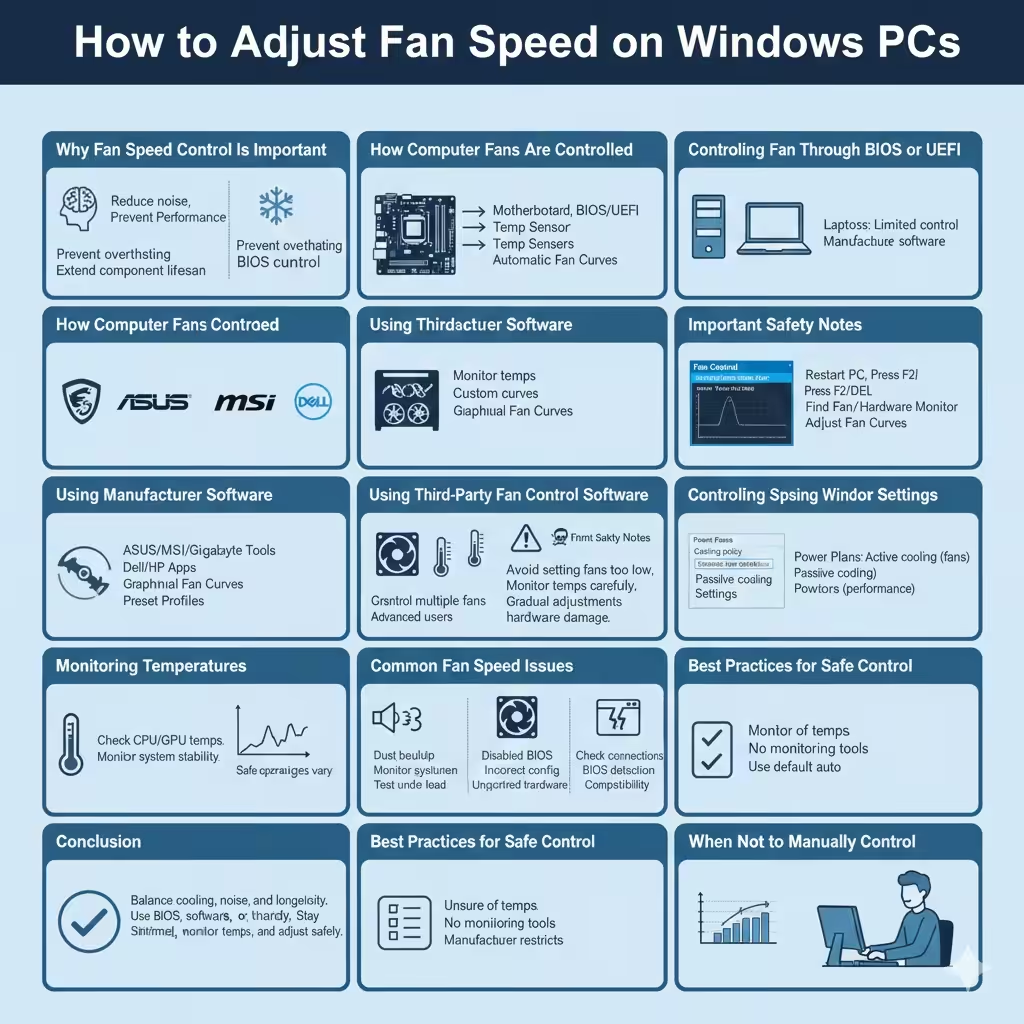
Why Fan Speed Control Is Important
Computer fans automatically adjust their speed based on temperature. However, default settings may not always meet your needs. Some systems prioritize silence, while others focus on maximum cooling.
Controlling fan speed helps you:
-
Reduce excessive fan noise
-
Prevent overheating during heavy workloads
-
Extend the lifespan of internal components
-
Improve system stability and performance
-
Customize cooling behavior for gaming or professional tasks
Understanding how fan speed works allows you to balance performance, noise, and temperature more effectively.
How Computer Fans Are Controlled
Before adjusting fan speed, it is important to understand how fan control works.
Most fans are controlled by:
-
The motherboard
-
BIOS or UEFI firmware
-
Temperature sensors inside the system
Modern computers use automatic fan curves, which increase fan speed as temperatures rise. Manual control allows users to customize these curves or set fixed speeds.
Checking Fan Compatibility and Hardware Support
Not all computers support manual fan speed control.
Desktop Computers
Desktop PCs usually offer more flexibility. Motherboards often include:
-
Multiple fan headers
-
PWM (Pulse Width Modulation) support
-
BIOS-based fan control options
Most desktop systems allow both automatic and manual fan control.
Laptops
Laptop fan control is more limited. Many manufacturers lock fan behavior to protect internal components. Some laptops allow partial control through official software, while others do not support manual adjustment at all.
Checking your manufacturer’s documentation helps determine what options are available.
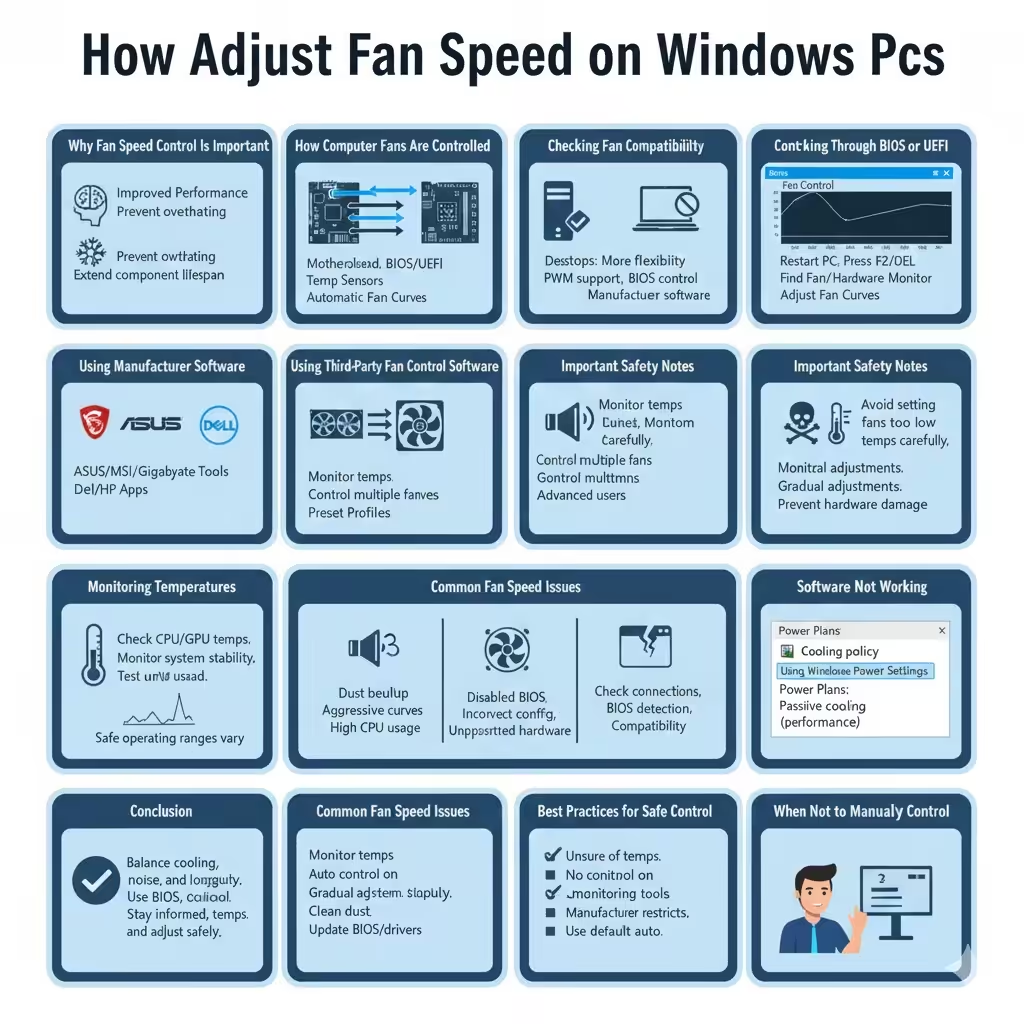
Controlling Fan Speed Through BIOS or UEFI
The BIOS or UEFI interface is one of the most reliable ways to control fan speed.
How to Access BIOS or UEFI
-
Restart your computer
-
Press the designated key during startup (commonly Delete, F2, F10, or Esc)
-
Enter the BIOS or UEFI setup
Once inside, look for sections such as Hardware Monitor, Fan Control, or Advanced Settings.
Adjusting Fan Settings
In BIOS or UEFI, you may be able to:
-
Enable or disable automatic fan control
-
Adjust fan curves based on temperature
-
Set minimum and maximum fan speeds
These settings operate independently of Windows and apply every time the computer starts.
Using Manufacturer Software
Many computer and motherboard manufacturers provide official software for fan control within Windows.
Examples of Manufacturer Tools
-
ASUS utilities
-
MSI control software
-
Gigabyte system tools
-
Dell or HP system management applications
These programs often offer:
-
Graphical fan curve editors
-
Temperature monitoring
-
Preset cooling profiles such as Silent, Balanced, or Performance
Using manufacturer software is recommended because it is designed specifically for your hardware.
Using Third-Party Fan Control Software
If your system supports it, third-party software can provide advanced fan control options.
What Third-Party Tools Can Do
Third-party fan control applications typically allow you to:
-
Monitor CPU and GPU temperatures
-
Set custom fan curves
-
Control multiple fans independently
-
Switch between profiles quickly
These tools are popular among advanced users and gamers who want precise control over cooling behavior.
Important Safety Notes
When using third-party software:
-
Avoid setting fan speeds too low
-
Monitor temperatures carefully
-
Make gradual adjustments instead of drastic changes
Improper fan settings can cause overheating and long-term hardware damage.
Controlling Fan Speed Using Windows Power Settings
While Windows does not directly control fan speed, power settings can influence cooling behavior indirectly.
Power Plans and Cooling Policy
In Windows Power Options, some systems allow you to adjust cooling policies:
-
Active cooling prioritizes fan usage
-
Passive cooling reduces fan activity and lowers performance
These settings affect how aggressively the system responds to rising temperatures.
Monitoring Temperatures After Adjusting Fan Speed
Temperature monitoring is essential when changing fan settings.
Why Monitoring Matters
After adjusting fan speed, you should always:
-
Check CPU and GPU temperatures
-
Monitor system stability
-
Test performance under load
Safe operating temperatures vary by component, but excessive heat can reduce performance or cause system shutdowns.
Common Fan Speed Issues and Solutions
Fans Are Too Loud
Possible causes include:
-
Dust buildup
-
Aggressive fan curves
-
High background CPU usage
Solutions include cleaning the system, adjusting fan curves, and closing unnecessary programs.
Fans Are Not Spinning Fast Enough
This issue may be caused by:
-
Disabled fan control settings
-
Incorrect BIOS configuration
-
Unsupported hardware
Restoring default BIOS settings or updating system firmware may help.
Fan Control Software Not Working
If software does not detect fans:
-
Ensure fans are connected to motherboard headers
-
Check BIOS fan detection
-
Confirm hardware compatibility
Some systems simply do not support software-based fan control.
Best Practices for Safe Fan Speed Control
To keep your system safe and efficient:
-
Always monitor temperatures after changes
-
Avoid disabling automatic fan control completely
-
Use gradual adjustments rather than extreme settings
-
Clean dust from fans and vents regularly
-
Keep BIOS and drivers up to date
Following these practices helps maintain optimal cooling without unnecessary risk.
When You Should Not Manually Control Fan Speed
Manual fan control is not recommended if:
-
You are unsure about safe temperature ranges
-
Your system lacks proper monitoring tools
-
The manufacturer restricts fan control
In such cases, default automatic fan management is the safest option.
Conclusion
Controlling fan speed on Windows computers allows users to balance cooling performance, system noise, and hardware longevity. Whether you use BIOS settings, manufacturer software, or compatible third-party tools, understanding how fan control works is essential for making safe adjustments.