


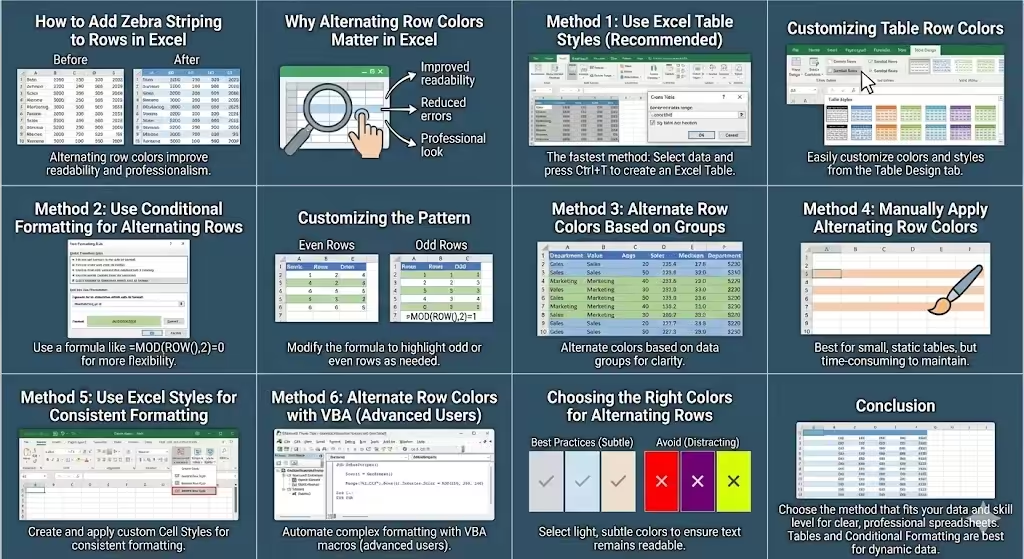
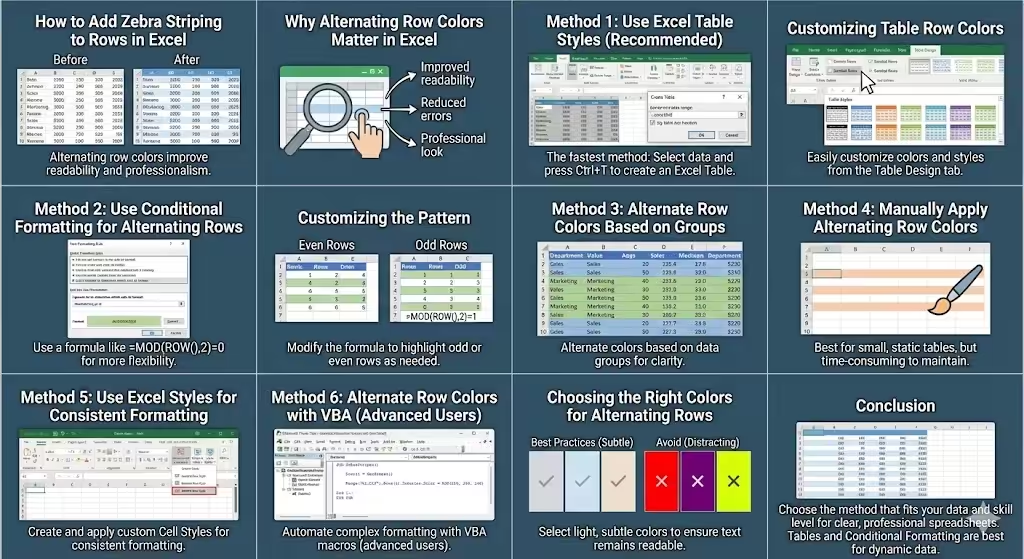
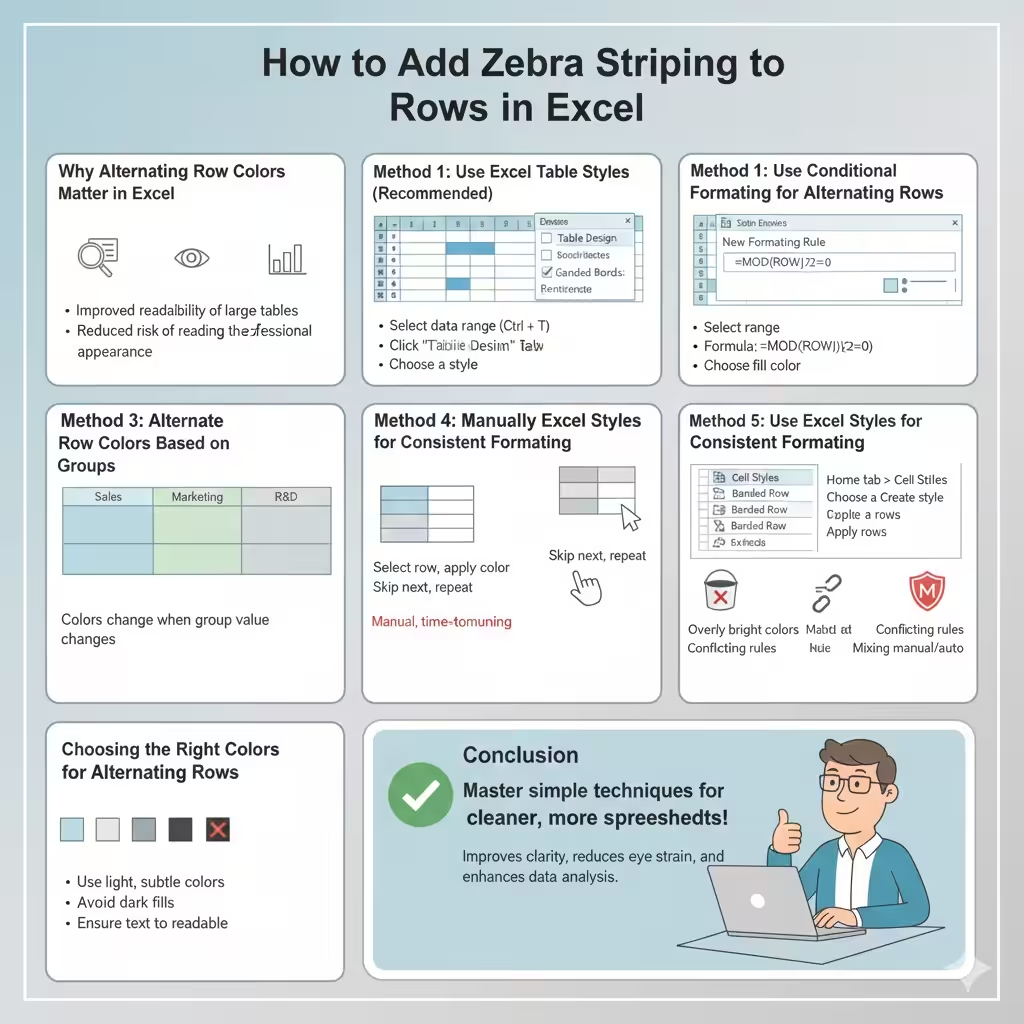
How to Add Zebra Striping to Rows in Excel
Alternating row colors in Excel is a simple but powerful formatting technique that improves readability, reduces eye strain, and helps users follow data across wide tables. Whether you are working with financial reports, student lists, sales records, or large datasets, alternating row colors make information easier to scan and understand.
This guide explains different ways to alternate row colors in Excel, from basic built-in tools to more flexible custom methods. Each approach is explained clearly so you can choose the one that best fits your worksheet and skill level.
Why Alternating Row Colors Matter in Excel
When an Excel worksheet contains many rows of data, it becomes difficult to track information across columns. Alternating row colors create visual separation between rows, making it easier to read and compare values.
Key benefits include:
-
Improved readability of large tables
-
Reduced risk of reading the wrong row
-
Cleaner and more professional appearance
-
Better user experience for shared files
-
Faster data analysis
This formatting technique is widely used in professional spreadsheets and reports.
Method 1: Use Excel Table Styles (Recommended)
The easiest and most reliable way to alternate row colors is by converting your data range into an Excel Table.
How to Create an Excel Table
-
Select your data range
-
Press Ctrl + T
-
Confirm the table range
-
Click OK
Once converted, Excel automatically applies alternating row colors, also known as banded rows.
Customizing Table Row Colors
After creating the table:
-
Click anywhere inside the table
-
Go to the Table Design tab
-
Check Banded Rows
-
Choose a table style you like
You can switch styles at any time without losing data.
Why This Method Is Ideal
-
Automatically updates when rows are added or removed
-
Requires no formulas or rules
-
Clean and professional appearance
-
Easy for beginners
For most users, Excel Tables are the best solution.
Method 2: Use Conditional Formatting for Alternating Rows
Conditional formatting allows you to alternate row colors using rules. This method offers more flexibility than tables.
Steps to Apply Conditional Formatting
-
Select the data range
-
Go to the Home tab
-
Click Conditional Formatting
-
Choose New Rule
-
Select Use a formula to determine which cells to format
Enter this formula:
-
Click Format
-
Choose a fill color
-
Click OK
This formula colors every even-numbered row.
Customizing the Pattern
-
Use
=MOD(ROW(),2)=1to color odd rows -
Change colors as needed
-
Apply rules to specific columns or ranges
This method works well for dynamic data that changes frequently.
Method 3: Alternate Row Colors Based on Groups
Sometimes, you may want to alternate colors when a value changes rather than strictly by row number.
Example Use Case
If you have grouped data such as departments, categories, or dates, alternating colors by group improves clarity.
How to Do This with Conditional Formatting
-
Select your data range
-
Create a helper column (optional)
-
Use a formula that checks when values change
-
Apply different fill colors based on the result
This method requires more setup but offers advanced visual control.
Method 4: Manually Apply Alternating Row Colors
Manual formatting is suitable for small, static tables.
Steps for Manual Formatting
-
Select the first row
-
Apply a fill color
-
Skip the next row
-
Apply the same color to the following row
-
Repeat the process
Limitations of Manual Formatting
-
Time-consuming for large datasets
-
Does not update automatically
-
Easy to break when rows are inserted or deleted
Manual formatting is best for quick, one-time tasks.
Method 5: Use Excel Styles for Consistent Formatting
Cell Styles allow you to apply consistent formatting across rows.
How to Use Cell Styles
-
Select a row
-
Go to the Home tab
-
Click Cell Styles
-
Choose or create a custom style
Apply different styles to alternating rows.
When to Use This Method
-
When you want consistent branding
-
When formatting multiple worksheets
-
When manual control is acceptable
Cell styles are reusable but still require manual application.
Method 6: Alternate Row Colors with VBA (Advanced Users)
For advanced users, VBA can automate alternating row colors.
When VBA Is Useful
-
Large workbooks with repeated formatting
-
Automated reporting systems
-
Complex formatting rules
Important Note
VBA requires basic programming knowledge and should be used carefully. Always save a backup before running macros.
Choosing the Right Colors for Alternating Rows
Color choice affects readability just as much as the alternating pattern.
Best Practices for Color Selection
-
Use light, subtle colors
-
Avoid dark or highly saturated fills
-
Ensure text remains readable
-
Maintain consistency across sheets
Common choices include light gray, pale blue, or soft beige.
Common Mistakes to Avoid
When alternating row colors, avoid:
-
Using overly bright or dark colors
-
Applying multiple conflicting formatting rules
-
Forgetting to include headers
-
Mixing manual and automatic formatting
These mistakes reduce clarity and make maintenance harder.
Alternating Row Colors vs. Gridlines
Excel gridlines already separate cells, but they are often not enough for large datasets.
Alternating row colors:
-
Are more visually distinct
-
Print better than gridlines
-
Improve on-screen readability
Many professionals use both gridlines and row colors together or disable gridlines entirely in favor of banded rows.
Printing Considerations
If you plan to print your worksheet:
-
Use light colors to save ink
-
Test print previews
-
Ensure contrast remains visible in grayscale
Excel Tables and conditional formatting usually print cleanly when designed properly.
When You Should Avoid Alternating Row Colors
In some cases, alternating row colors may not be necessary:
-
Very small datasets
-
Charts or summary tables
-
Highly color-coded dashboards
Use this technique where it adds clarity, not clutter.
Tips for Maintaining Alternating Row Colors
To keep your worksheet looking clean:
-
Use Tables for dynamic data
-
Avoid manual overrides
-
Review formatting after inserting rows
-
Keep formatting consistent across worksheets
These habits reduce errors and improve long-term usability.
Conclusion
Alternating row colors in Excel is a simple yet highly effective way to improve readability and professionalism. Whether you use Excel Tables, conditional formatting, or manual methods, each approach serves a specific purpose.