


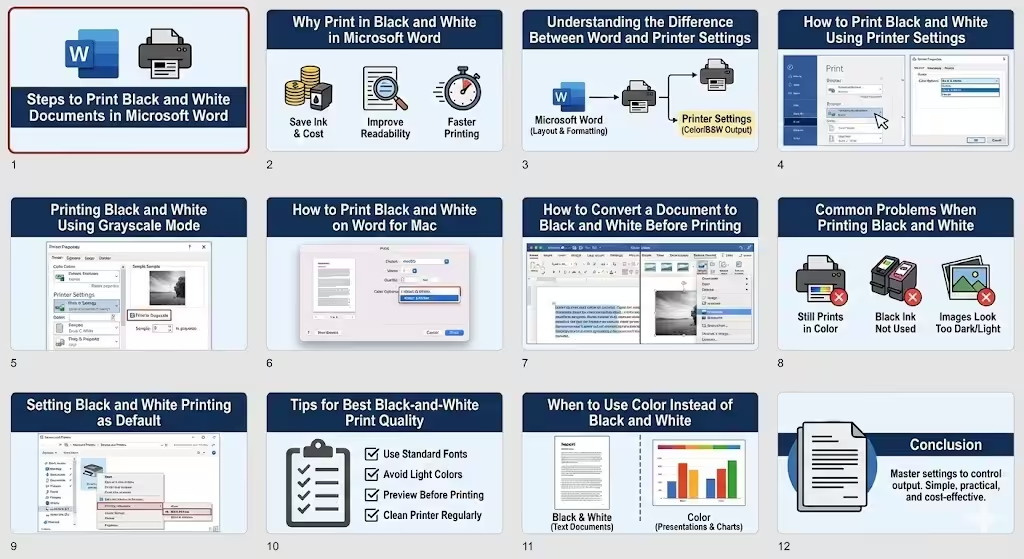
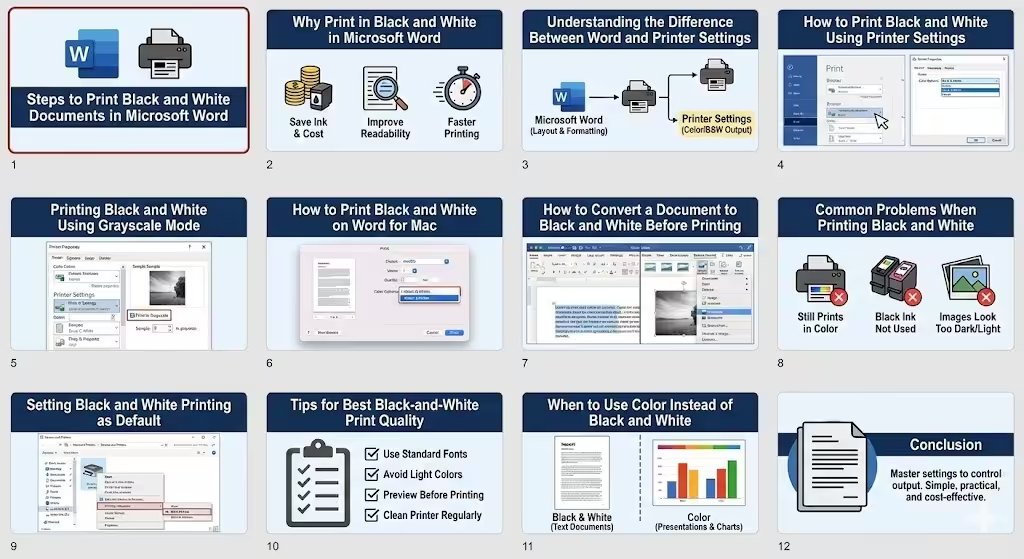
Steps to Print Black and White Documents in Microsoft Word
Printing documents in black and white is a common requirement for students, teachers, office workers, and home users. It helps save ink, reduces printing costs, and ensures documents look clean and professional, especially when color is not necessary. Microsoft Word provides several ways to print in black and white, but many users are unaware of all the available options or encounter issues where documents still print in color.
This article explains how to print black and white on Word, step by step, including printer settings, Word-specific options, common problems, and practical tips. References to images are included to help you visualize each step clearly.
Why Print in Black and White in Microsoft Word
Printing in black and white is useful in many situations. Color ink is usually more expensive than black ink, and unnecessary color printing can quickly increase costs. Black-and-white documents are also easier to read for text-heavy content such as reports, essays, contracts, and manuals.
Some key reasons to choose black-and-white printing include:
-
Saving ink and reducing printing expenses
-
Improving readability for text documents
-
Avoiding issues with faded or mismatched colors
-
Printing faster on many printers
Understanding how to control this setting in Word ensures you get the exact output you expect.
Understanding the Difference Between Word and Printer Settings
Before printing, it is important to know that Microsoft Word itself does not directly control ink color. Instead, Word sends the document to your printer, and the printer decides how the colors are printed based on its settings.
This means:
-
Word controls layout, fonts, and formatting
-
The printer controls color or black-and-white output
To print in black and white successfully, you often need to adjust printer settings, not just Word options.
How to Print Black and White Using Printer Settings
This is the most reliable method and works for most printers.
Step-by-Step Instructions
-
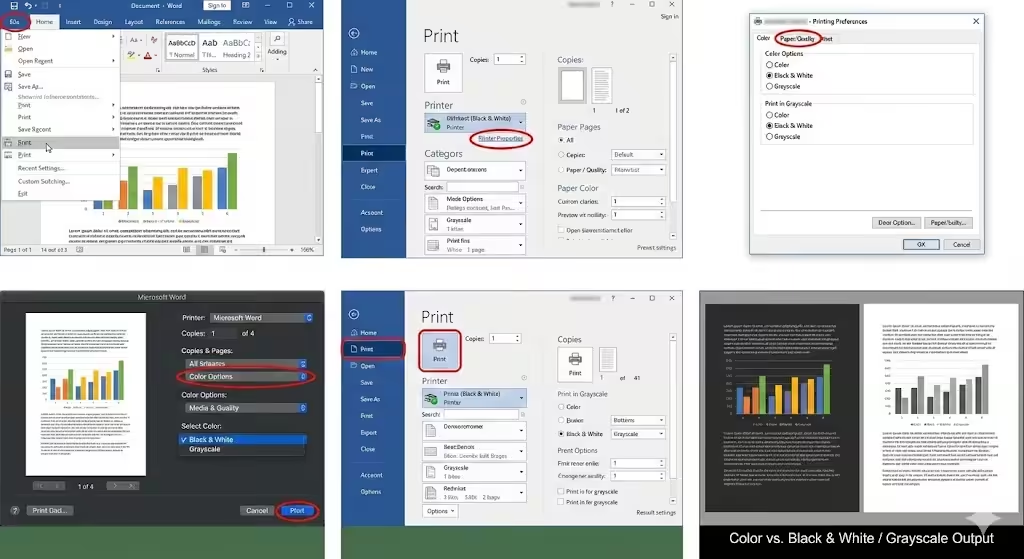
Open your document in Microsoft Word
-
Click File in the top-left corner
-
Select Print
-
Under Printer, choose your printer
-
Click Printer Properties, Preferences, or Settings (the name depends on your printer model)
At this point, a printer settings window will open.
(Image example: Printer Properties window with color options)
-
Look for options such as:
-
Color
-
Grayscale
-
Black & White
-
Print in grayscale
-
-
Select Black & White or Grayscale
-
Click OK, then Print
This ensures the printer uses only black ink or gray shades, even if the document contains color elements.
Printing Black and White Using Grayscale Mode
Some printers do not have a strict “Black & White” option but instead use grayscale printing.
What Is Grayscale Printing
Grayscale converts all colors into shades of gray. Text prints in black, while images and shapes appear in gray tones.
This option is ideal when:
-
Your document includes images or charts
-
You want to keep visual contrast without using color
(Image example: Grayscale printing option highlighted)
Grayscale printing is commonly found under Advanced or Color settings in printer preferences.
How to Print Black and White on Word for Mac
If you are using Microsoft Word on macOS, the steps are slightly different but follow the same principle.
Steps for macOS
-
Open your Word document
-
Click File > Print
-
Select your printer
-
Click Show Details
-
Look for Color Options or Media & Quality
-
Choose Black & White or Grayscale
-
Click Print
(Image example: macOS print dialog with color options)
Mac users should also ensure that the printer driver is up to date for full access to color settings.
How to Convert a Document to Black and White Before Printing
In some cases, you may want to remove colors from the document itself.
Changing Text Color to Black
-
Select all text (Ctrl + A or Command + A)
-
Go to the Home tab
-
Click the Font Color icon
-
Choose Black
This ensures all text prints in black regardless of printer settings.
Adjusting Images to Black and White
-
Click on an image
-
Go to the Picture Format tab
-
Select Color
-
Choose Grayscale or Black and White
(Image example: Image formatting menu in Word)
This method is useful when you want precise control over how images appear in print.
Common Problems When Printing Black and White
Document Still Prints in Color
This often happens because:
-
Printer settings are still set to color
-
The printer driver ignores Word settings
-
Default printer preferences override print options
Solution: Open printer preferences directly from Windows or macOS and set black-and-white printing as the default.
Black Ink Is Not Used
Some printers use color ink even when printing black text. This is normal for certain inkjet models.
To reduce this:
-
Enable “Black Ink Only” if available
-
Use grayscale printing
-
Check advanced printer options
Images Look Too Dark or Too Light
Grayscale images may lose detail.
To fix this:
-
Adjust image brightness and contrast in Word
-
Use high-resolution images
-
Preview before printing
Setting Black and White Printing as Default
If you print in black and white frequently, setting it as the default can save time.
On Windows
-
Open Control Panel
-
Go to Devices and Printers
-
Right-click your printer
-
Select Printing Preferences
-
Choose Black & White or Grayscale
-
Click Apply
This ensures all documents print in black and white unless you change the setting manually.
Tips for Best Black-and-White Print Quality
To achieve clean and professional results:
-
Use standard fonts for text-heavy documents
-
Avoid light colors that convert poorly to gray
-
Preview the document before printing
-
Keep your printer cartridges in good condition
-
Clean the printer regularly
These small steps make a noticeable difference in print quality.
When to Use Color Instead of Black and White
Although black-and-white printing is practical, some documents benefit from color, such as presentations, charts, or marketing materials. In those cases, color improves clarity and impact.
Choosing between color and black and white depends on the document’s purpose and audience.
Conclusion
Printing black and white on Word is simple once you understand where to adjust the correct settings. By using printer preferences, grayscale options, and Word’s formatting tools, you can control how your documents appear on paper and avoid unnecessary color printing.