


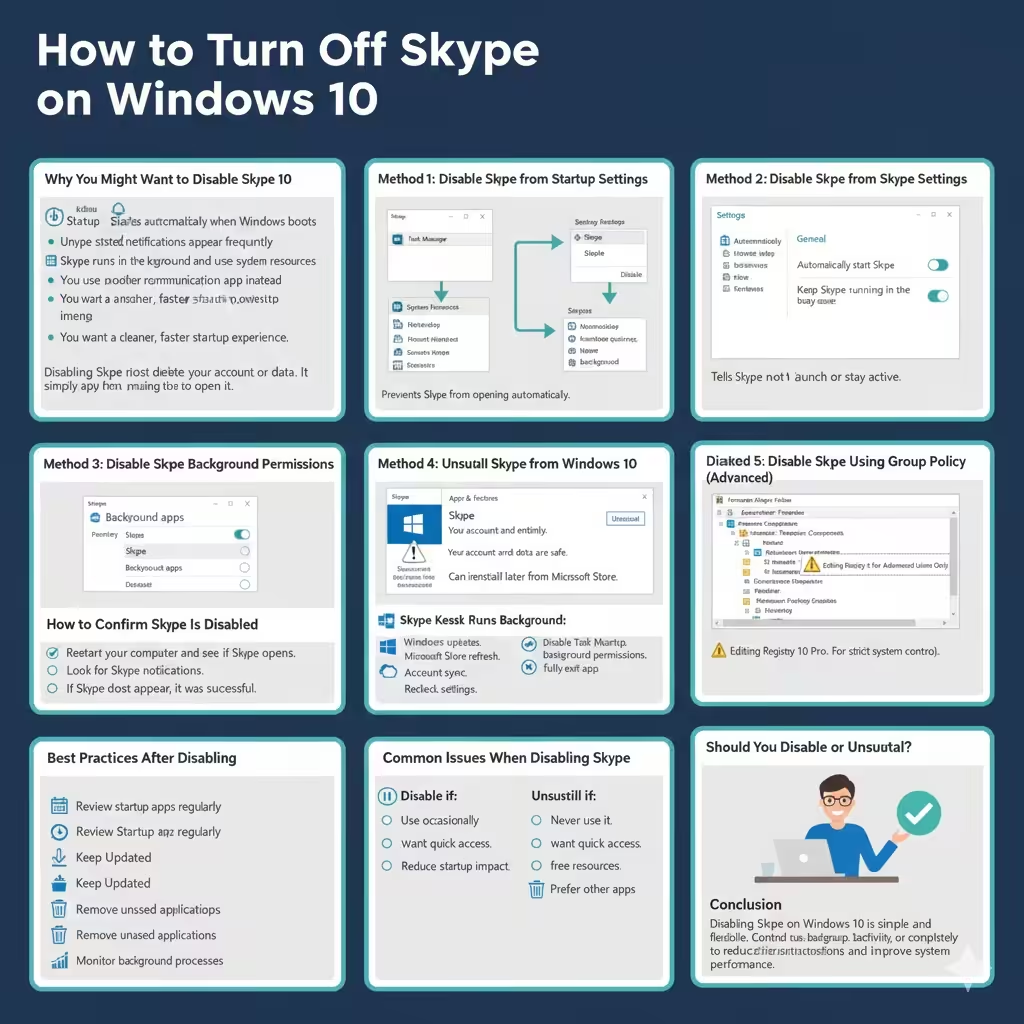
How to Turn Off Skype on Windows 10
Skype comes preinstalled on many Windows 10 computers and often runs automatically in the background. While it can be useful for calls and messaging, many users do not actively use Skype and prefer to disable it to reduce startup time, system notifications, or background resource usage.
This article explains how to disable Skype on Windows 10 using five different methods. Each method is suitable for different needs, from temporarily stopping Skype to completely preventing it from running. You can choose the option that best fits how you use your computer.
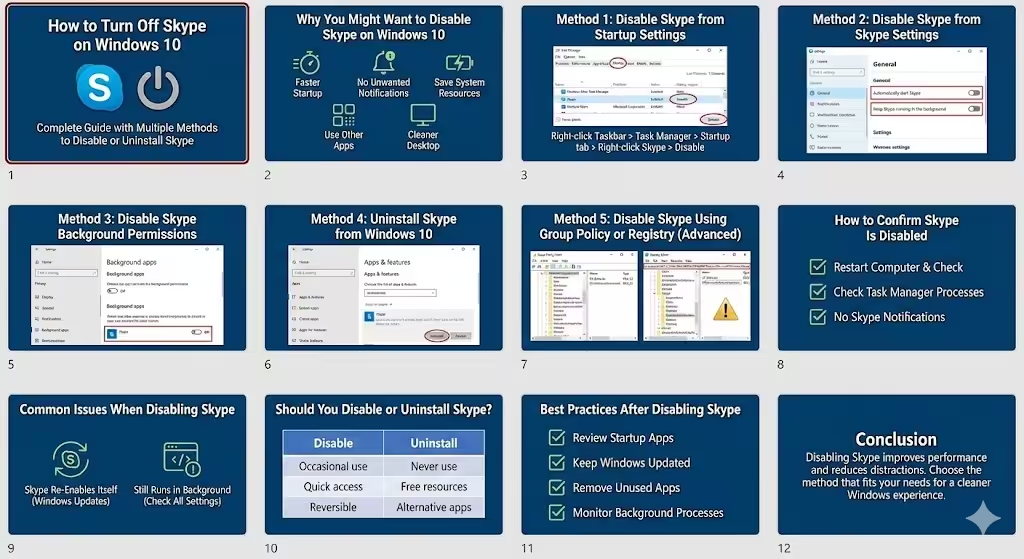
Why You Might Want to Disable Skype on Windows 10
There are several common reasons users choose to disable Skype:
-
Skype starts automatically when Windows boots
-
Unwanted notifications appear frequently
-
Skype runs in the background and uses system resources
-
You use another communication app instead
-
You want a cleaner, faster startup experience
Disabling Skype does not delete your account or data. It simply prevents the app from running unless you choose to open it.
Method 1: Disable Skype from Startup Settings
This is the easiest and safest method. It prevents Skype from starting automatically but keeps the app installed.
Steps to Disable Skype at Startup
-
Right-click the Taskbar
-
Select Task Manager
-
Click the Startup tab
-
Find Skype in the list
-
Right-click Skype and choose Disable
Once disabled, Skype will no longer launch when Windows starts.
When to Use This Method
-
You only want to stop Skype from opening automatically
-
You may want to use Skype occasionally
-
You want a quick, reversible solution
This method is ideal for most users.
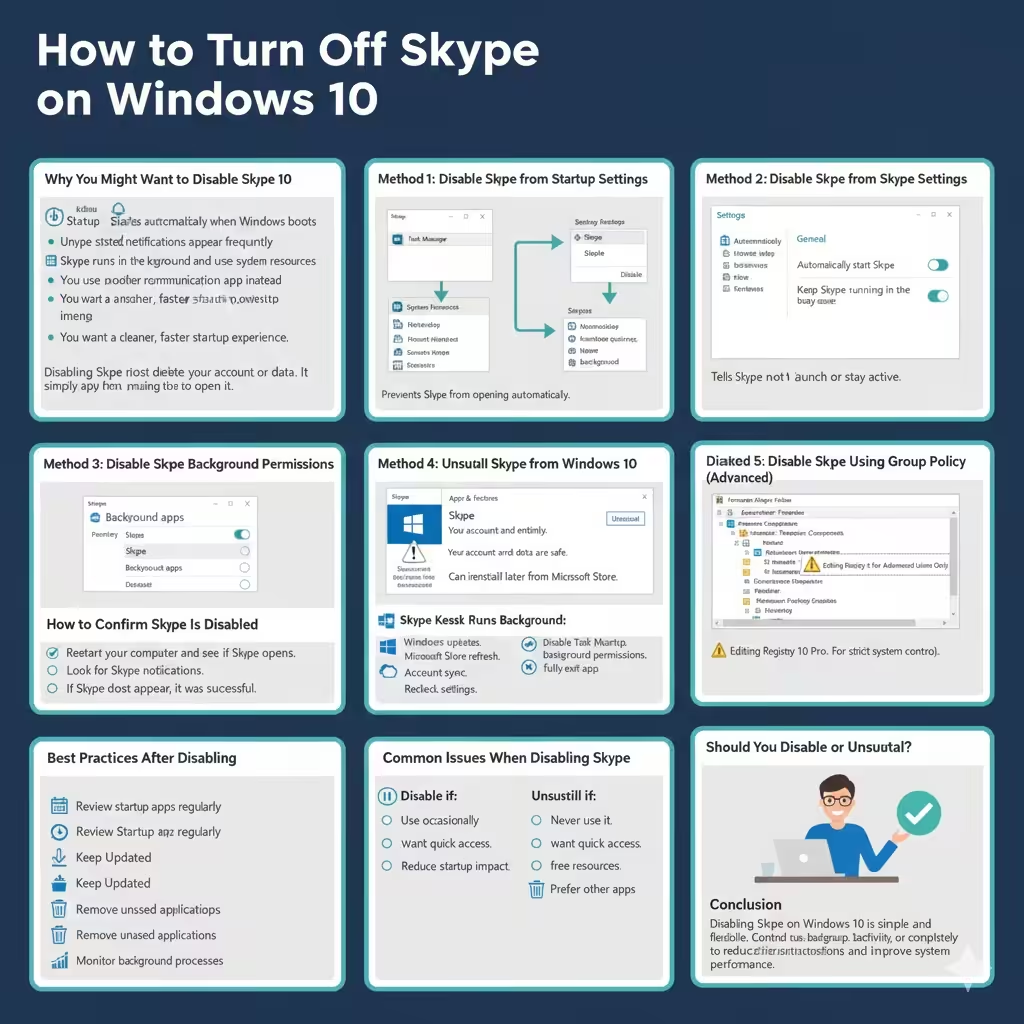
Method 2: Disable Skype from Skype Settings
Skype itself includes settings that control whether it runs in the background.
Steps to Change Skype Settings
-
Open Skype
-
Click your profile picture
-
Select Settings
-
Go to General
-
Turn off options such as:
-
Automatically start Skype
-
Keep Skype running in the background
-
After changing these settings, close Skype completely.
Why This Works
Disabling these options tells Skype not to launch or stay active unless you manually open it.
Method 3: Disable Skype Background Permissions
Windows 10 allows you to control which apps can run in the background.
Steps to Disable Background Activity
-
Open Settings
-
Go to Privacy
-
Select Background apps
-
Find Skype
-
Toggle it Off
This prevents Skype from running silently in the background.
Benefits of This Method
-
Reduces background CPU and memory usage
-
Stops background notifications
-
Improves overall system performance
This method is especially useful on older or low-spec computers.
Method 4: Uninstall Skype from Windows 10
If you never use Skype, uninstalling it may be the best solution.
Steps to Uninstall Skype
-
Open Settings
-
Click Apps
-
Select Apps & features
-
Find Skype
-
Click Uninstall
-
Confirm the action
After uninstalling, Skype will no longer run or appear on your system.
Important Notes
-
You can reinstall Skype later from the Microsoft Store
-
Your Skype account remains intact
-
This method fully removes the app
Uninstalling is recommended if you are certain you do not need Skype.
Method 5: Disable Skype Using Group Policy or Registry (Advanced)
This method is intended for advanced users who want complete control over system behavior.
Using Group Policy Editor (Windows 10 Pro)
-
Press Windows + R
-
Type
gpedit.mscand press Enter -
Navigate to:
Computer Configuration → Administrative Templates → Windows Components -
Look for Skype-related policies
-
Disable Skype features if available
Using Registry Editor (Advanced Users Only)
Editing the Windows Registry can permanently affect your system if done incorrectly. Always back up your registry before making changes.
This method is useful for:
-
Enterprise environments
-
Shared computers
-
Strict system control
If you are not familiar with advanced Windows settings, it is better to use the previous methods.
How to Confirm Skype Is Disabled
After applying any method, you can check if Skype is truly disabled.
Ways to Verify
-
Restart your computer and see if Skype opens
-
Check Task Manager for Skype processes
-
Look for Skype notifications
If Skype does not appear or run, the method was successful.
Common Issues When Disabling Skype
Skype Keeps Re-Enabling Itself
This may happen due to:
-
Windows updates
-
Microsoft Store app refresh
-
Account sync settings
Recheck startup settings after major updates.
Skype Still Runs in the Background
Ensure you:
-
Disabled startup
-
Turned off background permissions
-
Fully exited Skype after changing settings
Sometimes, multiple steps are required for complete control.
Should You Disable or Uninstall Skype?
The best option depends on your needs.
Disable Skype if:
-
You use it occasionally
-
You want quick access later
-
You only want to reduce startup impact
Uninstall Skype if:
-
You never use it
-
You want to free system resources
-
You prefer alternative communication tools
Both options are safe and reversible.
Best Practices After Disabling Skype
To maintain a smooth system experience:
-
Review startup apps regularly
-
Keep Windows updated
-
Remove unused applications
-
Monitor background processes
These habits help keep Windows 10 fast and responsive.
Conclusion
Disabling Skype on Windows 10 is simple and flexible, with multiple methods available depending on how much control you want. Whether you choose to disable it from startup, restrict background activity, adjust Skype settings, or uninstall it completely, each method helps reduce distractions and improve system performance.