


How to Resolve the “Select Proper Boot Device” Startup Error
The “Reboot and Select Proper Boot Device” error is one of the most common startup problems on Windows computers. Instead of loading Windows normally, the system displays a black screen with a message asking you to reboot and select the proper boot device or insert boot media.
This error can appear suddenly after a restart, power outage, hardware upgrade, BIOS reset, or failed Windows update. In many cases, it means the computer cannot find a valid drive containing the operating system.
Although the message may seem serious, the issue is often fixable without replacing your computer. In this guide, you’ll learn what causes the error and how to fix it step by step on Windows 10 and Windows 11.
What Does “Reboot and Select Proper Boot Device” Mean?
Your computer relies on a boot device—usually an SSD or HDD—to load Windows during startup. If the BIOS or UEFI firmware cannot locate the operating system, the system stops and displays this error.
The message may appear as:
- Reboot and Select proper Boot device
- Insert Boot Media in selected Boot device
- No bootable device found
- Boot device not detected
Common Symptoms
You may notice:
- Black screen during startup
- Windows never loads
- Keyboard works but nothing boots
- BIOS opens automatically
- PC stuck in boot loop
- SSD or HDD not detected
Common Causes of the Error
Incorrect Boot Order
The BIOS may be trying to boot from the wrong drive.
Loose or Damaged Drive Connections
SATA or power cables may not be connected properly.
Corrupted Boot Files
Windows boot records may be damaged.
Failed HDD or SSD
Storage hardware may be failing.
BIOS or UEFI Reset
Firmware settings may have changed unexpectedly.
Windows Installation Problems
Incomplete updates or installations may corrupt startup files.
How to Fix “Reboot and Select Proper Boot Device” Error
Follow these solutions carefully.
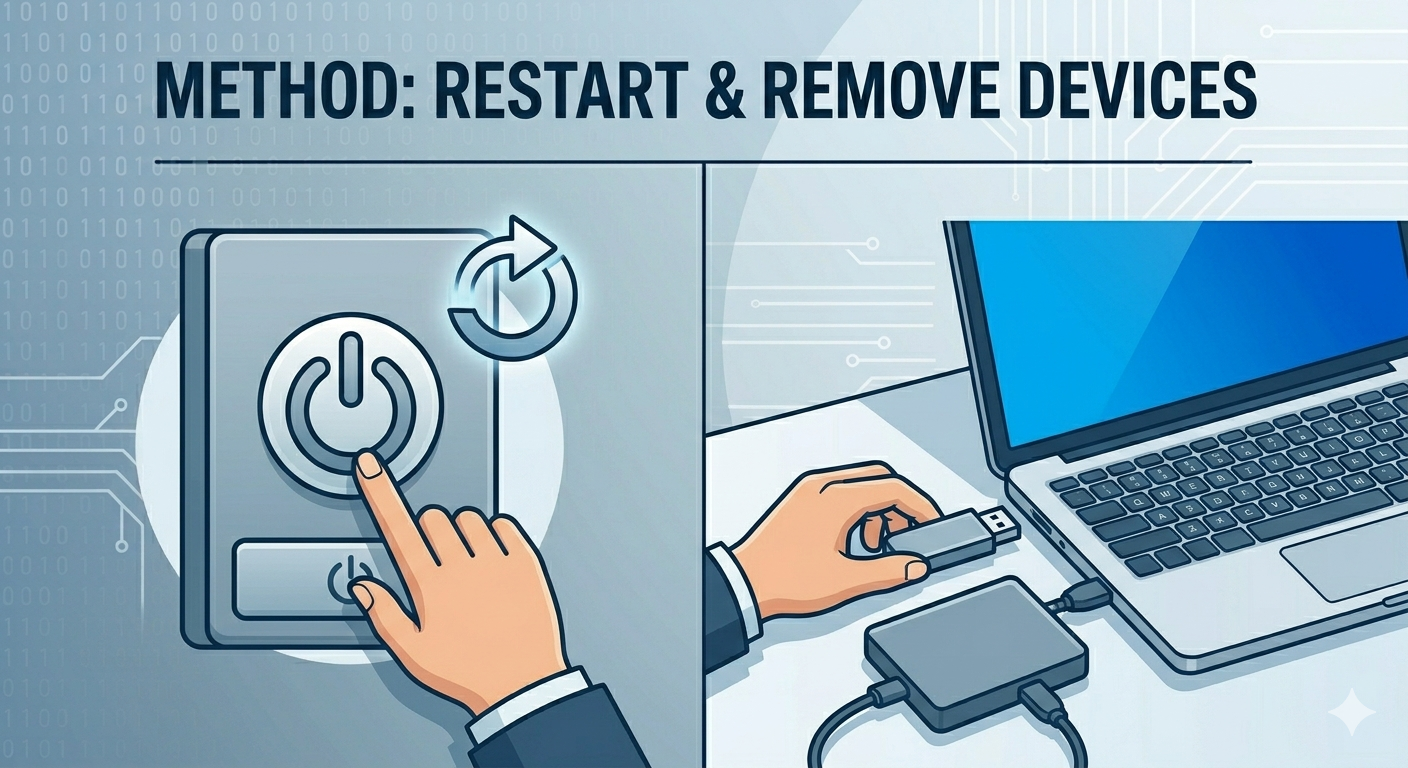
Restart Your Computer
A temporary glitch may have interrupted startup.
Steps
- Turn off the PC completely
- Wait 30 seconds
- Turn it back on
If the issue remains, continue below.
Remove External Devices
Your PC may be trying to boot from another device.
Disconnect
- USB drives
- External hard drives
- SD cards
- DVDs or CDs
Then restart your computer.
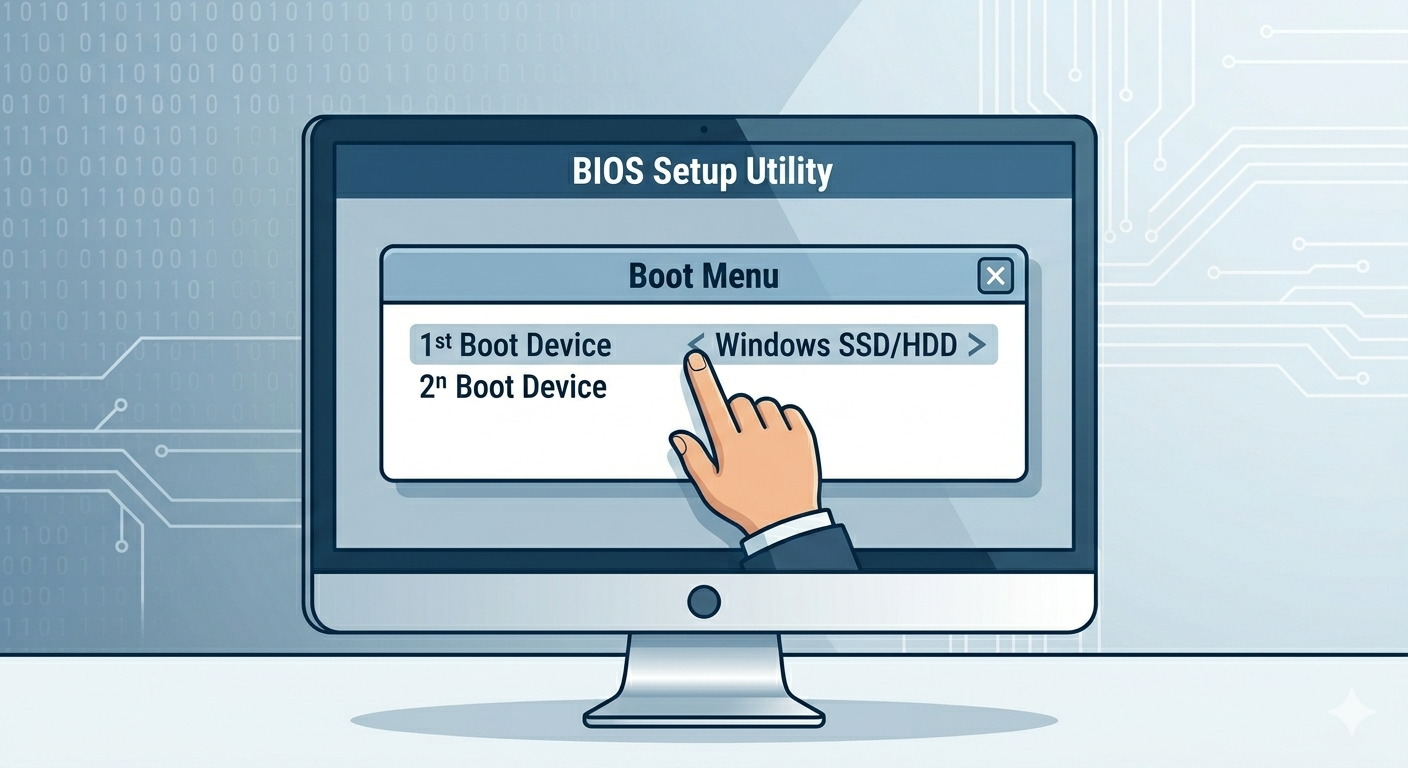
Check BIOS/UEFI Boot Order
Incorrect boot priority is a common cause.
Steps
- Restart the computer
- Press BIOS key during startup:
- F2
- DEL
- ESC
- F10
- Open Boot section
- Ensure your Windows SSD/HDD is first in boot order
- Save changes and exit
Verify Drive Detection in BIOS
Check whether your storage drive appears in BIOS.
If Drive Is Missing
Possible causes include:
- Loose cable
- Failed drive
- Damaged motherboard port
Reconnect SSD or HDD Cables
Loose hardware connections can prevent detection.
Desktop PCs
- Turn off and unplug the PC
- Open the case
- Reconnect:
- SATA cable
- Power cable
Laptops
If comfortable, reseat the storage drive carefully.
Run Startup Repair
Windows Recovery can automatically fix boot problems.
Steps
- Boot from Windows installation USB
- Select Repair your computer
- Go to:
- Troubleshoot
- Advanced options
- Startup Repair
Allow Windows to scan and repair startup files.
Repair Boot Records Using Command Prompt
Corrupted boot records are a common cause.
Steps
Open Command Prompt from recovery mode and run:
bootrec /fixmbr
bootrec /fixboot
bootrec /scanos
bootrec /rebuildbcd
Restart after completion.
Fix “/fixboot Access Is Denied” If Necessary
Some systems may show an access denied error when using /fixboot.
In that case, you may need to rebuild the EFI partition manually using DiskPart and bcdboot.
Check Disk for Errors
Disk corruption may prevent booting.
Steps
Run:
chkdsk C: /f /rRestart if prompted.
Reset BIOS to Default Settings
Incorrect firmware settings may interfere with booting.
Steps
- Enter BIOS/UEFI
- Find Load Setup Defaults
- Save changes and restart
Check UEFI vs Legacy Boot Mode
Your Windows installation must match the firmware mode.
Examples
- GPT drives → UEFI mode
- MBR drives → Legacy/CSM mode
Incorrect combinations can trigger boot errors.
Disable Secure Boot Temporarily
Sometimes Secure Boot interferes with startup recovery.
Steps
- Open BIOS/UEFI
- Disable Secure Boot temporarily
- Save and restart
Test Drive Health
A failing SSD or HDD may no longer boot properly.
Warning Signs
- Clicking noises
- Slow performance before failure
- Frequent freezes
- SMART warnings
Use drive diagnostic tools if possible.
Use System Restore
If the problem started after updates or driver changes:
Steps
- Open recovery environment
- Select System Restore
- Choose a restore point
Reinstall Windows
If boot files are severely damaged:
Steps
- Back up important files if possible
- Boot from installation media
- Perform clean Windows installation
Use this only after other methods fail.
When the Drive Is Completely Dead
If BIOS cannot detect the drive at all:
Possible Solutions
- Replace the SSD/HDD
- Recover data using another PC or enclosure
- Seek professional recovery services
Tips to Prevent Boot Device Errors
To avoid future problems:
- Shut down properly
- Avoid sudden power loss
- Use surge protection
- Keep backups regularly
- Monitor drive health
- Keep BIOS updated carefully
When to Seek Professional Help
Consider expert assistance if:
- Drive is physically damaged
- BIOS never detects the disk
- Data recovery is critical
- Motherboard ports may be faulty
Final Thoughts
The “Reboot and Select Proper Boot Device” error usually means your computer cannot locate a bootable Windows installation. While the message can be alarming, it is often caused by simple issues like incorrect boot order, loose cables, or corrupted boot files.
By checking BIOS settings, reconnecting storage drives, repairing boot records, and using Windows recovery tools, most users can restore normal startup successfully.
Related articles
Fixing the “Kernel Security Check Failure” Error on Windows 10