


How to Determine Your Microsoft Excel Version
Microsoft Excel is one of the world’s most widely used spreadsheet applications, helping millions of users organize data, perform calculations, create reports, and analyze information. Whether you’re troubleshooting an issue, installing an add-in, or following an online tutorial, knowing which version of Excel you have is essential. Different versions of Excel offer different features, compatibility levels, and update cycles, making it important to identify the exact edition installed on your computer.
In this comprehensive guide, you’ll learn how to determine your Excel version on Windows and Mac, understand the differences between various Excel releases, and discover why knowing your version matters.
Why Knowing Your Excel Version Is Important
Many Excel features vary depending on the version you use. Some advanced functions, collaboration tools, and data analysis capabilities are only available in newer releases.
Knowing your version helps you:
- Verify compatibility with tutorials
- Install the correct add-ins
- Troubleshoot problems more effectively
- Determine feature availability
- Confirm update eligibility
- Ensure compatibility with colleagues and clients
Whether you’re using Excel for personal projects or professional work, identifying your version can save time and prevent confusion.
Different Versions of Microsoft Excel
Microsoft has released numerous versions of Excel over the years. Some of the most common include:
- Excel 2007
- Excel 2010
- Excel 2013
- Excel 2016
- Excel 2019
- Excel 2021
- Excel for Microsoft 365
- Excel for Mac
Microsoft 365 subscribers receive continuous feature updates, while perpetual-license versions like Excel 2021 receive primarily security and maintenance updates.
How to Check Your Excel Version on Windows
The easiest method is through Excel itself.
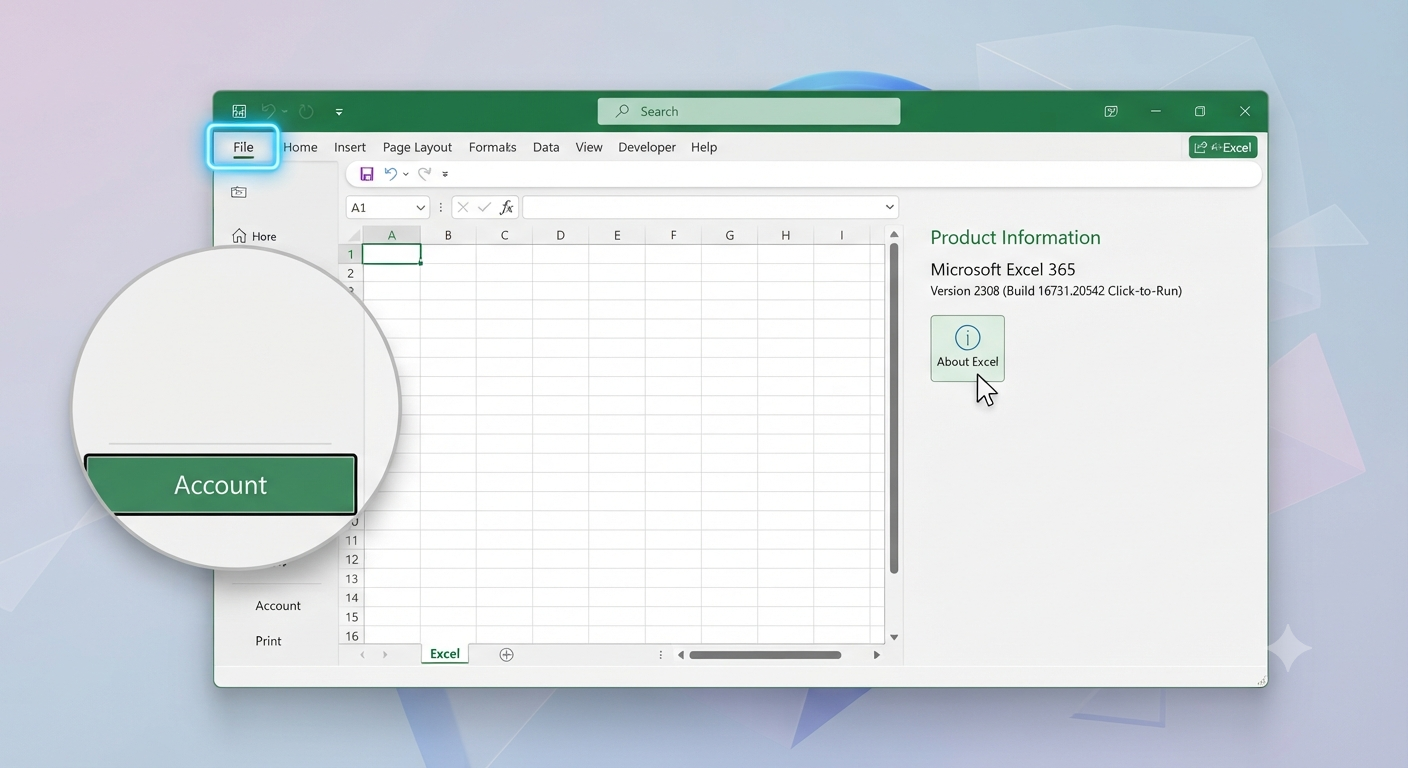
Method 1: Using the Account Page
- Open Microsoft Excel.
- Click File.
- Select Account.
- Look under Product Information.
Here, you’ll see information such as:
- Product name
- Version number
- Build number
- Update channel
For Microsoft 365 users, you’ll also see whether updates are available.
Image: Excel Account page displaying version information.
Method 2: Using the About Excel Window
If the Account page is unavailable:
- Open Excel.
- Select File.
- Click Account.
- Choose About Excel.
A dialog box displays detailed information including:
- Excel version
- Build number
- 32-bit or 64-bit edition
- Copyright information
This method is especially useful when technical support requests your build number.
How to Check Your Excel Version on Mac
Mac users can also identify their Excel version quickly.
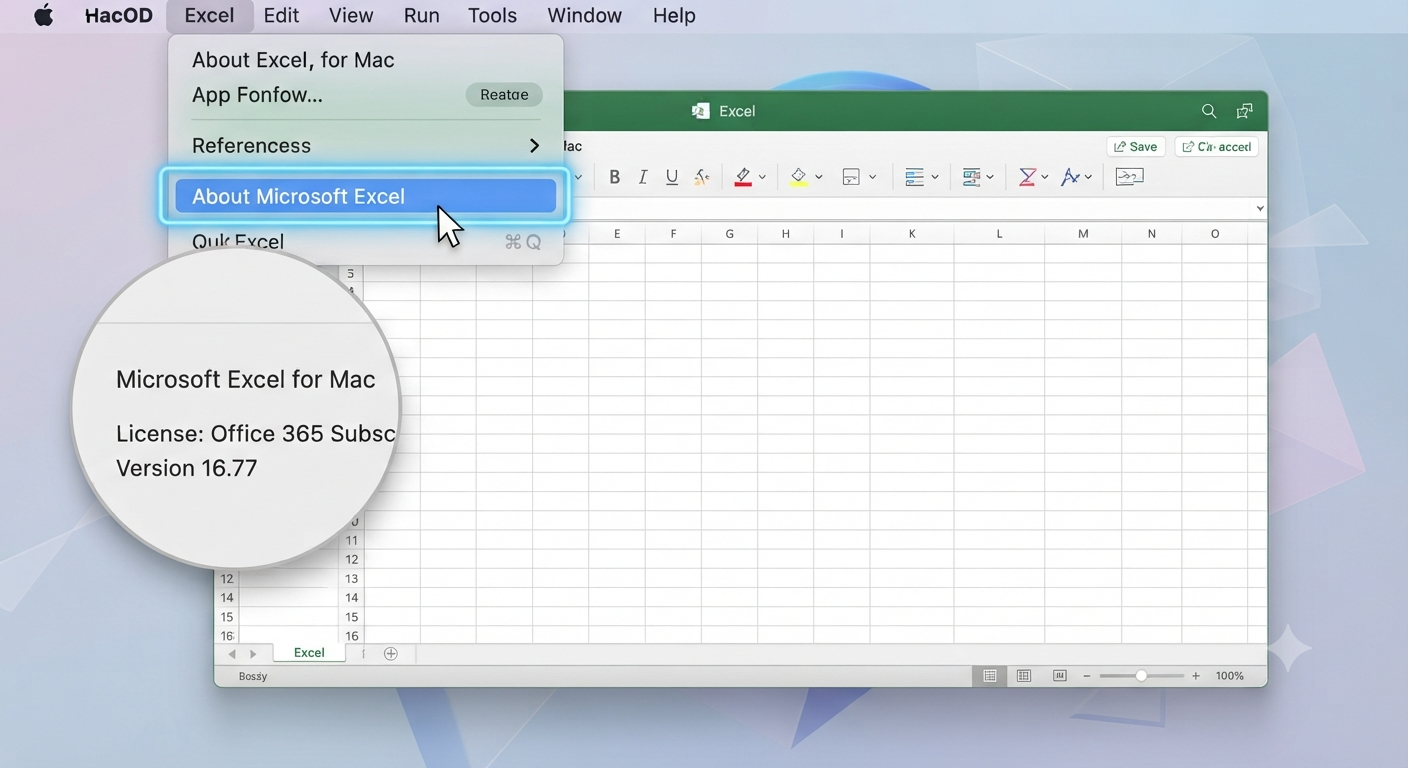
Follow these steps:
- Open Microsoft Excel.
- Click Excel in the menu bar.
- Select About Microsoft Excel.
The About window displays:
- Version number
- Build number
- Copyright information
If you’re using Microsoft 365, updates are managed through Microsoft AutoUpdate.
How to Identify Excel by the Ribbon Design
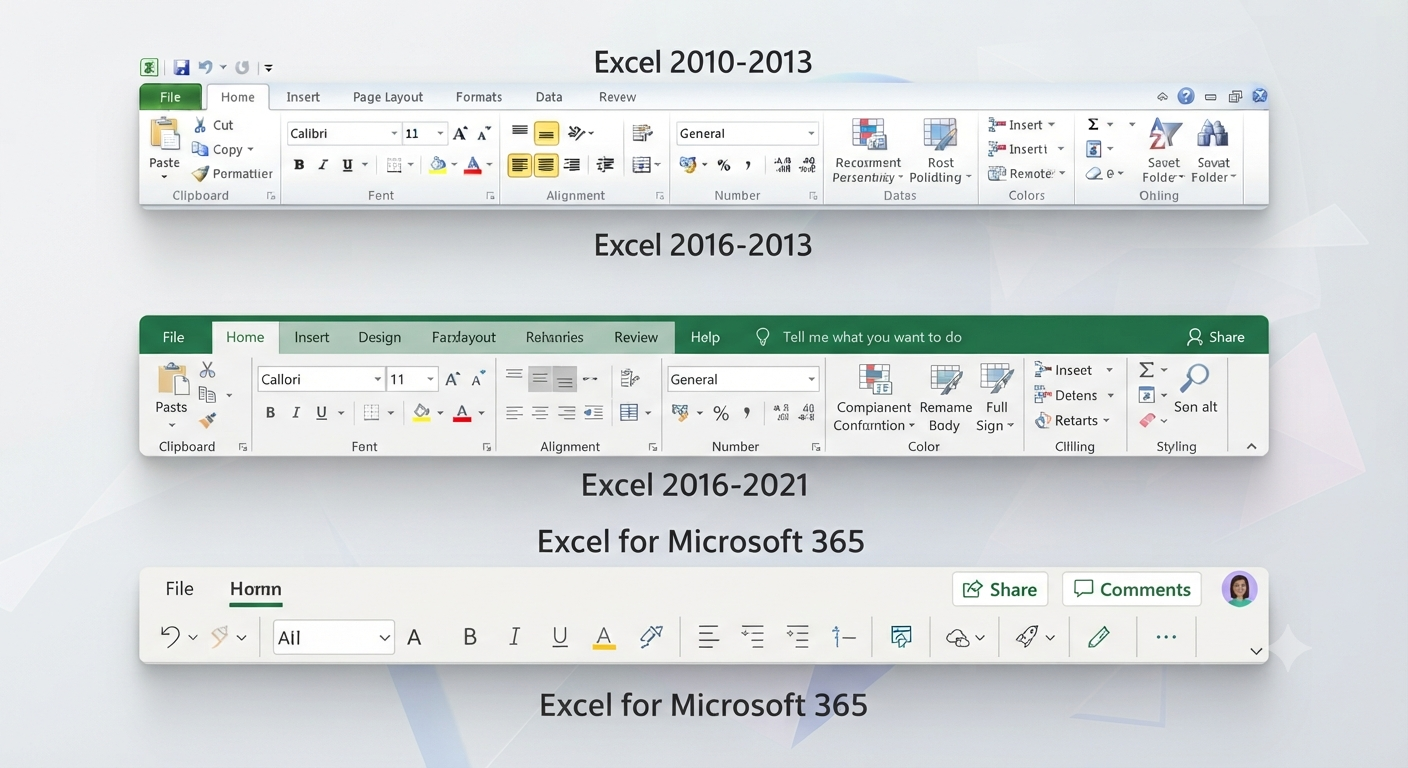
If you cannot access the version information directly, the user interface can provide clues.
Excel 2007
Characteristics include:
- Introduction of the Ribbon interface
- Office Button instead of the File tab
- Blue-themed appearance
Excel 2010
Features include:
- File tab replacing the Office Button
- Backstage View
- Improved Ribbon customization
Excel 2013
Notable changes include:
- Flatter interface
- Start screen with templates
- Touch-friendly design
Excel 2016 and Later
Modern versions feature:
- Updated icons
- Tell Me search box (in supported versions)
- Enhanced collaboration features
- Cloud integration
While visual cues can help, checking the version number directly is more reliable.
Understanding Excel Version Numbers
You may notice a version number such as:
- Version 2308
- Version 2402
- Build 17726.xxxxx
For Microsoft 365, these numbers indicate the release version and build. They do not correspond directly to product names like Excel 2021 or Excel 2019.
The product name shown in the Account page identifies the edition you own.
How to Check Whether You Have 32-Bit or 64-Bit Excel
The architecture of Excel is important for compatibility with certain add-ins and large workbooks.
To check:
- Open Excel.
- Go to File > Account.
- Click About Excel.
The dialog box will indicate either:
- 32-bit
- 64-bit
Modern computers typically use the 64-bit edition, which can handle larger datasets and more memory.
Why Excel Version Matters
Different versions support different features.
For example:
- Dynamic Arrays
- XLOOKUP
- LET
- LAMBDA
- Power Query improvements
- Office Scripts
- Real-time collaboration
Many of these features are available only in recent versions or Microsoft 365.
If you’re following an online guide, verifying your version ensures the instructions apply to your installation.
How to Update Excel
Keeping Excel updated provides:
- New features
- Security improvements
- Performance enhancements
- Bug fixes
To update Microsoft 365:
- Open Excel.
- Select File.
- Choose Account.
- Click Update Options.
- Select Update Now.
The application will check for and install available updates.
How to Determine Whether You Have Microsoft 365
Microsoft 365 users receive ongoing feature updates.
Signs that you’re using Microsoft 365 include:
- The product name displays “Microsoft 365.”
- Regular feature updates are available.
- Cloud collaboration features are integrated.
- OneDrive support is built into the application.
If your product is labeled Excel 2021 or Excel 2019, you likely have a perpetual-license version instead.
Common Problems When Identifying Excel Versions
Some users may encounter confusion due to:
Missing Account Option
Older versions such as Excel 2007 do not include the modern Account page.
Instead, use the Help or About section available in those releases.
Different User Interfaces
Excel changes its appearance between versions, making it difficult to identify solely by visual design.
Checking the version number is always the most accurate approach.
Microsoft 365 Build Numbers
Microsoft 365 uses build numbers that change frequently.
Don’t confuse these with product names such as Excel 2021 or Excel 2019.
How Excel Versions Affect File Compatibility
Most modern versions can open XLSX files without issue.
However:
- Older versions may require compatibility packs.
- Newer features may not work in legacy versions.
- Advanced formulas may display errors when opened in unsupported editions.
Saving files in compatibility mode can help when sharing documents with users of older Excel versions.
Best Practices for Excel Users
To ensure the best experience:
- Keep Excel updated.
- Use supported versions whenever possible.
- Verify compatibility before installing add-ins.
- Back up important workbooks regularly.
- Learn about new features introduced in recent updates.
These habits improve both security and productivity.
Frequently Asked Questions
How do I know if I have Microsoft 365 or Excel 2021?
Open File > Account and review the Product Information section. If the product name includes Microsoft 365, you have the subscription version. If it displays Excel 2021, Excel 2019, or another year-based edition, you have a perpetual-license version.
Can I check my Excel version without opening Excel?
Yes. On Windows, you can often view version information through Apps & Features, Programs and Features, or the Microsoft 365 app. However, opening Excel provides the most detailed and accurate information.
Why does my Excel version number keep changing?
If you’re using Microsoft 365, version and build numbers change regularly as Microsoft releases feature updates, security patches, and performance improvements.
Does Excel automatically update?
Microsoft 365 installations can update automatically if automatic updates are enabled. Perpetual-license versions receive security updates but generally do not receive major new features after release.
Can different Excel versions open the same workbook?
Yes, most versions can open the same workbook format. However, newer features such as dynamic arrays, XLOOKUP, or advanced collaboration tools may not function correctly in older versions.
Conclusion
Knowing which version of Microsoft Excel you have is essential for troubleshooting, compatibility, and taking advantage of the application’s latest features. Whether you’re using Excel 2016, Excel 2019, Excel 2021, Excel for Mac, or Microsoft 365, identifying your version only takes a few moments and can prevent many common issues.