


Fix: Mouse Selecting Everything on Click
If your mouse keeps highlighting everything when you click, it can be a frustrating experience. Instead of selecting just one item, you may find that your cursor highlights entire blocks of text or multiple files, making it difficult to work effectively. This strange behavior can be caused by software glitches, mouse settings, driver issues, or even hardware problems.
This guide covers the most common reasons behind this issue and provides step-by-step solutions to help you get your mouse working properly again on Windows 10 or Windows 11.
Common Causes of Mouse Highlighting Everything
Before we dive into solutions, let’s understand why this issue happens:
-
Sticky Keys or ClickLock features are enabled
-
Faulty or outdated mouse driver
-
Hardware malfunction in the mouse
-
Touchpad sensitivity settings on laptops
-
Malicious software or system corruption
-
Conflicts caused by recent Windows updates
1. Restart Your Computer
Start with the simplest solution — restart your system. A fresh reboot can clear minor software glitches or background processes that may interfere with mouse behavior.
2. Check If ClickLock Is Enabled
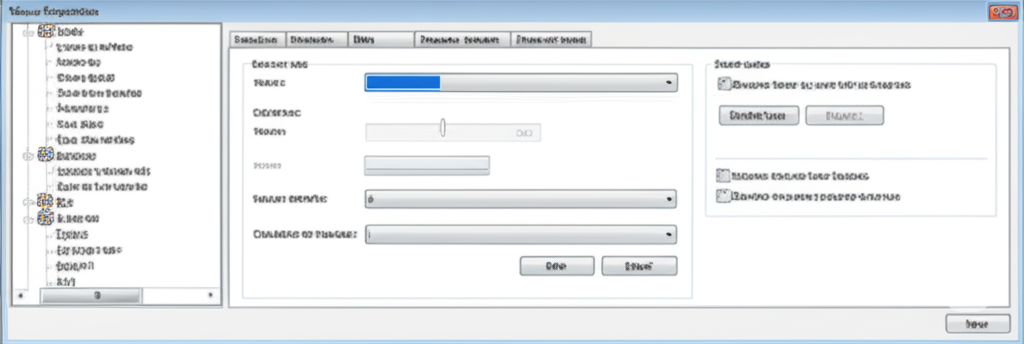
ClickLock is a Windows feature that lets users highlight or drag items without holding down the mouse button. If turned on accidentally, it might cause unexpected highlighting.
How to disable ClickLock:
-
Press Windows + I to open Settings.
-
Go to Devices > Mouse.
-
Click Additional mouse options on the right.
-
Under the Buttons tab, uncheck Turn on ClickLock.
-
Click Apply and then OK.
Check your mouse behavior again to see if this resolves the issue.
3. Disable Sticky Keys and Other Accessibility Settings
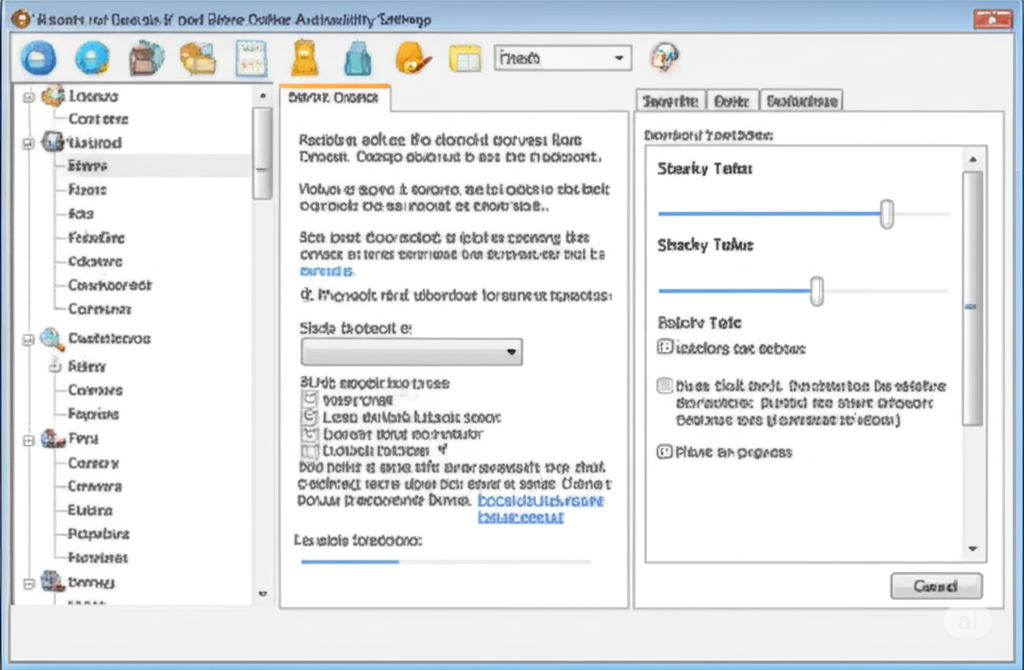
Sticky Keys is an accessibility feature that modifies how keyboard keys behave, but it can sometimes affect the mouse as well.
To disable Sticky Keys:
-
Press Windows + I to open Settings.
-
Go to Ease of Access > Keyboard.
-
Scroll down to Use Sticky Keys and turn it Off.
-
Also disable Toggle Keys and Filter Keys if they are on.
This can prevent unwanted interactions between the keyboard and mouse.
4. Update or Reinstall Your Mouse Driver
A faulty or outdated driver can cause unpredictable mouse behavior, including highlighting issues.
To update your mouse driver:
-
Right-click Start and select Device Manager.
-
Expand the Mice and other pointing devices section.
-
Right-click on your mouse and choose Update driver.
-
Select Search automatically for updated driver software.
If no update is found, or if the issue continues, try uninstalling the driver:
-
Right-click your mouse in Device Manager.
-
Select Uninstall device.
-
Restart your PC, and Windows will reinstall the driver automatically.
5. Try Another Mouse or Port
Sometimes the issue lies in the mouse hardware itself or the USB port it’s connected to.
Troubleshoot hardware:
-
Disconnect your current mouse and connect a different one.
-
Try plugging your mouse into a different USB port.
-
Use the mouse on another computer to verify if it behaves the same way.
If another mouse works correctly, your current mouse may need to be replaced.
6. Adjust Touchpad Settings (For Laptop Users)
If you’re using a laptop and not an external mouse, the touchpad might be too sensitive, causing multiple or continuous selections.
To adjust touchpad settings:
-
Open Settings > Devices > Touchpad.
-
Lower the touch sensitivity.
-
Uncheck Tap twice and drag to multi-select or similar options.
Disable the touchpad entirely if you’re using an external mouse.
7. Run the Hardware and Devices Troubleshooter
Windows includes a built-in troubleshooter for detecting and fixing hardware issues.
To run it:
-
Open Settings > Update & Security > Troubleshoot.
-
Click Additional troubleshooters.
-
Select Hardware and Devices and run the troubleshooter.
Follow the on-screen instructions and apply any suggested fixes.
8. Scan for Malware or Corruption
In rare cases, malicious software or system corruption may cause input device malfunctions.
Use Windows Security:
-
Go to Settings > Update & Security > Windows Security.
-
Open Virus & threat protection.
-
Run a Full scan.
Also, use System File Checker to repair any corrupted system files:
-
Open Command Prompt as Administrator.
-
Type the following and press Enter:
Let the scan complete and follow any repair recommendations.
9. Perform a Clean Boot
Software conflicts during startup may interfere with your mouse. A clean boot allows you to identify if a third-party program is the root cause.
Steps:
-
Press Windows + R, type
msconfig, and press Enter. -
Under the Services tab, check Hide all Microsoft services, then click Disable all.
-
Go to the Startup tab and click Open Task Manager.
-
Disable all startup items.
-
Restart your PC.
If the issue disappears, re-enable services one by one to find the culprit.
10. Reset Mouse Settings
If you’ve made various changes to your mouse settings over time, resetting them can resolve persistent issues.
Reset via Control Panel:
-
Open Control Panel > Mouse.
-
Go through each tab and look for a Restore Defaults or Reset button.
-
Click to reset all settings, then apply and restart.
Final Thoughts
When your mouse is highlighting everything you click, it can make even simple tasks frustrating. Thankfully, this issue is often due to software settings or minor hardware problems and can be fixed using the steps above.
Start by checking for ClickLock and Sticky Keys, then move on to driver updates, malware scans, and testing with different hardware if needed. If nothing works, a clean boot or fresh Windows profile may be required.