


How to Insert and Remove Leading Zeros in Excel
Leading zeros are zeros that appear at the beginning of a number, such as 00123 or 000456. While they are common in product codes, ZIP codes, phone numbers, and ID numbers, Excel often removes them automatically because it treats entries as numerical values. This can cause formatting problems, data inconsistencies, and confusion when working with codes that must maintain a fixed length.
This guide explains what leading zeros are, why Excel removes them, and all the reliable methods to add or remove leading zeros in Excel. Whether you are cleaning imported data or preparing reports, these techniques will help you handle leading zeros correctly.
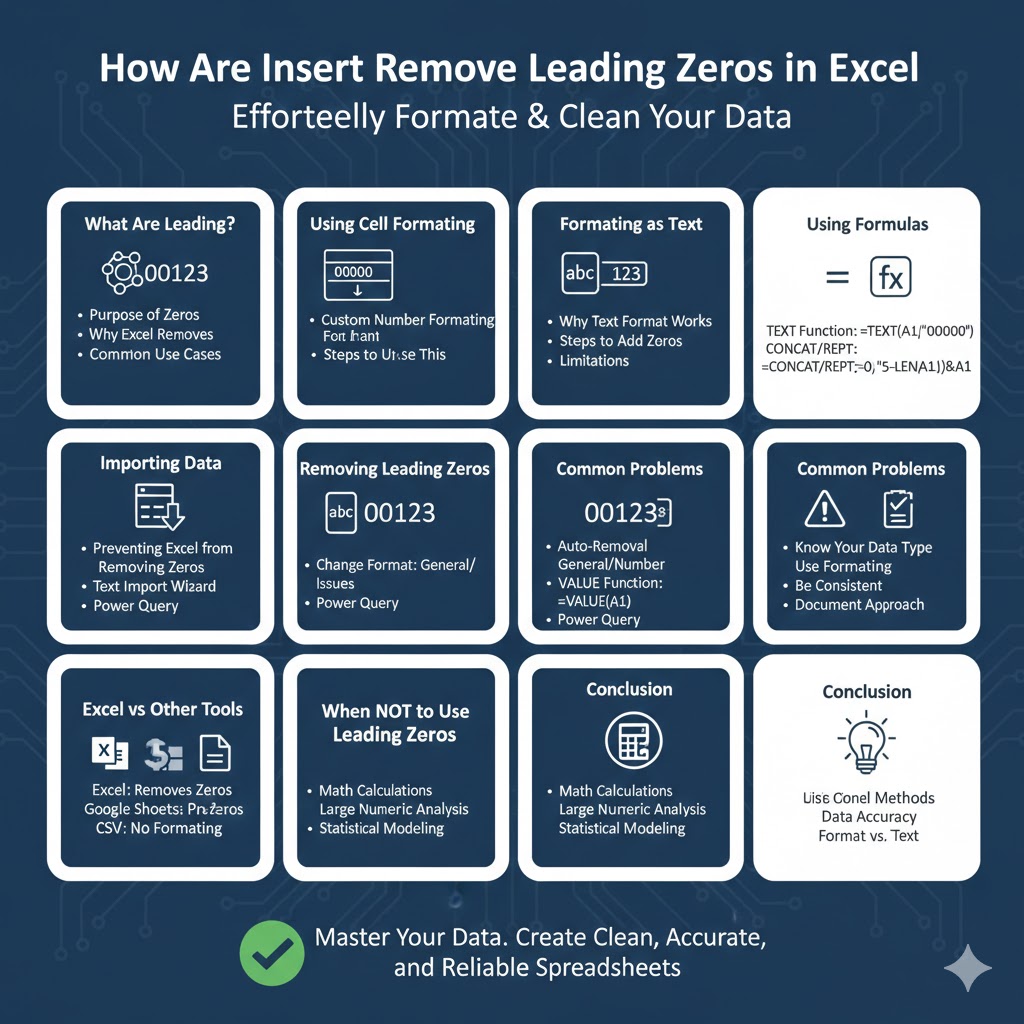
What Are Leading Zeros and Why Do They Matter?
Understanding Leading Zeros
Leading zeros are zeros placed before a number to reach a specific length or format. For example, a six-digit product code may require values like 000145 instead of 145.
Why Excel Removes Leading Zeros
Excel assumes that numbers are values used for calculations. Since leading zeros do not change a number’s value, Excel strips them automatically unless instructed otherwise.
Common Use Cases for Leading Zeros
Leading zeros are commonly used in:
-
ZIP or postal codes
-
Employee or student ID numbers
-
Product and inventory codes
-
Account and reference numbers
How to Add Leading Zeros Using Cell Formatting
Using Custom Number Formatting
This is one of the most common and flexible methods.
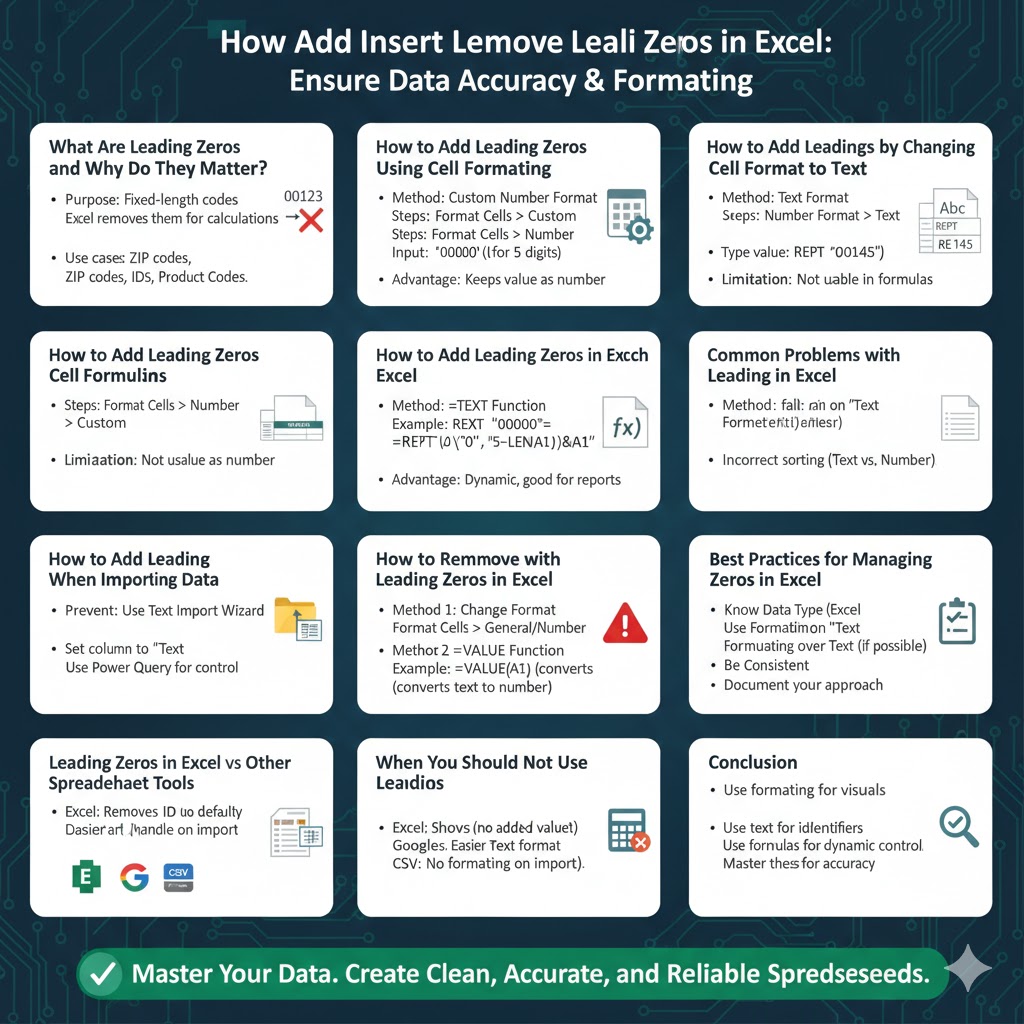
Steps to Add Leading Zeros
-
Select the cells you want to format
-
Right-click and choose Format Cells
-
Open the Number tab
-
Select Custom
-
Enter a format such as
00000 -
Click OK
Excel will display numbers with leading zeros without changing the underlying value.
When to Use This Method
Use custom formatting when you want numbers to look consistent but still behave like numbers in formulas.
How to Add Leading Zeros by Changing Cell Format to Text
Why Text Format Works
Text-formatted cells preserve exactly what you type, including leading zeros.
Steps to Format as Text
-
Select the target cells
-
Open the Home tab
-
Change the format to Text
-
Enter the values with leading zeros
Limitations of Text Formatting
Text values cannot be used directly in numerical calculations without conversion.
How to Add Leading Zeros Using Formulas
Using the TEXT Function
The TEXT function converts numbers into formatted text.
Example
Use a formula like:
-
=TEXT(A1,"00000")
This converts the value in A1 into a five-digit text string with leading zeros.
Advantages of the TEXT Function
-
Flexible formatting
-
Useful in reports or exports
-
Works well with dynamic data
How to Add Leading Zeros Using the CONCAT or REPT Functions
Using REPT
You can repeat zeros and attach them to numbers.
Example Formula
-
=REPT("0",5-LEN(A1))&A1
This adds enough zeros to make the value five digits long.
When This Is Useful
This approach is helpful when data lengths vary significantly.
How to Add Leading Zeros When Importing Data
Preventing Excel from Removing Zeros
When importing CSV or text files, Excel may strip leading zeros automatically.
Best Practices
-
Import data using the Text Import Wizard
-
Set affected columns to Text before importing
-
Use Power Query to control data types
How to Remove Leading Zeros in Excel
Removing Zeros by Changing Format
If leading zeros are applied via formatting, removing the format restores the original number.
Steps
-
Select the cells
-
Open Format Cells
-
Change the format to General or Number
Using VALUE Function
If the value is stored as text:
-
=VALUE(A1)
This converts text with leading zeros into a numeric value.
How to Remove Leading Zeros Using Formulas
Using RIGHT and VALUE
You can extract and convert numeric parts.
Using the SUBSTITUTE Function
This works for specific patterns but should be used carefully.
Using Power Query
Power Query is ideal for removing leading zeros across large datasets.
Common Problems with Leading Zeros in Excel
Excel Automatically Removes Zeros
This usually happens when cells are formatted as numbers.
Formulas Not Working After Adding Zeros
If values are stored as text, formulas may fail until converted back to numbers.
Sorting Issues
Text-formatted numbers may sort incorrectly unless adjusted.
Best Practices for Managing Leading Zeros
Know Your Data Type
Decide early whether the value is an identifier or a number used in calculations.
Use Formatting Instead of Text When Possible
Custom formatting preserves numeric behavior.
Be Consistent Across Worksheets
Use the same method to avoid confusion.
Document Your Approach
Make it clear to collaborators how values are formatted.
Leading Zeros in Excel vs Other Spreadsheet Tools
Excel
Automatically removes leading zeros unless formatting is applied.
Google Sheets
Preserves leading zeros more easily with text formatting.
CSV Files
Do not store formatting, so leading zeros must be handled during import.
When You Should Not Use Leading Zeros
Mathematical Calculations
Leading zeros add no value and may cause confusion.
Large Numeric Analysis
Use numeric values for performance and accuracy.
Statistical Modeling
Avoid text-based numbers in formulas.
Conclusion
Adding and removing leading zeros in Excel is a common task that can significantly affect data accuracy and presentation. Excel offers multiple methods, including custom formatting, text formatting, formulas, and Power Query, each suited to different situations. By understanding how Excel treats numbers and text, you can choose the right approach and avoid common pitfalls.