


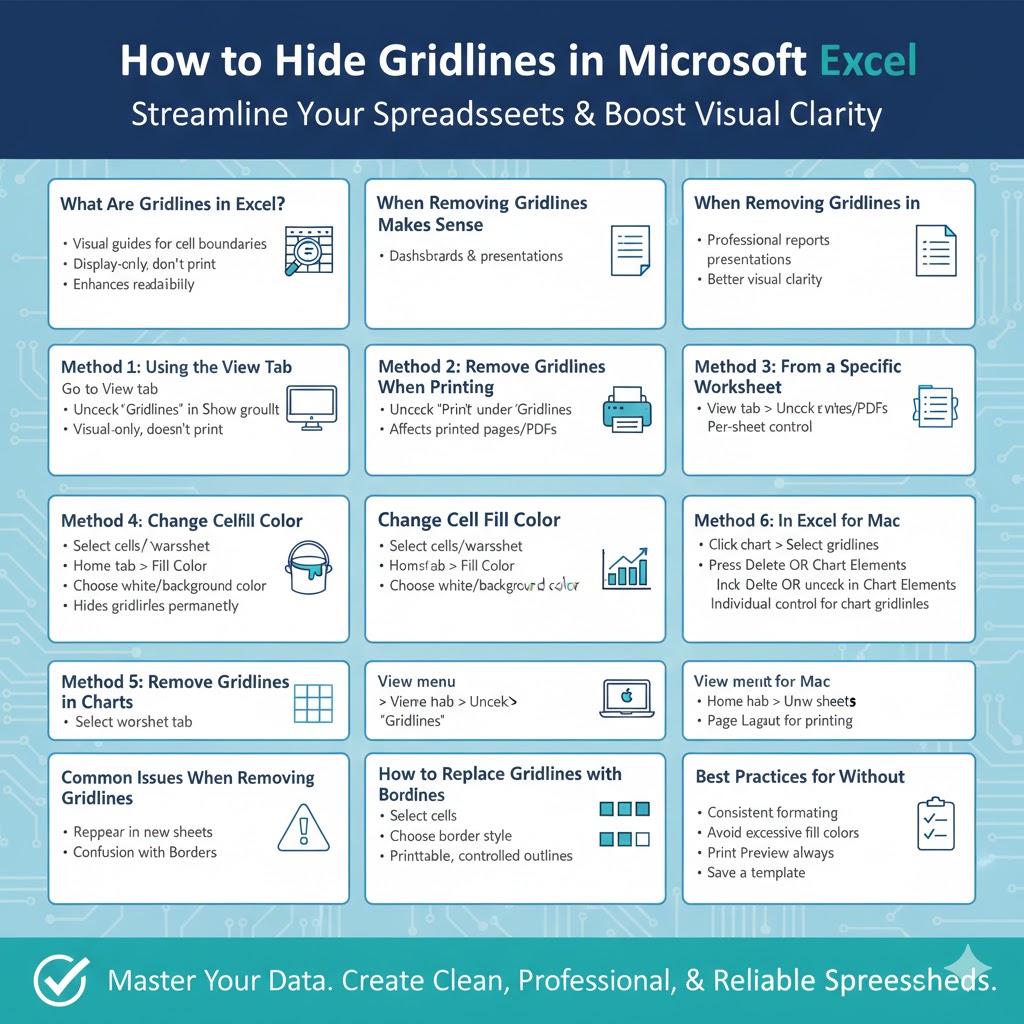
How to Hide Gridlines in Microsoft Excel
Gridlines are the faint lines that appear around cells in Excel worksheets, helping users distinguish rows and columns while working with data. While gridlines are useful during data entry and analysis, they are not always desirable—especially when preparing spreadsheets for presentations, printing, or sharing with others. Removing gridlines can give your worksheet a cleaner, more professional appearance.
This guide explains what gridlines are, how they differ from borders, and all the practical ways to remove or hide them in Excel. Whether you’re using Excel on Windows or Mac, working with charts, or preparing a file for printing, this article covers everything you need to know.
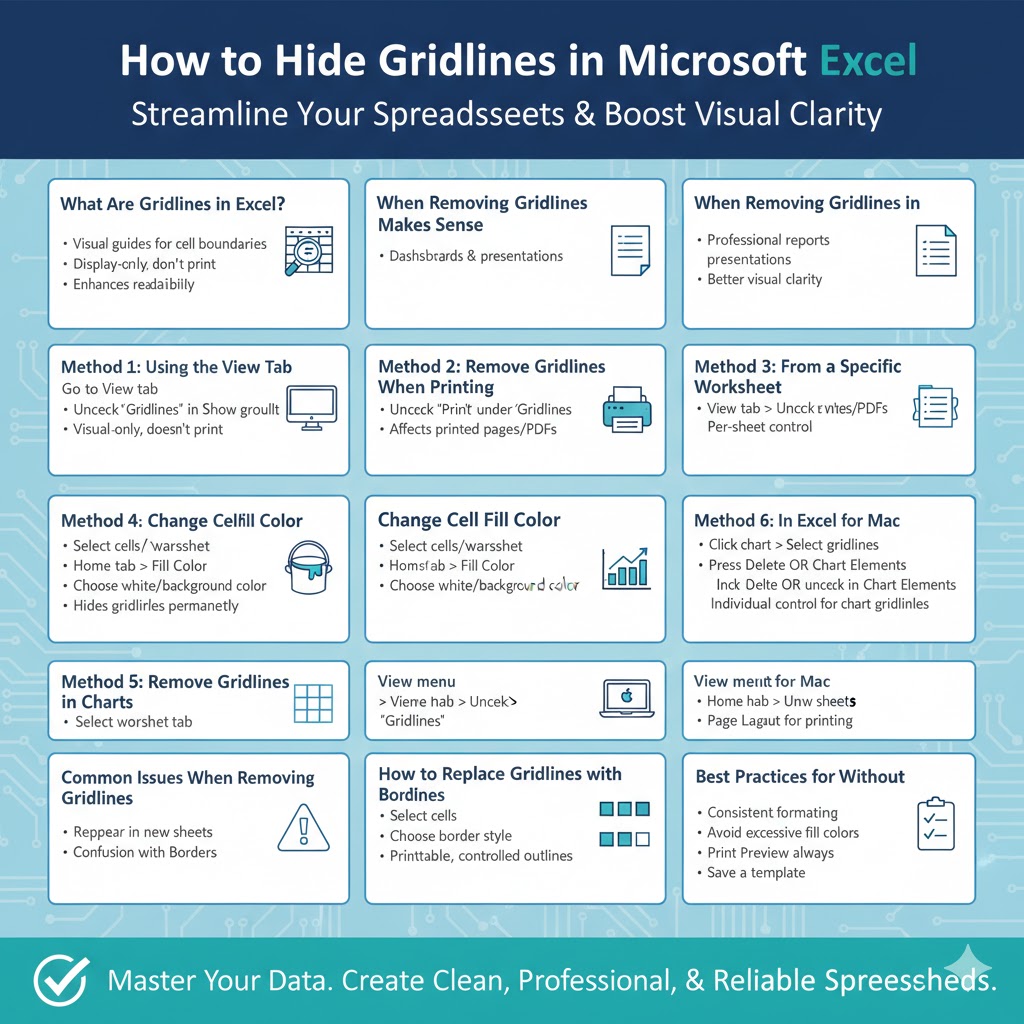
What Are Gridlines in Excel?
Purpose of Gridlines
Gridlines are visual guides that help users identify cell boundaries in a worksheet. They make it easier to read and align data without manually adding borders.
Gridlines vs Cell Borders
Gridlines are display-only elements and do not print by default. Borders, on the other hand, are formatting elements that remain visible and printable even if gridlines are hidden.
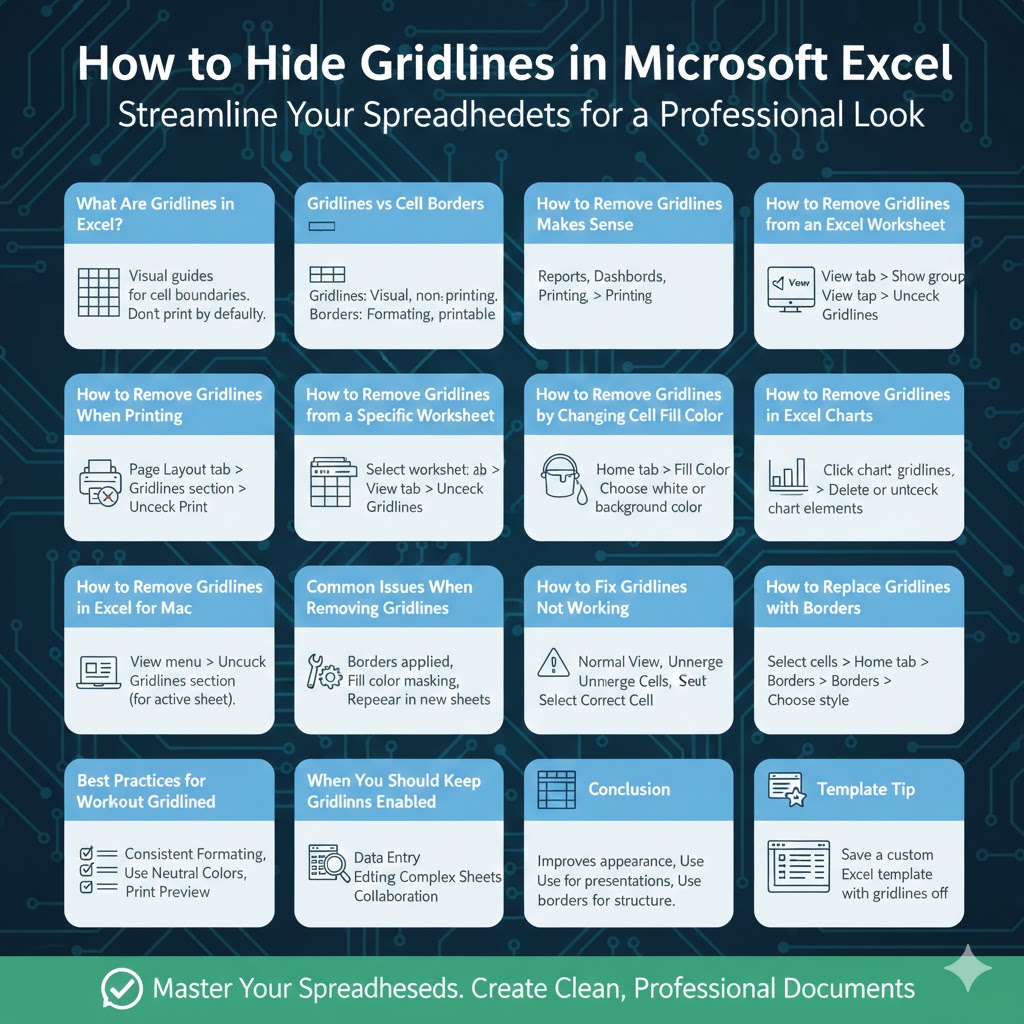
When Removing Gridlines Makes Sense
Removing gridlines is ideal for:
-
Creating professional reports
-
Designing dashboards
-
Preparing worksheets for printing
-
Improving visual clarity in presentations
How to Remove Gridlines from an Excel Worksheet
Using the View Tab
This is the quickest way to hide gridlines on your screen.
Steps to Hide Gridlines
-
Open your Excel worksheet
-
Go to the View tab
-
In the Show group, uncheck Gridlines
Gridlines will disappear instantly from the worksheet display.
What This Method Affects
This only hides gridlines visually; it does not affect borders or printing settings.
How to Remove Gridlines When Printing
Why Gridlines May Appear in Print
Although gridlines don’t print by default, they can be enabled in page layout settings.
Steps to Disable Gridlines for Printing
-
Open the worksheet
-
Go to the Page Layout tab
-
Find the Gridlines section
-
Uncheck Print
This ensures gridlines will not appear on printed pages or PDF exports.
How to Remove Gridlines from a Specific Worksheet
Worksheet-Level Control
Gridline visibility is controlled per worksheet, not per workbook.
How to Hide Gridlines on One Sheet Only
-
Select the worksheet tab
-
Open the View tab
-
Uncheck Gridlines
Other worksheets will remain unchanged.
How to Remove Gridlines by Changing Cell Fill Color
Why This Works
Gridlines are only visible on cells with no fill color. Applying a fill color hides them.
Steps to Hide Gridlines with Fill Color
-
Select the desired cells or entire worksheet
-
Open the Home tab
-
Click the Fill Color icon
-
Choose white or another background color
This method is useful when you want gridlines hidden only in certain areas.
Limitations of This Method
-
Gridlines will still be hidden even if view settings change
-
Excessive fill colors may affect file size
How to Remove Gridlines in Excel Charts
Gridlines in Charts vs Worksheets
Charts have their own gridlines that are separate from worksheet gridlines.
Steps to Remove Chart Gridlines
-
Click the chart
-
Select the gridlines within the chart
-
Press Delete, or uncheck gridlines from chart elements
Types of Chart Gridlines
Charts may include:
-
Horizontal gridlines
-
Vertical gridlines
-
Minor gridlines
You can remove them individually for better design control.
How to Remove Gridlines in Excel for Mac
Excel for Mac Interface Differences
The steps are similar, but menu layouts differ slightly.
Steps on Mac
-
Open the worksheet
-
Click the View menu
-
Uncheck Gridlines
This hides gridlines for the active worksheet.
Printing on Mac
Use the Page Layout or Print settings to ensure gridlines are disabled before printing.
Common Issues When Removing Gridlines
Gridlines Still Visible After Turning Them Off
This usually means:
-
Cell borders are applied
-
Fill color is masking changes
Gridlines Reappear in New Worksheets
Excel enables gridlines by default for new worksheets. You must hide them again for each new sheet.
Confusion Between Borders and Gridlines
Borders remain visible even when gridlines are hidden. Remove borders separately if needed.
How to Replace Gridlines with Borders
Why Use Borders Instead
Borders give you full control over cell outlines and print exactly as shown.
Steps to Add Borders
-
Select cells
-
Open the Home tab
-
Click Borders
-
Choose the desired border style
This creates a structured look without default gridlines.
Best Practices for Working Without Gridlines
Use Consistent Formatting
When gridlines are removed, alignment and spacing become more noticeable.
Avoid Overusing Fill Colors
Stick to neutral backgrounds for readability.
Preview Before Printing
Always use Print Preview to confirm the final appearance.
Save a Template
If you often work without gridlines, save a custom Excel template with gridlines turned off.
When You Should Keep Gridlines Enabled
Data Entry and Analysis
Gridlines help prevent errors when entering large datasets.
Editing Complex Worksheets
They improve visibility during formula creation and debugging.
Collaborative Work
Gridlines help others understand cell structure quickly.
Conclusion
Removing gridlines in Excel is a simple yet effective way to improve the appearance of your worksheets. Whether you’re preparing a professional report, designing a dashboard, or printing a clean document, Excel provides multiple ways to hide gridlines depending on your needs. By understanding the difference between gridlines and borders, and knowing when and how to remove them, you can create spreadsheets that are both functional and visually polished.