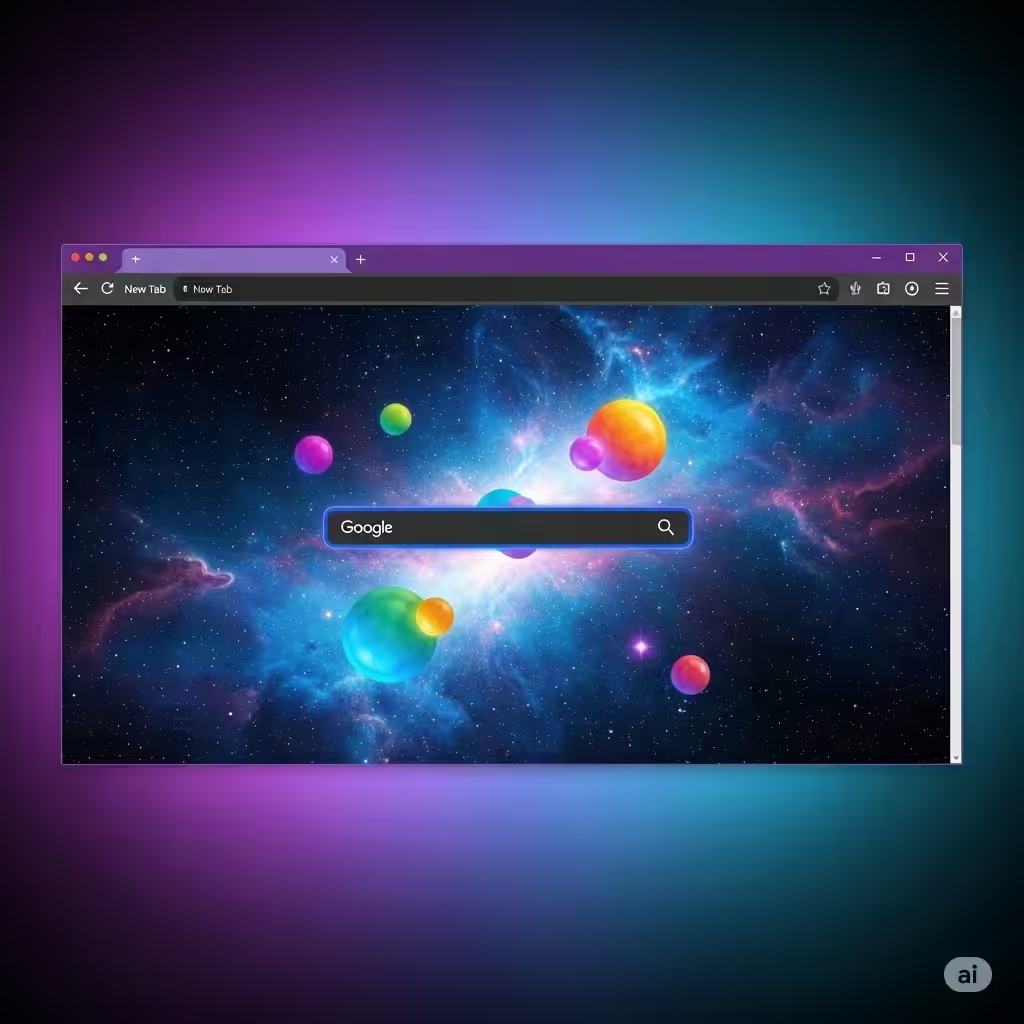
Chrome Color and Theme Customization Made Easy
Google Chrome is one of the most popular web browsers worldwide, known for its speed, simplicity, and wide range of customization options. One of the easiest ways to make Chrome feel more personal and visually appealing is to change its color and theme. Whether you want a fresh new look, a dark mode interface, or a theme that matches your favorite color palette, Chrome offers multiple ways to customize your browsing experience.
This step-by-step guide will walk you through different methods to personalize Chrome’s appearance on desktop and mobile.
Why Customize Chrome’s Color and Theme?
Customizing Chrome is not just about aesthetics. There are several benefits:
-
Improved Visual Comfort – Adjusting brightness or switching to dark mode can reduce eye strain.
-
Personal Expression – Choose colors and designs that match your personality.
-
Better Focus – A cleaner or more neutral theme can help you concentrate while browsing.
-
Brand Alignment – Use a theme that matches your business or personal brand colors.

Change Chrome’s Theme from the Built-in Customization Menu
Google Chrome includes a built-in customization menu that allows you to easily modify the browser’s background, colors, and shortcuts.
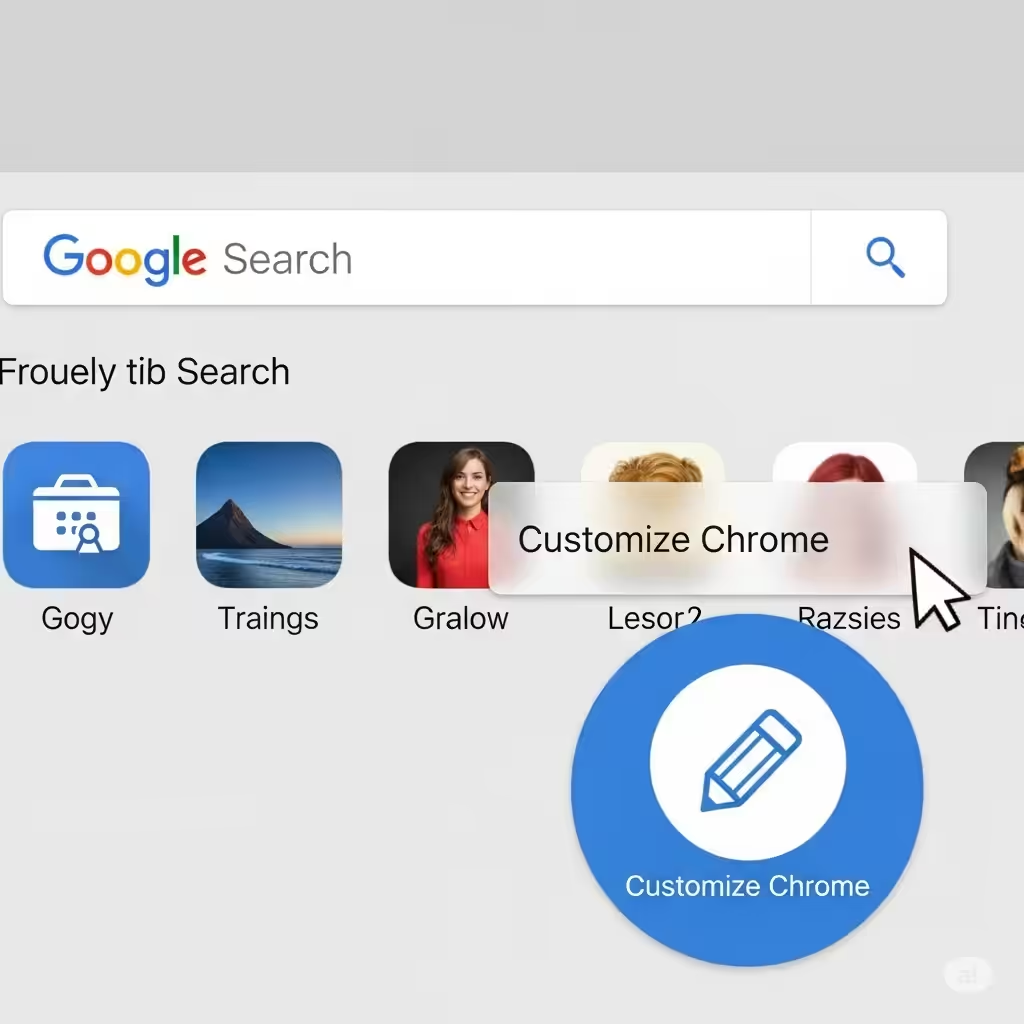
Step 1: Open the Customize Menu
-
Open Google Chrome.
-
On a new tab page, click the Customize Chrome button (pencil icon) in the bottom-right corner.
Step 2: Select a Background or Color
-
Background – Choose from Chrome’s curated backgrounds or upload your own image.
-
Color and Theme – Pick from predefined color combinations or create your own custom color.
Step 3: Save Your Changes
Once you have selected your preferred settings, click Done to apply them instantly.
Tip: You can always return to the Customize menu to switch things up whenever you like.
Install Themes from the Chrome Web Store
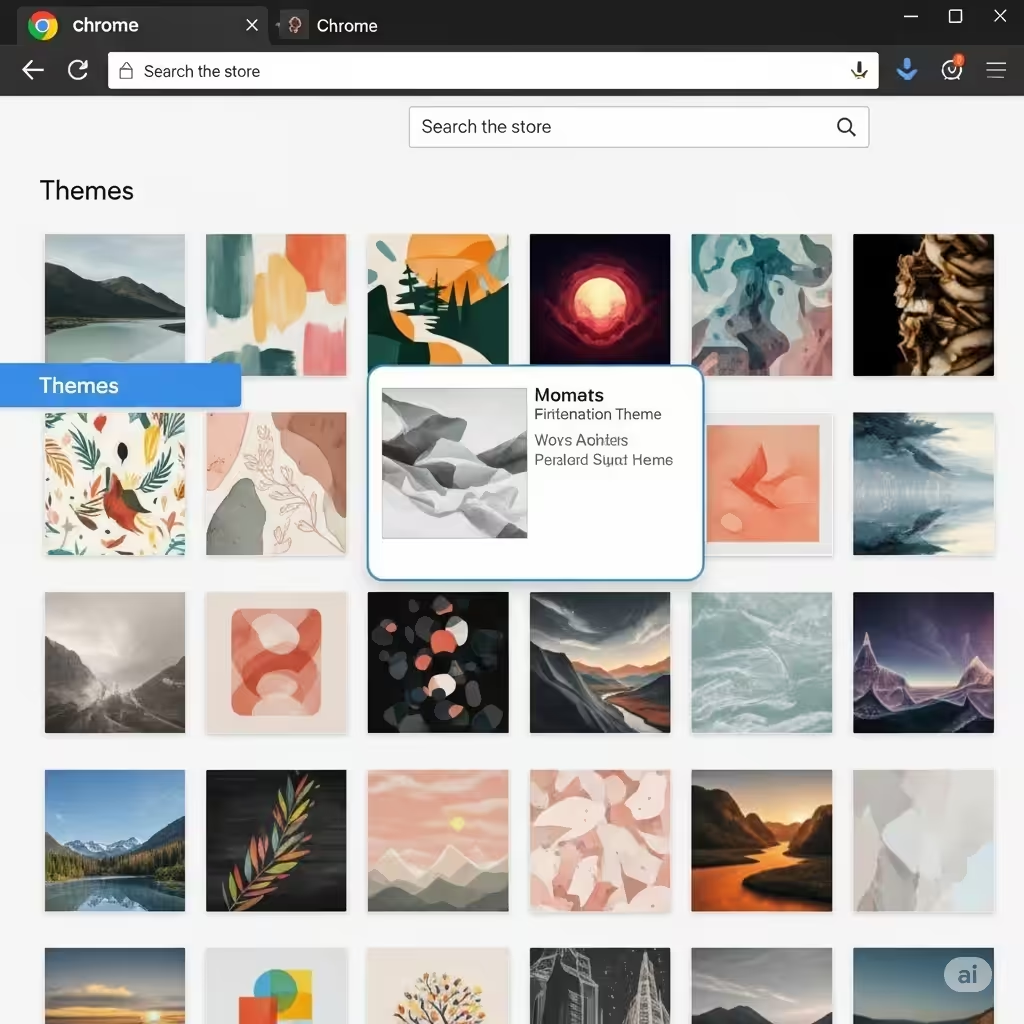
If you want more variety beyond the default customization options, you can explore thousands of free and paid themes from the Chrome Web Store.
Step 1: Access the Chrome Web Store
-
Go to the Chrome Web Store in your browser.
-
Click the Themes category from the left menu.
Step 2: Browse and Select a Theme
-
Scroll through the available themes or search for keywords like “dark mode,” “nature,” or “minimal.”
-
Click on a theme’s preview image to see details and screenshots.
Step 3: Install the Theme
-
Click the Add to Chrome button.
-
The theme will be applied immediately without restarting your browser.
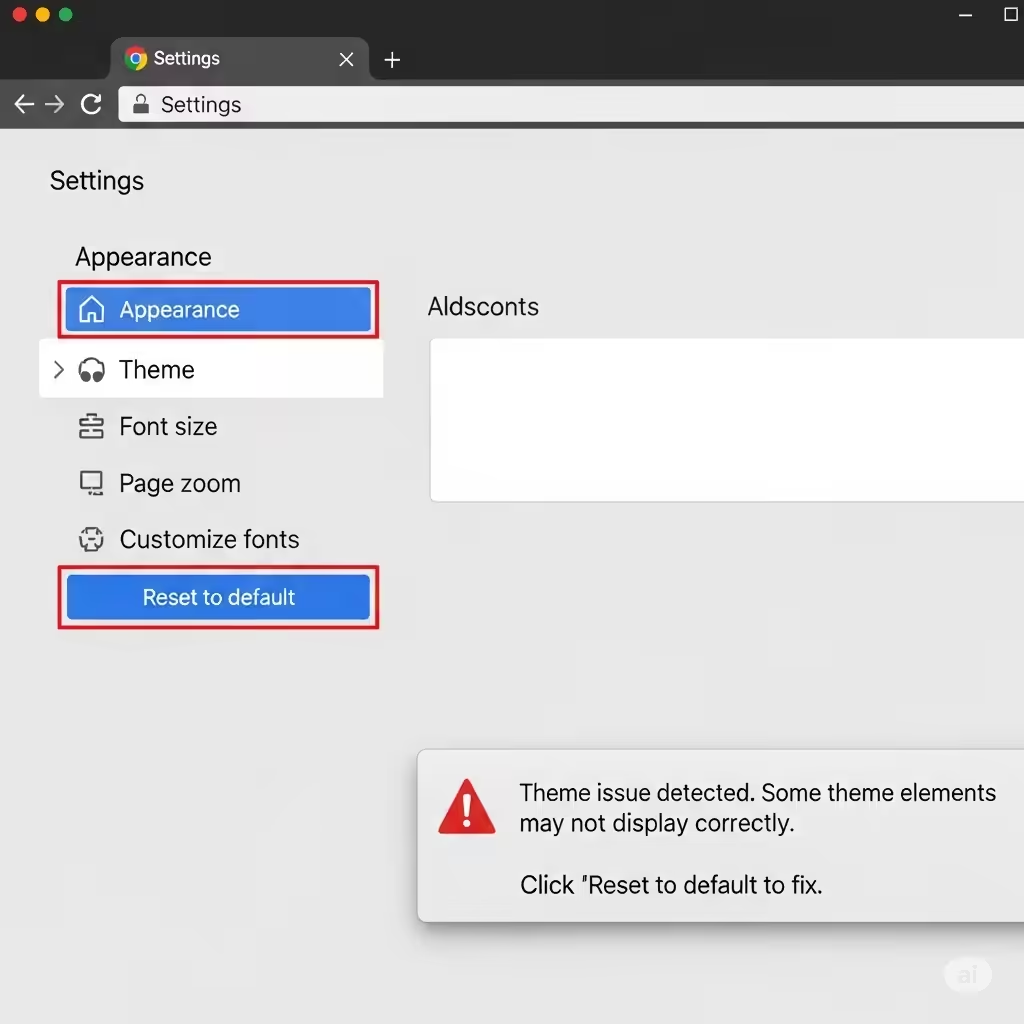
Tip: If you don’t like the new theme, you can revert to the default by going to Settings > Appearance > Reset to default.
Create a Custom Color Scheme in Chrome
If none of the pre-made themes match your taste, Chrome lets you create your own custom color palette.
Step 1: Go to the Customize Menu
On a new tab page, click the Customize Chrome button.
Step 2: Choose Custom Colors
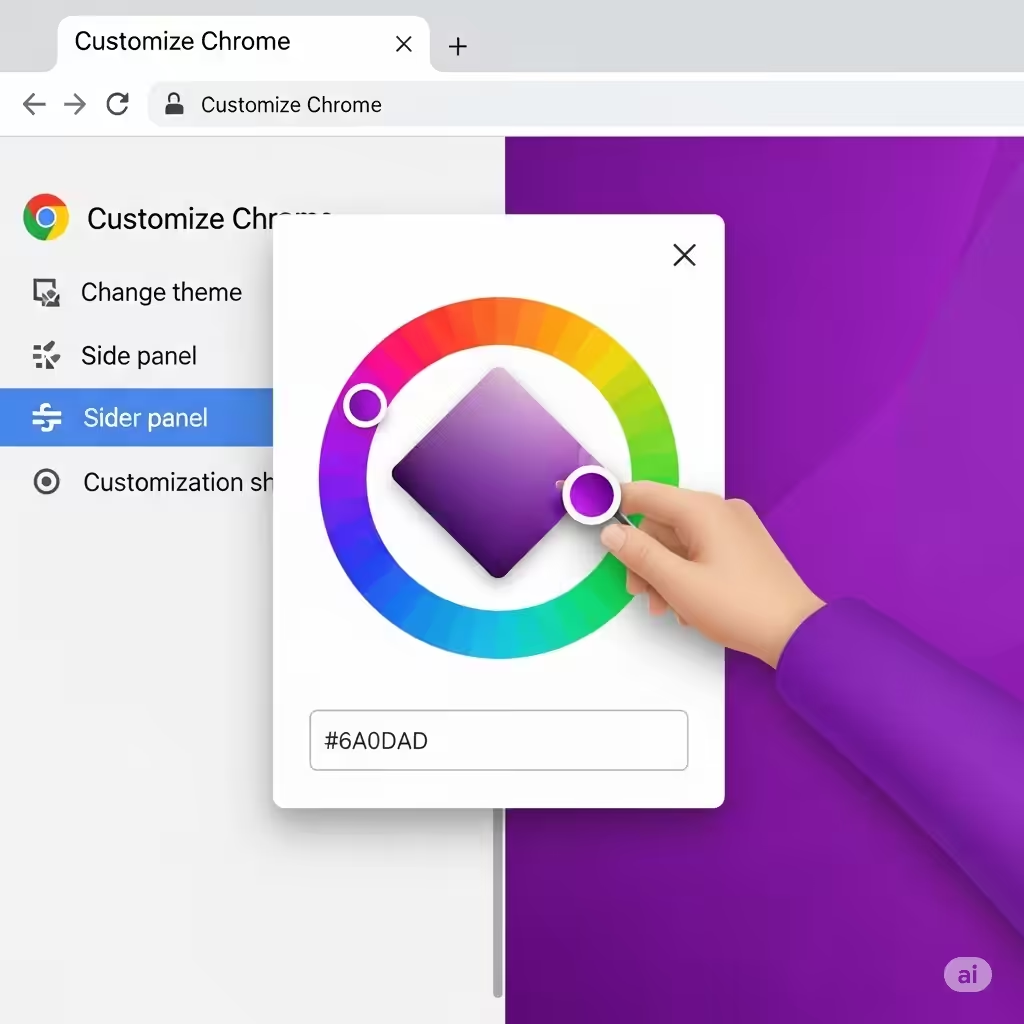
Select Color and Theme, then click the color circle with a plus sign to create a custom scheme.
Step 3: Adjust and Save
Use the color picker or enter a hex color code to get the exact shade you want. Click Done to apply it.
Pro Tip: This is especially useful if you want your browser colors to match your desktop wallpaper or brand colors exactly.
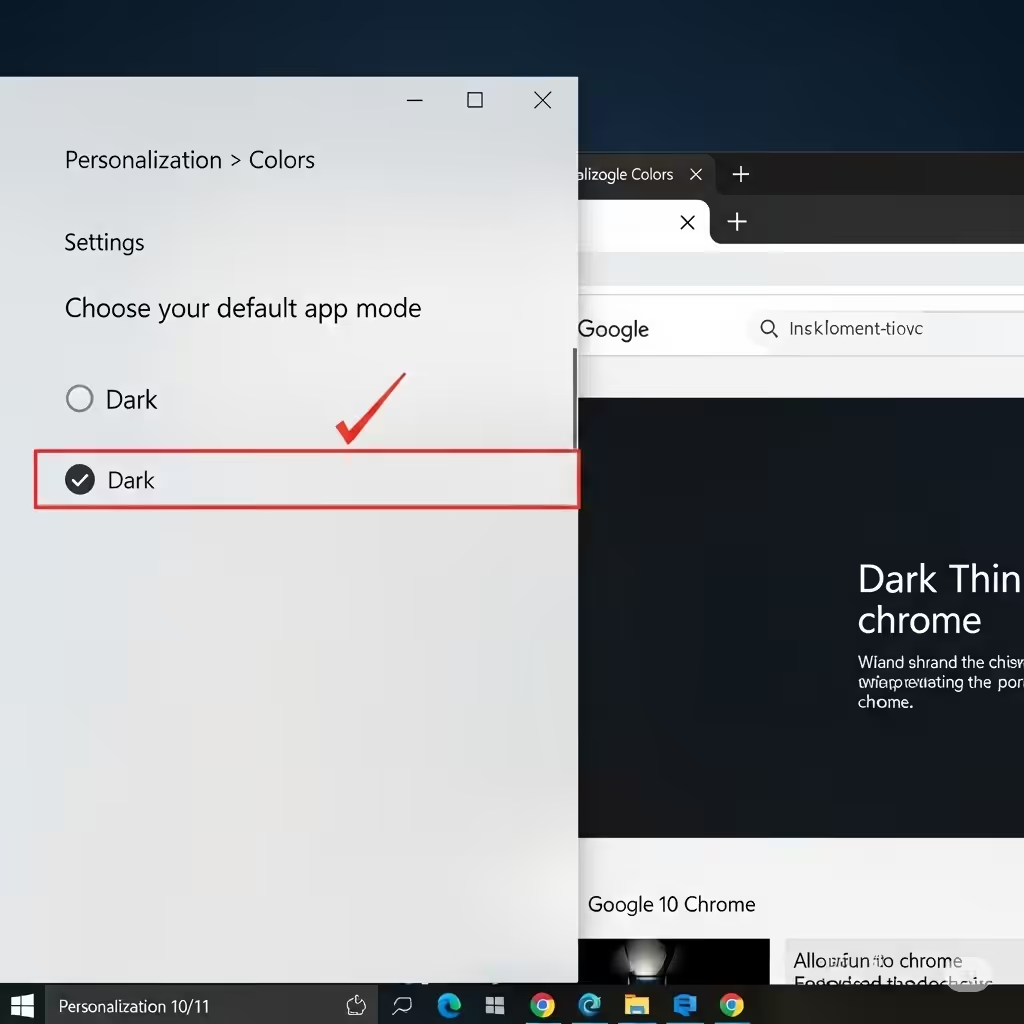
Enable Chrome Dark Mode
Dark mode changes Chrome’s interface to darker tones, which can help reduce glare and eye strain, especially in low-light environments.
On Windows:
-
Open Settings from the Start menu.
-
Go to Personalization > Colors.
-
Under Choose your default app mode, select Dark.
On macOS:
-
Open System Preferences.
-
Go to General.
-
Under Appearance, select Dark.
Chrome will automatically adapt to your system’s dark mode setting.
Note: Some websites also support dark mode and will change accordingly.
Customize Chrome on Mobile Devices
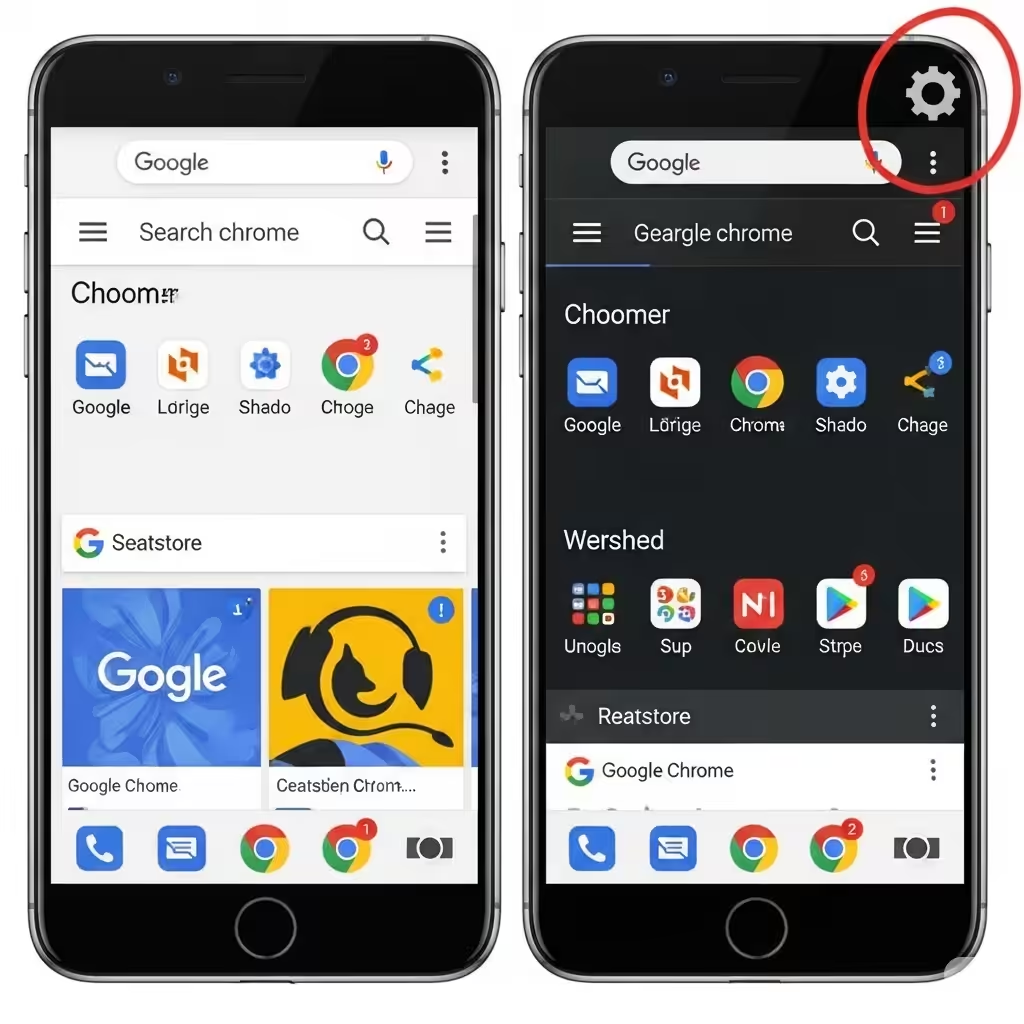
Chrome on Android and iOS also offers basic customization features.
On Android:
-
Open Chrome and tap the three-dot menu in the top-right corner.
-
Select Settings > Theme.
-
Choose Light, Dark, or System default.
On iOS:
-
Chrome follows the iOS system theme.
-
To enable dark mode, go to Settings > Display & Brightness on your iPhone and choose Dark.
For background changes on mobile, you can also customize the new tab page by tapping the pencil icon.
Troubleshooting Chrome Theme Issues
Sometimes, themes may not apply correctly or can cause visual glitches. Here are some quick fixes:
-
Reset the Theme – Go to Settings > Appearance > Reset to default.
-
Clear Cache – Cached files can sometimes cause display issues. Clear browsing data in Settings > Privacy and Security.
-
Disable Extensions – Some extensions may interfere with themes. Temporarily disable them to check.
-
Update Chrome – Always use the latest version for full compatibility.
Tips for a Better Customization Experience
-
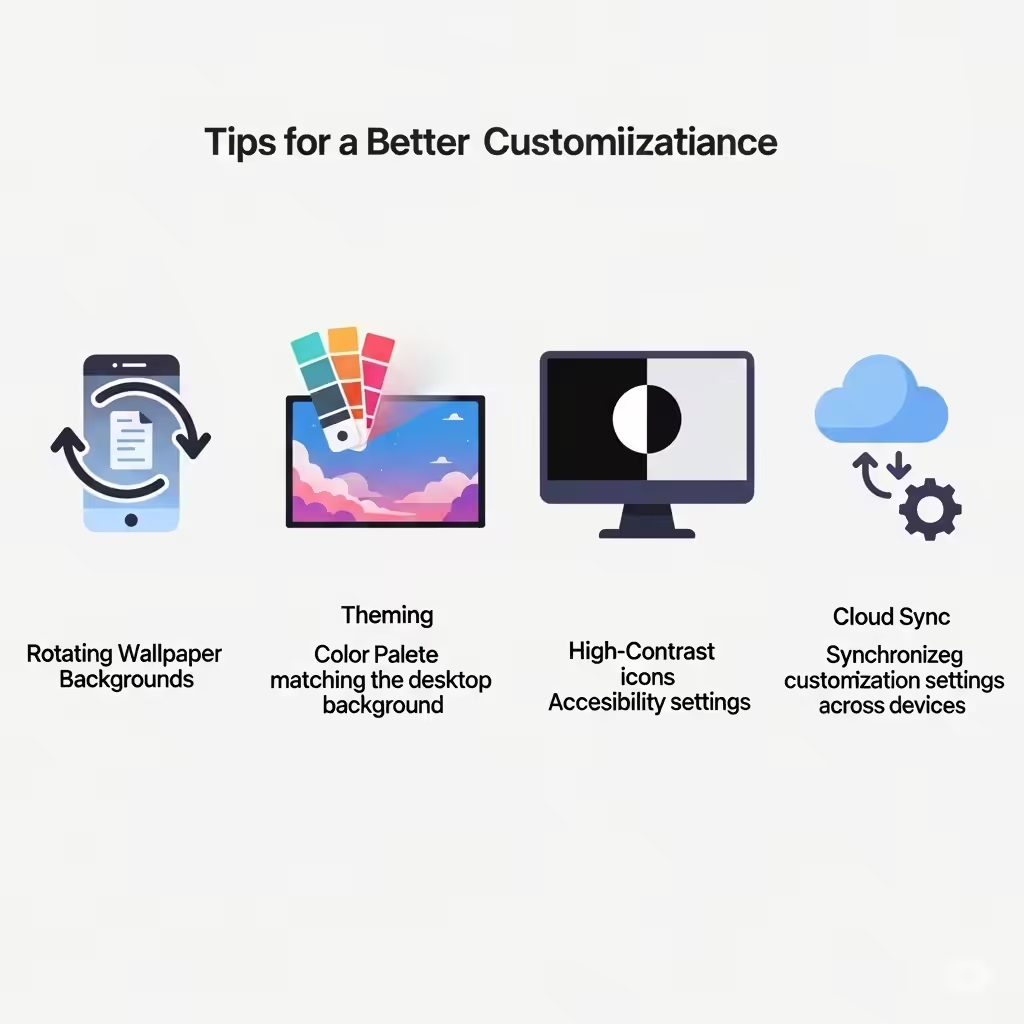
Match Colors to Your Workspace – Harmonize Chrome’s theme with your desktop wallpaper or desk lighting for a cohesive look.
-
Experiment with Backgrounds – Try rotating background images for variety.
-
Consider Accessibility – Choose high-contrast colors if you have vision difficulties.
-
Back Up Your Settings – Sign in to Chrome to sync themes and customizations across devices.
Conclusion
Customizing Chrome’s color and theme is a simple yet powerful way to make your browsing experience more enjoyable and personal. Whether you stick with Chrome’s built-in options, explore themes from the Web Store, or design your own color palette, you can create a look that reflects your style and improves usability.
With just a few clicks, you can transform Chrome from a plain browser into a personalized tool that matches your mood, brand, or daily workflow.