


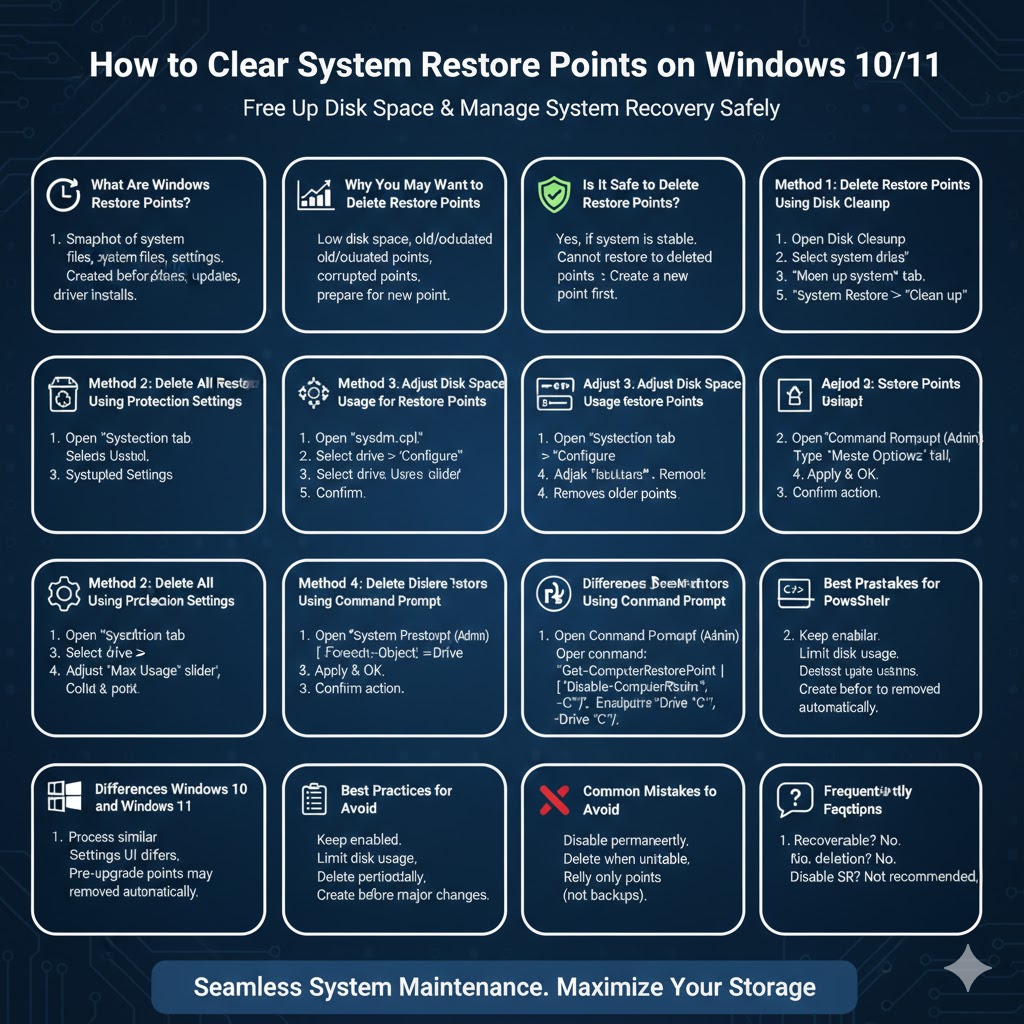
How to Clear System Restore Points on Windows 10/11
System Restore is a built-in Windows feature designed to help users recover their system when something goes wrong. It creates restore points that save snapshots of system files, settings, and configurations. While restore points are useful, they can also consume a significant amount of disk space over time. On computers with limited storage, old restore points may become unnecessary and take up valuable space.
This guide explains how to delete Windows restore points safely in both Windows 10 and Windows 11. You will learn why restore points are created, when it is safe to delete them, and multiple methods to remove them step by step.
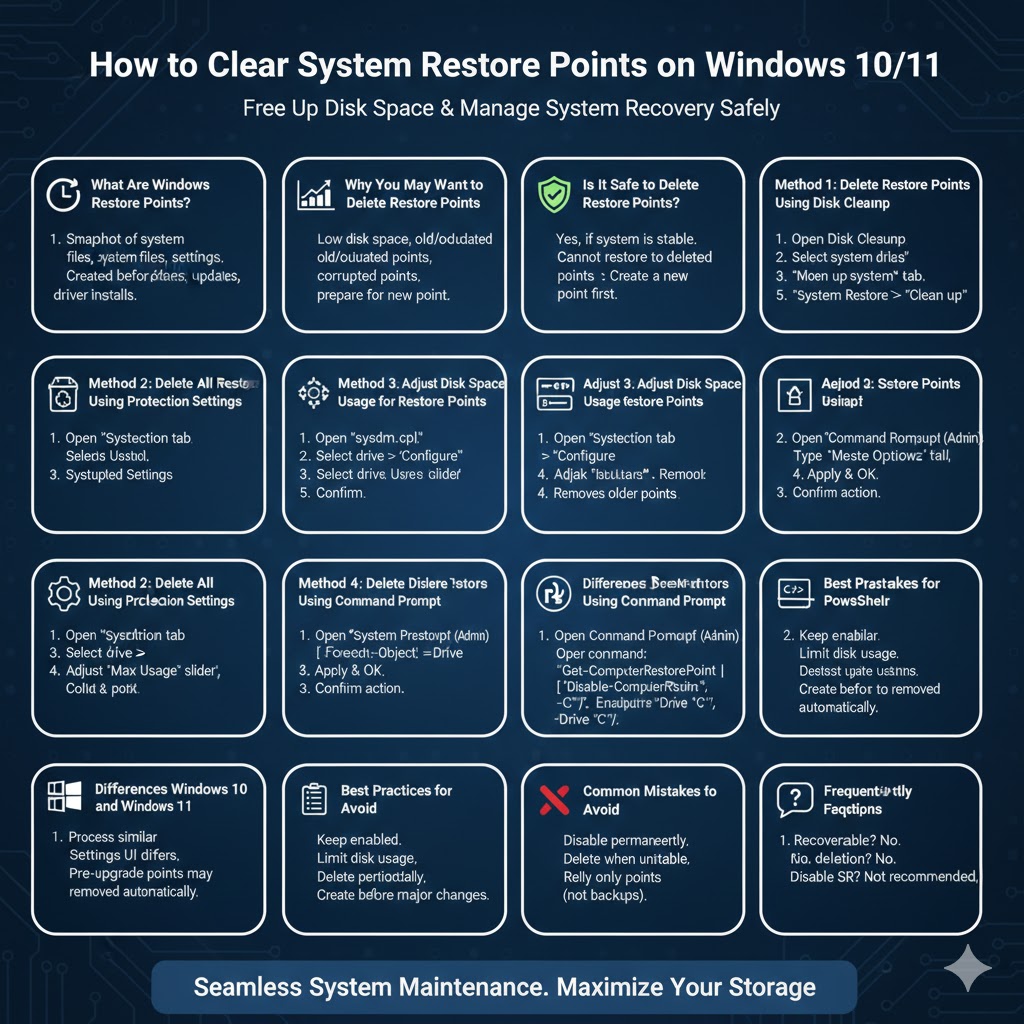
What Are Windows Restore Points?
A restore point is a snapshot of critical system files, installed programs, Windows Registry settings, and drivers at a specific moment in time. Windows automatically creates restore points before major system changes such as Windows updates, driver installations, or software installations.
Restore points allow you to roll back your system to a previous working state without affecting personal files. However, they do not replace full backups and are meant only for system recovery.
Why You May Want to Delete Restore Points
Although restore points are helpful, there are several reasons why users choose to delete them.
Common reasons include:
- Low disk space on the system drive
- Accumulation of old or outdated restore points
- Fixing corrupted restore points
- Preparing the system before creating a new restore point
Deleting old restore points can free up several gigabytes of storage, especially on older systems.
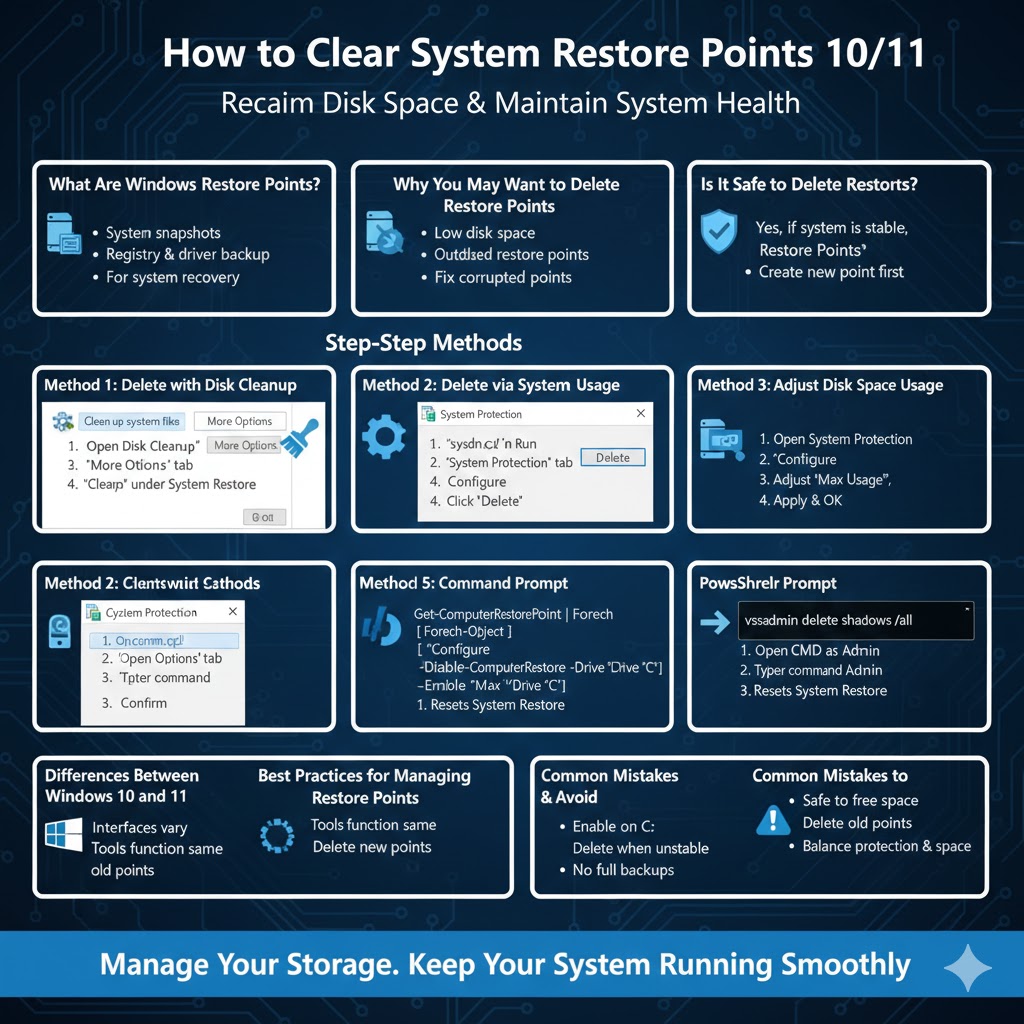
Is It Safe to Delete Restore Points?
Yes, it is generally safe to delete restore points, as long as your system is currently stable. Once deleted, you will no longer be able to restore Windows to those previous states.
For safety, it is recommended to create a new restore point before deleting older ones. This ensures you still have a recovery option if something goes wrong later.
Method 1: Delete Restore Points Using Disk Cleanup
Disk Cleanup is the simplest and safest way to delete old restore points while keeping the most recent one.
Steps to Delete Restore Points with Disk Cleanup
- Press Windows + S and type Disk Cleanup
- Select Disk Cleanup from the search results
- Choose the system drive, usually C:
- Click OK
- Select Clean up system files
- Choose the system drive again
- Go to the More Options tab
- Under System Restore and Shadow Copies, click Clean up
- Confirm the action
This method deletes all restore points except the most recent one.
Method 2: Delete All Restore Points Using System Protection Settings
If you want to delete all restore points at once, System Protection settings provide a direct method.
Steps to Delete Restore Points via System Protection
- Press Windows + R to open Run
- Type
sysdm.cpland press Enter - Go to the System Protection tab
- Select the system drive under Protection Settings
- Click Configure
- Click Delete
- Confirm the deletion
This removes all restore points associated with the selected drive.
Method 3: Adjust Disk Space Usage for Restore Points
Windows allows you to control how much disk space is allocated for restore points. Reducing this limit automatically deletes older restore points.
Steps to Reduce Restore Point Disk Usage
- Open System Protection settings
- Select the system drive
- Click Configure
- Adjust the Max Usage slider
- Click Apply, then OK
Lowering the disk space limit forces Windows to remove older restore points while keeping newer ones.
Method 4: Delete Restore Points Using Command Prompt
Advanced users can delete restore points using Command Prompt.
Steps to Delete Restore Points via Command Line
- Open Command Prompt as administrator
- Type the following command:
vssadmin delete shadows /all
- Press Enter
- Confirm the action
This command deletes all restore points and shadow copies on the system.
Method 5: Delete Restore Points Using PowerShell
PowerShell offers another command-line method to manage restore points.
Steps Using PowerShell
- Right-click the Start button
- Select Windows Terminal (Admin) or PowerShell (Admin)
- Enter the following command:
Get-ComputerRestorePoint | ForEach-Object { Disable-ComputerRestore -Drive "C:"; Enable-ComputerRestore -Drive "C:" }
This resets System Restore and removes existing restore points.
Differences Between Windows 10 and Windows 11
The process of deleting restore points is nearly identical in Windows 10 and Windows 11. The main difference lies in the Settings interface design. System Protection and Disk Cleanup tools function the same way in both versions.
Users upgrading from Windows 10 to Windows 11 may notice that restore points created before the upgrade are sometimes removed automatically.
Best Practices for Managing Restore Points
To manage restore points effectively:
- Keep System Restore enabled on the system drive
- Limit disk usage to a reasonable amount
- Delete old restore points periodically
- Create restore points before major system changes
These practices help balance system protection and disk space usage.
Common Mistakes to Avoid
Avoid these common errors:
- Disabling System Restore permanently
- Deleting restore points when the system is unstable
- Relying solely on restore points instead of full backups
Restore points should complement, not replace, a proper backup strategy.
Frequently Asked Questions
Does Deleting Restore Points Improve Performance?
Deleting restore points mainly frees disk space but does not directly improve system speed.
Can Restore Points Be Recovered After Deletion?
No. Once deleted, restore points cannot be recovered.
Should I Disable System Restore?
Disabling System Restore is not recommended unless you have other reliable recovery methods.
Conclusion
Deleting Windows restore points in Windows 10 and Windows 11 is a safe and effective way to reclaim disk space when your system is running smoothly. Whether you use Disk Cleanup, System Protection settings, or command-line tools, Windows provides multiple methods to manage restore points based on your needs.
By following the steps in this guide and maintaining good restore point management practices, you can keep your system protected without wasting unnecessary storage space.