


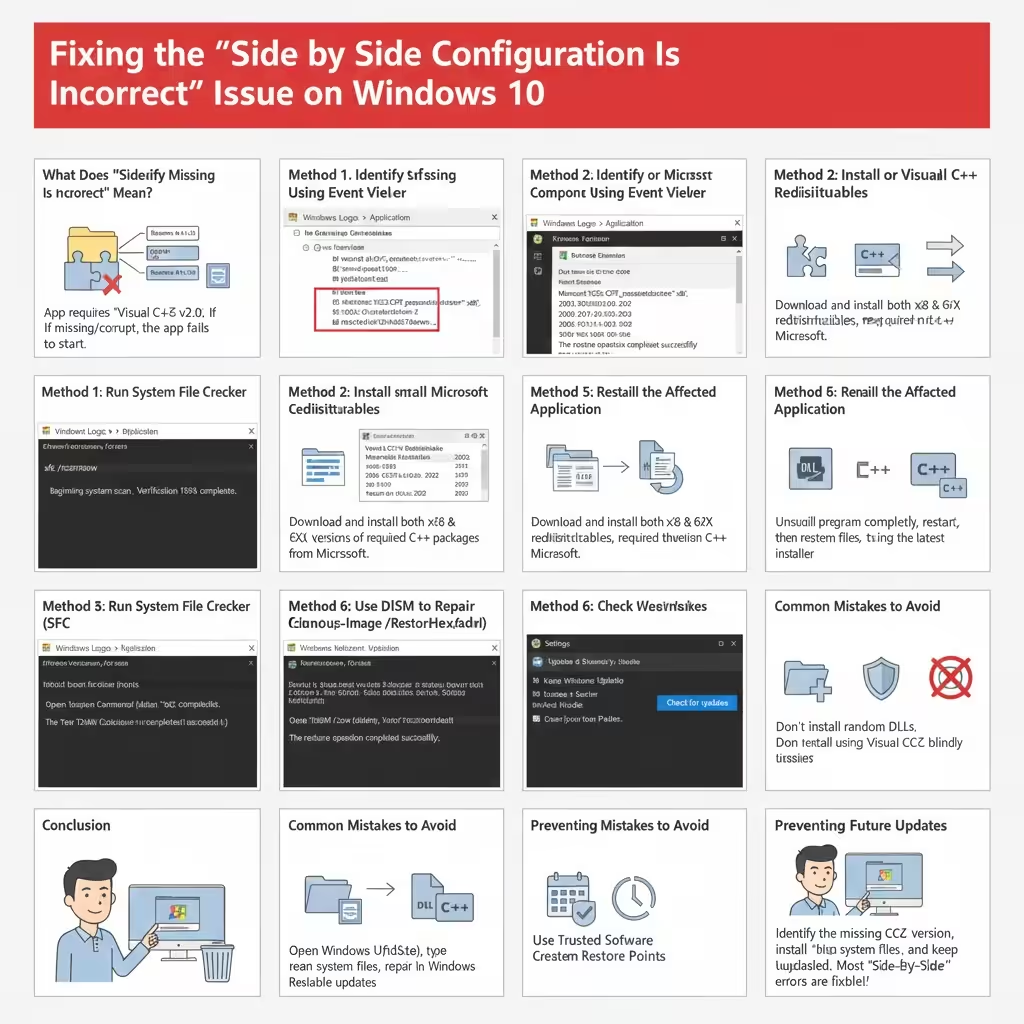
Fixing the “Side by Side Configuration Is Incorrect” Issue on Windows 10
The error message “The application has failed to start because its side-by-side configuration is incorrect” is a common issue on Windows 10. It often appears when launching certain programs, especially older applications or software that relies on Microsoft Visual C++ components. When this error occurs, the affected application refuses to open, which can be confusing and disruptive.
Fortunately, this problem is usually related to missing or corrupted system components rather than hardware failure. This guide explains what the side-by-side configuration error means, why it happens, and how to fix it effectively on Windows 10 using reliable methods.
What Does “Side by Side Configuration Is Incorrect” Mean?
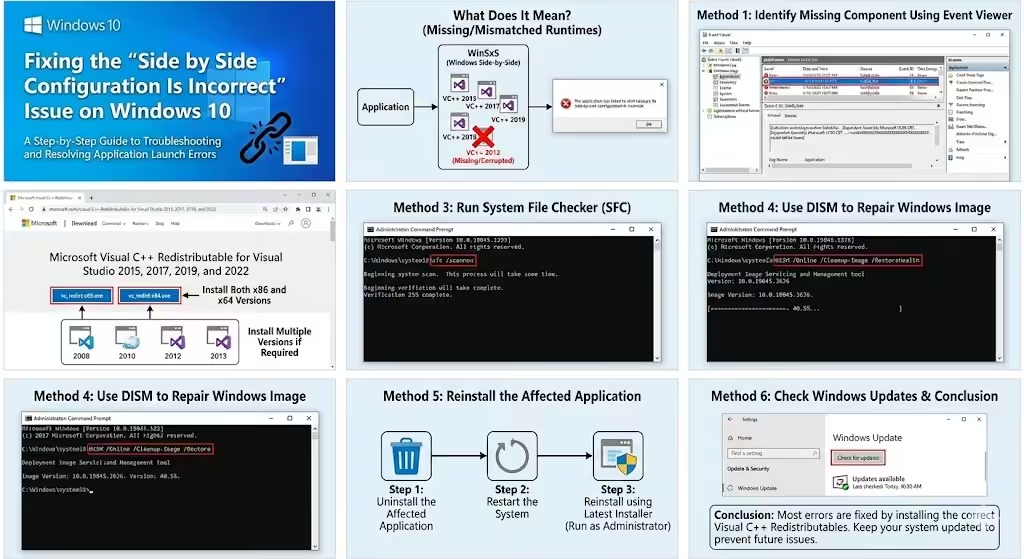
The term side by side refers to Windows Side-by-Side (WinSxS) technology. This system allows multiple versions of the same software components, such as Microsoft Visual C++ runtime libraries, to coexist on the same system without conflict.
When an application is built to use a specific version of a runtime library, Windows attempts to load that exact version. If the required files are missing, corrupted, or mismatched, Windows cannot initialize the application and displays the side-by-side configuration error.
Common Causes of the Side-by-Side Error
Understanding the causes helps you apply the correct fix instead of guessing.
Missing Microsoft Visual C++ Redistributables
Many Windows applications depend on Visual C++ runtime packages. If the required version is not installed, the application will fail to start.
Corrupted System Files
Damaged or missing Windows system files can interfere with application dependencies and runtime loading.
Faulty or Incomplete Application Installation
Improper software installation or interrupted updates can leave configuration files in an inconsistent state.
Conflicting Runtime Versions
Having incompatible or partially installed Visual C++ versions may cause Windows to load the wrong runtime library.
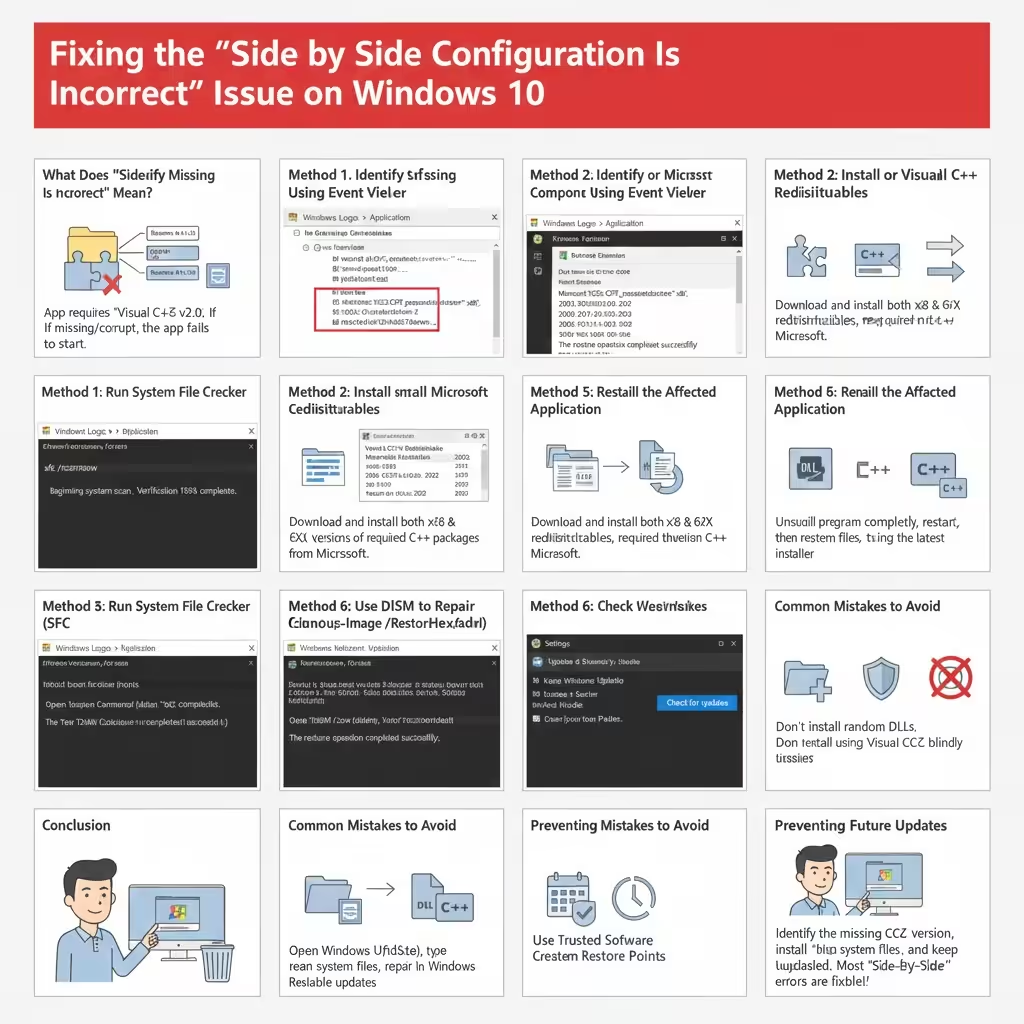
Method 1: Identify the Missing Component Using Event Viewer
Before installing anything, it is helpful to determine which runtime version is missing.
How to Use Event Viewer
- Press Windows + X and select Event Viewer
- Navigate to Windows Logs > Application
- Look for errors related to SideBySide
- Open the error details to identify the required Visual C++ version
This information can save time and prevent unnecessary installations.
Method 2: Install or Reinstall Microsoft Visual C++ Redistributables
Installing the correct Visual C++ packages is the most effective solution in most cases.
Recommended Approach
- Install both x86 and x64 versions
- Install multiple versions if required (2005, 2008, 2010, 2012, 2013, 2015–2022)
- Restart the computer after installation
Many applications rely on older runtime versions, even on modern systems.
Method 3: Run System File Checker (SFC)
If Visual C++ packages are installed but the error persists, system file corruption may be the cause.
Steps to Run SFC
- Press Windows + S, type cmd
- Right-click Command Prompt and select Run as administrator
- Enter the command:
sfc /scannow - Wait for the scan to complete
SFC will automatically repair corrupted or missing system files if possible.
Method 4: Use DISM to Repair Windows Image
When SFC is not sufficient, the DISM tool can repair deeper Windows image issues.
How to Run DISM
- Open Command Prompt as administrator
- Type the following command:
DISM /Online /Cleanup-Image /RestoreHealth - Press Enter and allow the process to finish
- Restart your computer
DISM is especially useful when system components are damaged.
Method 5: Reinstall the Affected Application
If the error only occurs with a specific program, reinstalling it may resolve configuration issues.
Best Practices
- Uninstall the application completely
- Restart the system
- Reinstall using the latest installer
- Run the installer as administrator
This ensures all dependencies are wp-signup.phped correctly.
Method 6: Check Windows Updates
Windows updates often include fixes for runtime libraries and system components.
How to Update Windows
- Open Settings
- Go to Update & Security
- Click Check for updates
- Install all available updates
Keeping Windows updated reduces compatibility issues.
Common Mistakes to Avoid
- Deleting WinSxS folders manually
- Installing random DLL files from untrusted sources
- Removing Visual C++ versions without knowing dependencies
These actions can worsen the problem and affect system stability.
Preventing Side-by-Side Errors in the Future
- Keep Visual C++ redistributables installed
- Avoid aggressive system cleanup tools
- Install applications from trusted sources only
- Create restore points before major changes
Good maintenance habits help prevent recurring errors.
Conclusion
The “Side by Side Configuration Is Incorrect” error on Windows 10 can be frustrating, but it is rarely difficult to fix once the cause is identified. In most cases, installing the correct Microsoft Visual C++ Redistributable packages resolves the issue quickly. When combined with system file repairs and proper software installation practices, these solutions restore application functionality and improve system stability. By following the steps outlined in this guide, you can confidently troubleshoot and fix side-by-side configuration errors on Windows 10.