


Creating Disk Partitions in Windows 10
Creating partitions on Windows 10 allows you to organize your files, improve system performance, and separate your operating system from personal data. Whether you have a new hard drive or want to reconfigure an existing one, Windows provides built-in tools to create, resize, and manage partitions without third-party software.
In this guide, we’ll walk through different methods for creating partitions on Windows 10, explain the benefits, and provide tips for managing them efficiently.
Understanding Disk Partitions
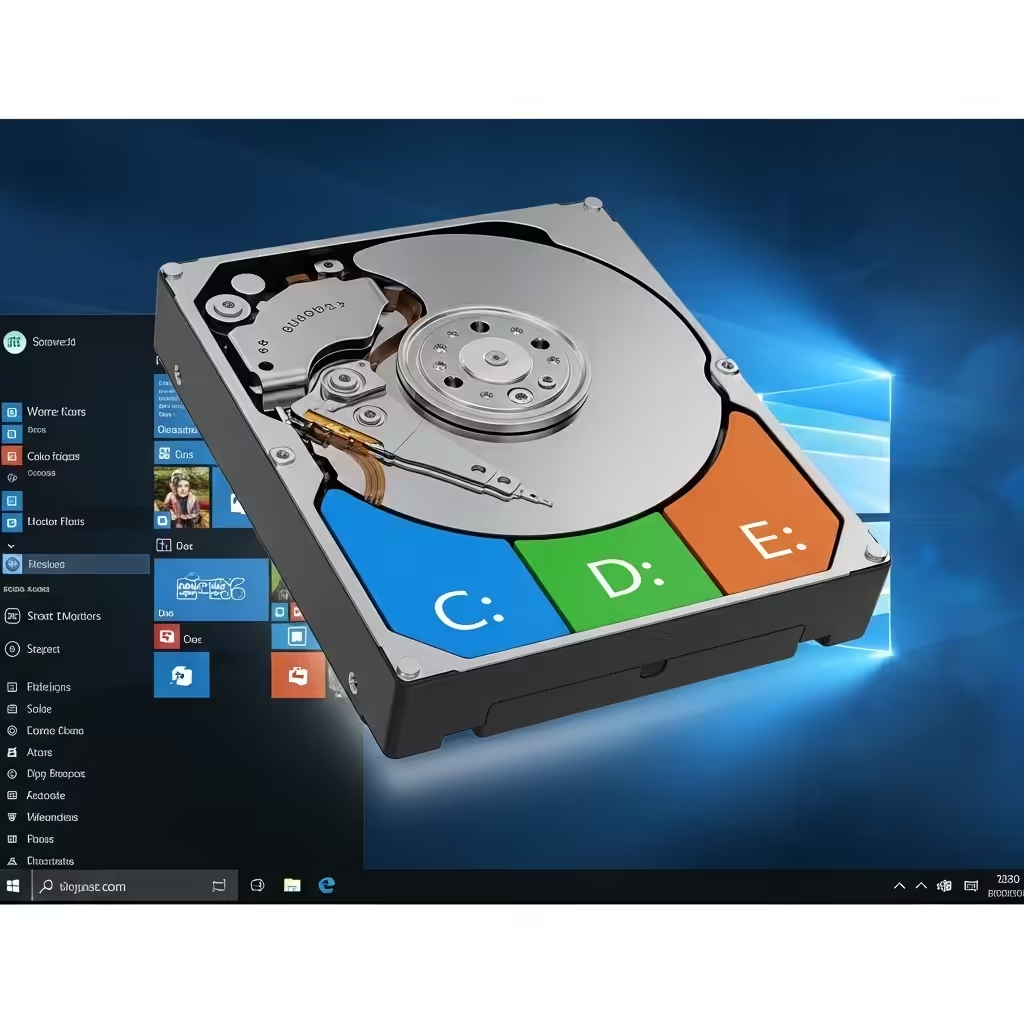
A disk partition is a section of your physical hard drive or SSD that functions as a separate storage unit. Each partition can be formatted with its own file system and assigned a drive letter, such as C:, D:, or E:.
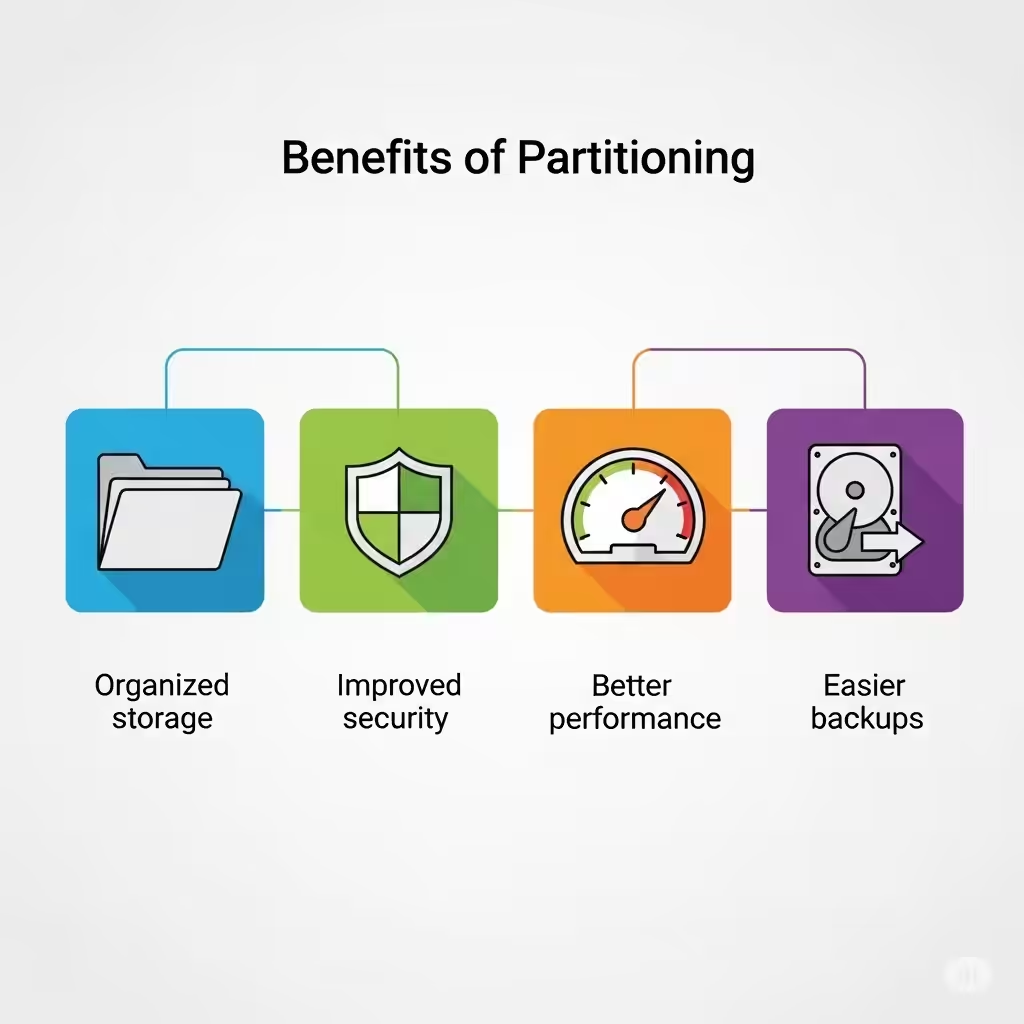
Benefits of Creating Partitions
-
Organized storage – Keep system files, programs, and personal files separate.
-
Improved security – Reduce the risk of losing data if your operating system fails.
-
Better performance – System files can be stored separately for faster access.
-
Easier backups – You can back up specific partitions instead of the entire drive.
Method 1: Creating Partitions Using Disk Management
Windows 10 includes Disk Management, a built-in utility for creating and managing partitions.
Step-by-Step Guide
-
Open Disk Management
-
Press Windows + X and select Disk Management from the menu.
-
-
Shrink an Existing Volume
-
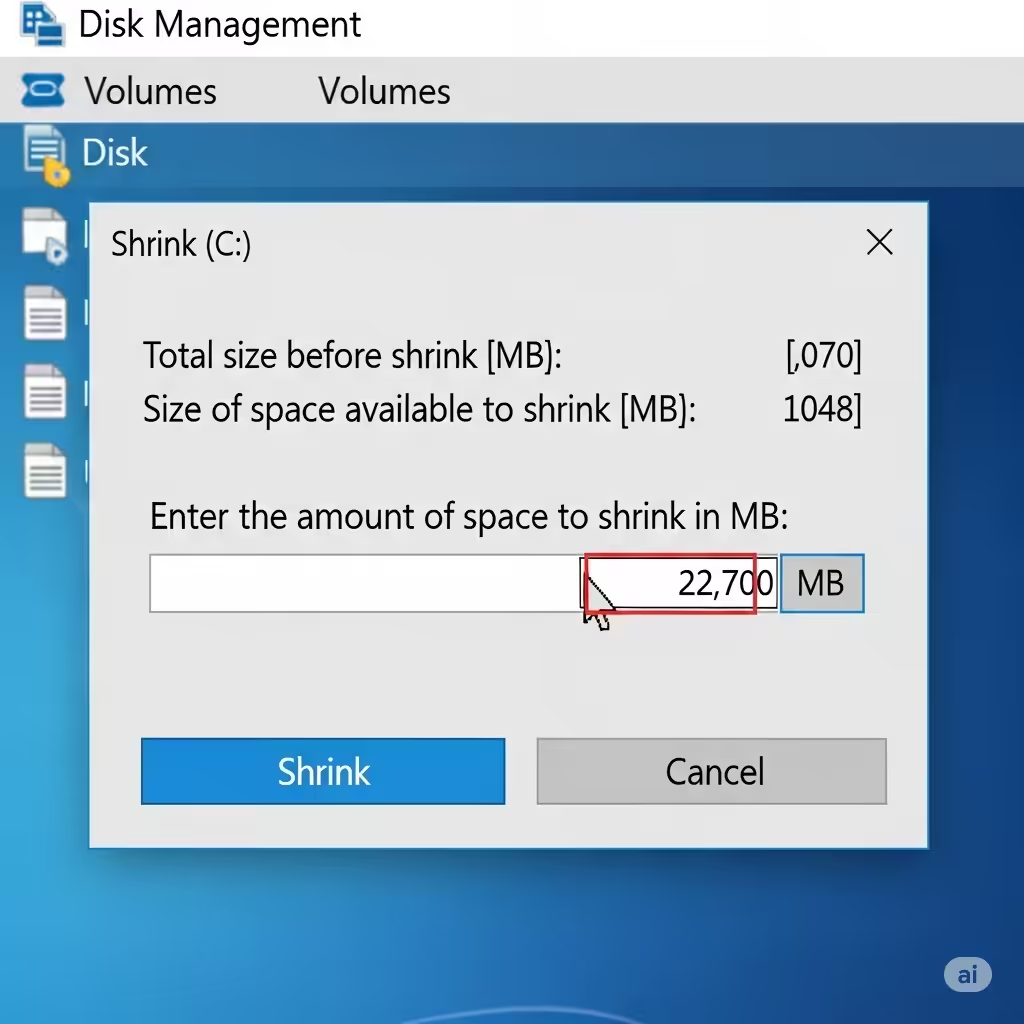
Right-click the volume you want to shrink (e.g., C:) and select Shrink Volume.
-
Enter the amount of space to shrink in MB and click Shrink.
-
-
Create a New Partition
-
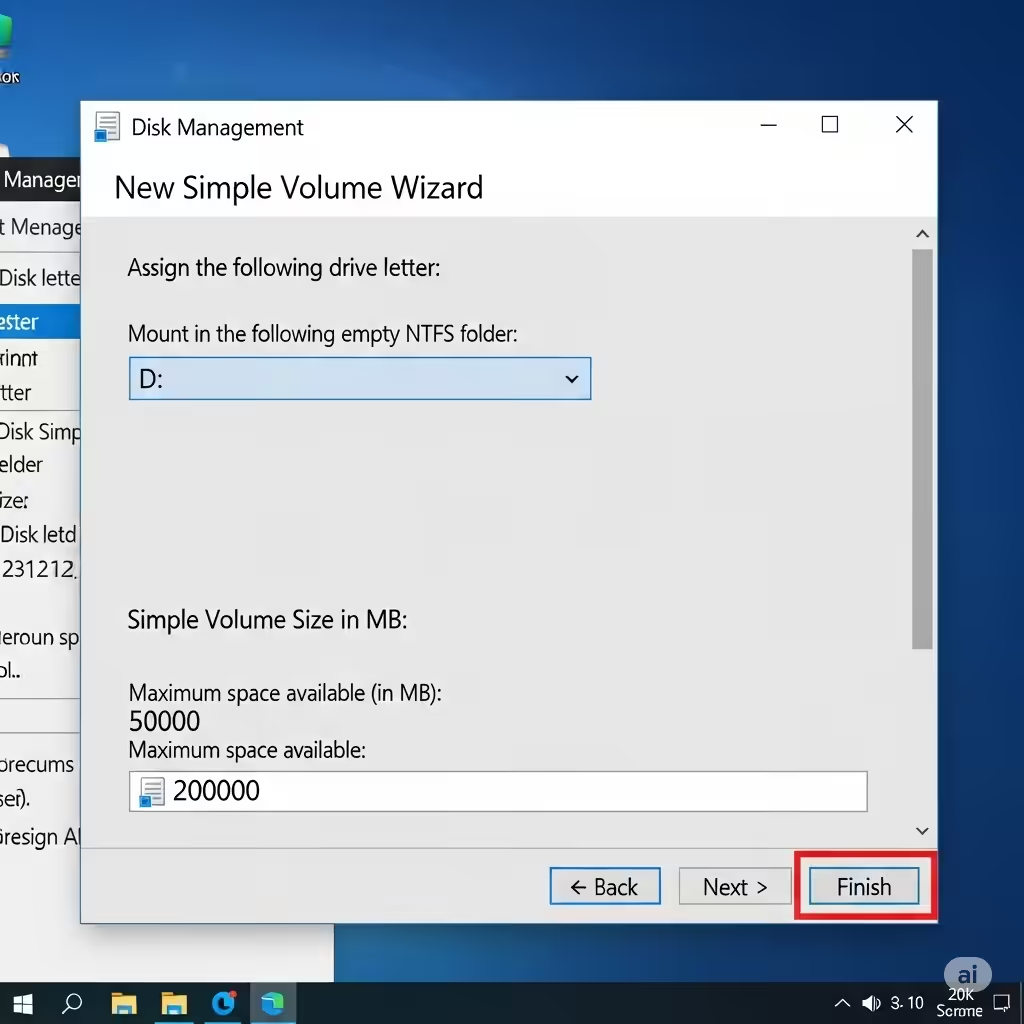
Right-click the unallocated space and choose New Simple Volume.
-
Follow the wizard to set the size, assign a drive letter, and format the partition.
-
-
Finish Setup
-
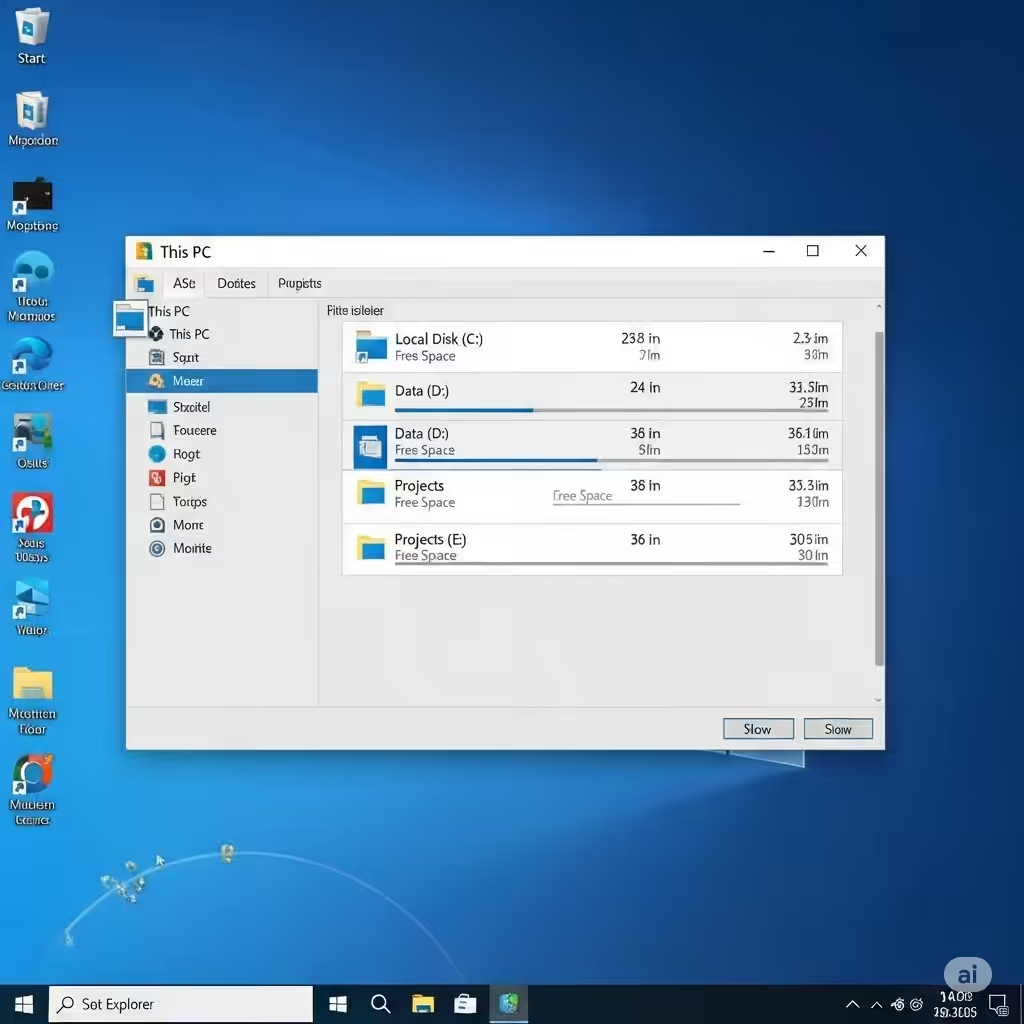
Click Finish and your new partition will appear in File Explorer.
-
Tips for Using Disk Management
-
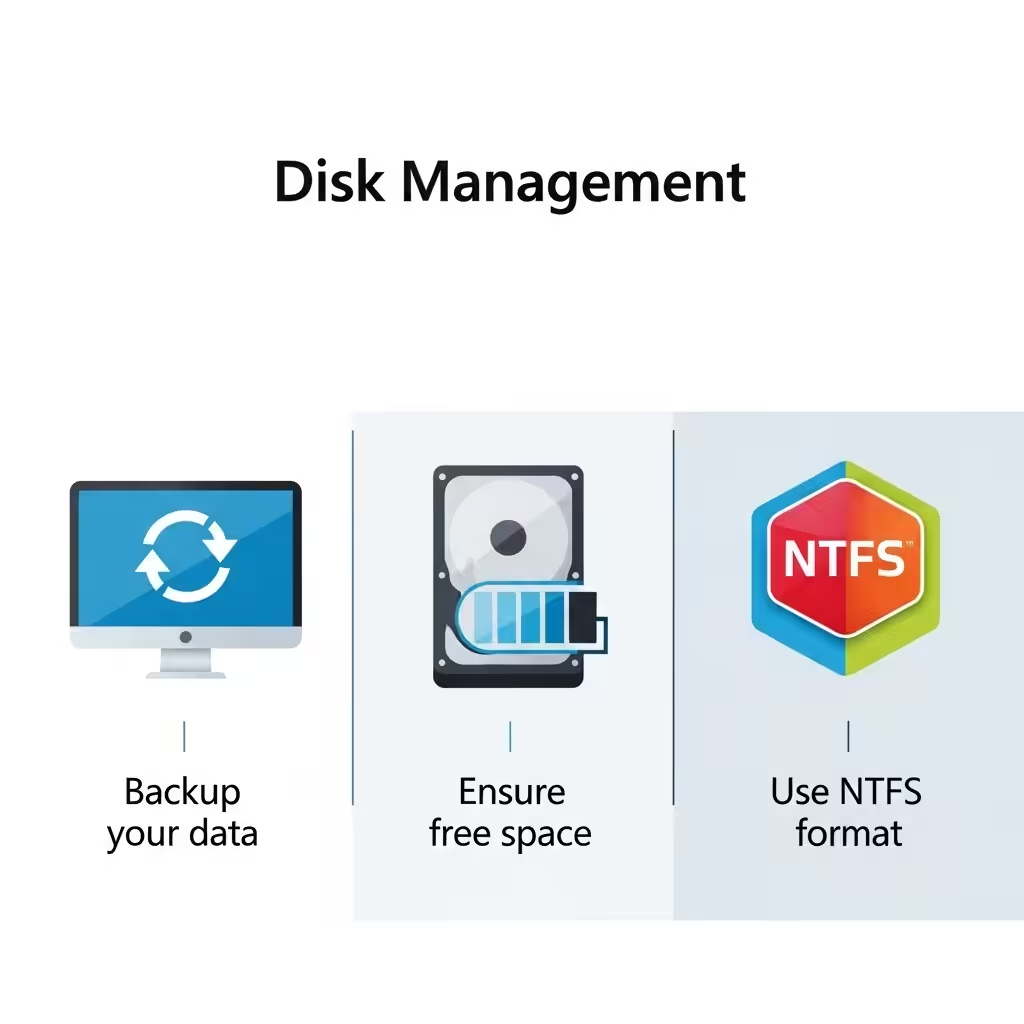
Always back up important data before resizing partitions.
-
Ensure enough free space is available before shrinking a volume.
-
Use NTFS format for Windows partitions to support larger files and permissions.
Method 2: Creating Partitions Using Command Prompt
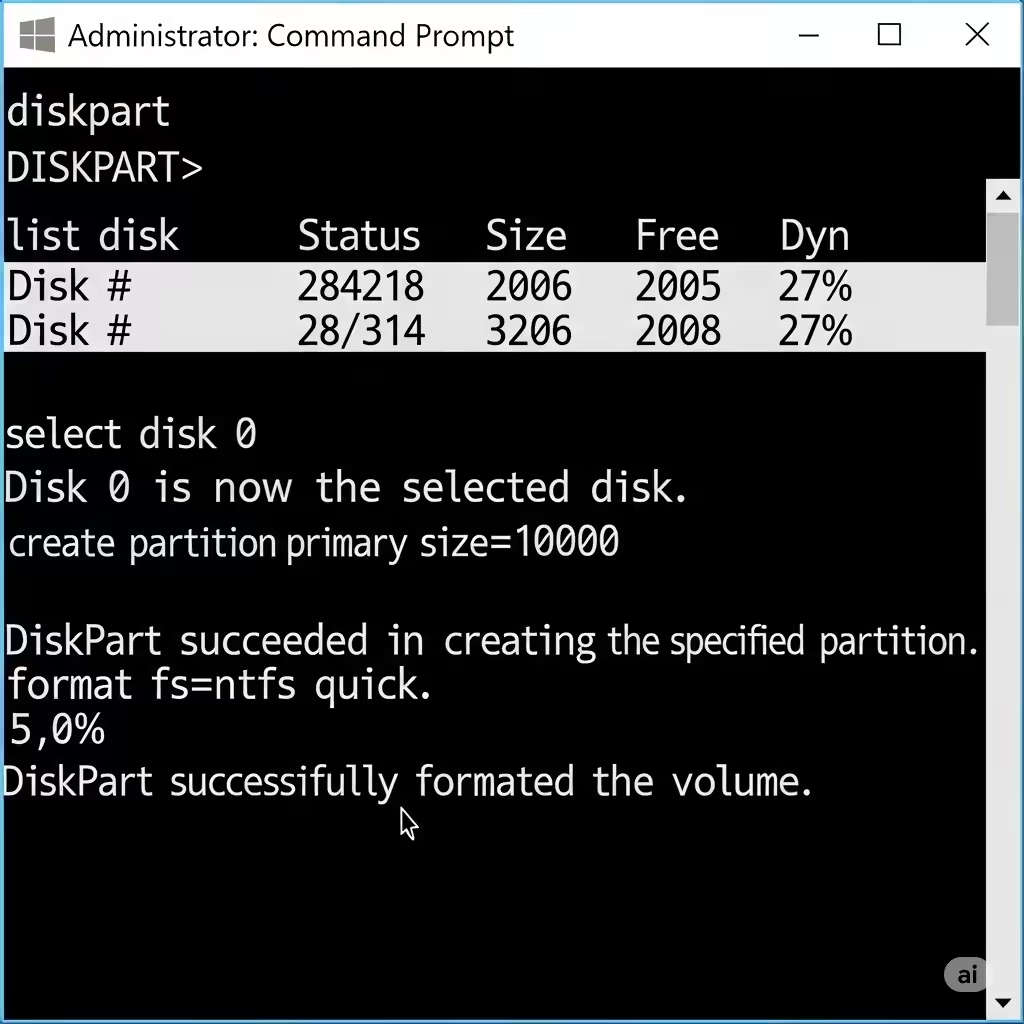
Advanced users may prefer using Command Prompt with the diskpart tool to create partitions.
Step-by-Step Guide
-
Open Command Prompt as Administrator
-
Press Windows + S, type
cmd, right-click Command Prompt, and select Run as administrator.
-
-
Launch DiskPart
-
Type
diskpartand press Enter.
-
-
List Available Disks
-
Type
list diskand press Enter to view all connected drives.
-
-
Select the Disk
-
Type
select disk X(replace X with your disk number).
-
-
Create a Partition
-
Type
create partition primary size=XXXX(replace XXXX with size in MB).
-
-
Format the Partition
-
Type
format fs=ntfs quickand press Enter.
-
-
Assign a Drive Letter
-
Type
assign letter=Y(replace Y with the desired letter).
-
-
Exit DiskPart
-
Type
exitto close the tool.
-
This method is useful for automation or remote administration where a graphical interface is not available.
Method 3: Creating Partitions with Third-Party Software
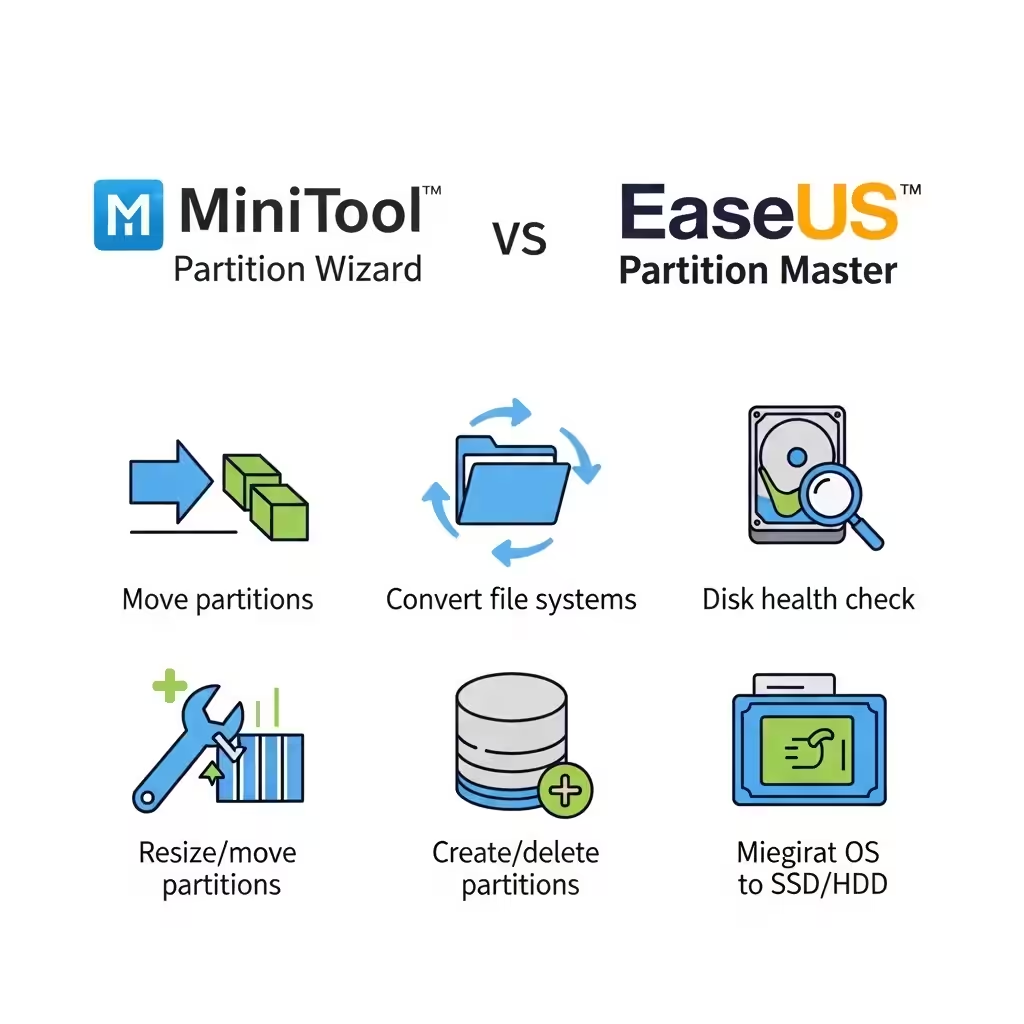
If you need more advanced partition management, third-party tools like MiniTool Partition Wizard or EaseUS Partition Master offer additional features.
Advantages of Third-Party Tools
-
Move partitions without data loss.
-
Convert file systems (FAT32 to NTFS) easily.
-
Create partitions from unallocated space more flexibly.
-
Merge partitions without deleting data.
Best Practices for Partitioning
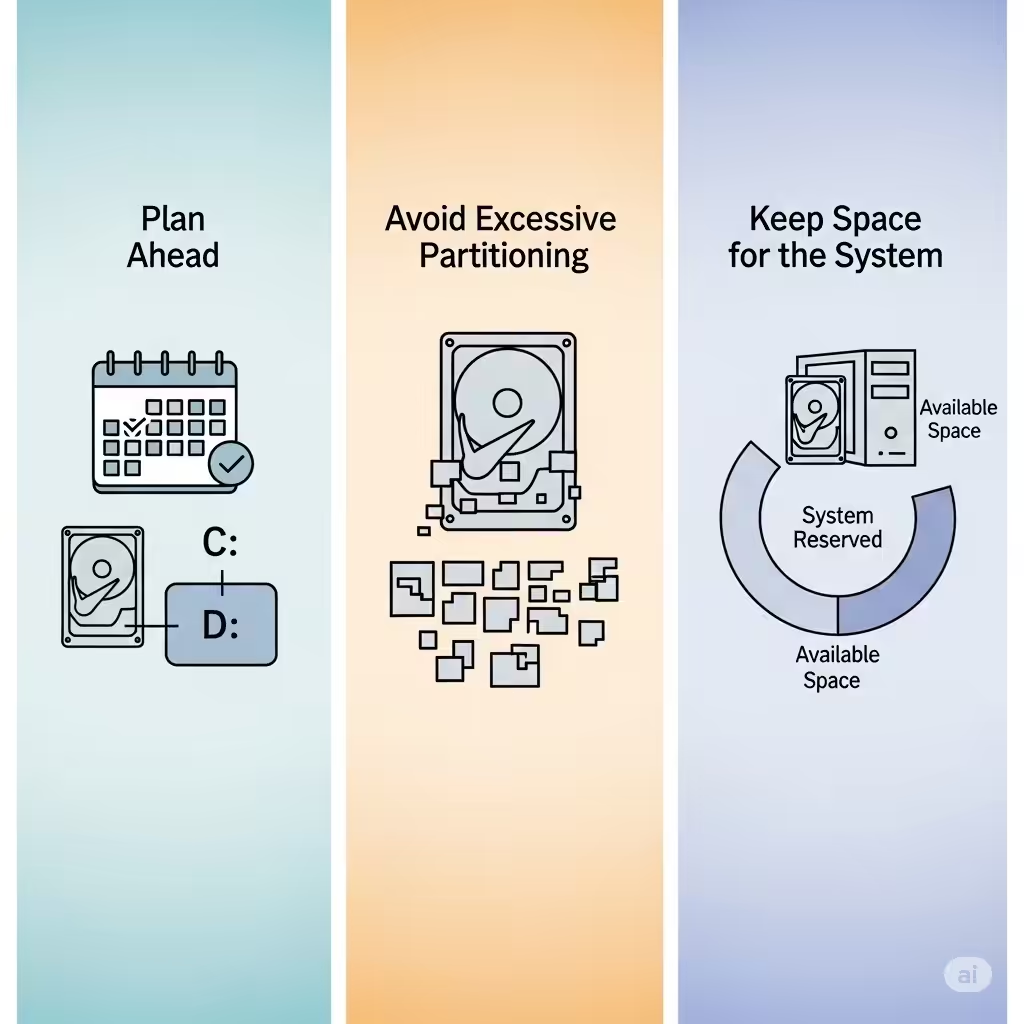
Plan Ahead
Think about how you’ll use your partitions. For example:
-
C: for Windows and applications.
-
D: for documents, pictures, and videos.
-
E: for backups or media libraries.
Avoid Excessive Partitioning
Too many partitions can be difficult to manage and may waste storage space. Aim for a balance between organization and efficiency.
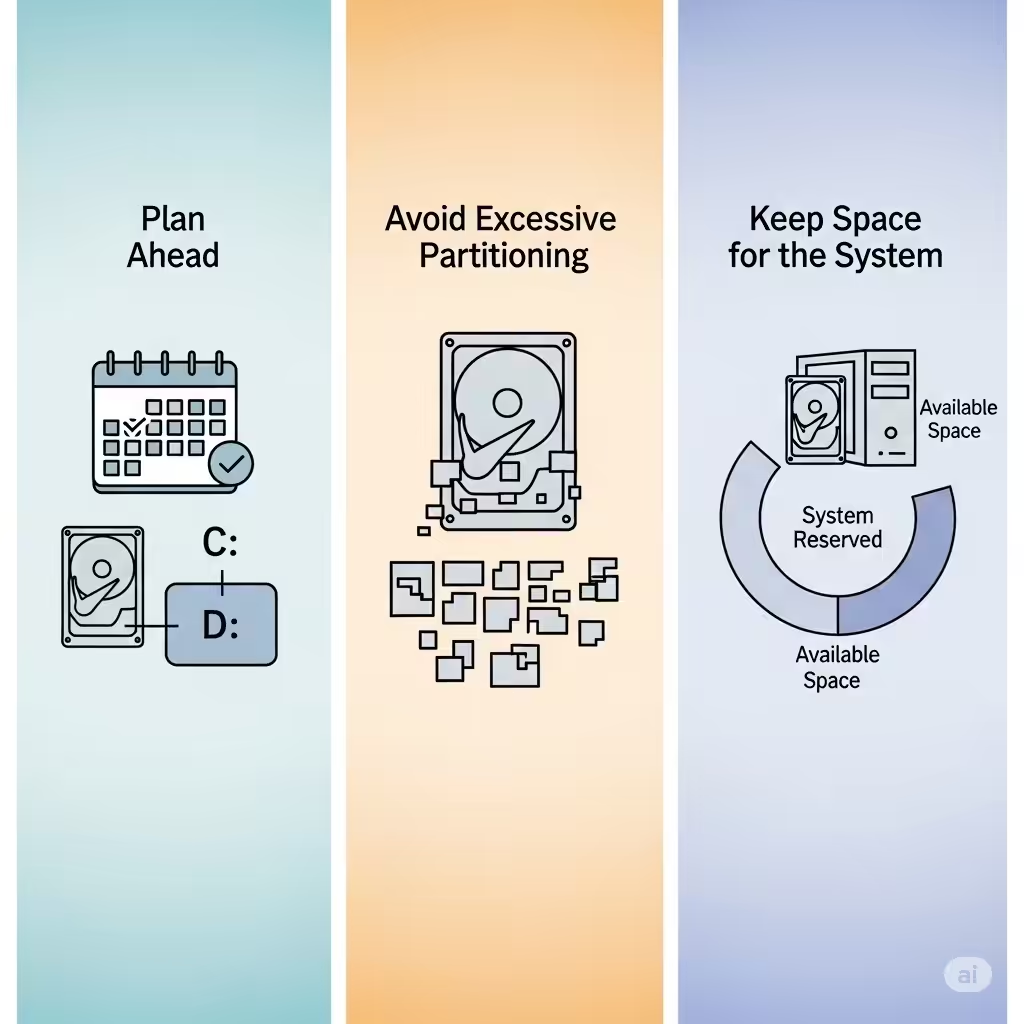
Keep Space for the System
Always leave enough free space in your Windows partition for updates, temporary files, and system performance.
Troubleshooting Partition Issues
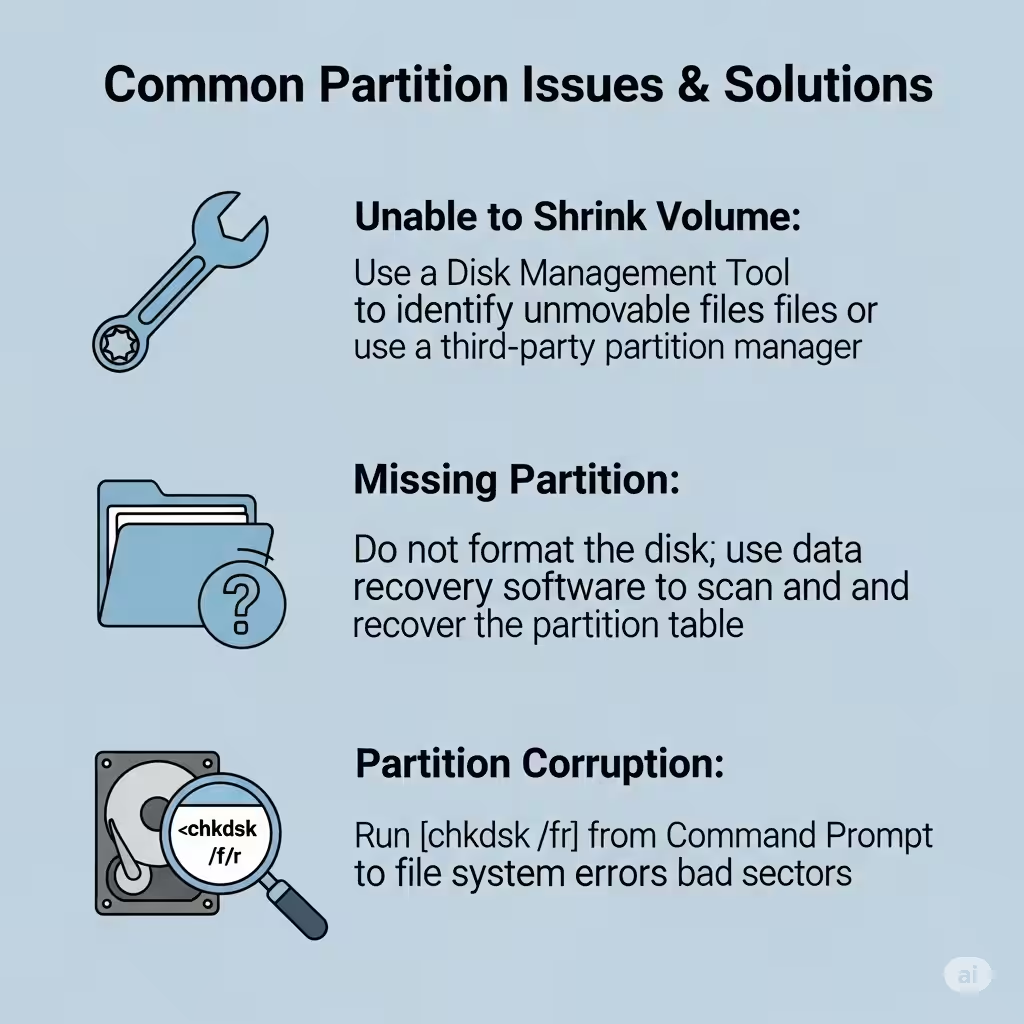
Unable to Shrink Volume
If you can’t shrink a partition enough, it may be because of unmovable system files. Running Disk Cleanup or defragmentation may help.
Missing Partition
If a partition doesn’t appear in File Explorer, check Disk Management to ensure it has a drive letter assigned.
Partition Corruption
Use the chkdsk command or third-party recovery tools to fix and recover data from damaged partitions.
Conclusion
Creating partitions on Windows 10 is a straightforward process, thanks to built-in tools like Disk Management and DiskPart. By setting up partitions wisely, you can keep your data organized, improve performance, and make backups more efficient. Whether you’re a casual user or an IT professional, knowing how to create and manage partitions is an essential Windows skill.
With careful planning and regular maintenance, your partitioned drive can help you work more efficiently and protect your valuable files.