



Steps to Enable Remote Access on Windows PC
Remote Desktop is one of Windows’ most powerful features, giving you the ability to connect and control another computer as if you were sitting right in front of it. Whether you’re working from home, offering technical support, or managing office computers remotely, enabling Remote Desktop can make your workflow smoother and more efficient.
This guide explains what Remote Desktop is, the requirements for using it, how to enable it step by step, and the best practices for keeping your connection secure.
What Is Remote Desktop?
Remote Desktop is a feature built into Windows that uses the Remote Desktop Protocol (RDP) to let you connect to another computer over a network or the internet. Once connected, you can access files, use applications, and even troubleshoot issues from miles away.
Some of the most common uses include:
-
Accessing your work PC from home
-
Helping friends or colleagues solve technical problems
-
Managing multiple PCs or servers in a business environment
-
Running programs that are only installed on another computer

Requirements for Enabling Remote Desktop
Before turning on Remote Desktop, it’s important to confirm that your computer meets the necessary requirements.
-
Windows edition: Remote Desktop host functionality is only available on Windows Pro, Enterprise, or Education editions. Windows Home can connect to another computer but cannot act as a host.
-
Stable connection: Both the local and remote computers need a reliable internet or LAN connection.
-
Administrative privileges: You’ll need an account with admin rights on the PC you want to access.
-
Firewall access: The Windows Firewall or any third-party firewall must allow Remote Desktop traffic.
How to Enable Remote Desktop via Settings
For most users, the Settings app is the easiest way to enable Remote Desktop.
Step 1: Open Settings
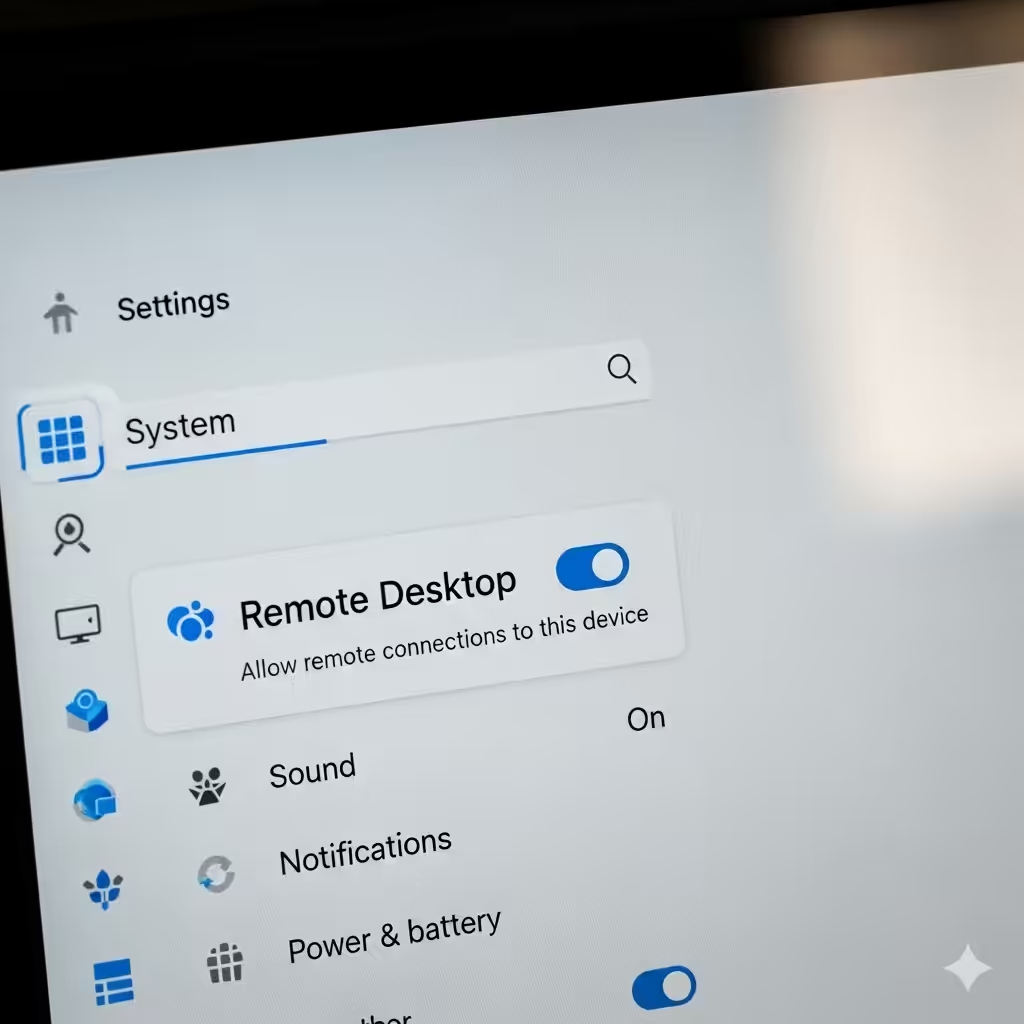
Press Windows + I on your keyboard to launch the Settings app, then navigate to System > Remote Desktop.
Step 2: Turn On Remote Desktop
You’ll see an option labeled Enable Remote Desktop. Toggle the switch to On, and confirm the prompt when asked.
Step 3: Configure Security Options
Make sure Require devices to use Network Level Authentication (NLA) is enabled. This ensures that only authenticated users can access your PC.
Step 4: Note Your PC Name
Under the section “How to connect to this PC,” note the PC name. You’ll need this information when connecting from another computer.
How to Enable Remote Desktop via Control Panel
If you prefer the classic method, you can use the Control Panel:
-
Press Windows + R, type sysdm.cpl, and hit Enter.
-
In the System Properties window, go to the Remote tab.
-
Under Remote Desktop, select Allow remote connections to this computer.
-
Check the option Allow connections only from computers running Remote Desktop with NLA.
-
Click Apply and then OK.
How to Connect to a Remote Desktop Session
Once Remote Desktop is enabled, connecting is simple.
From Another Windows PC:
-
Press Windows + S and type Remote Desktop Connection.
-
Open the app and enter the PC name or IP address of the remote computer.
-
Enter your login credentials.
-
Click Connect to start the session.
From a Smartphone or Tablet:
Download the Microsoft Remote Desktop app from the iOS App Store or Google Play. Enter your PC name or IP, log in with your credentials, and you can control your computer directly from your mobile device.
Security Tips for Remote Desktop
Since Remote Desktop allows external access to your computer, it’s critical to keep your setup secure.
-
Use strong, unique passwords for your Windows account.
-
Enable Network Level Authentication (NLA) to prevent unauthorized access.
-
Limit user access by allowing only trusted accounts.
-
Use a VPN when connecting from outside a secure network.
-
Change the default RDP port (3389) to reduce the chance of automated attacks.
-
Keep Windows updated to patch security vulnerabilities.
Troubleshooting Remote Desktop Issues
Even after enabling Remote Desktop, you may face problems. Here are common issues and fixes:
-
Can’t connect because the PC is asleep: Adjust your power settings to prevent sleep mode.
-
Firewall blocking connections: Open port 3389 in the Windows Firewall settings.
-
Wrong PC name or IP: Double-check the connection information under Remote Desktop settings.
-
Remote Desktop not available on Home edition: Upgrade to Pro or use a third-party alternative.
-
Slow connection: Switch to a wired network if possible, or lower display quality in the Remote Desktop settings.
Alternatives to Windows Remote Desktop
If you’re using Windows Home or want a cross-platform option, try these alternatives:
-
TeamViewer – Free for personal use, easy to set up, and works across Windows, macOS, Linux, and mobile devices.
-
AnyDesk – Lightweight, fast, and supports file transfer.
-
Chrome Remote Desktop – Browser-based, simple to set up, and works across different operating systems.
Conclusion
Enabling Remote Desktop on Windows gives you powerful flexibility to access your computer from anywhere, whether you’re working remotely, managing systems, or helping someone with troubleshooting. By following the steps above—either through the Settings app or Control Panel—you can quickly set up Remote Desktop and start using it.
Just remember: convenience must go hand-in-hand with security. Always use strong authentication methods, keep your system updated, and consider a VPN for added safety. With the right setup, Remote Desktop can be a reliable tool that saves you time and keeps your workflow seamless, no matter where you are.