


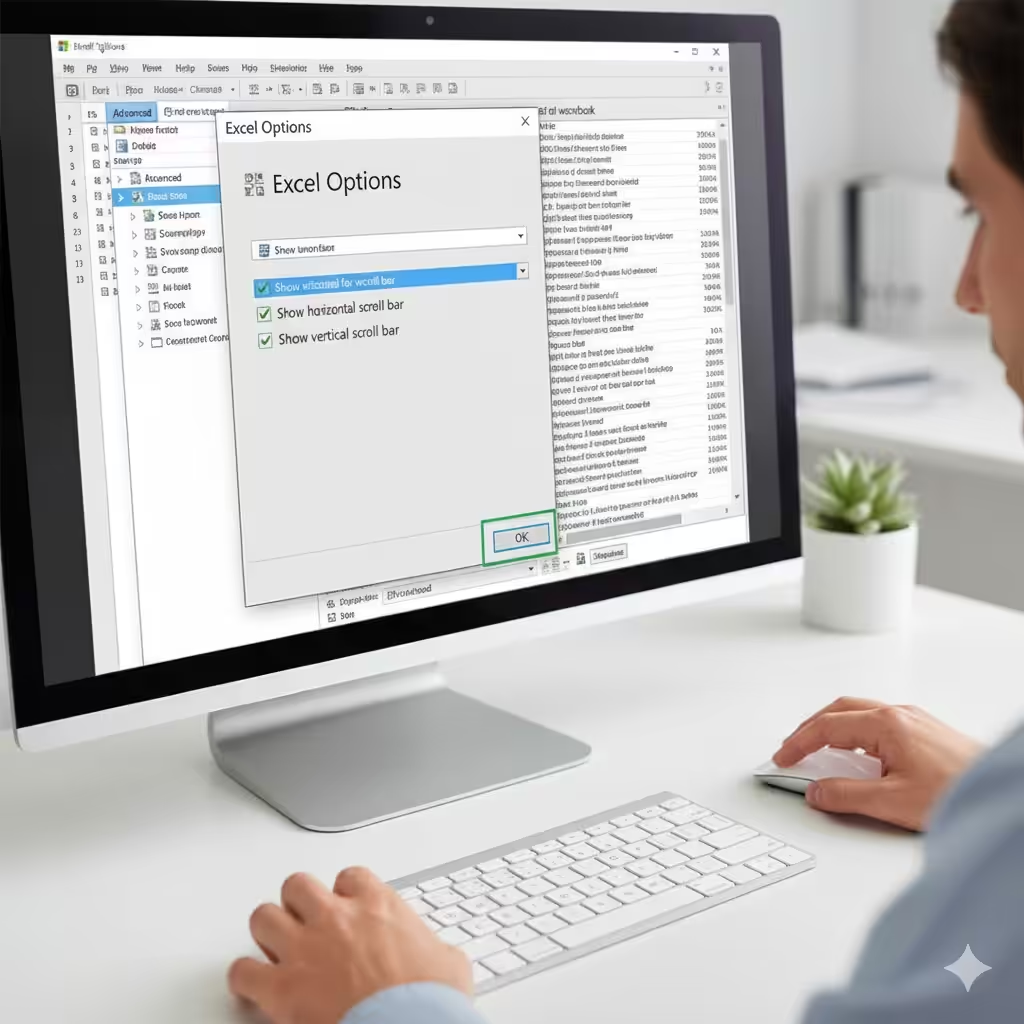
Excel Scroll Bar Not Showing? Step-by-Step Fix and Solutions
Excel is one of the most widely used tools for data management and analysis. While it is generally reliable, users sometimes encounter minor issues that can disrupt workflow. One common problem is the missing scroll bar, which can make navigating large spreadsheets cumbersome and frustrating. This guide will walk you through the reasons why scroll bars disappear in Excel and provide multiple solutions to fix the issue.
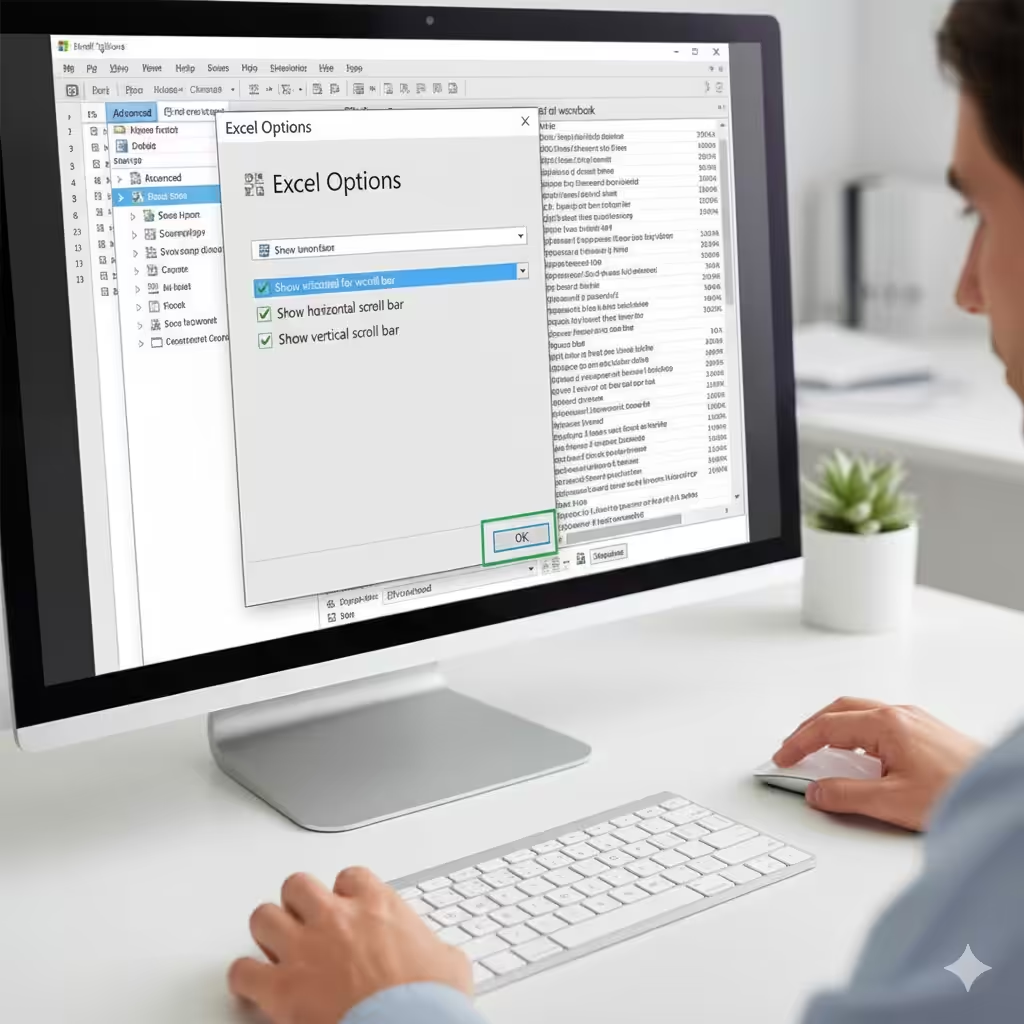
Understanding the Missing Scroll Bar Issue
A missing scroll bar in Excel can happen for several reasons. It can appear as if the horizontal or vertical scroll bar has disappeared entirely, making it difficult to move through the spreadsheet. Common causes include:
-
Scroll bars being disabled in Excel settings.
-
Zoom or window view settings hiding the scroll bar.
-
Corrupted Excel files or user profiles.
-
Issues caused by add-ins or third-party software.
-
Display settings in Windows or Excel affecting visibility.
Identifying the reason behind the missing scroll bar will help you apply the most effective solution.
Check Excel Scroll Bar Settings
The first step is to ensure that the scroll bars are enabled within Excel.
Steps to Verify Settings
-
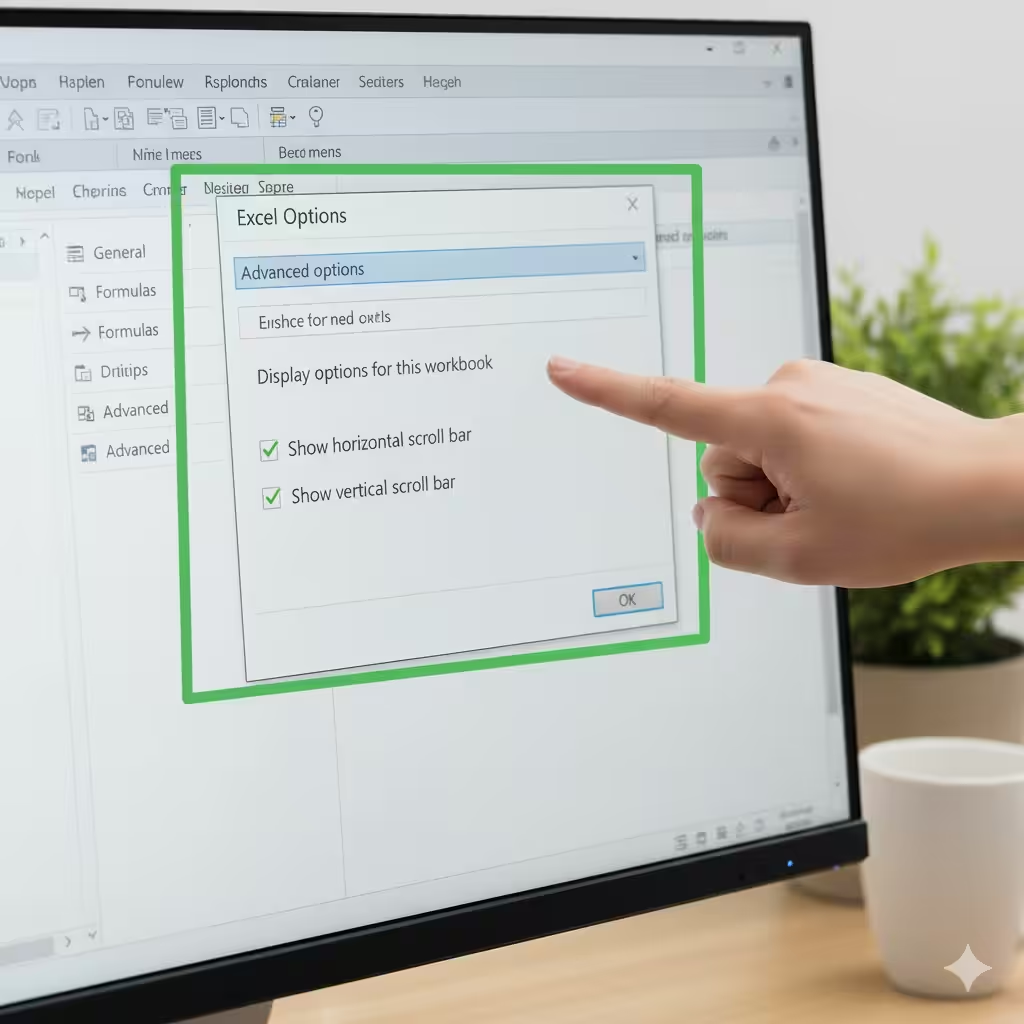
Open Excel and click on File > Options.
-
In the Excel Options window, select Advanced from the left-hand menu.
-
Scroll down to the Display options for this workbook section.
-
Ensure that Show horizontal scroll bar and Show vertical scroll bar are checked.
-
Click OK to save changes and restart Excel if necessary.
If the scroll bars were disabled, enabling them should immediately resolve the issue.
Check Window and Zoom Settings
Sometimes, the scroll bar may appear missing due to how the Excel window or zoom is configured.
Adjust Zoom Level
-
Go to the bottom-right corner of the Excel window.
-
Check the zoom slider and adjust it to a standard view (e.g., 100%).
-
A very small zoom level may hide the scroll bar visually.
Check Workbook Window Size
-
Ensure that Excel is not in full-screen mode or maximized in a way that affects the scroll bar.
-
Resize the window or use Restore Down/Maximize to see if the scroll bar reappears.
Inspect Worksheet and Pane Freezing
Excel allows users to freeze panes to lock certain rows or columns. Incorrect pane freezing can sometimes hide scroll bars.
Unfreeze Panes
-
Go to the View tab on the ribbon.
-
Click on Freeze Panes.
-
Select Unfreeze Panes.
Once panes are unfrozen, check if the scroll bar has returned.
Disable Add-ins That Might Interfere
Some Excel add-ins can conflict with default display features, including scroll bars.
Steps to Disable Add-ins
-
Click File > Options > Add-ins.
-
At the bottom, select Excel Add-ins from the dropdown and click Go.
-
Uncheck all add-ins and restart Excel.
-
Re-enable add-ins one by one to identify the culprit.
Disabling problematic add-ins can often restore normal Excel behavior.
Repair Excel Installation
A corrupted Excel installation may cause features like scroll bars to malfunction. Repairing the installation can fix such issues.
Repair Steps on Windows
-
Open Control Panel > Programs > Programs and Features.
-
Find Microsoft Office in the list and click Change.
-
Choose Quick Repair first. If the problem persists, try Online Repair.
-
Follow the on-screen instructions and restart your computer.
Repairing Excel ensures that missing components are restored to their original state.
Check Windows Display Settings
Sometimes, scroll bars may be affected by Windows display settings such as screen resolution or scaling.
Adjust Display Scaling
-
Right-click on your desktop and select Display settings.
-
Check the Scale and layout section.
-
Set scaling to 100% (or recommended) and resolution to native settings.
-
Restart Excel to see if the scroll bar returns.
High scaling percentages can interfere with UI elements, including scroll bars in Excel.
Update Excel and Windows
Outdated software may introduce bugs that affect functionality.
Update Excel
-
Open Excel and go to File > Account > Update Options > Update Now.
-
Wait for updates to install and restart Excel.
Update Windows
-
Open Settings > Update & Security > Windows Update.
-
Click Check for updates and install any available updates.
-
Restart your computer.
Keeping both Excel and Windows updated ensures compatibility and resolves known issues.
Reset Excel Settings to Default
If none of the above methods work, resetting Excel to its default settings may resolve the scroll bar issue.
Steps
-
Close Excel.
-
Press Windows + R, type
regedit, and press Enter. -
Navigate to
HKEY_CURRENT_USER\Software\Microsoft\Office\<version>\Excel. -
Rename the Excel folder to something like Excel_old.
-
Restart Excel. The program will recreate the settings folder with default configurations.
This method restores all Excel settings without affecting your documents.
Conclusion
A missing scroll bar in Excel can slow down your work, but the issue is usually simple to fix. By checking Excel settings, window views, pane freezing, add-ins, installation integrity, display settings, and updates, you can restore normal functionality. Regular maintenance, including updates and proper display configuration, helps prevent such issues in the future. Following this troubleshooting guide ensures that your Excel scroll bars are always visible and functional, allowing for smooth navigation in all your spreadsheets.