


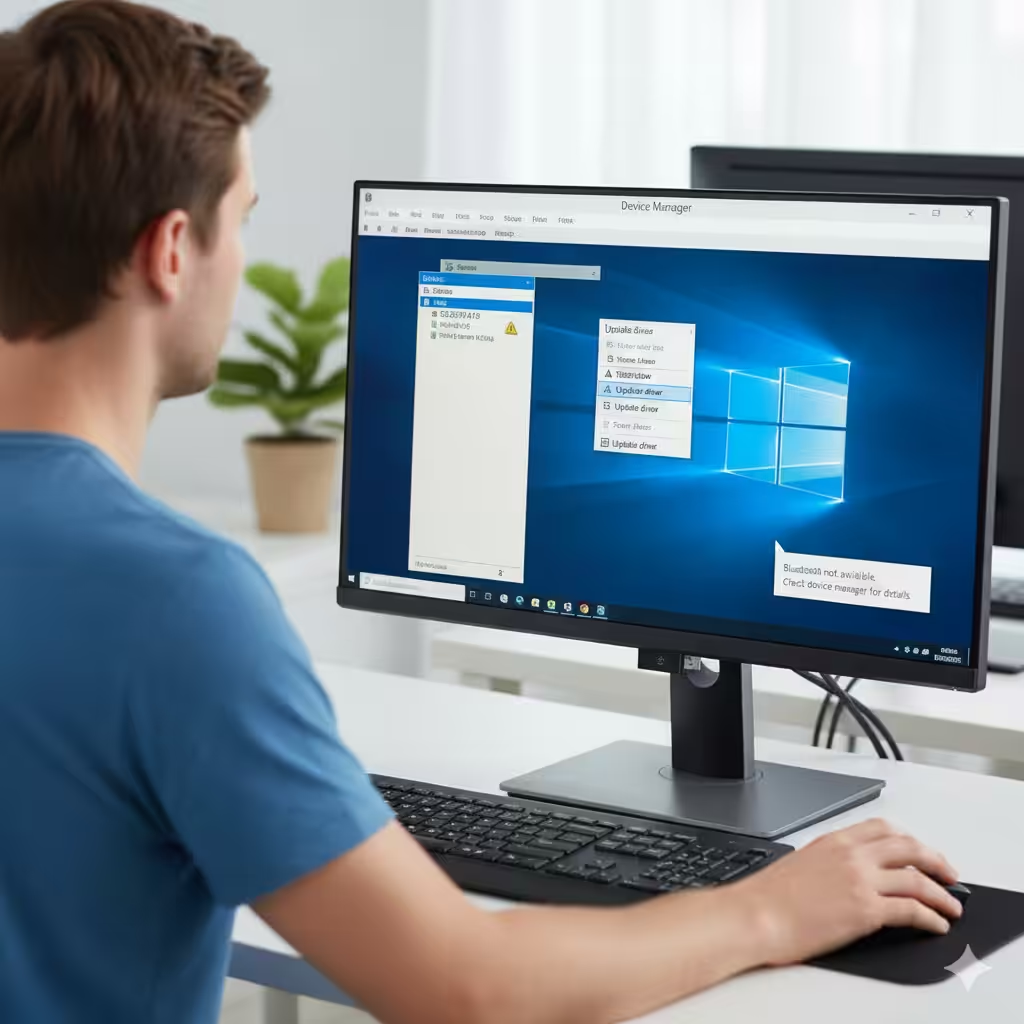
Fixing CSR8510 A10 Driver Issues and Installing It on Windows 10
The CSR8510 A10 driver is a Bluetooth USB dongle driver that enables your computer to connect wirelessly to Bluetooth devices such as keyboards, mice, headphones, and mobile phones. Many users rely on this driver to ensure smooth connectivity, but issues can arise when the driver is outdated, missing, or incompatible with Windows 10. If you are facing problems like your Bluetooth not working, not being recognized, or devices failing to pair, the CSR8510 A10 driver may need to be fixed or reinstalled.
This guide will walk you through everything you need to know about the CSR8510 A10 driver on Windows 10, including common issues, different methods to fix them, and how to safely download and install the driver.
Understanding the CSR8510 A10 Driver
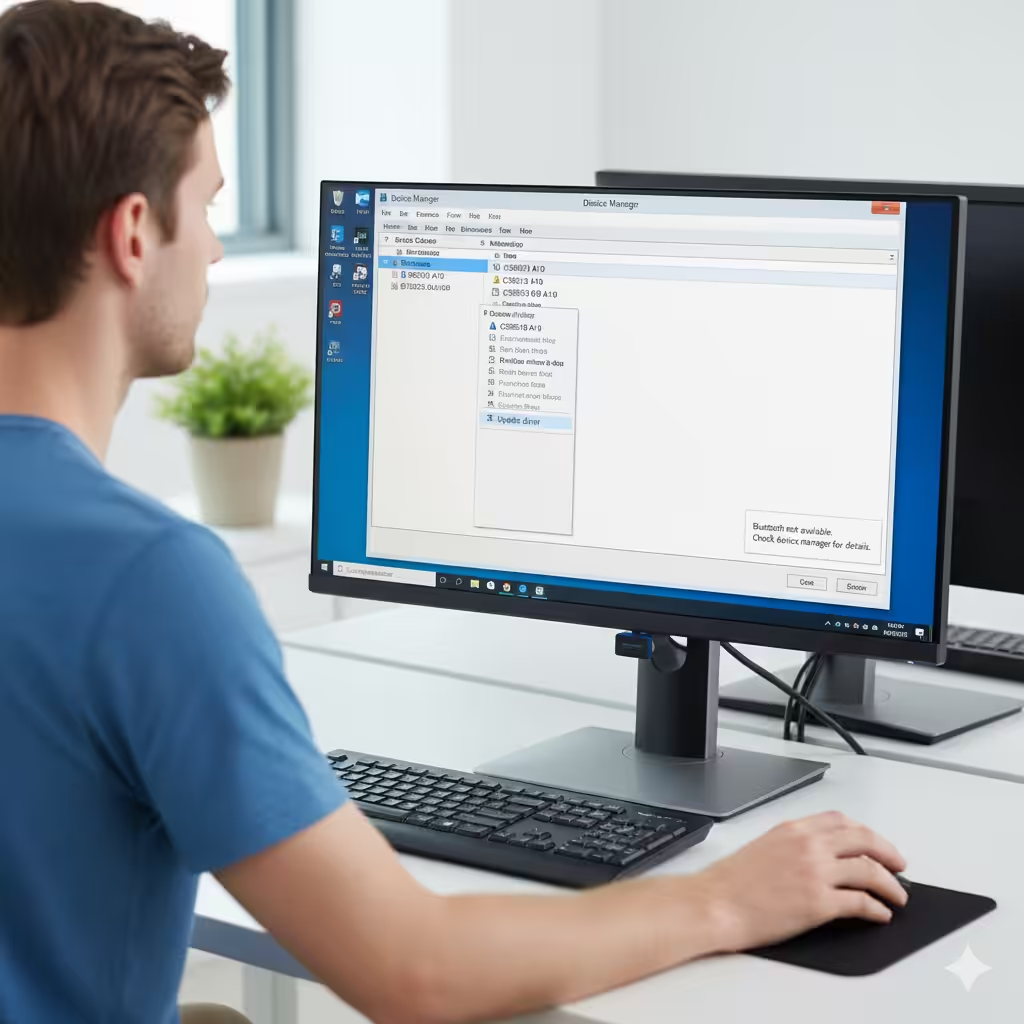
The CSR8510 A10 is a USB Bluetooth adapter commonly used to add Bluetooth functionality to desktop PCs or older laptops. Like any hardware device, it needs the correct driver software to communicate with Windows. Without the right driver, the adapter may not function properly, leading to problems such as:
-
Bluetooth option missing in Settings
-
Devices not pairing or frequently disconnecting
-
“Unknown device” appearing in Device Manager
-
Poor audio quality over Bluetooth headphones
Ensuring the CSR8510 A10 driver is properly installed and updated can solve these issues and restore smooth Bluetooth performance.
Common Issues with the CSR8510 A10 Driver
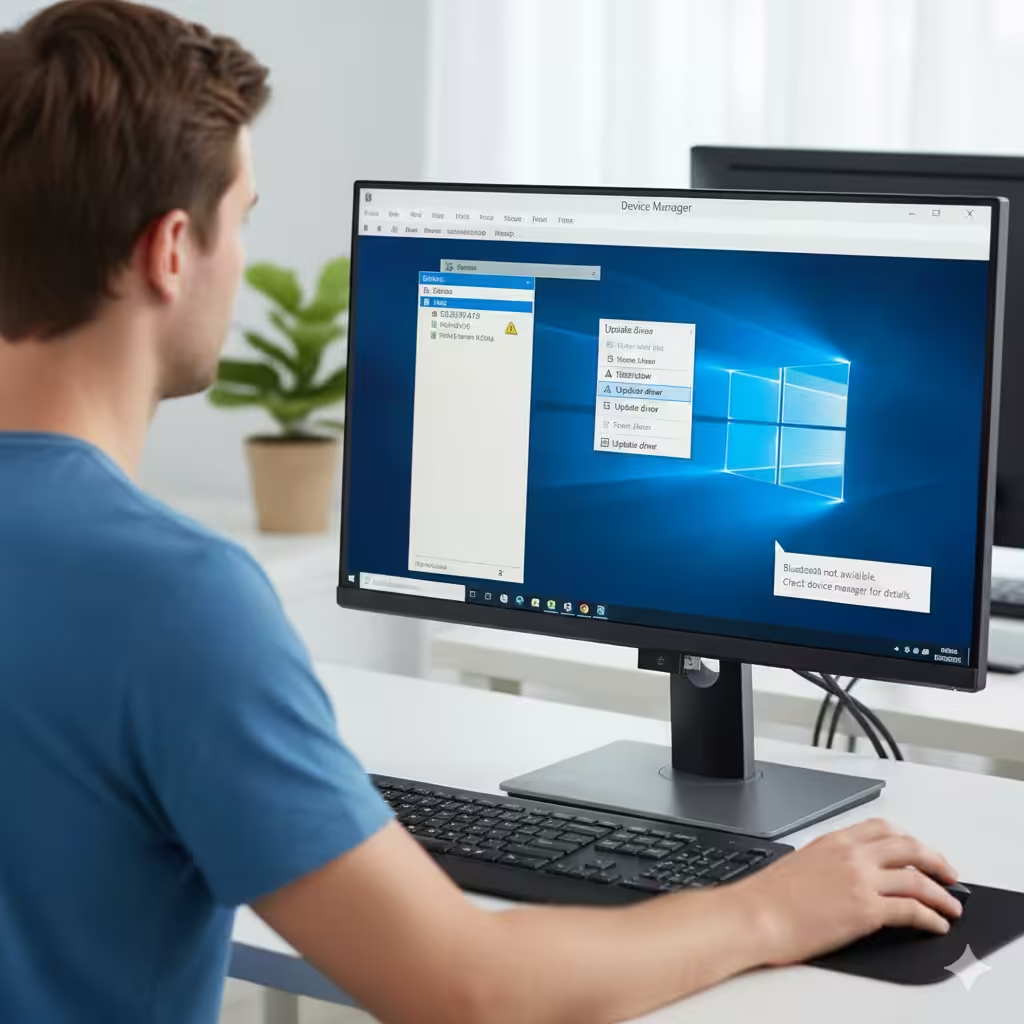
Before fixing or downloading the driver, let’s look at some of the most common problems users encounter:
-
Driver not installed: Windows fails to detect the dongle or assigns a generic driver that doesn’t work.
-
Corrupt driver files: The driver becomes corrupted after a Windows update or system crash.
-
Outdated drivers: The driver may no longer be compatible with the latest Windows 10 updates.
-
Conflict with other Bluetooth drivers: Multiple Bluetooth adapters or drivers installed at the same time may cause malfunctions.
Knowing the root of the problem helps you choose the right fix.
Method 1: Check Device Manager
The first step in troubleshooting the CSR8510 A10 driver is to check whether the system recognizes it.
-
Press Windows + X and select Device Manager.
-
Expand the Bluetooth category.
-
Look for CSR8510 A10 or any device labeled as “Unknown USB Device.”
-
If the device has a yellow warning icon, the driver is either missing or not working correctly.
This will confirm whether you need to reinstall or update the driver.
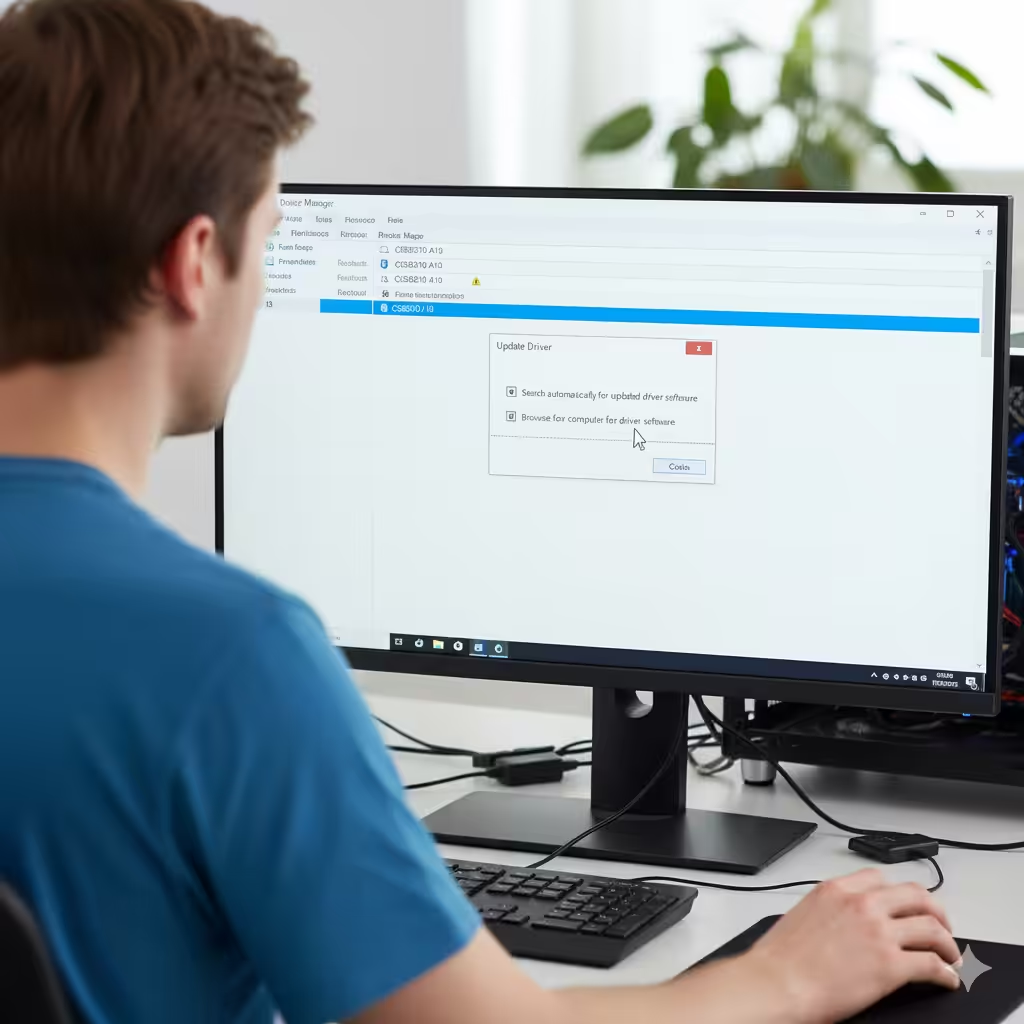
Method 2: Update the Driver Automatically
Windows 10 includes built-in tools to help you search for and install drivers automatically.
-
In Device Manager, right-click the CSR8510 A10 device.
-
Select Update driver.
-
Choose Search automatically for updated driver software.
-
Follow the prompts to let Windows search for the latest version.
If Windows finds a compatible driver, it will install it for you. This method works well for basic fixes, but sometimes Windows cannot locate the best driver.
Method 3: Download the Driver Manually
If automatic updates don’t work, you may need to download and install the CSR8510 A10 driver manually.
-
Visit the official manufacturer’s website (such as Cambridge Silicon Radio or the dongle’s brand manufacturer).
-
Search for the latest CSR8510 A10 driver compatible with Windows 10.
-
Download the setup file and save it to your PC.
-
Run the installer and follow the on-screen instructions.
-
Restart your computer once installation is complete.
Be sure to download drivers only from official sources or trusted websites to avoid malware or corrupted files.
Method 4: Use Third-Party Driver Update Tools
If you prefer a simpler approach, third-party driver update software can automatically scan your system and install missing or outdated drivers. Some popular tools include:
-
Driver Booster
-
Driver Easy
-
Snappy Driver Installer
These tools save time, especially if you have multiple outdated drivers on your system. However, choose carefully, as some free tools may include ads or unwanted software.
Method 5: Reinstall the Driver
If the driver is installed but not working properly, a clean reinstallation may solve the issue.
-
Open Device Manager.
-
Right-click the CSR8510 A10 device and select Uninstall device.
-
Check the box for Delete the driver software for this device.
-
Click Uninstall.
-
Restart your computer.
-
Windows will attempt to reinstall the driver automatically, or you can install it manually.
Method 6: Check for Windows Updates
Sometimes driver issues are tied to system updates. Microsoft regularly releases patches that include updated drivers.
-
Press Windows + I to open Settings.
-
Go to Update & Security.
-
Click Check for updates.
-
If updates are available, install them and restart your PC.
This may automatically fix Bluetooth compatibility issues with the CSR8510 A10.
Method 7: Disable Power Management for the Adapter
In some cases, Windows may disable the CSR8510 A10 to save power, causing Bluetooth connectivity problems.
-
Open Device Manager.
-
Right-click the CSR8510 A10 device and select Properties.
-
Go to the Power Management tab.
-
Uncheck Allow the computer to turn off this device to save power.
-
Click OK.
This ensures the adapter stays active whenever you need it.
Additional Troubleshooting Tips
-
Try using the USB adapter in a different port, preferably a USB 2.0 port if available.
-
Remove other Bluetooth dongles or disable built-in Bluetooth to avoid conflicts.
-
Run the Bluetooth troubleshooter by going to Settings > Update & Security > Troubleshoot > Additional troubleshooters > Bluetooth.
-
Reset Bluetooth settings by turning Bluetooth off and on again in the Settings menu.
Conclusion
The CSR8510 A10 Bluetooth adapter is an essential tool for adding wireless functionality to your Windows 10 PC, but it relies heavily on the correct driver. If your Bluetooth isn’t working properly, the issue often lies with the driver being outdated, missing, or corrupted.
By following the steps in this guide—checking Device Manager, updating the driver automatically or manually, reinstalling it, using Windows Updates, or adjusting power settings—you can fix most CSR8510 A10 driver issues quickly. For users who prefer convenience, third-party driver update tools can also make the process easier.
Ensuring that the CSR8510 A10 driver is properly installed not only restores Bluetooth functionality but also helps your devices connect seamlessly, whether it’s headphones, controllers, or mobile devices. With the right approach, you’ll have your Bluetooth working again in no time.