


How to Install the HEVC Codec on Windows 10 Without Paying
HEVC, also known as High-Efficiency Video Coding or H.265, is a modern video compression standard that allows for high-quality video playback at a significantly smaller file size. This codec is commonly used for 4K and 8K video streaming and recording, especially on mobile devices and digital cameras.
Windows 10 supports HEVC, but Microsoft does not include the HEVC codec by default in many editions of the OS. Instead, it’s offered as a paid add-on through the Microsoft Store. If you’re trying to play HEVC (H.265) videos on your PC and encounter errors, this article will walk you through several ways to get the HEVC codec for free.
What Is the HEVC Codec and Why Do You Need It?
The HEVC codec is a compression method used to encode and decode video files efficiently. Compared to its predecessor H.264, HEVC provides better quality at nearly half the file size.
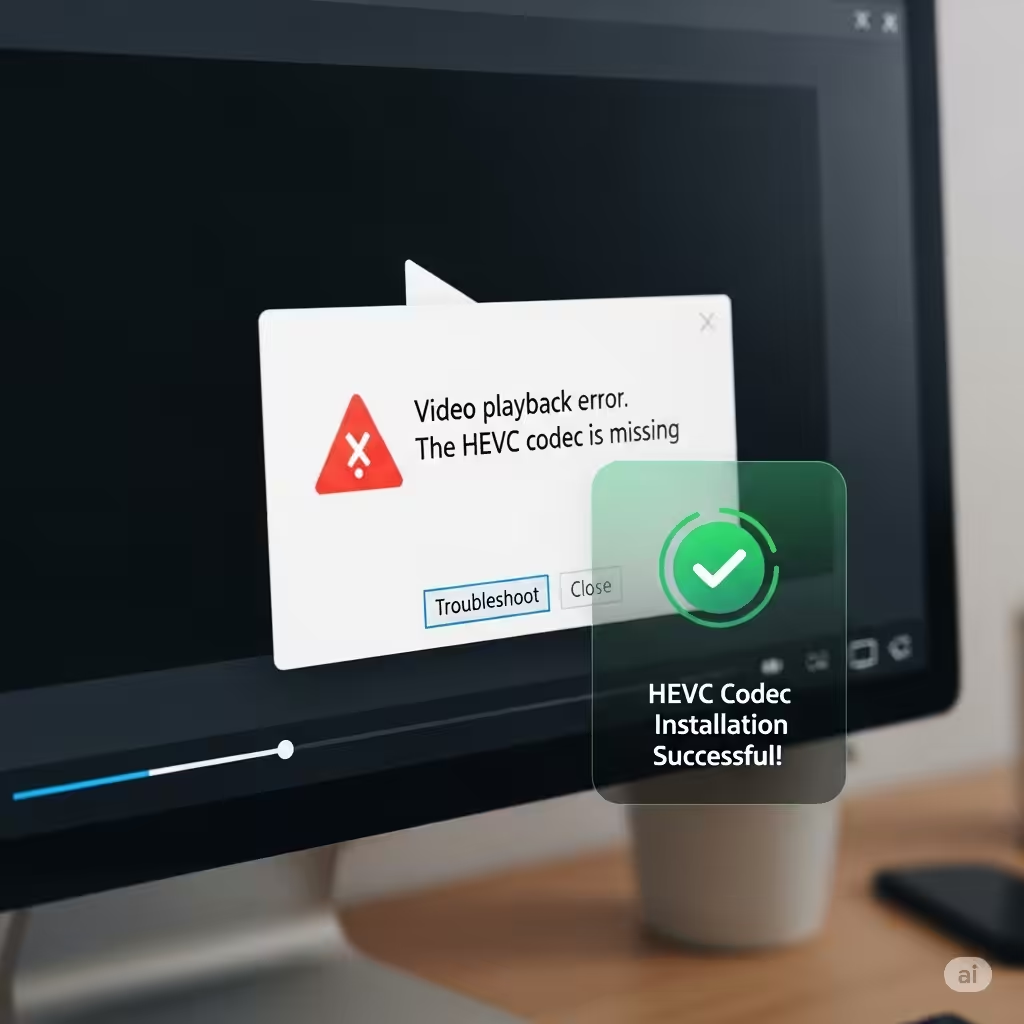
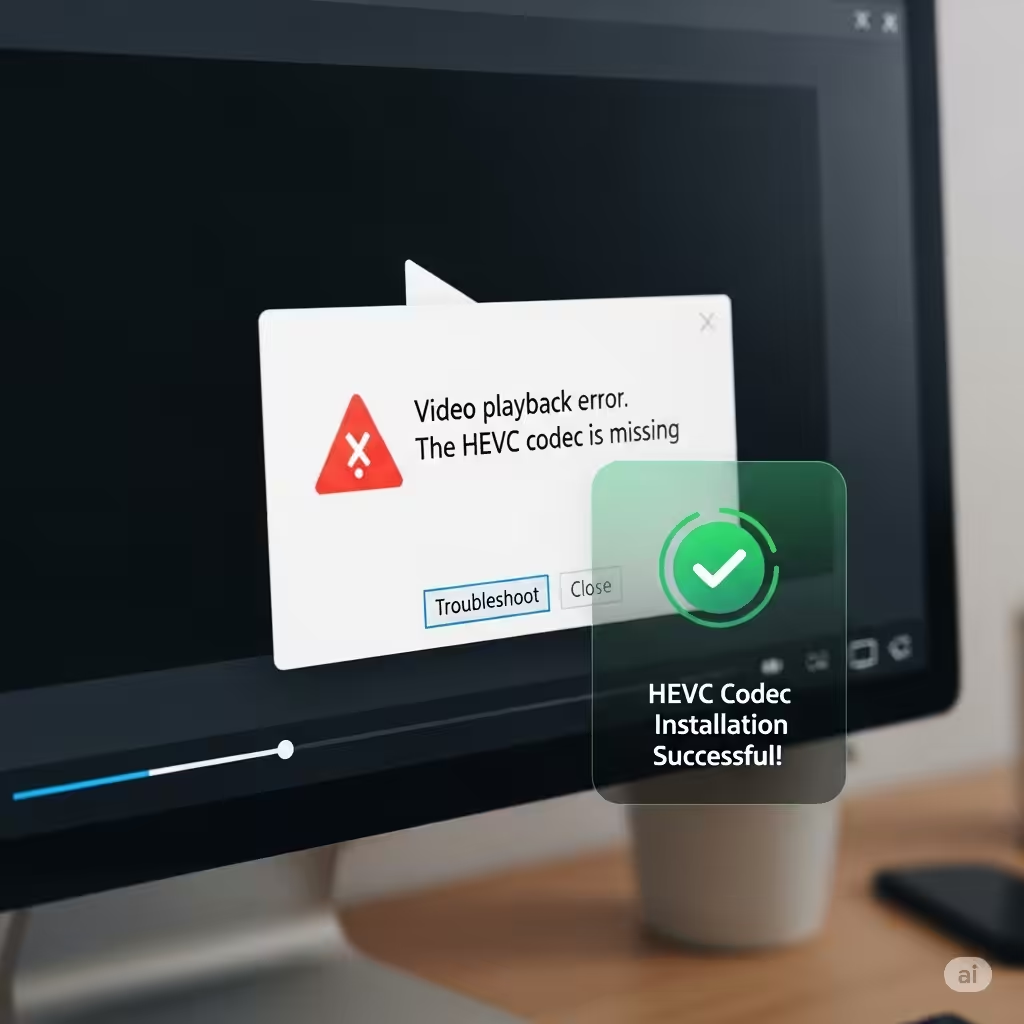
Without this codec, Windows Media Player, Movies & TV (now called Media Player), and some third-party players will fail to play HEVC content. You may see error messages like:
-
“This file isn’t supported.”
-
“Missing codec: H.265 / HEVC”
Installing the codec enables your system to decode and play HEVC files in supported apps.
Method 1: Download the Free HEVC Video Extensions from the Microsoft Store

Though Microsoft offers a paid HEVC codec under the name “HEVC Video Extensions” for $0.99, there’s also a hidden, free version available — “HEVC Video Extensions from Device Manufacturer.”
Follow these steps:
-
Open your web browser.
-
Go to this direct link (copy and paste it into your address bar):
-
Click Get in Store app. This will launch the Microsoft Store app on your PC.
-
Click Install.
This version is functionally identical to the paid one but is offered free for devices that originally came with HEVC support (many modern laptops, tablets, and hybrid PCs).
Note: If the link doesn’t open properly, make sure you’re signed into your Microsoft account and try again with Microsoft Edge.
Method 2: Use a Free Media Player with Built-in HEVC Support
If you want to avoid the Microsoft Store entirely or the free version is unavailable in your region, you can use third-party media players that come with HEVC codecs pre-installed.
Recommended options:
VLC Media Player
-
Download from: https://www.videolan.org/vlc/
-
Open-source and completely free.
-
Comes with built-in support for HEVC, H.264, VP9, and nearly every other video format.
-
Lightweight and supports Windows, Mac, Linux, and mobile platforms.
PotPlayer
-
Download from: https://potplayer.daum.net/
-
Highly customizable with advanced codec support.
-
Plays HEVC files out-of-the-box.
MPV Player
-
Download from: https://mpv.io/
-
Minimal interface, GPU-accelerated playback.
-
Excellent HEVC and HDR support.
Using one of these players means you don’t need to install any additional codecs manually.
Method 3: Install K-Lite Codec Pack
The K-Lite Codec Pack is a comprehensive collection of codecs that enables Windows to play almost any video format, including HEVC.
To install it:
-
Choose the Standard or Full version for best compatibility.
-
Download and run the installer.
-
Follow the on-screen instructions to complete the installation.
After installing K-Lite, HEVC videos will be playable in Windows Media Player and most third-party applications.
Tip: During setup, you can choose the media player of your choice, including Media Player Classic, which is included in the pack.
Method 4: Convert HEVC to H.264 (Alternative Approach)
If you don’t want to install any codecs or new media players, you can convert HEVC videos to a more compatible format like H.264. This method is especially useful if you’re sharing videos with someone using an older system or mobile device.
Use tools like:
-
HandBrake: Free, open-source video transcoder (https://handbrake.fr/)
-
Shutter Encoder: Built for professionals but simple enough for casual users (https://www.shutterencoder.com/)
-
FFmpeg: Command-line tool for advanced users.
Quick steps in HandBrake:
-
Open HandBrake and load your HEVC file.
-
Under Video, choose H.264 as the codec.
-
Click Start Encode.
After conversion, your video should play smoothly in Windows Media Player without extra codecs.
Troubleshooting HEVC Playback Issues
Even after installing the codec, you might still face playback issues. Here are some troubleshooting steps:
1. Update Graphics Drivers
Ensure your GPU drivers are up to date to avoid decoding glitches:
-
For Intel: https://www.intel.com/content/www/us/en/download-center/home.html
-
For NVIDIA: https://www.nvidia.com/Download/index.aspx
-
For AMD: https://www.amd.com/en/support
2. Restart the System
After installing a new codec, a system restart can ensure it is properly recognized.
3. Try a Different Media Player
If Windows Media Player fails to play the video, test the same file using VLC or PotPlayer to isolate the issue.
Summary
HEVC (H.265) offers improved compression and video quality, but Windows 10 users often face barriers when trying to play such files without purchasing a codec.
Luckily, you have multiple free ways to gain full HEVC support:
-
Download the hidden free HEVC Video Extensions from the Microsoft Store.
-
Use a powerful media player like VLC or PotPlayer.
-
Install the K-Lite Codec Pack for full system-wide codec support.
-
Convert HEVC files to H.264 for greater compatibility across devices.
With these options, you don’t need to spend a cent to play HEVC files on your Windows 10 machine. Whether you’re watching 4K videos, editing content, or just browsing footage, you now have the tools to make sure everything runs smoothly.