


How to Limit Chrome from Running Many Processes in Task Manager
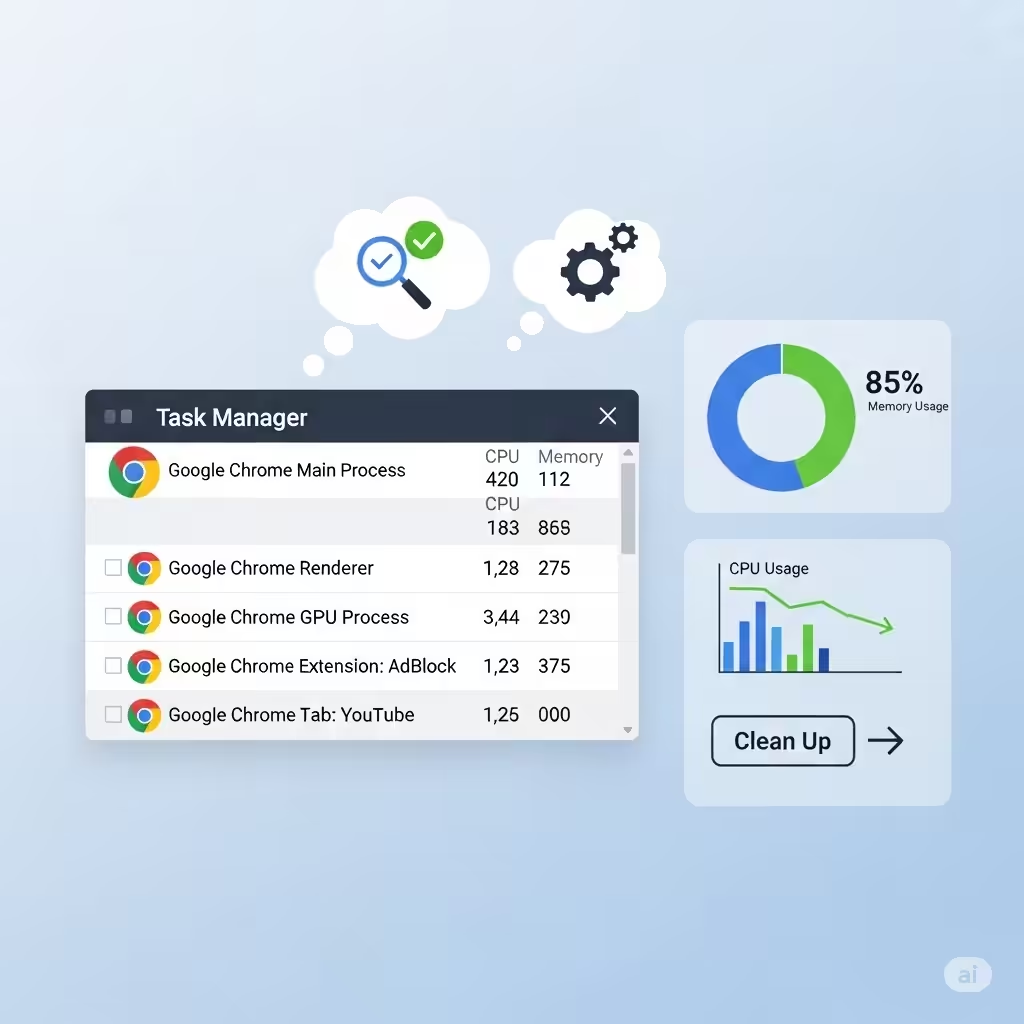
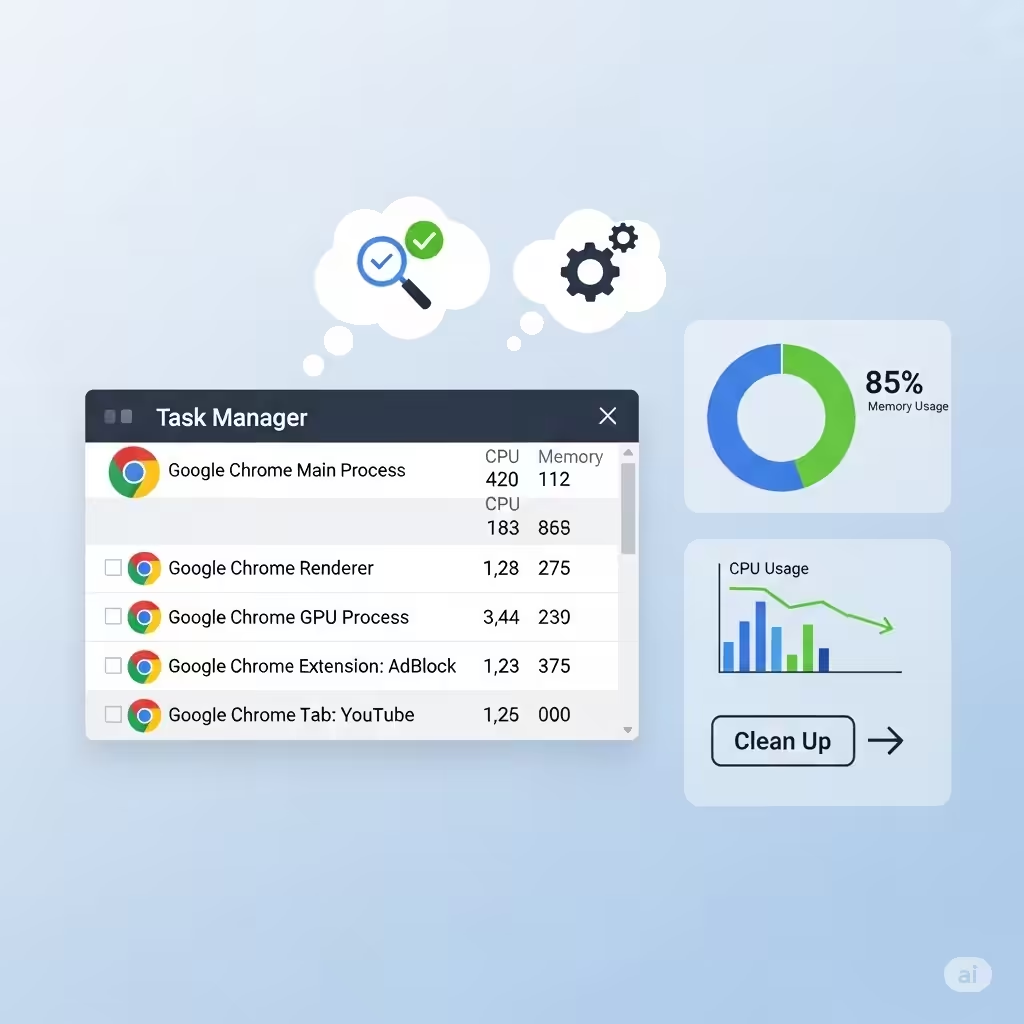
Google Chrome is one of the most widely used web browsers across the globe. It’s fast, secure, and filled with features that improve your browsing experience. However, one common complaint users often face is seeing multiple Chrome processes running in Task Manager, even if only a single tab is open.
If you’ve ever opened the Task Manager and found dozens of chrome.exe processes listed, you might wonder: Why does this happen, and how can I stop it? This article will help you understand why Chrome runs multiple processes and show you several methods to reduce or stop them when needed.
Why Does Chrome Run So Many Processes?
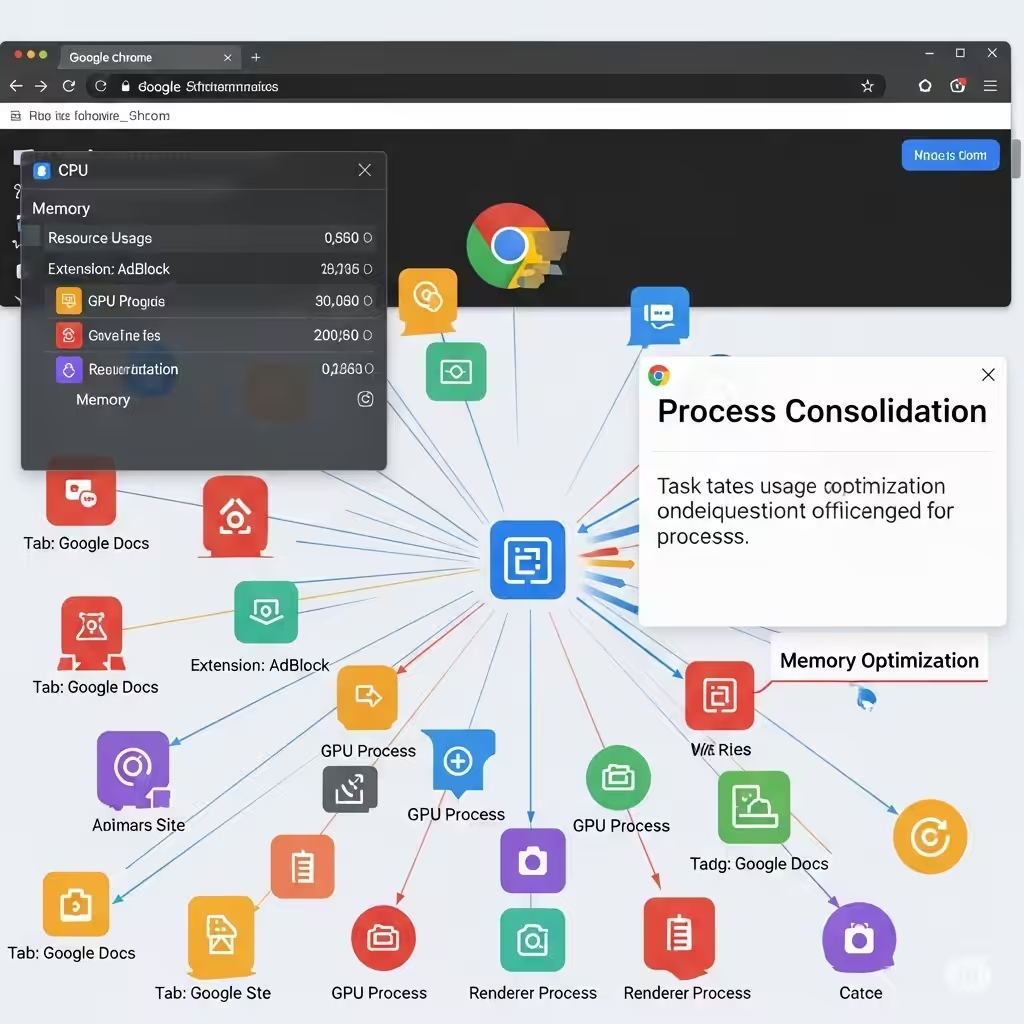
Chrome uses a multi-process architecture, which is designed to improve performance, stability, and security. This means that it separates different tasks into their own processes.
Some of these processes include:
-
Tabs
-
Extensions
-
Renderers
-
GPU processes
-
Network services
-
Utility processes
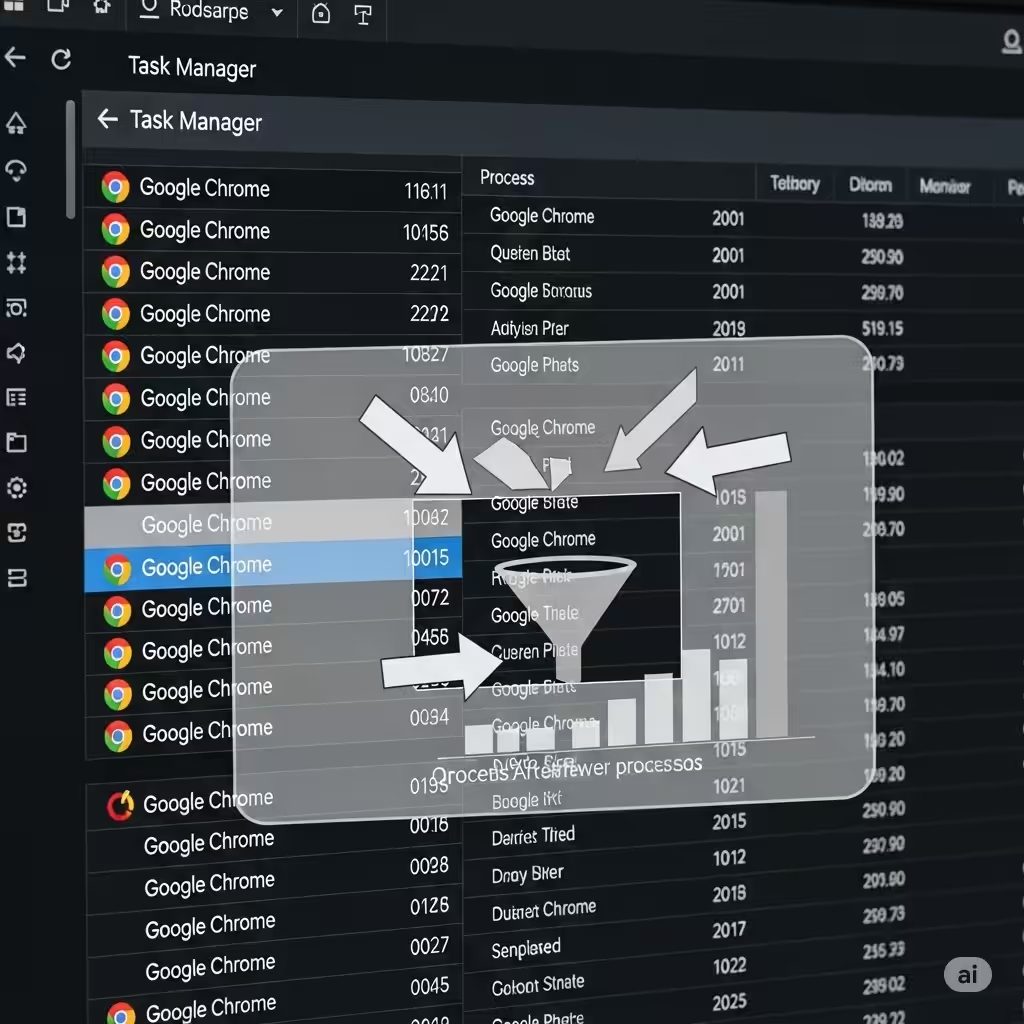
This design ensures that if one tab or extension crashes, it doesn’t bring down the entire browser. While beneficial, it also consumes more system resources and results in multiple entries under Task Manager.
Is It Safe to End Chrome Processes?
Yes — but with caution. Manually ending Chrome processes in Task Manager is safe, but you may lose unsaved data in open tabs or disrupt your browser experience. If Chrome is unresponsive or consuming too much memory or CPU, terminating certain processes may help as a short-term solution.
However, to deal with the issue more permanently, try the strategies below.
Method 1: Use Chrome’s Built-in Task Manager
Chrome has its own Task Manager that shows how each tab, extension, and process is consuming resources. From here, you can close individual processes without exiting the whole browser.
To use it:
-
Open Google Chrome.
-
Press Shift + Esc on your keyboard.
-
A window will pop up showing a list of all active processes.
-
Select the tab or extension using the most memory or CPU.
-
Click End Process.
This is safer than using Windows Task Manager, as it only ends specific browser components.
Method 2: Disable Unnecessary Extensions
Each Chrome extension can run as a separate process in the background. The more extensions you have, the more processes will appear in Task Manager.
Here’s how to disable them:
-
Open Chrome and type
chrome://extensionsin the address bar. -
Review the list of installed extensions.
-
Disable or remove any you don’t use by clicking the toggle switch or Remove button.
Reducing the number of active extensions will significantly reduce background processes.
Method 3: Combine Tabs Using Chrome Tab Grouping
Instead of opening each website in a new tab that runs its own process, consider grouping tabs or limiting the number of open tabs.
While Chrome still uses multiple processes for tab isolation, keeping fewer tabs open can still help minimize resource usage.
To group tabs:
-
Right-click a tab and select Add tab to new group.
-
Name and color-code the group if desired.
-
Drag other tabs into the same group.
Although this doesn’t merge the processes, it helps manage them better and reduces system strain.
Method 4: Turn Off Chrome’s Background Apps
Chrome can continue to run in the background even after you close the browser. This is due to background apps and extensions.
To disable background apps:
-
Open Chrome.
-
Go to Settings > System.
-
Toggle off Continue running background apps when Google Chrome is closed.
This will stop Chrome from using system resources when not in use.
Method 5: Launch Chrome with a Process Limit
You can launch Chrome with a command line switch to limit the number of processes.
Here’s how:
-
Right-click the Chrome shortcut on your desktop.
-
Select Properties.
-
In the Target field, add the following at the end after the quotation marks:
The full Target path should look something like:
-
Click Apply and then OK.
This flag forces Chrome to use a single process per site, rather than per tab, which helps reduce the total number of processes.
Note: This may slightly affect performance, especially on complex web applications.
Method 6: Clear Cache and Disable Hardware Acceleration
Sometimes, excessive background processes result from corrupted cache or problematic hardware acceleration settings.
To clear the cache:
-
Go to
chrome://settings/clearBrowserData. -
Choose All time from the time range.
-
Check Cached images and files.
-
Click Clear data.
To disable hardware acceleration:
-
Open Chrome Settings.
-
Click System on the left panel.
-
Toggle off Use hardware acceleration when available.
-
Restart Chrome.
Disabling hardware acceleration may help reduce resource usage and unexpected background processes.
Method 7: Scan for Malware or Chrome Hijackers
Unusual Chrome behavior — such as high CPU use, too many background processes, or auto-launching tabs — can also be caused by malware or browser hijackers.
Run a scan using:
-
Windows Security (Defender)
-
Malwarebytes
-
AdwCleaner
Also, in Chrome:
-
Type
chrome://settings/resetin the address bar. -
Click Clean up computer.
-
Click Find to search for harmful software.
If Chrome detects anything suspicious, it will offer to remove it.
Method 8: Use an Alternative Browser (Optional)
If you find Chrome consistently uses too many resources, consider switching to a more lightweight browser. Alternatives like Mozilla Firefox, Microsoft Edge, or Brave can offer similar performance with lower RAM usage.
While this may not be necessary for most users, it’s an option if you’re using an older or low-spec system.
Final Thoughts
Seeing multiple Chrome processes in Task Manager can be alarming, but it’s usually a result of Chrome’s architecture — not necessarily a problem. Still, if it’s affecting your system performance, you can take steps to reduce the load.
From using Chrome’s internal Task Manager and disabling extensions to changing launch settings and clearing cache, there are many solutions to explore. Take a layered approach: start with simple fixes and work your way up to more advanced methods if needed.
With the right tweaks, you can regain control of your system’s resources while still enjoying the speed and flexibility of Google Chrome.