


How to Upload and Import Contacts in Outlook
Managing your contacts efficiently is a key part of staying productive in both personal and professional communication. If you are moving from another email platform, switching computers, or consolidating contact lists, knowing how to import contacts into Microsoft Outlook is an essential skill. Outlook makes this process simple with built-in tools that support various file formats such as CSV, PST, and vCard (VCF).
This comprehensive guide explains step-by-step how to import contacts into Microsoft Outlook across different versions, including Outlook for Microsoft 365, Outlook 2021/2019/2016, and Outlook on the web.
Understanding Contact Importing in Outlook
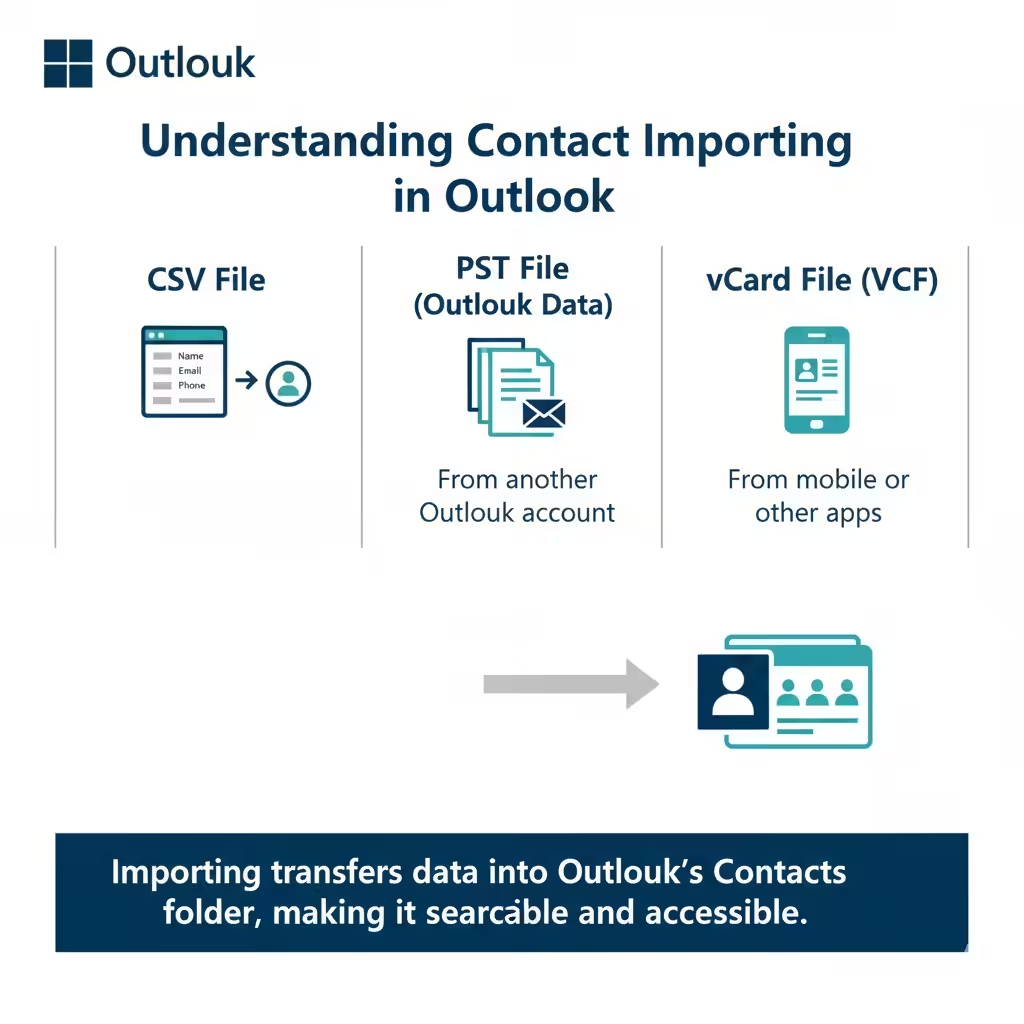
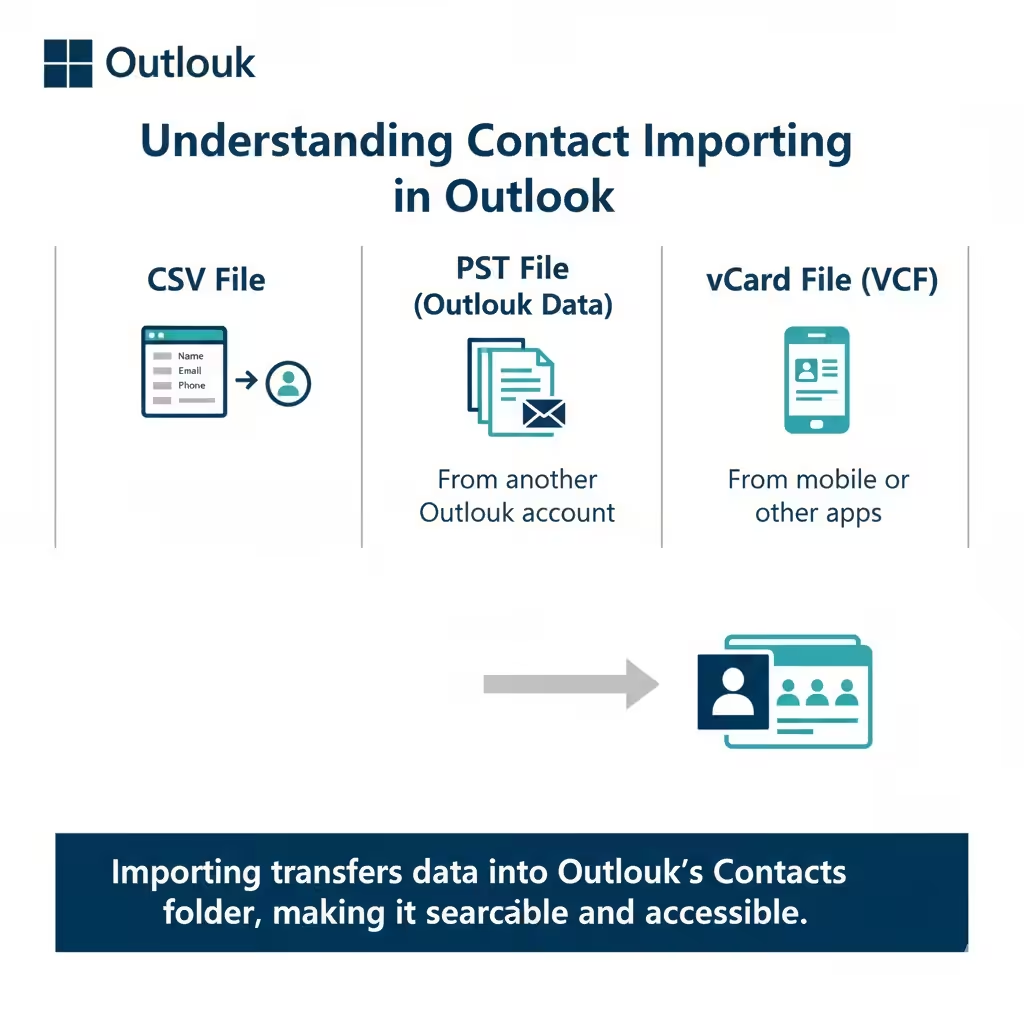
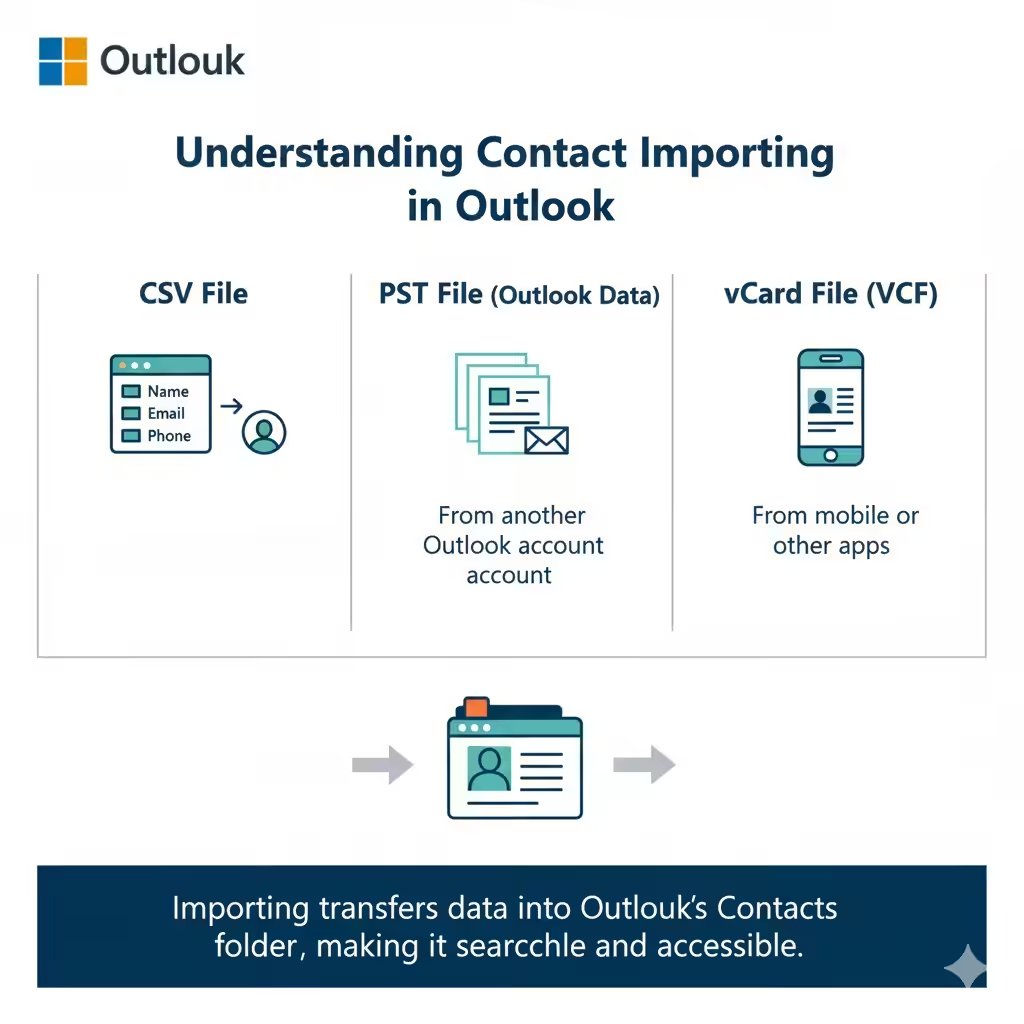
When you import contacts, you’re essentially transferring address book data—names, email addresses, phone numbers, company details, and more—from another source into Outlook’s Contacts folder. Outlook allows imports from:
-
A CSV (Comma Separated Values) file exported from another email program or service.
-
A PST (Outlook Data File) from another Outlook account.
-
A vCard (VCF) file containing contact information from mobile devices or other applications.
Importing these files ensures that your contact list is organized, searchable, and easily accessible across Outlook on all your devices.
Preparing Your Contacts File
Before importing, it’s crucial to have your contact data properly formatted and ready.
Step 1: Export Contacts from Your Previous Source
If you’re coming from Gmail, Yahoo Mail, Apple Contacts, or another Outlook account, export your contacts in one of the supported formats.
For most email providers, the CSV format is the most compatible option.
-
In Gmail: Go to Google Contacts → Export → Select CSV (for Outlook).
-
In Apple Contacts: Choose File → Export → Export vCard.
-
From another Outlook account: Export contacts to a .PST file.
Step 2: Review and Clean the File
Open your CSV file using Excel or another spreadsheet program to make sure:
-
Each column has clear labels (e.g., First Name, Last Name, Email Address).
-
Duplicate entries are removed.
-
Empty rows are deleted.
-
Data is properly aligned under the correct headings.
This helps avoid confusion when Outlook maps your data fields during import.
How to Import Contacts Using Outlook Desktop
If you use Outlook for Microsoft 365, 2021, 2019, or 2016, follow these steps to import contacts.
Step 1: Open the Import and Export Wizard
-
Open Microsoft Outlook.
-
Click on the File tab at the top-left corner.
-
Choose Open & Export.
-
Select Import/Export to open the Import and Export Wizard.
Step 2: Choose the Import Type
In the wizard, select Import from another program or file, then click Next.
Step 3: Select File Type
You’ll be prompted to choose the file type you’re importing:
-
Choose Comma Separated Values (CSV) for most contact files.
-
Choose Outlook Data File (.pst) if importing from another Outlook profile.
Click Next to continue.
Step 4: Locate and Select Your File
Click Browse to find your CSV or PST file on your computer.
When prompted, choose one of the following options for duplicate handling:
-
Replace duplicates with items imported
-
Allow duplicates to be created
-
Do not import duplicate items
Click Next once your file is selected.
Step 5: Choose the Destination Folder
Select your Contacts folder under your Outlook account.
Click Next.
Step 6: Map Custom Fields (Optional but Recommended)**
Before finalizing, Outlook lets you match the columns in your file to Outlook’s contact fields.
-
Click Map Custom Fields.
-
Drag and drop the fields from your CSV to the corresponding Outlook fields (e.g., “E-mail Address” → “Email”).
-
Click OK to confirm.
Step 7: Finish the Import
Click Finish to begin importing. Depending on the number of contacts, this process may take a few seconds or several minutes.
Once complete, your imported contacts will appear in the People view of Outlook.
How to Import Contacts Using Outlook on the Web (Outlook.com or Microsoft 365 Web)
If you use Outlook online, importing contacts is just as simple.
Step 1: Prepare Your CSV File
Make sure your contacts file is in CSV format and properly organized.
Step 2: Access the People Section
-
Sign in to your Outlook.com or Microsoft 365 web account.
-
Click the App Launcher (grid icon) in the top-left corner.
-
Select People to open the Contacts view.
Step 3: Import Contacts
-
Click Manage → Import contacts from the toolbar.
-
Select Browse and locate your CSV file.
-
Click Import.
Your contacts will be uploaded and added automatically to your Outlook address book.
How to Import vCard Files (VCF)
If your contacts are stored in vCard format (common on mobile devices), follow these steps:
Step 1: Open Outlook
Launch Outlook and go to the File tab.
Step 2: Import vCard
-
Click Open & Export → Import/Export.
-
Choose Import a vCard file (.vcf).
-
Locate the VCF file and click Open.
Each vCard contact will be added to your Outlook Contacts folder individually.
How to Import Contacts from Another Outlook Account
If you’re switching computers or profiles, importing contacts via PST is ideal.
Step 1: Export from the Old Outlook
-
Open the old Outlook.
-
Go to File → Open & Export → Import/Export.
-
Select Export to a file → Outlook Data File (.pst).
-
Choose Contacts, then save the PST file.
Step 2: Import into the New Outlook
-
In the new Outlook, open File → Open & Export → Import/Export.
-
Choose Import from another program or file → Outlook Data File (.pst).
-
Browse to the file, select it, and choose the Contacts folder as the destination.
Your entire contact list, including details and groups, will now be restored.
Troubleshooting Contact Import Problems
Sometimes, errors or incomplete imports can occur. Here’s how to resolve common issues.
Contacts Not Appearing
-
Check if you selected the correct folder during import.
-
Try switching to the People or Contacts view.
CSV File Format Errors
-
Ensure your CSV is saved with UTF-8 encoding to prevent character display issues.
-
Reopen the file in Excel and confirm proper column headers.
Duplicate Contacts
-
Before importing, clean your file to remove duplicate entries.
-
During import, choose “Do not import duplicate items.”
Field Mapping Issues
-
Use the Map Custom Fields option to correctly align data such as phone numbers and email addresses.
Best Practices for Managing Imported Contacts
Once your contacts are successfully imported, maintaining an organized list will save time later.
-
Regularly review and delete duplicates.
-
Add categories or labels for easy filtering (e.g., Work, Clients, Personal).
-
Keep contacts updated with the latest phone numbers or email addresses.
-
Sync Outlook with your mobile devices to ensure consistent access.
Conclusion
Importing contacts into Microsoft Outlook is a straightforward process that enhances your productivity and ensures all your essential connections are in one place. Whether you’re transferring data from another email client, importing from a CSV file, or syncing from a mobile device, Outlook’s flexible import options make it easy to manage and maintain your address book.