



How to Duplicate and Insert Text in Word

Microsoft Word is one of the most widely used word processing programs in the world. Whether you are writing essays, preparing business reports, or working on collaborative projects, the ability to copy and paste text is an essential skill. Copying and pasting saves time, helps with document formatting, and allows you to reuse content efficiently.
In this guide, we will explore different ways to copy and paste text in Word, explain formatting options, and provide tips for working more effectively.
Understanding the Basics of Copy and Paste
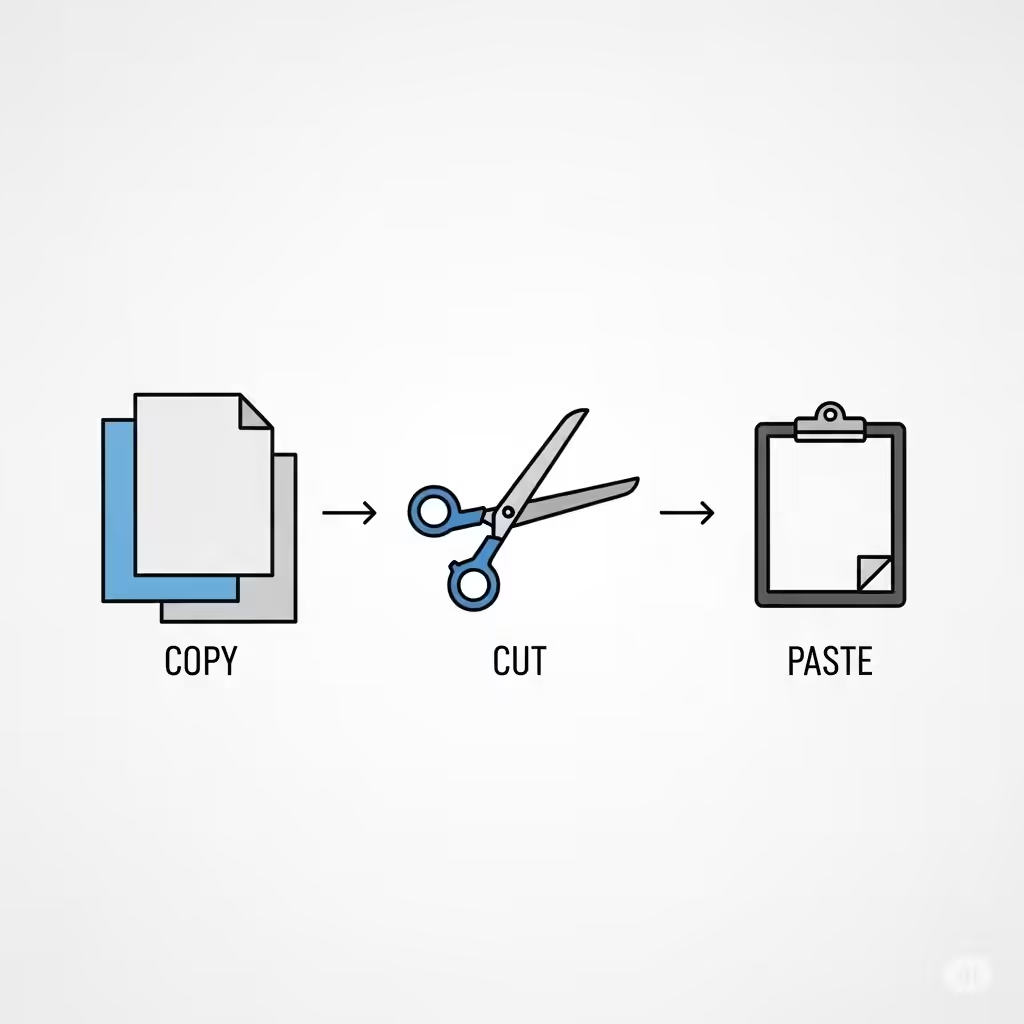
Copying and pasting involves two main steps:
-
Copying means duplicating selected text without removing it from its original location.
-
Cutting removes the selected text from its original location so you can place it elsewhere.
-
Pasting inserts the copied or cut text into a new location.
These functions are part of almost every application, but Microsoft Word provides additional features to control how text is pasted and formatted.
Using the Ribbon to Copy and Paste
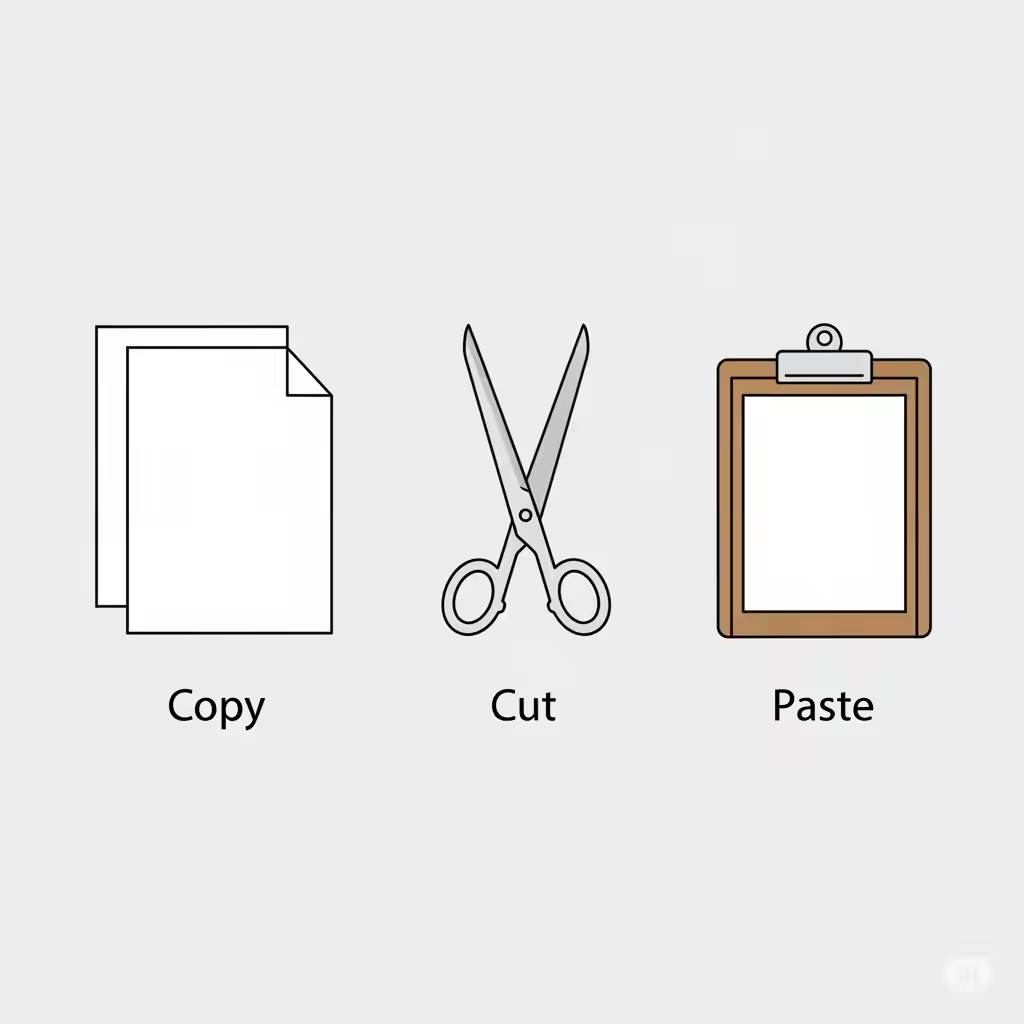
The Ribbon is the toolbar at the top of Word where many commands are located.
-
Highlight the text you want to copy.
-
Go to the Home tab.
-
Click Copy (two pieces of paper icon) or Cut (scissors icon).
-
Place your cursor where you want the text to appear.
-
Click Paste (clipboard icon).
This method is easy for beginners and ensures you use Word’s built-in commands.
Using Keyboard Shortcuts
Keyboard shortcuts are the fastest way to copy and paste in Word:
-
Ctrl + C – Copy selected text.
-
Ctrl + X – Cut selected text.
-
Ctrl + V – Paste the text into the new location.
For Mac users, replace Ctrl with Command (⌘).
These shortcuts are especially useful when working with large documents or when you need to move text quickly.
Using the Right-Click Menu
Another simple way to copy and paste is by using your mouse:
-
Select the text you want to copy.
-
Right-click on the highlighted text.
-
From the context menu, choose Copy or Cut.
-
Move your cursor to the new location, right-click, and choose Paste.
This method is intuitive and convenient if you prefer using the mouse rather than keyboard shortcuts.
Drag and Drop Method
Microsoft Word also allows you to move or copy text by dragging it:
-
Highlight the text you want to move.
-
Click and hold the left mouse button on the selection.
-
Drag the text to the new location.
-
To move the text, just release the mouse button.
-
To copy the text, hold down the Ctrl key while dragging before releasing.
-
This is a quick method when you are working within the same document.
Paste Options in Word
One of the most powerful features of Word is its Paste Options, which give you control over how the pasted text looks:
-
Keep Source Formatting: Keeps the text exactly as it was, including fonts, colors, and styles.
-
Merge Formatting: Adjusts the text to match the style of the document you are pasting into while preserving emphasis like bold or italics.
-
Keep Text Only: Removes all formatting and pastes plain text.
To access these options:
-
Paste the text as usual.
-
A small Paste Options icon will appear near the text.
-
Click it and choose your preferred formatting option.
This flexibility ensures that pasted text blends seamlessly into your document.
Copying and Pasting Between Documents
Sometimes you need to copy text from one Word document to another:
-
Open both documents in Word.
-
Highlight the text in the source document.
-
Use Ctrl + C or the right-click Copy command.
-
Switch to the destination document and place your cursor.
-
Use Ctrl + V to paste the text.
You can then adjust formatting using the Paste Options mentioned earlier.
Copying from Other Applications into Word
Word allows you to copy text from other applications such as web browsers, PDFs, or emails. However, formatting may not always transfer correctly.
-
If you want to keep the original look, use Keep Source Formatting.
-
If you want the text to match your Word document’s style, choose Merge Formatting or Keep Text Only.
This ensures that your document remains clean and professional, even when pasting from outside sources.
Advanced Clipboard Features
Windows includes a Clipboard history feature that works in Word:
-
Press Windows + V to open Clipboard history.
-
You can view multiple copied items and choose which one to paste.
This is extremely useful when working with multiple sections of text that need to be inserted in different parts of a document.
Tips for Efficient Copy and Paste in Word
-
Use Styles: Instead of repeatedly formatting pasted text, apply Word’s built-in styles (like Heading 1, Heading 2) for consistency.
-
Keyboard Shortcuts: Memorize shortcuts to save time.
-
Paste Special: Under the Home tab, you can find Paste Special, which lets you paste text in different formats, such as unformatted text or HTML.
-
Avoid Duplicates: Always check pasted content to ensure you’re not repeating information unnecessarily.
These techniques make working in Word faster and more efficient.
Conclusion
Copying and pasting text in Microsoft Word may seem like a simple task, but mastering the different methods and formatting options can greatly improve your workflow. Whether you prefer using the Ribbon, keyboard shortcuts, or drag-and-drop, Word provides flexibility for every type of user.
By understanding paste options, using clipboard history, and managing formatting effectively, you can create documents that look professional and are easy to edit. Copy and paste is more than just moving text—it’s about maintaining consistency, saving time, and enhancing productivity in your daily work.