


How to Disable Office 365 When You Encounter a “Limit Reached” Error
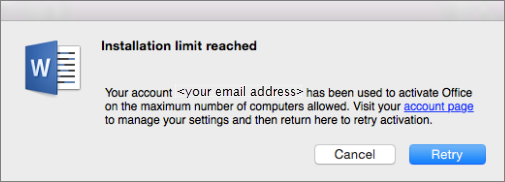
Microsoft Office 365 offers flexibility, allowing you to use the software across multiple devices. However, there are instances where users might encounter a “Limit Reached” error, indicating that they’ve reached the maximum number of devices allowed under their subscription. This guide will help you understand how to deactivate Office 365 from one or more devices and resolve this error.
What is the “Limit Reached” Error in Office 365?
The “Limit Reached” error typically occurs when you try to activate or sign in to Office 365 on more devices than your subscription allows. Depending on your Office 365 plan, Microsoft permits activation on up to five devices per user (this may vary for different types of subscriptions like Business or Enterprise).
If you encounter this error, it doesn’t mean you have exceeded your limit by accident—it’s simply Office 365’s way of preventing unauthorized or excessive installations.
Step 1: Understand Your Subscription Limits
Before deactivating Office 365, check the device limit of your subscription:
- Personal and Family Plans: Office 365 allows you to install Office apps on up to 5 devices per user.
- Business and Enterprise Plans: Limits vary but usually allow multiple devices, with admin control to manage installations.
Make sure your subscription is valid and active before attempting to deactivate devices.
Step 2: Sign in to Your Microsoft Account

- Go to the Microsoft Account Page:
Open your web browser and go to https://account.microsoft.com. - Sign In:
Enter your Microsoft account credentials associated with your Office 365 subscription.
Step 3: Go to the Office Install Page
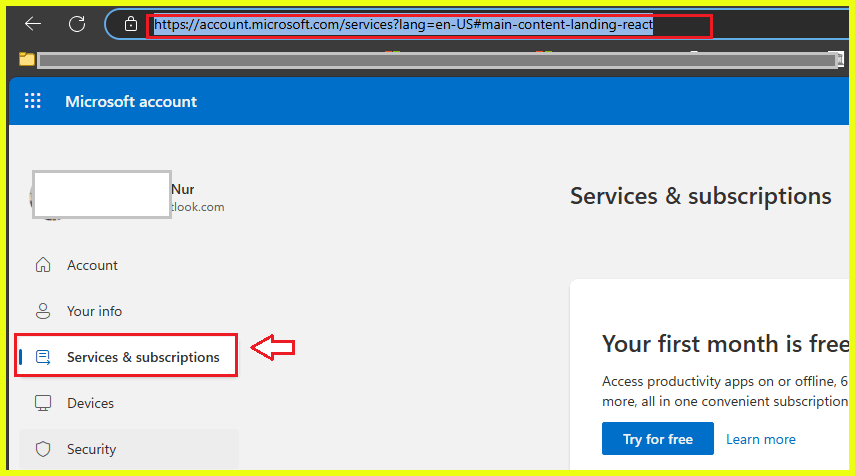
- Navigate to the Services & Subscriptions Section:
After signing in, click on the Services & Subscriptions tab at the top. - Locate Office 365:
Under this section, you’ll see the details of your Office 365 subscription, including the option to manage installations. - Click on “Manage Installations”:
This will bring you to a page that shows all devices where Office 365 is installed.
Step 4: Deactivate Devices

To resolve the “Limit Reached” error, you’ll need to deactivate Office on one of the devices listed.
- Identify the Device to Deactivate:
Review the list of devices and choose one that you no longer need Office 365 on. For instance, if you’ve installed Office on an old computer that you no longer use, select that device for deactivation. - Click on “Deactivate”:
Next to the device you want to remove, click on the Deactivate button. This will disconnect that device from your Office 365 subscription.
Step 5: Reinstall Office on the New Device
Once you’ve deactivated Office on an older device, you can install it on a new one.
- Download Office 365:
On your new device, go to the Microsoft Office website, and sign in with your Microsoft account. - Install Office:
Follow the on-screen instructions to install Office apps on the new device.
Step 6: Check the Status
Once you’ve deactivated Office on an old device and installed it on a new one, check the “Manage Installations” page again to ensure everything is in order. Your limit should now be restored, allowing you to activate Office on the new device without seeing the “Limit Reached” error.
Step 7: Troubleshooting
If you continue to face issues, here are a few troubleshooting tips:
7.1 Ensure You’re Signed into the Correct Account
If you’ve multiple Microsoft accounts, make sure you’re signed in to the account associated with your Office 365 subscription.
7.2 Wait for Changes to Take Effect
It can take a few minutes for changes to be reflected across all devices. If the deactivation doesn’t show immediately, try again after a short wait.
7.3 Check Subscription Status
If you see any issues regarding your subscription status, make sure it’s active and up-to-date. You can verify this under Subscriptions in your Microsoft account.
7.4 Reinstall Office
If the deactivation process fails, you can uninstall Office from the device manually and then reinstall it using your Microsoft account.
Step 8: Contact Microsoft Support
If you’ve tried everything and still can’t deactivate a device or resolve the error, it’s time to contact Microsoft Support. They can assist in removing devices from your account and troubleshooting any other issues you may encounter.
You can contact them via:
- Microsoft Support Page: Visit https://support.microsoft.com and choose Contact Support.
- Phone or Chat Support: Microsoft offers live chat or phone support, depending on your location and subscription.
Conclusion
The “Limit Reached” error in Office 365 can be frustrating, but by following the steps above, you can easily deactivate devices and continue to use your subscription across the devices you need. Whether you’re switching to a new device or troubleshooting issues with your installation, deactivating old devices and managing installations is straightforward.
Remember, it’s essential to check your subscription’s device limit and manage it accordingly. If all else fails, Microsoft’s support team is available to assist you in resolving any activation issues.