


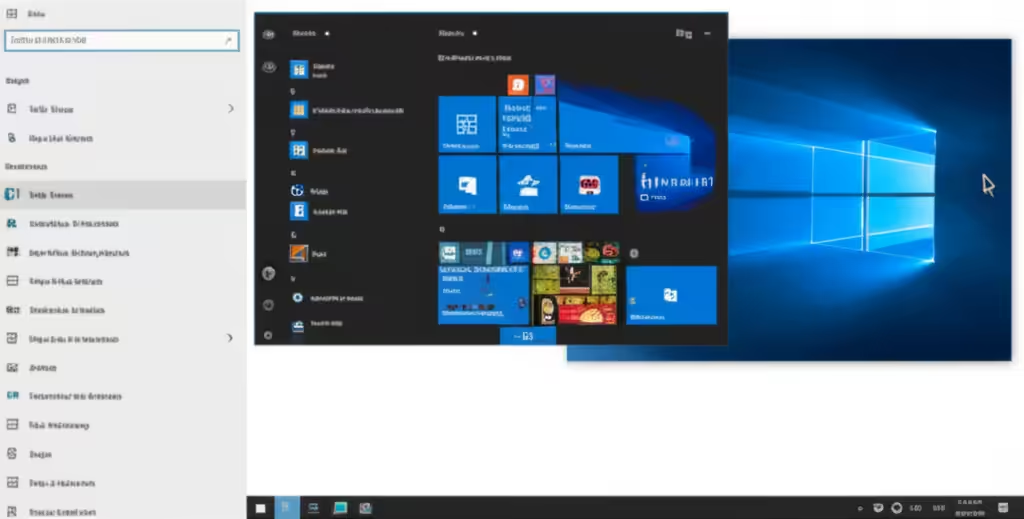
Managing Virtual Desktops in Windows 10
Managing multiple tasks and staying organized on your PC can be challenging, especially if you often find yourself switching between several open apps or documents. Fortunately, Windows 10 includes a powerful feature called Virtual Desktops, allowing users to create and manage multiple desktops for better multitasking and workflow separation.
In this guide, you’ll learn how to use multiple desktops in Windows 10 effectively — including how to create, switch, rename, and manage them like a pro.
What Are Virtual Desktops?
Virtual Desktops are independent desktop environments within your Windows session. Each virtual desktop can have its own set of open applications and windows. This allows you to, for example, keep your work-related apps on one desktop and your entertainment or research tabs on another.
Using multiple desktops can help reduce clutter, increase focus, and improve productivity — especially for users who work on multiple projects or roles throughout the day.
How to Access Virtual Desktops
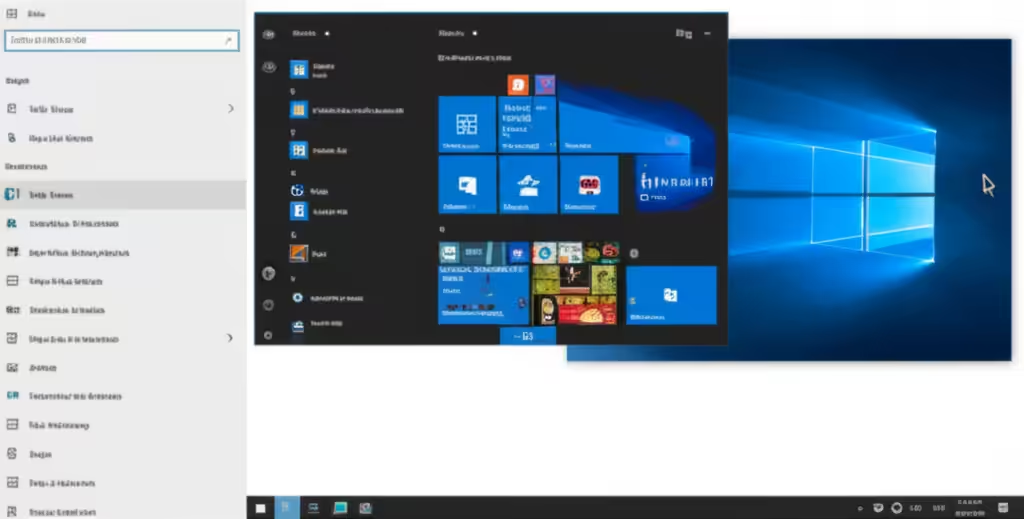
Windows 10 makes it easy to access and manage multiple desktops using Task View.
Open Task View:
-
Click the Task View icon (two overlapping rectangles) on your taskbar.
-
Or press Windows key + Tab on your keyboard.
From Task View, you can see all open apps and the current desktops at the top of the screen.
How to Create a New Desktop
Once you’ve opened Task View, adding a new desktop is simple.
To Create a New Virtual Desktop:
-
Open Task View (Windows + Tab).
-
Click + New Desktop at the top-left corner.
-
A new desktop will appear alongside your existing one(s).
You can now open apps and windows in the new desktop without affecting others.
How to Switch Between Desktops
Switching between virtual desktops is quick and can be done via mouse or keyboard shortcuts.
Use Task View:
-
Open Task View.
-
Click on the desktop you want to switch to.
Use Keyboard Shortcuts:
-
Windows key + Ctrl + Left Arrow – Switch to the desktop on the left.
-
Windows key + Ctrl + Right Arrow – Switch to the desktop on the right.
These shortcuts allow fast transitions without interrupting your workflow.
How to Move Windows Between Desktops
You may want to move an application from one desktop to another — for example, to group similar tasks.
Move Windows via Task View:
-
Open Task View.
-
Hover over the desktop that contains the window you want to move.
-
Right-click on the window thumbnail.
-
Select Move to > Desktop X or New Desktop.
This keeps your workspace organized and efficient.
How to Rename Desktops
Renaming your desktops can help you remember what each one is for.
To Rename a Desktop:
-
Open Task View.
-
Click the name of the desktop (e.g., Desktop 1).
-
Type a new name like “Work,” “Gaming,” or “Research.”
-
Press Enter.
This small step goes a long way in keeping your workflow structured.
How to Close a Desktop
When you’re done with a desktop, you can close it without losing any work.
To Close a Desktop:
-
Open Task View.
-
Hover over the desktop you want to remove.
-
Click the X in the top-right corner of that desktop.
Any open apps on the closed desktop will automatically shift to the previous desktop.
Use Cases for Multiple Desktops
Here are a few practical examples of how multiple desktops can enhance your productivity:
-
Work vs. Personal: Keep work files and apps separate from your personal activities.
-
Project Management: Assign a separate desktop to each project you’re working on.
-
Focus Time: Create a distraction-free desktop for writing or deep work.
-
Meetings: Use one desktop exclusively for video conferencing and related notes.
-
Entertainment: Reserve a desktop for music, videos, or games.
This level of separation helps you stay focused and efficient, especially in a remote or hybrid work setting.
Tips for Using Virtual Desktops Effectively
-
Limit the number of desktops: Having too many can become as overwhelming as having too many windows on one desktop.
-
Group related apps: Keep communication apps like Teams or Slack on one desktop, and creative tools like Photoshop or Word on another.
-
Use names, not numbers: Naming desktops is especially useful when switching frequently or using for long sessions.
-
Pair with Snap Assist: Combine Virtual Desktops with Snap Layouts to tile windows side-by-side for even better multitasking.
Common Questions About Multiple Desktops
Will closing a desktop close the apps?
No — any open apps from the closed desktop are moved to the desktop you’re currently using.
Do virtual desktops persist after restart?
Unfortunately, virtual desktops in Windows 10 do not persist after a reboot. If you restart your computer, all additional desktops will be closed.
Are there third-party apps to enhance this feature?
Yes. Tools like VirtuaWin and Dexpot offer additional customizations like desktop persistence, hotkeys, and more features that are missing from Windows 10’s default functionality.
Final Thoughts
Using multiple desktops in Windows 10 is one of the simplest yet most powerful productivity tools built into the operating system. Whether you’re working from home, managing multiple projects, or simply want a cleaner workspace, virtual desktops can help you streamline your tasks and stay organized.
Take a few minutes to set up and experiment with virtual desktops — you might be surprised by how much smoother your workflow becomes.