



How to Return Your PC to an Older Version of Windows
Upgrading to a new version of Windows can bring exciting features, security improvements, and performance enhancements. However, not every update works smoothly for every user. You might encounter system crashes, driver problems, missing features, software incompatibilities, or performance issues after upgrading. When this happens, restoring your previous version of Windows becomes one of the most effective ways to regain stability.
Windows provides several methods that allow you to roll back to an older version—whether you’ve upgraded from Windows 10 to Windows 11, installed a major update, or applied a feature upgrade. This guide walks you through all available methods to restore your previous version of Windows safely and efficiently.

Understanding When You Can Restore the Previous Version
Windows allows users to roll back to their previous version within a limited period—usually 10 days after installing a major update or new version. After this period, Windows automatically deletes the old system files to free up storage.
You can restore your previous version if:
-
You recently upgraded Windows
-
The Windows.old folder still exists
-
The update is causing problems
-
You can boot into the system or recovery environment
If Windows fails to boot, you can still access recovery tools to perform the rollback.
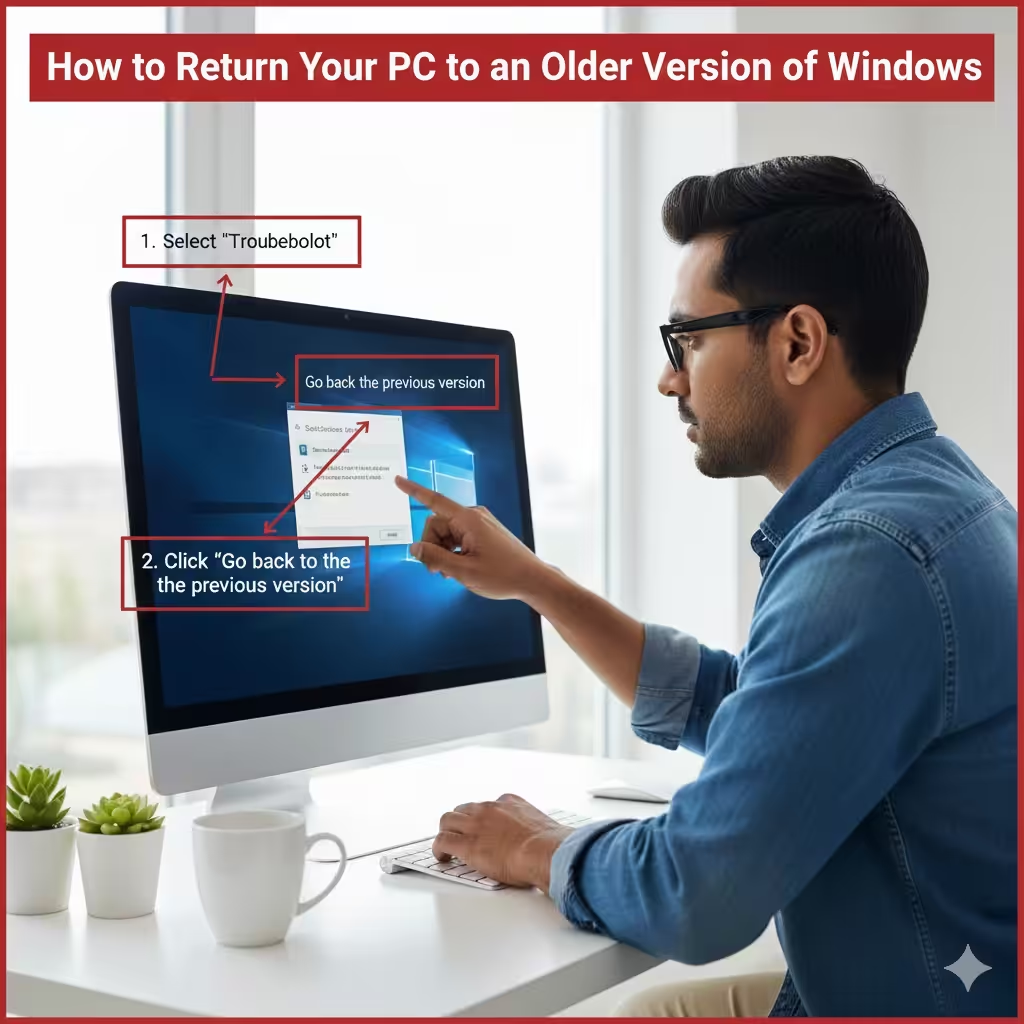
Restore the Previous Version Using Windows Settings
The simplest and most common method of restoring your previous version of Windows is through the Settings app.
Steps to Roll Back via Settings
-
Press Win + I to open Settings.
-
Go to Update & Security.
-
Select Recovery from the left panel.
-
Under Go back to the previous version of Windows, click Get started.
-
Choose a reason for the rollback.
-
Follow the prompts and click Go back to the previous version.
The system will restart and begin restoring your earlier version. This process may take anywhere from a few minutes to an hour, depending on your hardware.
Why Use the Settings Method?
-
Fast and easy
-
No advanced tools needed
-
Works for most feature updates
-
Preserves personal files
However, apps installed after the update may need reinstalling.
Restore Windows Using Advanced Startup Options
If your system won’t boot normally or the rollback option doesn’t appear in Settings, you can access Advanced Startup Options.
How to Access Advanced Startup
If you can still log into Windows:
-
Open Settings.
-
Go to Update & Security → Recovery.
-
Under Advanced startup, click Restart now.
If Windows won’t boot:
-
Turn on your PC, then power it off immediately during boot. Repeat three times.
-
On the fourth boot, Windows will enter WinRE (Windows Recovery Environment) automatically.
Roll Back to Previous Version from WinRE
-
In WinRE, choose Troubleshoot.
-
Select Advanced options.
-
Click Go back to the previous version.
-
Follow the on-screen instructions.
This method works even when Windows fails to load properly.
Benefits of Using Advanced Startup
-
Helpful when Windows is unstable
-
Works even if you cannot log in
-
Restores important system files
Using System Restore to Roll Back Problems
If you enabled System Restore before the update, you might be able to revert your system to a previous restore point. Although this does not reinstall the previous version of Windows, it can fix problems caused by updates, drivers, or software.
How to Use System Restore
-
Search for Create a restore point and open it.
-
Click System Restore.
-
Choose a restore point created before the upgrade.
-
Follow the prompts to restore the system.
When System Restore Helps
-
Fixes driver issues
-
Reverts registry changes
-
Restores settings
-
Does not affect personal files
It won’t downgrade your Windows version, but it can stabilize your system.
Restoring Windows with a System Image Backup
If you created a system image before upgrading, you can fully restore your older version of Windows using that backup.
Restore Using a System Image
-
Boot into WinRE.
-
Select Troubleshoot.
-
Click Advanced options.
-
Choose System Image Recovery.
-
Select your backup image.
-
Follow the prompts to complete the restoration.
This method reinstalls the entire system exactly as it was at the time of the backup.
Advantages
-
Complete restoration, including apps and settings
-
Works even when the system won’t boot
-
Very reliable
Disadvantages
-
Requires a previously created image
-
Erases everything added after the image
Restoring Previous Version Using Command Prompt (Advanced Users)
For advanced users or IT professionals, Command Prompt offers a way to initiate rollback manually.
Using CMD to Begin Rollback
-
Boot into WinRE.
-
Choose Troubleshoot → Command Prompt.
-
Type the following command:
Check if the rollback command exists:
If available, run:
This tool initiates the downgrade if Windows.old is present.
When to Use CMD Rollback
-
Settings menu is unavailable
-
Rollback button is missing
-
System is severely corrupted
-
You prefer manual control
Why the Rollback Option Might Be Missing
If you don’t see the rollback option, it could be due to:
-
Windows.old deleted automatically after 10 days
-
Manual disk cleanup
-
Insufficient storage space
-
Using a clean installation
-
Major system file corruption
Unfortunately, if Windows.old is gone, restoring to a previous version becomes impossible without a backup.
Tips to Avoid Problems When Restoring Windows
To ensure a smooth rollback:
-
Keep your device plugged into power
-
Disconnect external storage devices
-
Disable third-party antivirus software
-
Do not interrupt the process once started
-
Backup important data beforehand
After Restoring Windows
When the rollback completes:
-
Your previous apps may need updates
-
New drivers may need to be reinstalled
-
Windows Update will pause major updates temporarily
Prevent Future Update Issues
To help avoid future problems:
-
Delay updates using Pause updates
-
Create a System Restore Point before installing updates
-
Back up your system using System Image Backup
-
Update drivers before major upgrades
Final Thoughts
Restoring a previous version of Windows is a lifesaver when system issues, performance problems, or software incompatibilities appear after an update. Whether you use the Settings app, Advanced Startup Options, System Restore, a system image, or Command Prompt, Windows provides multiple ways to get your system back to a stable state.
By understanding each method, you can confidently restore your device when updates cause trouble and maintain a smooth, reliable computing experience.