


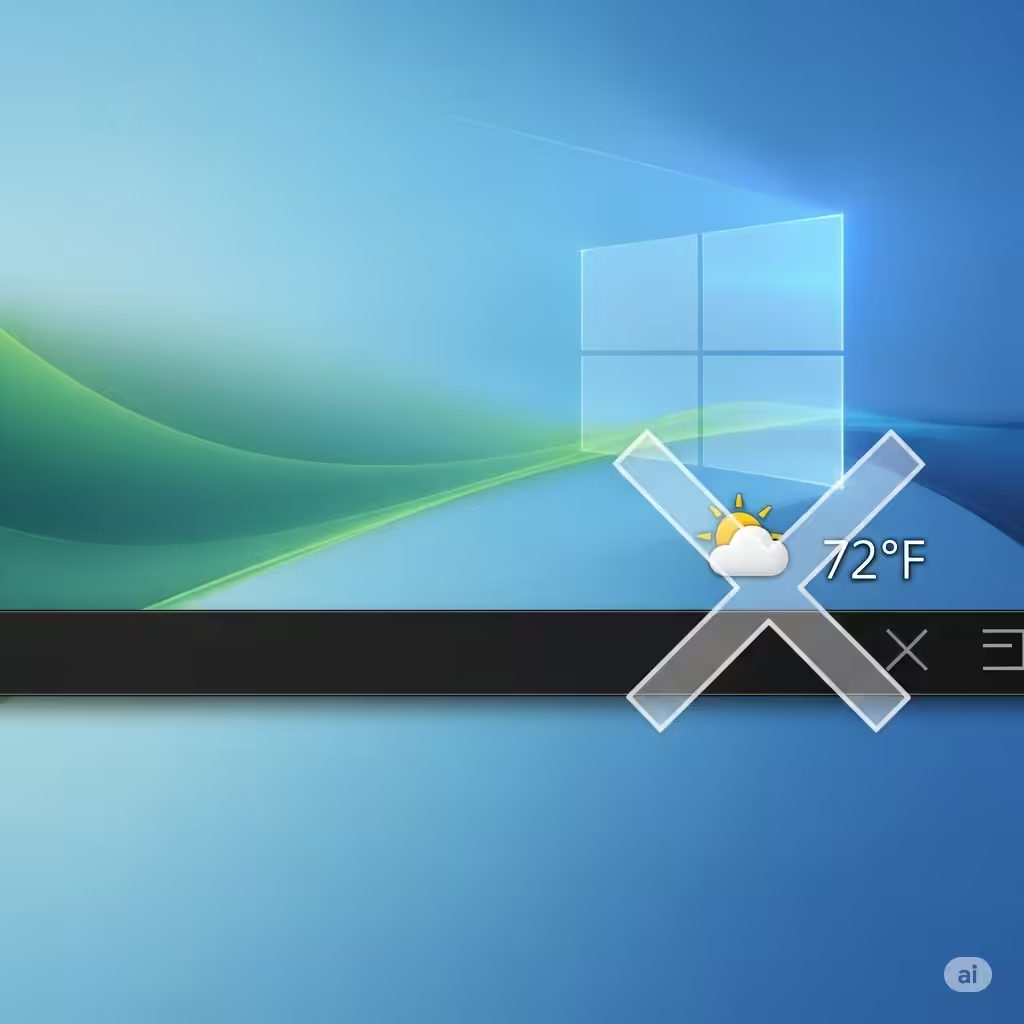
Turn Off Weather and News Display on Windows 10 Taskbar
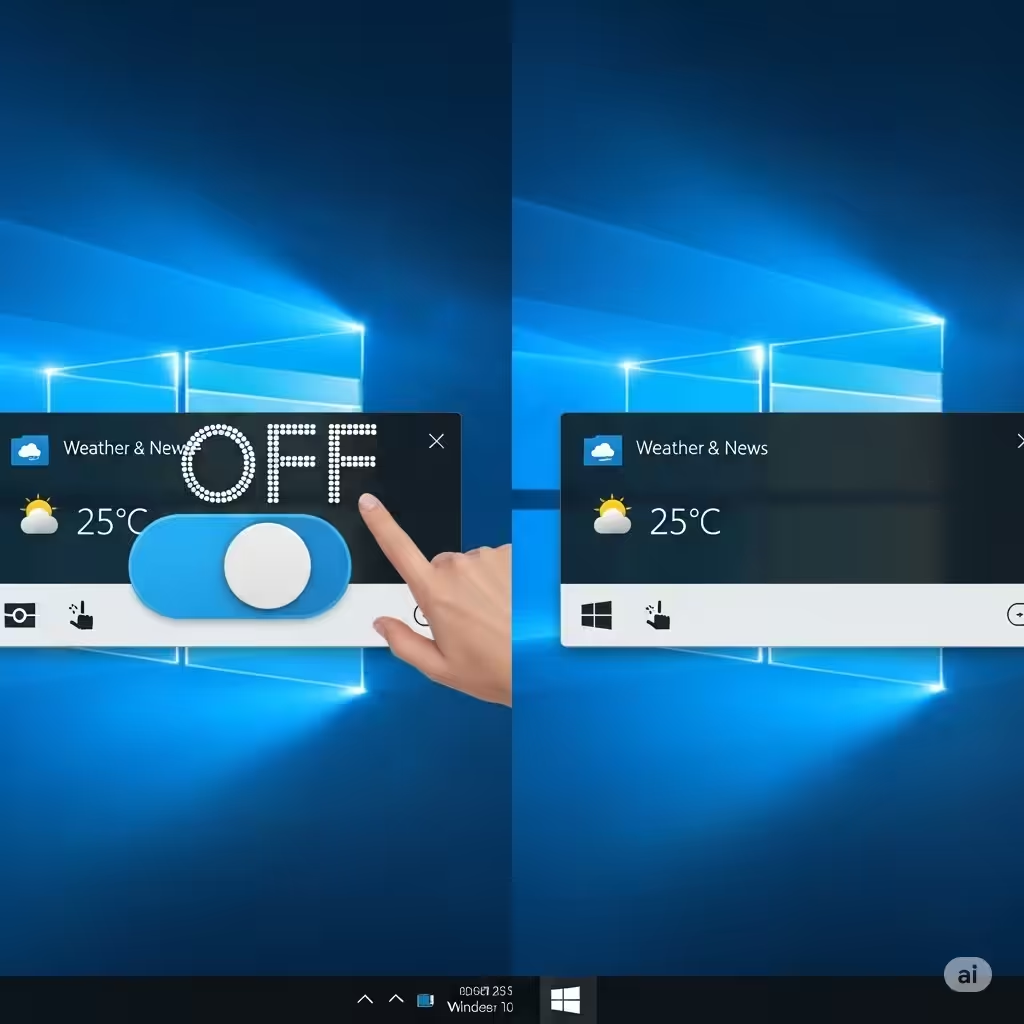
Microsoft introduced a feature called News and Interests in Windows 10, which appears on the taskbar. It shows weather updates, news headlines, traffic, stocks, and other information at a glance. While some users find it useful, others consider it distracting or unnecessary, especially if they want a cleaner taskbar. Fortunately, Windows 10 gives you full control to remove or customize this feature.
This guide will walk you through different methods to remove the Weather and News widget from the taskbar on Windows 10.
What Is the News and Interests Feature?
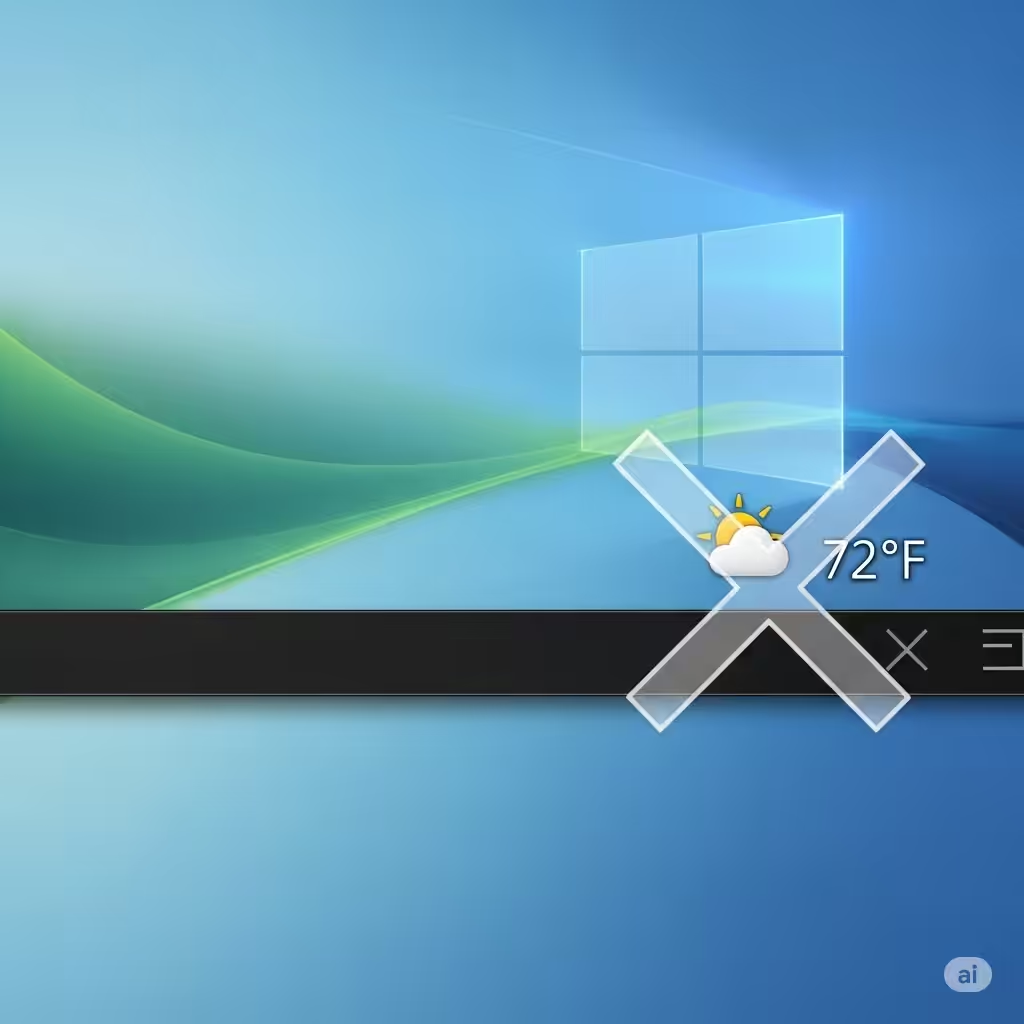
The News and Interests widget is a taskbar panel that shows live updates about the weather, breaking news, finance, and more. By default, it may show the current weather and temperature directly on your taskbar. When you hover over it, a larger panel opens with additional information.
Although it provides real-time updates, it also consumes system resources and may clutter your workspace. If you prefer simplicity or want to avoid distractions, you can easily disable it.
Method 1: Remove Weather and News from the Taskbar via Right-Click Menu
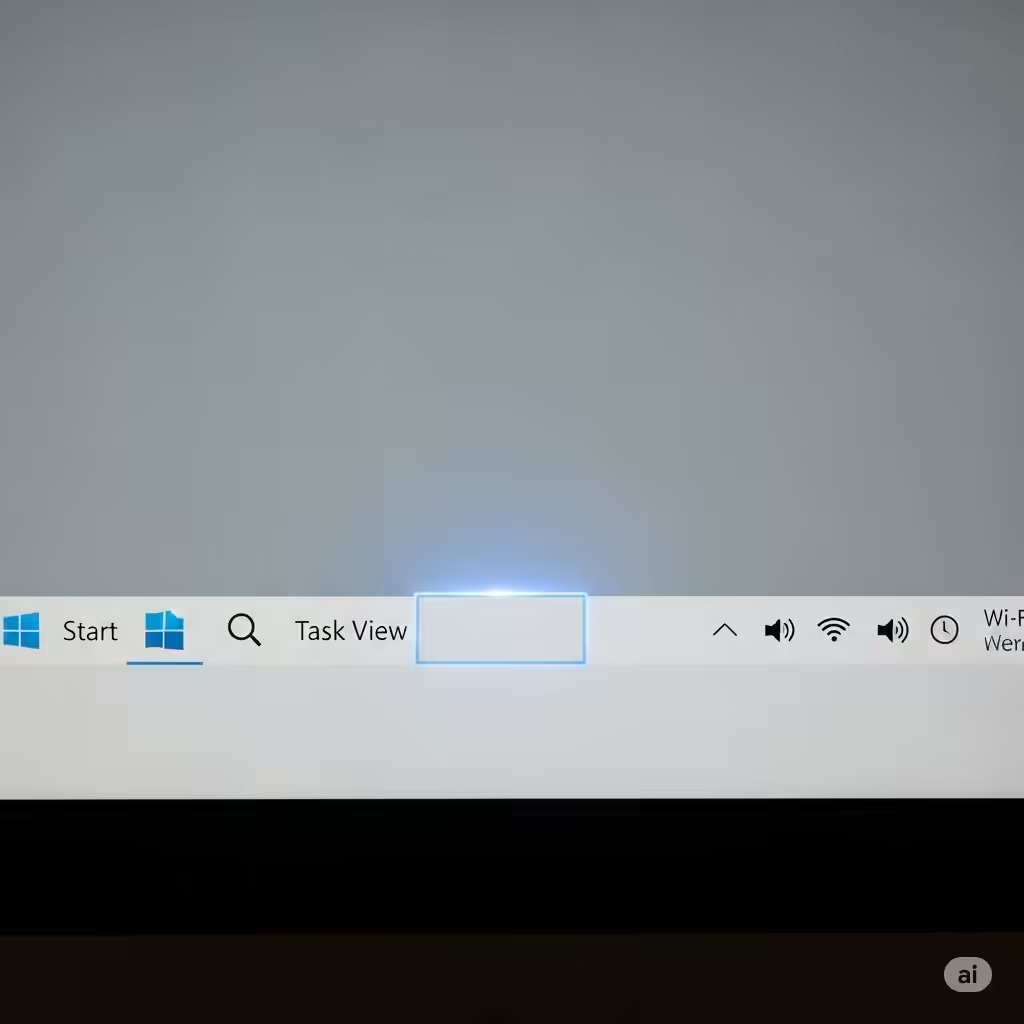
The simplest way to remove the widget is through the taskbar’s built-in menu.
Step 1: Right-Click on the Taskbar
Move your mouse pointer to any empty area on the taskbar and right-click.
Step 2: Select News and Interests
From the context menu, look for the option labeled News and Interests.
Step 3: Choose “Turn Off”
In the submenu, click Turn off.
Once selected, the weather and news widget will disappear immediately from your taskbar.
Method 2: Change the Display Mode Instead of Removing
If you don’t want to remove the feature entirely but prefer a less intrusive version, you can change how it appears.
Options Available:
-
Show icon and text: Displays weather with text (default).
-
Show icon only: Displays only a small weather icon, taking less space.
-
Turn off: Completely removes the feature.
To change the display mode:
-
Right-click the taskbar.
-
Go to News and Interests.
-
Choose your preferred display option.
Method 3: Disable News and Interests Using Group Policy Editor
For users who want a permanent solution, you can disable this feature through the Local Group Policy Editor (available in Windows 10 Pro, Enterprise, and Education editions).
Step 1: Open Group Policy Editor
-
Press Windows + R to open the Run dialog.
-
Type
gpedit.mscand press Enter.
Step 2: Navigate to the Setting
Go to:
Step 3: Configure the Policy
-
Double-click on Enable news and interests on the taskbar.
-
Select Disabled.
-
Click Apply and then OK.
After restarting your computer, the News and Interests widget will no longer appear.
Method 4: Disable via Windows Registry
If you’re using Windows 10 Home (which does not include Group Policy Editor), you can disable News and Interests through the Windows Registry.
Step 1: Open Registry Editor
-
Press Windows + R, type
regedit, and press Enter.
Step 2: Navigate to the Key
Go to:
Step 3: Modify the Registry
-
On the right panel, look for a DWORD value named ShellFeedsTaskbarViewMode.
-
If it doesn’t exist, create a new DWORD (32-bit) Value and name it
ShellFeedsTaskbarViewMode. -
Set its value to:
-
0 = Show icon and text
-
1 = Show icon only
-
2 = Turn off completely
-
-
Restart your PC to apply the changes.
⚠️ Note: Be cautious when editing the Registry. Always create a backup before making changes.
Method 5: Remove via Taskbar Settings
Another way to manage the taskbar appearance is through the Taskbar Settings menu.
-
Right-click the taskbar.
-
Select Taskbar settings.
-
Scroll down to locate the News and Interests section (if available).
-
Disable the option or adjust how it appears.
Why Remove News and Weather from the Taskbar?
While the widget can be convenient, there are several reasons why users may choose to disable it:
-
Cleaner Taskbar: Some prefer a minimal look without extra icons or text.
-
Reduce Distractions: Constant news updates may interrupt workflow.
-
Performance: On older PCs, disabling background widgets may free up system resources.
-
Personal Choice: Not everyone finds the feature useful or necessary.
Can You Re-Enable It Later?
Yes. If you ever change your mind, simply right-click the taskbar, go to News and Interests, and re-enable either Show icon and text or Show icon only.
Tips for Customizing the Taskbar Further
While you’re adjusting the taskbar, you may want to explore other customization options to improve productivity:
-
Pin favorite apps: Right-click an app and choose Pin to taskbar for quicker access.
-
Hide unnecessary icons: Use Taskbar settings to hide system tray icons you don’t use.
-
Auto-hide the taskbar: Enable auto-hide for a cleaner screen and more space.
-
Change taskbar location: Move the taskbar to the top, left, or right of your screen for a fresh layout.
Conclusion
The Weather and News widget on Windows 10’s taskbar, while helpful for some, can be unnecessary or distracting for others. Thankfully, Microsoft provides several ways to manage it. From the simple right-click menu option to advanced methods like Group Policy Editor or Registry tweaks, you have full control over how your taskbar looks and functions.
By following the methods outlined above, you can either remove the widget entirely or adjust it to display in a less intrusive way. This ensures your Windows 10 experience stays clean, efficient, and customized to your preference.