


Windows Server Explained: A Complete Guide
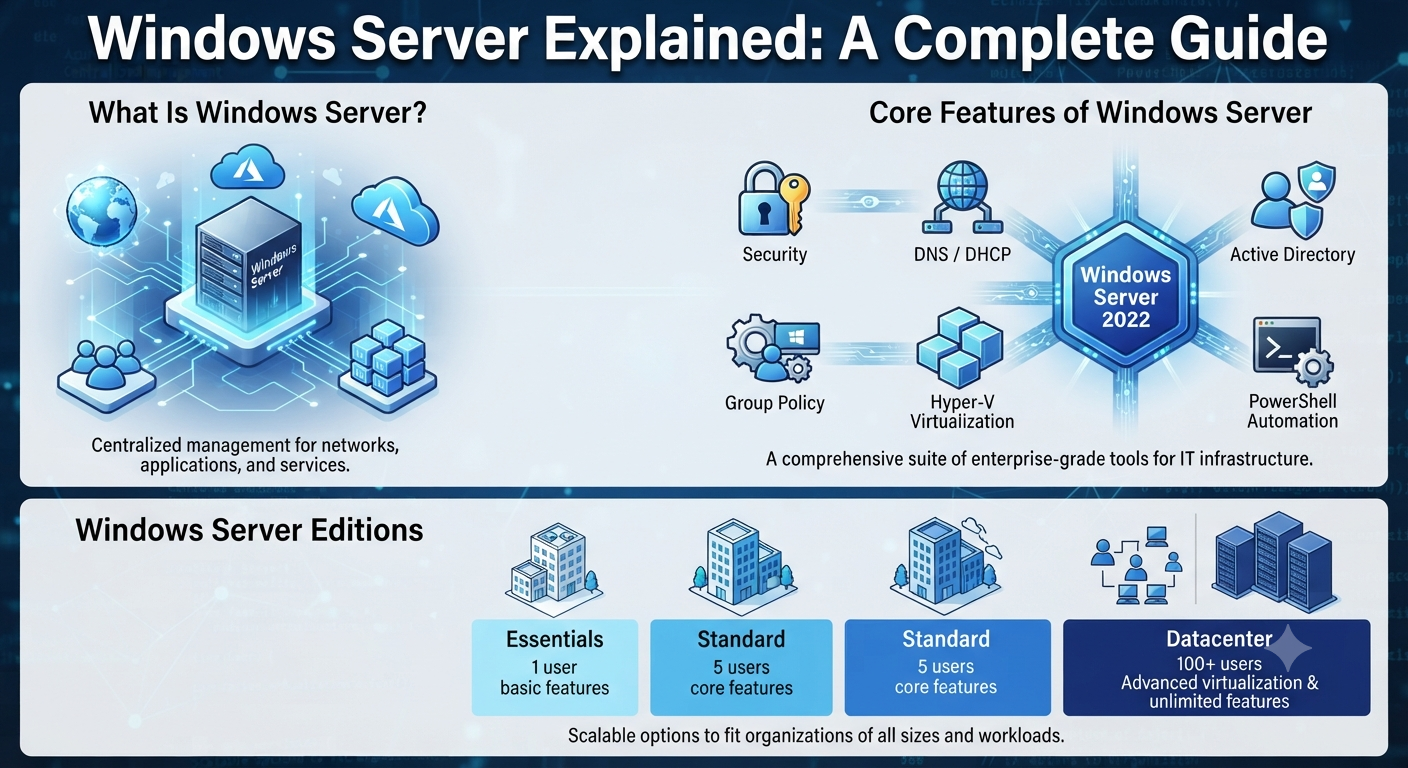
Windows Server is Microsoft’s enterprise-class operating system designed to power business networks, applications, websites, databases, and cloud infrastructure. From small businesses managing a few computers to global enterprises operating thousands of servers, Windows Server provides the tools needed to securely manage users, devices, storage, virtualization, and networking.
Over the years, Windows Server has evolved significantly, introducing stronger security, better virtualization, hybrid cloud integration, and improved management capabilities. Whether you’re an IT administrator, a business owner, or someone beginning a career in system administration, understanding Windows Server is essential for building and maintaining modern IT environments.
This ultimate guide explores what Windows Server is, its core features, editions, common roles, deployment options, and best practices for managing Windows Server effectively.
What Is Windows Server?
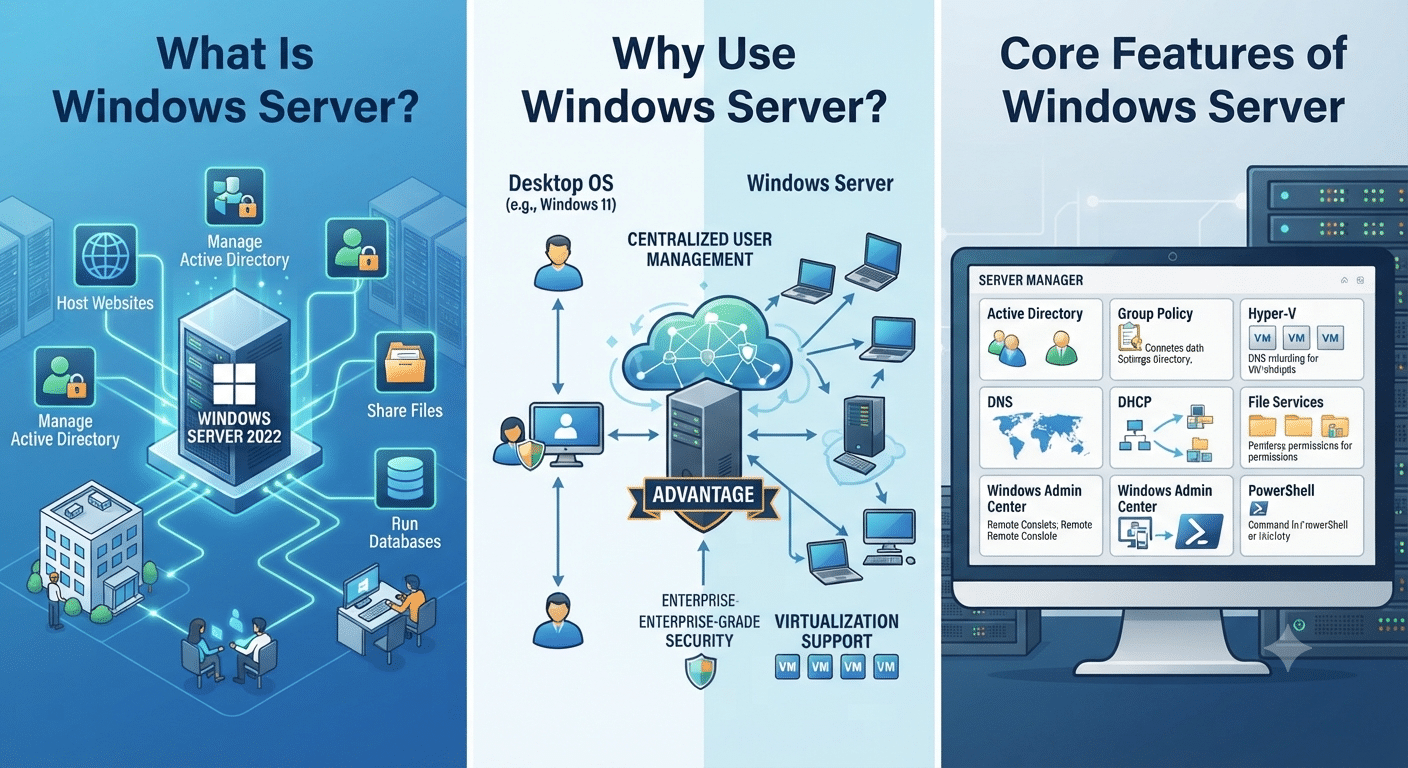
Windows Server is a family of server operating systems developed by Microsoft. Unlike Windows 10 or Windows 11, which are designed primarily for personal computing, Windows Server is built to manage networks, provide centralized services, host applications, and support multiple users and devices simultaneously.
Windows Server is commonly used to:
- Host websites
- Manage Active Directory
- Share files and printers
- Run databases
- Host virtual machines
- Manage enterprise applications
- Provide remote access
- Deliver cloud-connected services
Its scalability and reliability make it suitable for organizations of all sizes.
Why Use Windows Server?
Windows Server offers numerous advantages over desktop operating systems.
Some of the key benefits include:
- Centralized user management
- Enterprise-grade security
- High availability
- Virtualization support
- Flexible storage solutions
- Network management tools
- Advanced backup capabilities
- Integration with Microsoft Azure
These capabilities help organizations build secure, efficient, and scalable IT infrastructures.
History of Windows Server
Microsoft has released many versions of Windows Server over the years.
Some of the most notable releases include:
- Windows 2000 Server
- Windows Server 2003
- Windows Server 2008
- Windows Server 2008 R2
- Windows Server 2012
- Windows Server 2012 R2
- Windows Server 2016
- Windows Server 2019
- Windows Server 2022
Each version introduced improvements in security, performance, virtualization, networking, and management.
Windows Server Editions
Different editions are designed to meet varying organizational needs.
Windows Server Standard
The Standard edition is suitable for small and medium-sized organizations.
Features include:
- Active Directory
- File and print services
- Hyper-V virtualization (with licensing limits)
- Storage Spaces
- Windows Admin Center compatibility
It provides a balance between functionality and cost.
Windows Server Datacenter
Datacenter is designed for highly virtualized and large-scale environments.
Additional capabilities include:
- Unlimited virtualization rights (subject to licensing terms)
- Software-defined networking
- Storage Replica
- Shielded Virtual Machines
- Advanced storage features
It is commonly deployed in enterprise data centers.
Windows Server Essentials
Earlier versions of Windows Server also offered an Essentials edition for small businesses.
It provided simplified management for organizations with fewer users and devices. Availability varies by Windows Server release, so consult Microsoft’s documentation for the edition options offered with your target version.
Core Features of Windows Server
Windows Server includes a broad range of enterprise features.
Some of the most important are:
- Active Directory
- Group Policy
- Hyper-V
- DNS
- DHCP
- File Services
- Print Services
- Remote Desktop Services
- Windows Admin Center
- PowerShell
Together, these tools provide centralized management for business environments.
Active Directory
Active Directory Domain Services (AD DS) is one of Windows Server’s most widely used roles.
It enables administrators to:
- Manage users
- Create groups
- Control permissions
- Authenticate devices
- Apply security policies
- Organize resources
Active Directory simplifies user and device management across an organization.
Group Policy
Group Policy allows administrators to configure settings across multiple computers.
Common uses include:
- Password policies
- Desktop restrictions
- Software deployment
- Security settings
- Windows Update management
- Login scripts
Policies can be applied consistently throughout an organization’s network.
Hyper-V Virtualization
Hyper-V is Microsoft’s built-in virtualization platform.
It allows administrators to create and manage virtual machines for:
- Testing environments
- Development
- Production servers
- Disaster recovery
- Server consolidation
Virtualization improves hardware utilization and simplifies infrastructure management.
Image: Windows Server Hyper-V Manager displaying multiple virtual machines.
DNS Server
The Domain Name System (DNS) translates domain names into IP addresses.
Windows Server DNS supports:
- Internal name resolution
- Active Directory integration
- Conditional forwarding
- Reverse lookup zones
- Secure dynamic updates
Reliable DNS is essential for healthy network operations.
DHCP Server
Dynamic Host Configuration Protocol (DHCP) automatically assigns IP addresses to network devices.
Benefits include:
- Reduced manual configuration
- Automatic address management
- Simplified network administration
- Centralized IP allocation
DHCP helps ensure devices can connect to the network with minimal administrative effort.
File and Storage Services
Windows Server provides advanced file-sharing capabilities.
Features include:
- Shared folders
- NTFS permissions
- Storage Spaces
- Data deduplication
- Distributed File System (DFS)
- File Server Resource Manager
These tools improve storage efficiency and simplify file management.
Remote Desktop Services
Remote Desktop Services (RDS) allows users to access desktops and applications remotely.
Organizations use RDS for:
- Remote work
- Application hosting
- Centralized desktops
- Secure remote access
RDS can help reduce hardware costs while supporting flexible work environments.
Windows Admin Center
Windows Admin Center is a modern browser-based management tool.
Administrators can use it to manage:
- Servers
- Clusters
- Virtual machines
- Storage
- Networking
- Updates
It simplifies administration without requiring direct access to each server.
PowerShell Automation
PowerShell is a command-line shell and scripting language designed for automation.
Administrators use PowerShell to:
- Configure servers
- Manage users
- Automate repetitive tasks
- Deploy software
- Generate reports
Automation reduces manual effort and improves consistency.
Security Features
Security is a major focus of modern Windows Server versions.
Key security features include:
- Windows Defender
- BitLocker Drive Encryption
- Secure Boot
- Windows Firewall
- Credential Guard
- Just Enough Administration (JEA)
- Just-In-Time (JIT) administration
These features help protect servers against evolving cybersecurity threats.
Storage Technologies
Windows Server includes advanced storage capabilities.
Examples include:
- Storage Spaces
- Storage Replica
- SMB file sharing
- iSCSI support
- Data deduplication
These technologies improve scalability, resilience, and storage utilization.
Networking Features
Windows Server offers comprehensive networking functionality.
Administrators can configure:
- VPN services
- Network Load Balancing
- Software-defined networking
- VLAN support
- DNS
- DHCP
- Routing services
These capabilities support both small office and enterprise networks.
Windows Server and Microsoft Azure
Modern Windows Server integrates closely with Microsoft Azure.
Hybrid features include:
- Azure Backup
- Azure Monitor
- Azure Arc
- Azure Site Recovery
- Azure Update Management
Hybrid integration enables organizations to extend on-premises environments into the cloud.
Installation Options
Depending on the Windows Server version, installation options may include:
- Server with Desktop Experience
- Server Core
Server Core offers a minimal installation with fewer graphical components, reducing the attack surface and maintenance requirements.
Desktop Experience provides a traditional graphical interface, making it easier for administrators who prefer GUI-based management.
Licensing Considerations
Windows Server licensing varies depending on:
- Server edition
- Number of processor cores
- Virtualization needs
- Client Access Licenses (CALs)
- User or device access requirements
Organizations should review Microsoft’s current licensing documentation or consult a licensing specialist to ensure compliance.
Best Practices for Managing Windows Server
To maintain a secure and reliable environment:
- Keep servers updated.
- Use strong administrator passwords.
- Enable multi-factor authentication where supported.
- Regularly back up critical data.
- Monitor event logs.
- Restrict administrative privileges.
- Test disaster recovery procedures.
- Document server configurations.
These practices improve security, reliability, and operational efficiency.
Common Use Cases
Windows Server is commonly deployed for:
- Domain controllers
- File servers
- Web servers
- Database servers
- Application hosting
- Virtualization hosts
- Remote Desktop Services
- Print servers
- Backup servers
Its flexibility makes it suitable for many different business scenarios.
Frequently Asked Questions
What is Windows Server used for?
Windows Server is used to manage networks, users, applications, storage, virtualization, and business services. It provides centralized administration and supports enterprise workloads ranging from file sharing to cloud-connected infrastructure.
What is the difference between Windows Server and Windows 11?
Windows 11 is designed primarily for personal and business desktops, while Windows Server is built for managing networks, hosting services, running enterprise applications, and supporting multiple users and devices in an organizational environment.
Which Windows Server edition should I choose?
The appropriate edition depends on your organization’s size and requirements. Standard is often suitable for small and medium-sized businesses, while Datacenter is designed for highly virtualized and large-scale environments. Review Microsoft’s feature comparison and licensing guidance before making a decision.
Can Windows Server run virtual machines?
Yes. Windows Server includes Hyper-V, Microsoft’s built-in virtualization platform, which allows administrators to create and manage virtual machines for testing, development, and production workloads.
Is Windows Server suitable for cloud environments?
Yes. Modern versions of Windows Server integrate with Microsoft Azure and support hybrid cloud scenarios through services such as Azure Backup, Azure Site Recovery, Azure Arc, and Azure Monitor.
Conclusion
Windows Server remains one of the world’s leading enterprise operating systems, providing organizations with powerful tools for managing users, devices, applications, storage, networking, and virtualization. Its extensive feature set, strong security capabilities, and seamless integration with Microsoft Azure make it an excellent choice for businesses seeking a reliable and scalable server platform.